
Screen recording on your iPad (11th generation) is a fantastic way to capture tutorials, save video calls, or record gameplay directly from your display. It's a built-in feature of iPadOS 26 that's incredibly simple to use once you know where to find it. I'll walk you through the whole process.
Add the Screen Recording Button to Control Center
First, you need to make sure the screen recording shortcut is in your Control Center. Swipe down from the top-right corner of your screen to open Control Center. Press and hold on any empty area, then tap Add a Control. Search for Screen Recording and tap the green + next to it to add it. The button, which looks like a solid circle inside another circle, will now be available whenever you open Control Center.
Start Recording Your iPad Screen
To begin, swipe down from the top-right corner to open Control Center. Simply tap the Screen Recording button. You'll see a three-second countdown, giving you time to switch to the app or screen you want to capture. Once the countdown finishes, the button in Control Center will turn red, and a red indicator will appear in your status bar, confirming the recording is active.
Everything you do on screen from that point forward is being captured. You can navigate between apps, use the Apple Pencil, or play a game, and it will all be saved to your video.
How to Record Your Voice with the Screen
By default, the recording only picks up system sounds from your iPad. If you want to narrate what you're doing, you need to enable the microphone. Instead of just tapping the Screen Recording button in Control Center, press and hold it. A small menu will pop up.
At the bottom of this menu, you'll see a Microphone button. Tap it to turn it on (it will turn red). Then, tap Start Recording. Now, your voice and any ambient noise will be included in the video alongside the screen activity, which is perfect for creating how-to guides.
Stop and Save Your Recording
When you're finished, the easiest way to stop is to tap the red status indicator at the top of your screen and then tap Stop. You can also open Control Center again and tap the red Screen Recording button. The recording will automatically process and save directly to your Photos app, in the Videos album.
Trim and Edit the Video
Open the Photos app and find your screen recording. Tap Edit in the top-right corner. You'll see a timeline at the bottom of the screen. Drag the handles on either end to trim off the beginning and end, which is great for removing the moments where you opened Control Center. Tap Done and choose to save it as a new video or overwrite the original.
Share Your Screen Recording
From within the Photos app, open the video and tap the Share button (the square with an arrow pointing up). You can AirDrop it to another Apple device, send it via Messages or Mail, or upload it to a cloud service. For very long recordings, the file size can be large, so you might need to use an app like iMovie to compress it before sharing on some platforms.
Understanding Recording Limitations
While screen recording works with most apps, there are some restrictions due to copyright protection. Streaming video from services like Netflix, Disney+, or Apple TV+ will typically result in a black screen during playback in your recording. Music from Apple Music or other subscription services may also be muted. This is normal and prevents piracy. Your own content, web browsers, games, and most other apps will record without any issue.
Use Screen Recording for Help and Troubleshooting
If you ever encounter a weird bug or glitch on your iPad, recording it is the best way to show someone else exactly what's happening. You can then share that video clip with Apple Support or in a technical forum. It provides clear evidence that's much more helpful than trying to describe a problem in text.
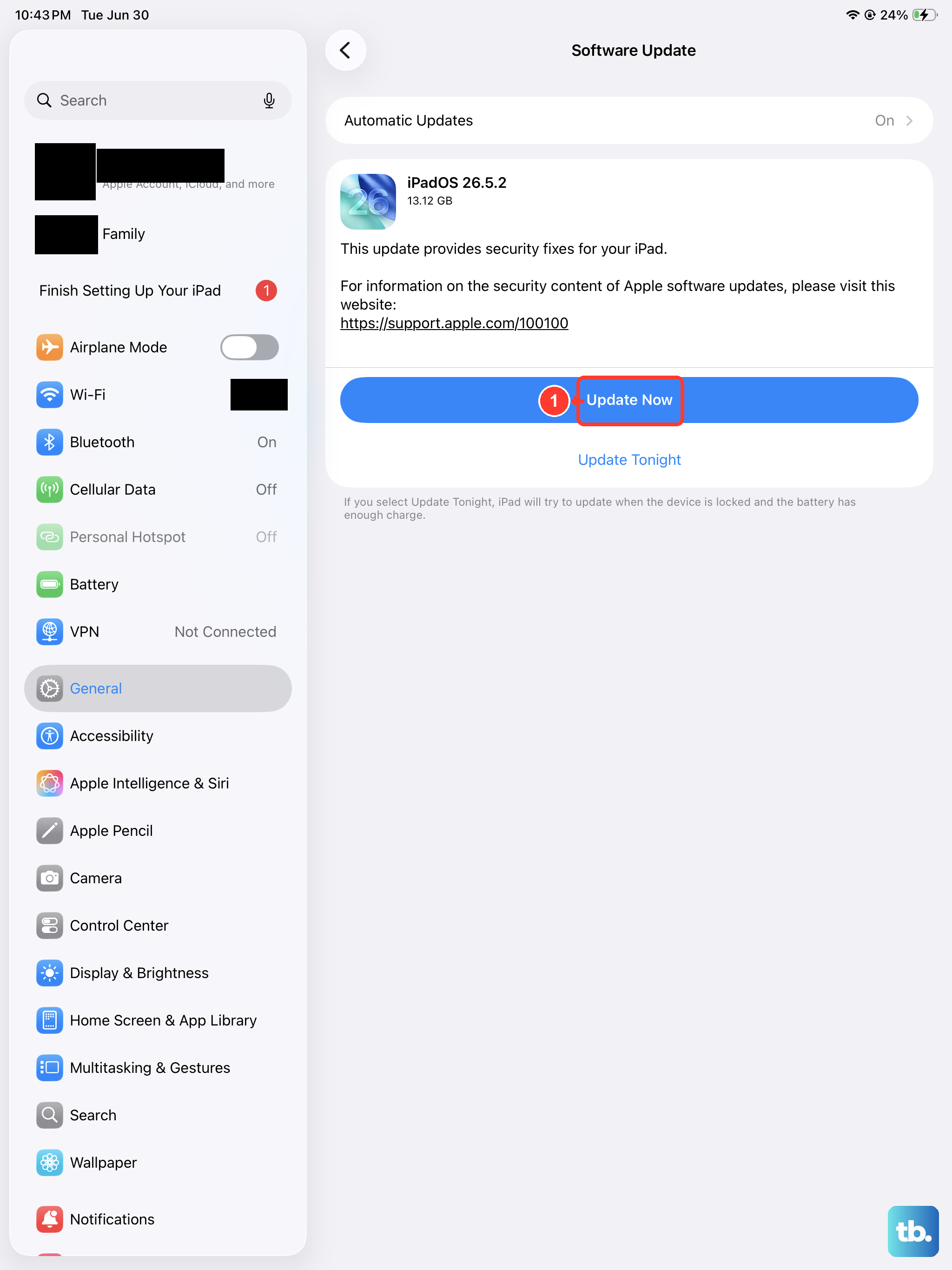
Since you're using the 11th generation iPad, keeping iPadOS updated is a good habit for performance and security. The screen recording feature itself is very reliable, but a software update can sometimes refine how it handles audio or specific apps.