
Screen recording on your Huawei Pura 70 Pro is a built-in feature of EMUI 14.2, letting you capture tutorials, gameplay, or video calls directly from your phone's display. The process is straightforward, but there are a few specific settings and options to know about on Huawei's interface.
Access the Screen Recorder
Swipe down from the top of your screen to open the notification shade, then swipe down again to expand the full Quick Settings panel. Look for the tile labeled Screen recording. If you don't see it immediately, tap the pencil icon or Edit button at the bottom of the panel to customize your layout.
You can drag the Screen recording tile into your active Quick Settings area for easier access in the future. On the Pura 70 Pro, this is the primary and most reliable method to start a recording.
Start Your First Recording
Tap the Screen recording tile in your Quick Settings. A small floating control panel will appear on your screen. Before you start, tap the settings gear icon on this panel to configure your audio sources.
You can choose to record System playback sound (audio from apps and games), Microphone sound (just your voice), or Both. There's also a toggle to Show touches on screen, which is incredibly helpful for creating clear tutorials.
Begin Capturing Your Screen
Once your audio is set, tap the red record button on the floating panel. You'll get a three-second countdown, giving you time to navigate to the app or screen you want to capture. The floating panel will minimize to a small red dot or a timer while recording is active.
You can now use your phone normally. Everything displayed, from swiping through menus to playing a game, will be captured in the video. I'd recommend starting with the "Show touches" option enabled, as it makes the final video much easier to follow.
How to Stop and Save the Recording
To end the recording, tap the red floating indicator or the Stop button in the persistent notification in your status bar. The video will process for a moment and then save automatically.
Your recording will be stored in your phone's Gallery app. Look for it in the "Screen recordings" album or within your general "Videos" folder. The file name usually includes the date and time it was created.
Record Your Voice Over Gameplay
For narrated gameplay or tutorials, you need to enable your microphone. Tap the settings gear on the floating control panel before you hit record and select Microphone sound or Both under the audio source options.
This will capture your commentary along with any in-game sound effects or music. Just be aware that it will also pick up any ambient noise in the room, so a quieter environment is best for clear audio.
Edit the Video Afterward
Open the recording in the Huawei Gallery app. Tap on the video and then select the Edit option. From here, you can trim the beginning and end points to remove any fumbling before or after the main action.
The built-in editor also offers tools to adjust brightness, add filters, or include text stickers. For more advanced editing, you might need to use a third-party app from the AppGallery, as the Pura 70 Pro doesn't have access to Google's suite of apps like Google Photos.
Understand the Recording Limitations
Due to content protection, you cannot record video from most streaming apps like Netflix or Disney+. The recording will typically show a black screen or an error message. Banking and secure payment apps also often block screen recording for security reasons.
This is a standard restriction across all smartphones. For everything else, web browsing, using social media, or playing most mobile games, the screen recorder will work perfectly fine on the Pura 70 Pro.
Adjust Quality and Resolution
To change the quality of your recordings, you need to dive into the main settings. Go to Settings > Apps > Screen recording.
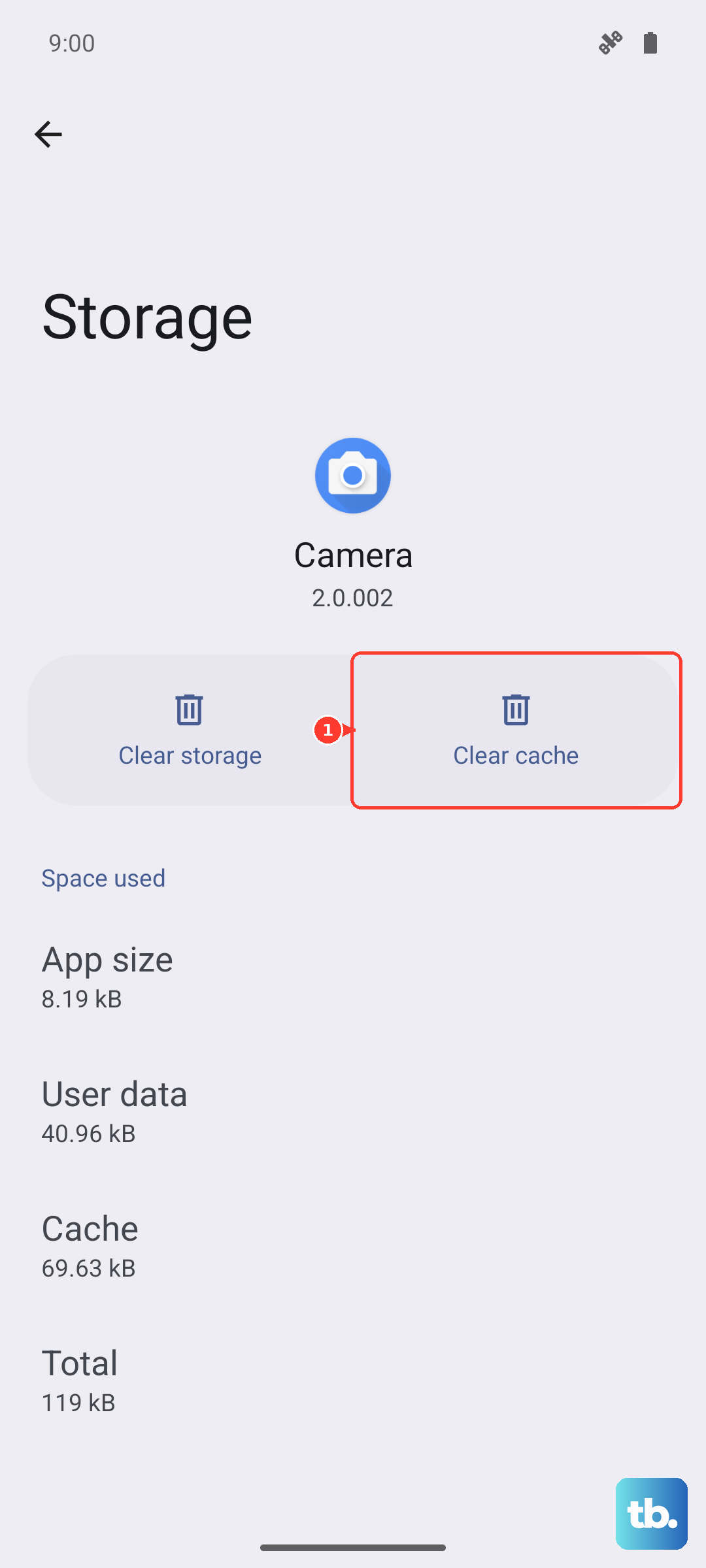
Here, you can manage permissions and, more importantly, tap on Storage to clear cache or data. For resolution settings, you often need to look within the screen recorder's own floating panel settings before you start a recording, where options for resolution might be available depending on your specific EMUI version.
Share Your Screen Recording
Once your video is ready, open it in the Gallery app and tap the Share icon. You can send it directly through messaging apps like WhatsApp, Telegram, or Huawei's own MeeTime. You can also upload it to social media platforms or cloud storage services you have installed.
For very long recordings, the file size can be large. You might want to trim it down or use a video compressor app from the AppGallery before sharing it via email or other size-limited methods.
Using Third-Party Recorder Apps
If you need features beyond the built-in tool, like live drawing or more advanced audio controls, you can install a third-party screen recorder. Since the Pura 70 Pro uses Huawei's AppGallery, search for options like Screen Recorder or Super Screen Recorder available there.
You can also sideload APK files from other trusted sources, but be cautious and ensure you grant the necessary permissions for the app to capture your screen properly. These apps can sometimes offer more customizable frames per second (FPS) settings or built-in video editors.











