A restart is the right move when your computer is stuck, finishing an update, or needs a clean system session. Start with the normal power menu for your device, then use force-restart or recovery options only when the usual controls are unavailable. Here are the current restart steps for Windows, Mac, Chromebook, and Ubuntu.
1. Use the normal restart menu first
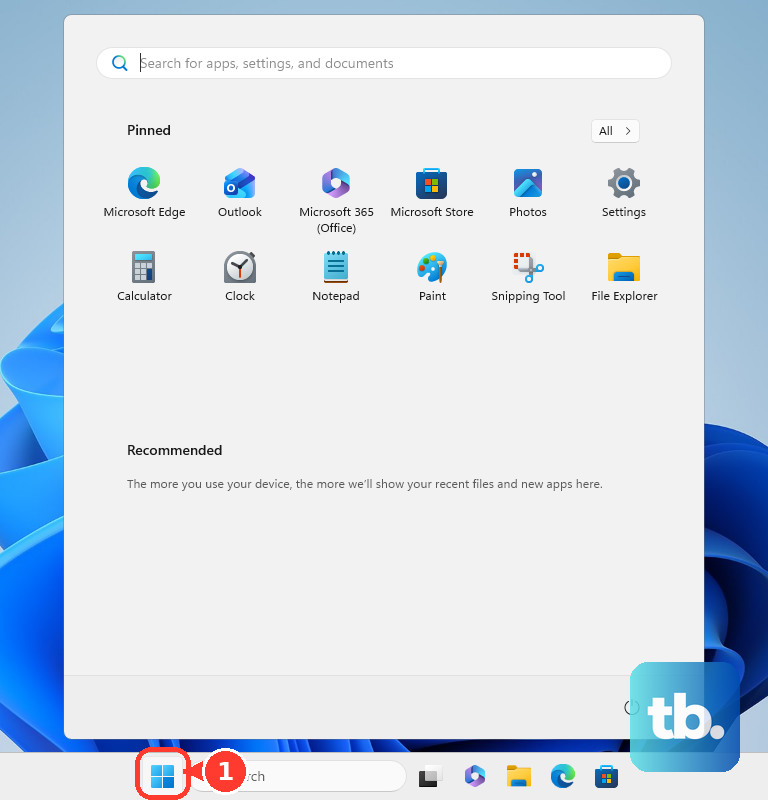
Windows 11: Open Start, select Power, then choose Restart.
Mac: Open the Apple menu, choose Restart, then deselect Reopen windows when logging back in if you want a cleaner login.
Chromebook: Select the time at the bottom right, select Power, then choose Restart.
Ubuntu: Open the top-right system menu, select the Shutdown button, then choose Restart….
For a regular restart, save your work and use the built-in power menu. This is the cleanest path because it lets the operating system close the session before it starts again.
2. Pick another Windows path when Start is awkward
If the regular Windows power button is not the easiest route, use the desktop power-user menu.
Right-click Start.
Select Shut down or sign out.
Choose Restart.
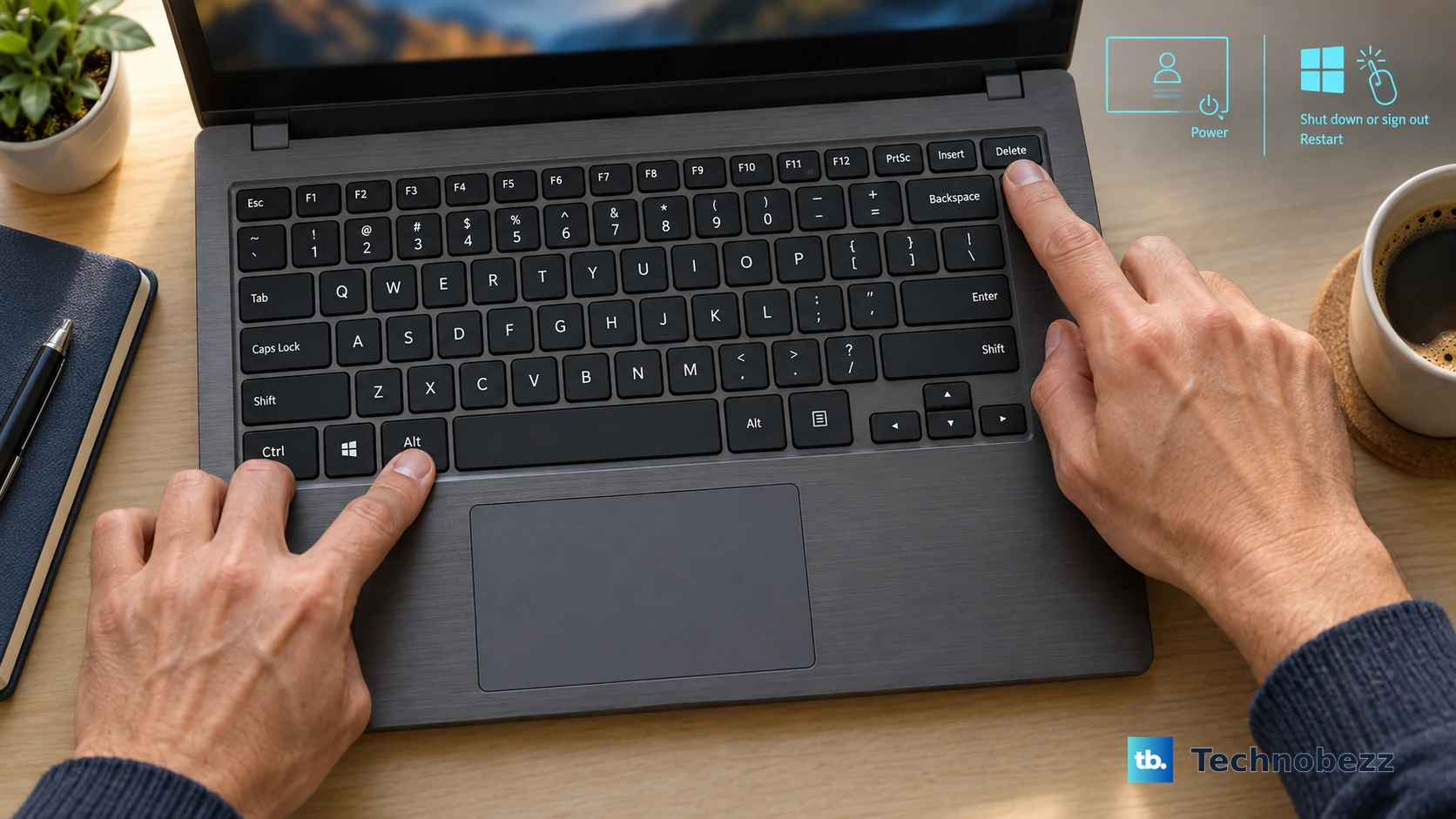
There is another current Windows path from the security screen: press Ctrl + Alt + Delete, select Power in the lower-right corner, then choose Restart.
3. Restart from the update prompt
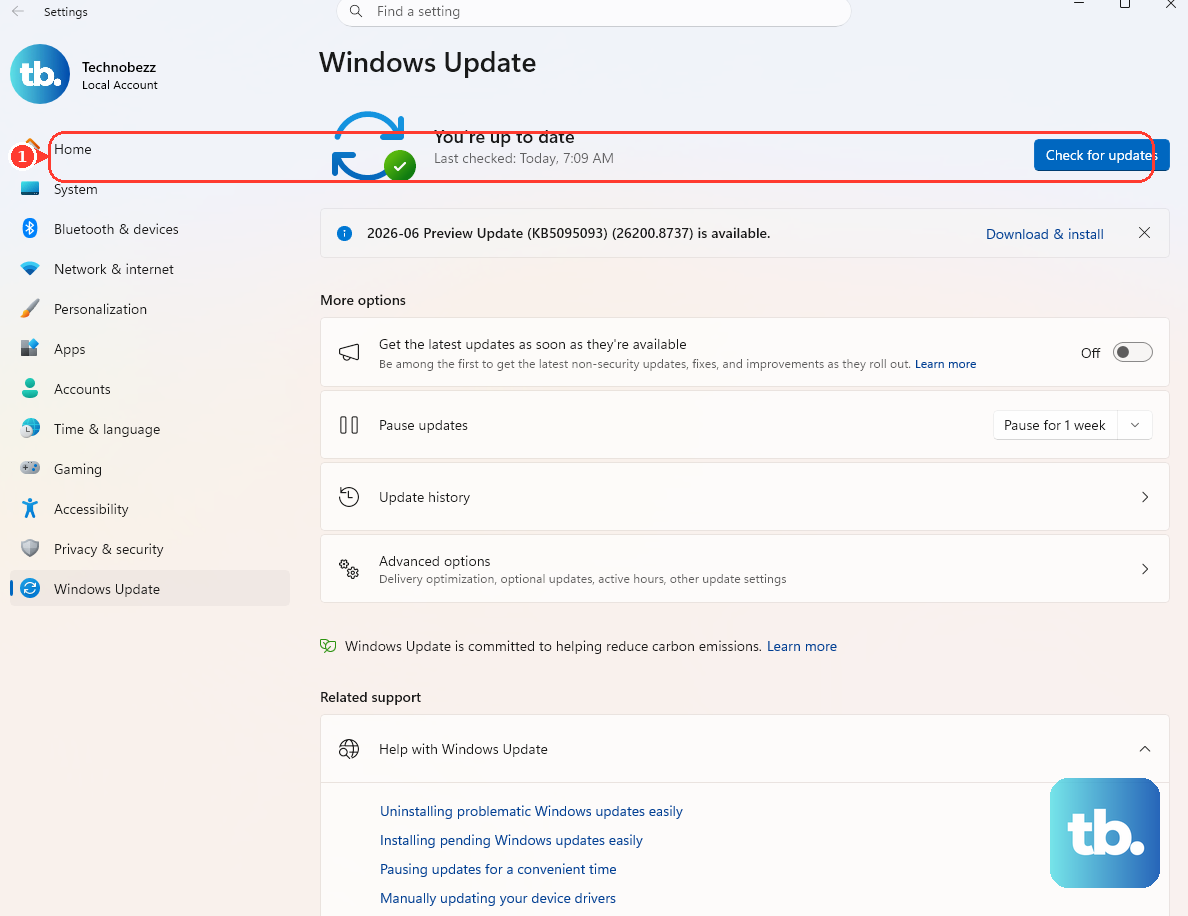
Use the update screen when an update is waiting. It takes you straight to the restart Windows or ChromeOS is asking for.
On Windows, open Start, go to Settings, choose Windows Update, then select Restart now when that button appears. To choose a later time, open Windows Update, select Schedule the restart, then pick the time.
On Chromebook, look near the date and time for an Update device notification, then select Restart. You can also select the time, open Settings, choose About ChromeOS, select Check for updates, then use Restart when ChromeOS prompts you.
To reduce surprise Windows update restarts, open Settings, choose Windows Update, select Advanced options, then set Active hours.
4. Force a frozen device to restart
Use these only when the normal restart controls do not respond. A force restart can close open apps without saving changes.
On Surface (Surface Pro 5th Gen and later, Surface Pro X, Surface Laptop, Surface Laptop Studio, Surface Laptop Go, Surface Go, Surface Studio, and Surface Book 2 or later), press and hold the power button for about 20 seconds until the Surface shuts down, restarts, and the Windows logo appears, then release it. On earlier Surface models (Surface Pro through Pro 4, the original Surface Book, Surface 2 and 3, and Surface RT), press and hold Volume Up + power button for about 15 seconds until the screen turns off, wait 10 seconds, then press the power button to restart.
On Mac, press and hold the power button until the Mac shuts off. Wait a moment, then press the power button again to start it.
On Chromebook, this is a hardware hard reset, so try it only after other fixes fail because it might delete some files in your Downloads folder: turn the Chromebook off, press and hold Refresh, tap Power, then release Refresh when the Chromebook starts. On Chromebook tablets, press Volume Up + Power for at least 10 seconds.
5. Use Mac keyboard restart shortcuts carefully
Some built-in Mac keyboards give you direct restart shortcuts. Use the one that matches what you want the Mac to do with open apps: Control + Option + Command + Power quits apps, then shuts down the Mac, with prompts to save unsaved changes, so press the power button again when you want it back on.
Control + Command + Power force restarts the Mac without prompting to save open documents. For a restart without the confirmation dialog, hold Option while choosing Apple menu and Restart.
6. Open recovery when startup needs repair
- 1.On Windows 11, open Settings.
- 2.Select System.
- 3.Choose Recovery.
- 4.Under Advanced startup, select Restart now.
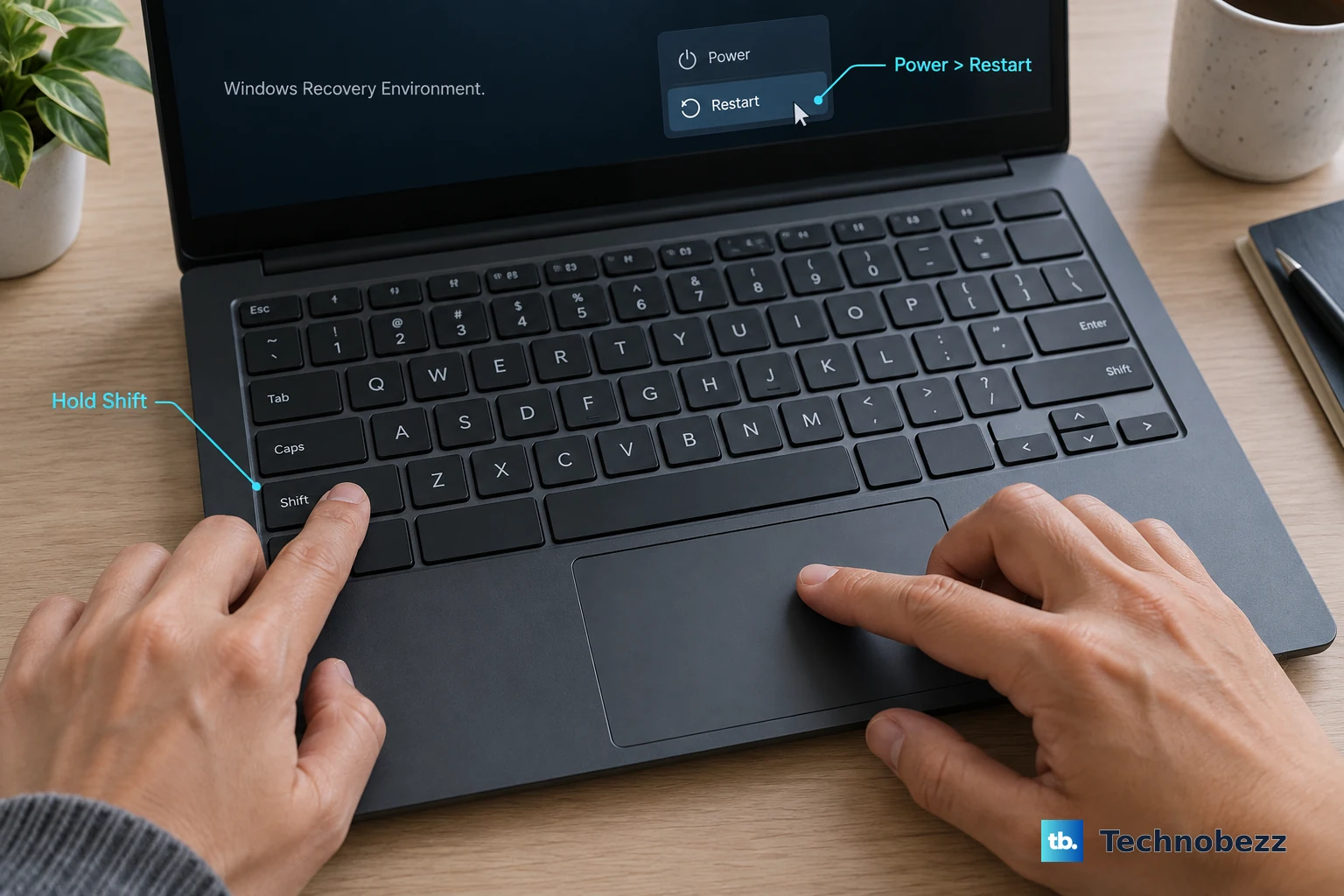
Recovery restart paths are for startup choices, troubleshooting, and repair tools. You can also hold Shift while selecting Power and Restart to enter Windows Recovery Environment. From there, choose Troubleshoot, select Advanced options, choose Startup Settings, then select Restart.
On a Mac already in macOS Recovery, open the Apple menu and choose Restart. On a Chromebook that needs recovery, turn it off, hold Esc + Refresh, press Power, release Power, then release the other keys when the recovery prompt appears. Some Chromebook models use Esc + Maximize + Power instead, and Chromebook tablets use Volume Up + Volume Down + Power held for at least 10 seconds.
7. Run a command when menus are unavailable
Command-line restarts are current supported options for people who already work in Terminal, Command Prompt, PowerShell, or Run.
Windows Command Prompt or Run: Enter shutdown /r. For an immediate restart, enter shutdown /r /t 0.
Windows PowerShell: Enter Restart-Computer.
Mac Terminal: Enter sudo shutdown -r now.
Ubuntu Terminal: Enter systemctl reboot, reboot, or shutdown -r now.
Use an administrator account or an account with shutdown rights when the command requires it.
8. Check managed-device restart rules
Work and school computers can follow restart rules set by an administrator. Windows admins can control active hours, update rings, and update restart behavior. ChromeOS admins can set scheduled reboots and automatic restarts after updates.
Use the normal restart menu when it is available. If the device restarts on a schedule or a restart option is blocked, contact your IT team instead of changing policy settings yourself.
Frequently Asked Questions
What is the safest way to restart a computer?
Use the normal power menu for your system: Start > Power > Restart on Windows, Apple menu > Restart on Mac, time > Power > Restart on Chromebook, or the top-right system menu > Shutdown > Restart on Ubuntu.
Can I restart a computer without using the mouse?
Yes. On Windows, press Ctrl + Alt + Delete, select Power, then choose Restart. On some Mac keyboards, Control + Command + Power force restarts the Mac, while Control + Option + Command + Power quits apps and shuts it down, prompting you to save changes.
How do I restart a computer after updates?
On Windows, go to Start > Settings > Windows Update and choose Restart now when offered. On Chromebook, use the Update device notification near the date and time, then select Restart.
When should I use a force restart?
Use a force restart only when normal restart controls do not respond. On Surface, hold the power button until the Windows logo appears. On Mac, hold the power button until it shuts off, then press it again.