Windows audio settings get tangled after app changes, Bluetooth pairing, driver updates, or a device switch. One app goes silent, sound comes from the wrong speaker, audio crackles, or one earbud sounds louder than the other. Start with the Windows 11 mixer reset, then work through the device, Bluetooth, app, and driver settings that actually control sound.
1. Reset app volumes in Volume mixer
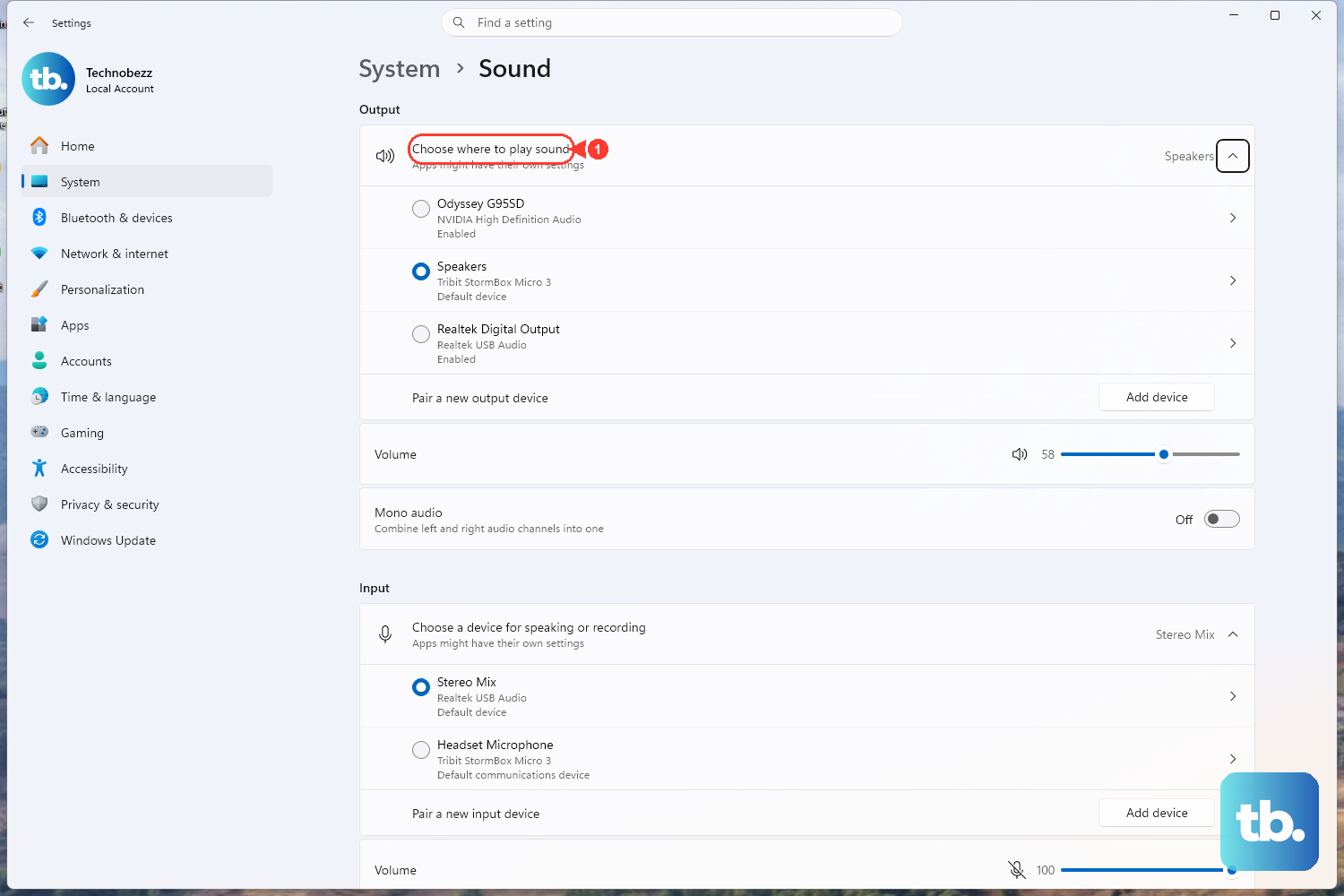
Start here when one app is too quiet, muted, or using the wrong speaker or microphone. Windows 11 has a reset button for per-app volumes and per-app input/output routing.
Open Start.
Go to Settings > System > Sound.
Select Volume mixer.
Under Reset sound devices and volumes for all apps to the recommended defaults, select Reset.
For a faster mixer view, press Win + Ctrl + V. Use that Quick Settings mixer for app volume and device changes, then use the full Volume mixer page for the reset button.
2. Pick the right output device
When every app is silent, Windows is often sending audio to the wrong output. Open Start > Settings > System > Sound, then under Output, select the speaker, monitor, headset, or audio interface you want.
Next, turn the main volume slider up and make sure the device is not muted. Press your keyboard or headset Volume up button and make sure Mute is off.
To set the old playback-list default from Windows 11 Settings, go to Start > Settings > System > Sound > More sound settings > Playback, right-click the device, and choose Set as default.
3. Turn off enhancements and change the format
Use this reset for distorted, crackling, or strangely processed sound.
Open Start > Settings > System > Sound.
Under Output, select your audio device.
Then go to Advanced settings.
Set Audio enhancements to Off.
Under Default format, choose a different supported format, then test audio again.
For Bluetooth audio playing in only one channel, use 2 channels, 16bit, 48000Hz (DVD Quality) in Default format.
4. Fix mono sound, spatial audio, and balance
Some sound problems come from accessibility, surround, or channel balance settings instead of volume.
Mono audio: Go to Start > Settings > Accessibility > Audio, then set Mono audio to Off.
Spatial sound: Go to Start > Settings > System > Sound, select your playback device under Output devices, open Device Properties, set Spatial sound to Off or Windows Sonic for Headphones, then select Apply if Windows shows it.
Bluetooth balance: Go to Start > Settings > System > Sound, select your Bluetooth audio device under Output, open Output settings > Volume, then set Left and Right to the same level, typically 100.
5. Run the troubleshooter and restart services
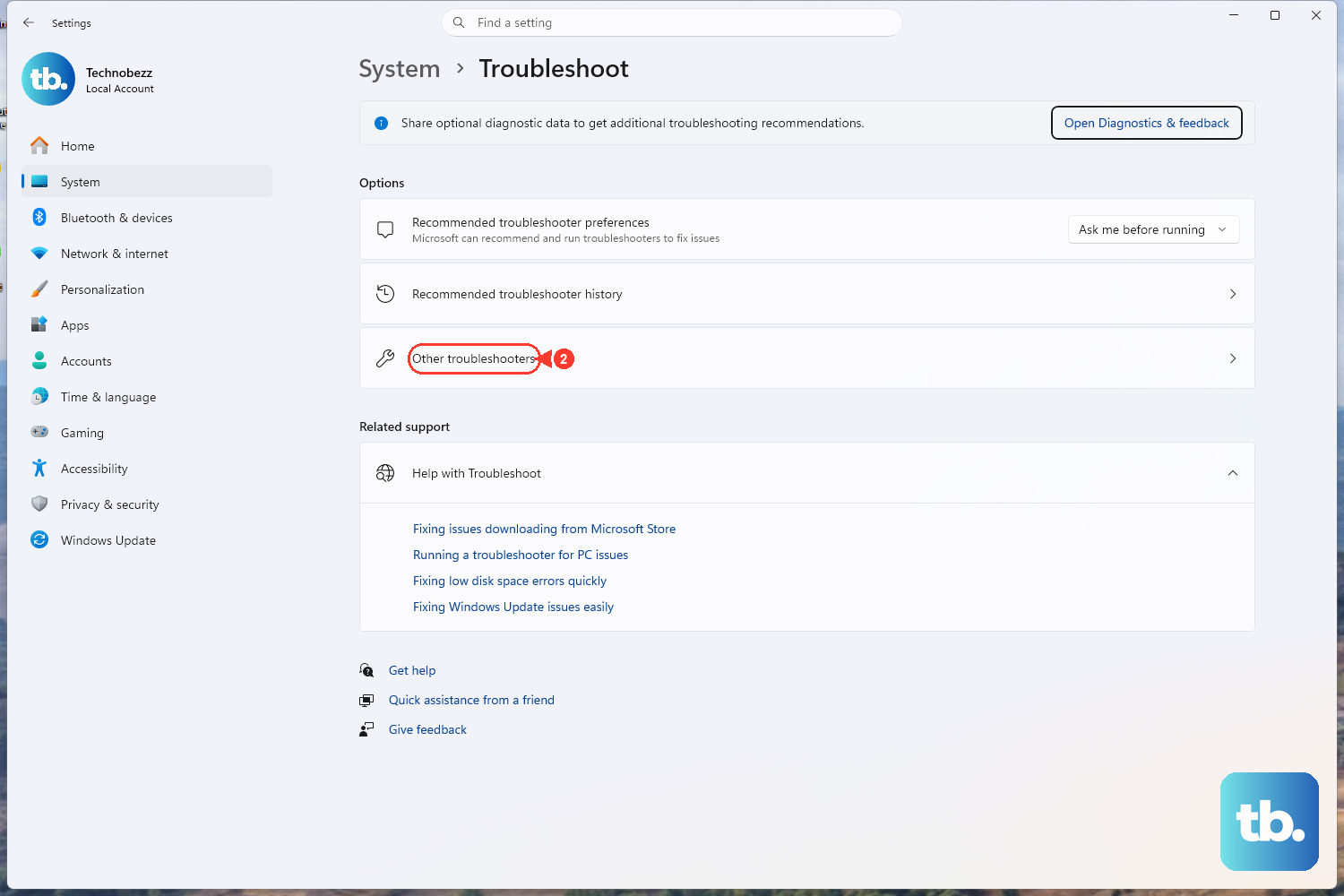
Use this when the settings look right but Windows still refuses to play normally. Open Start > Settings > System > Troubleshoot > Other troubleshooters > Audio, then select Run. On current Windows 11 systems, audio troubleshooting also opens through the Get Help app.
To refresh the audio services, open Start, type services.msc, press Enter, right-click Windows Audio, and choose Restart. Then right-click Windows Audio Endpoint Builder and choose Restart.
6. Re-pair Bluetooth audio
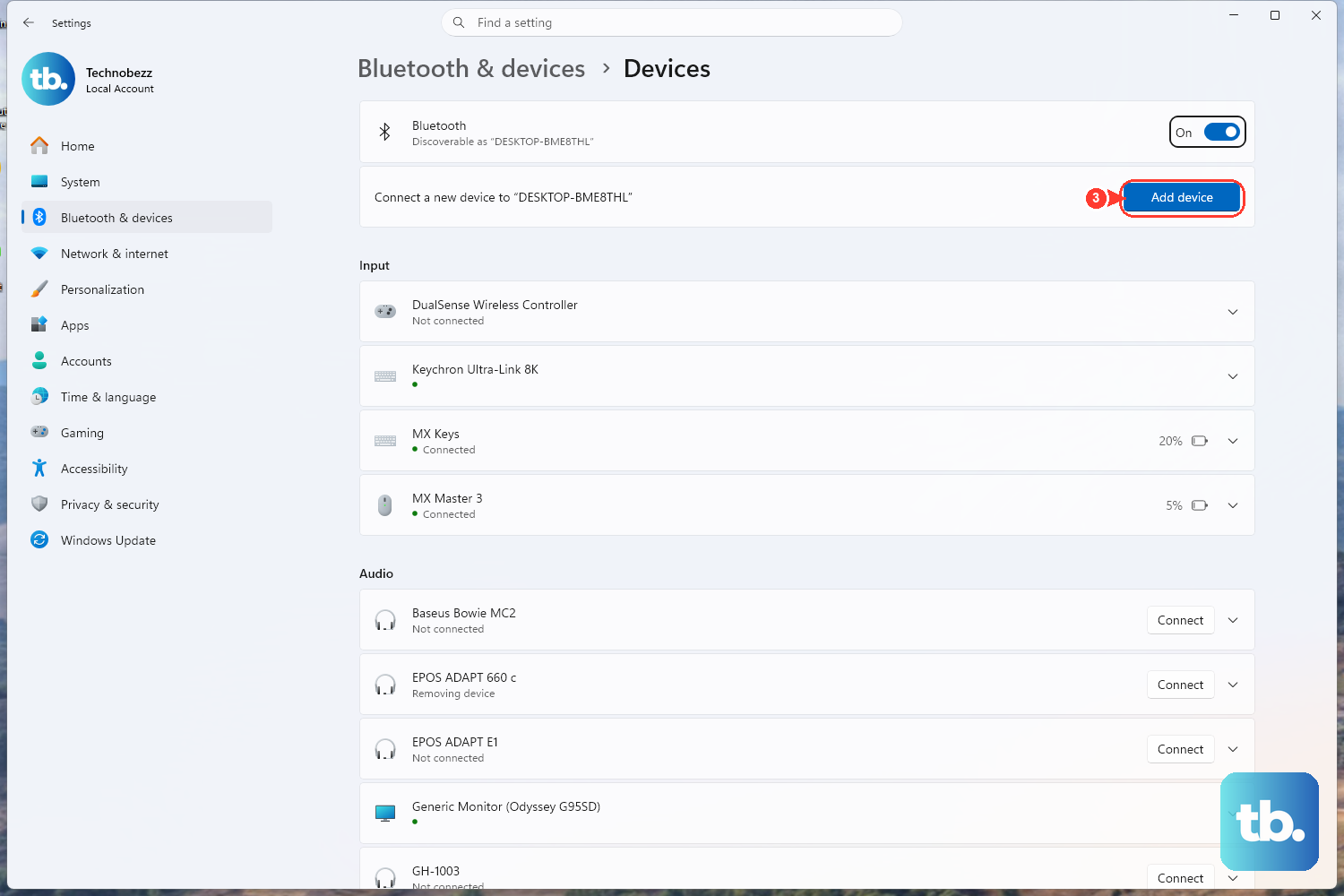
- 1.Open Start > Settings > Bluetooth & devices.
- 2.Find the Bluetooth audio device.
- 3.Select More options.
- 4.Choose Remove device.
- 5.Select Add device.
- 6.Pick the device from the list and pair it again.
Bluetooth speakers, headphones, headsets, and hearing devices keep pairing and routing data. Removing the device and pairing it again gives Windows a fresh connection.
After pairing, go back to Settings > System > Sound and confirm the device appears under Output.
7. Check app and browser sound controls
If only web audio, meetings, or one app is silent, reset that app before changing drivers. In Chrome, open More > Settings > Privacy and security > Site settings > Additional content settings > Sound, then choose the default sound option that lets sites play sound.
In Microsoft Edge, open Settings and more > Settings > Cookies and site permissions > Media autoplay, then choose Allow, Limit, or Block. In Microsoft Teams, go to Settings and more > Settings > Devices > Audio settings and choose the correct Speaker and Microphone.
8. Rebuild the audio driver
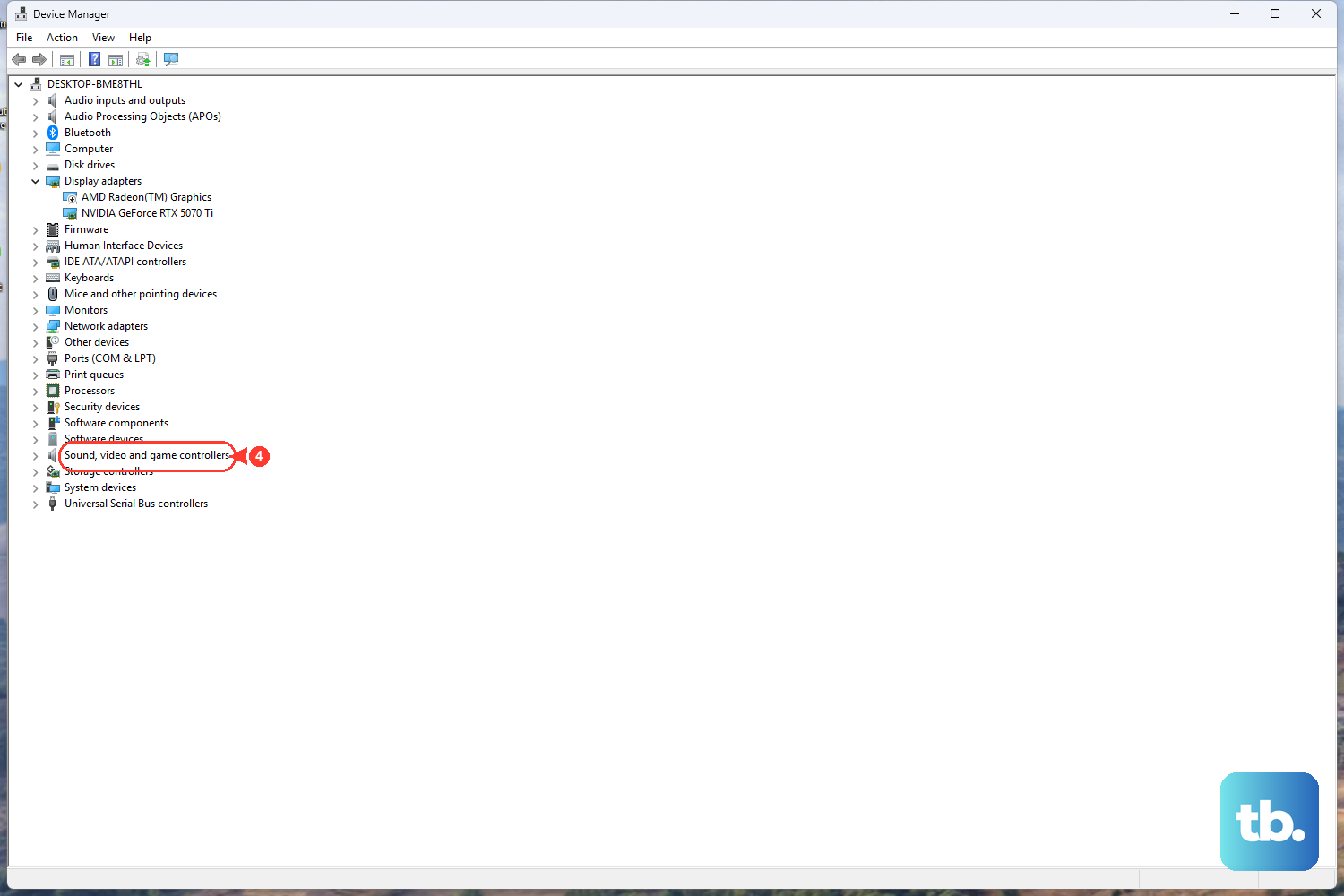
Driver resets come after the mixer, output, format, Bluetooth, and app checks. Start with the smallest driver change and move down only when sound still fails.
Enable or rescan hardware: Open Start, search for Device Manager, expand Sound, video and game controllers, right-click the device, and select Enable device if it appears. For missing hardware, select View > Show hidden devices, then Action > Scan for hardware changes.
Update the driver: In Device Manager, expand Sound, video and game controllers, right-click your audio device, select Update driver, follow the prompts, and restart your PC.
Roll back a bad update: Right-click the audio device, open Properties > Driver > Roll Back Driver, follow the prompts, and select Yes.
Uninstall and reinstall: Right-click the sound card or audio device, choose Uninstall device, select the Attempt to remove the driver for this device check box if Windows offers it, choose Uninstall, then go to Start > Power > Restart.
Try the generic Microsoft driver: Right-click the audio device, select Update driver > Browse my computer for drivers > Let me pick from a list of device drivers on my computer, choose High Definition Audio Device or the listed audio device, then select Next.
For laptops and branded desktops, download the latest audio driver from the PC or sound-card maker's support site. Use the official Dell, HP, Lenovo, ASUS, or device-maker page for your model, not a third-party driver portal.
9. Use recovery as the final reset
When audio broke right after a driver, app, or Windows change, System Restore rolls back system files and settings without changing personal files. Open Windows recovery options, or open Start, search for System Restore or rstrui, choose a restore point, and finish the wizard.
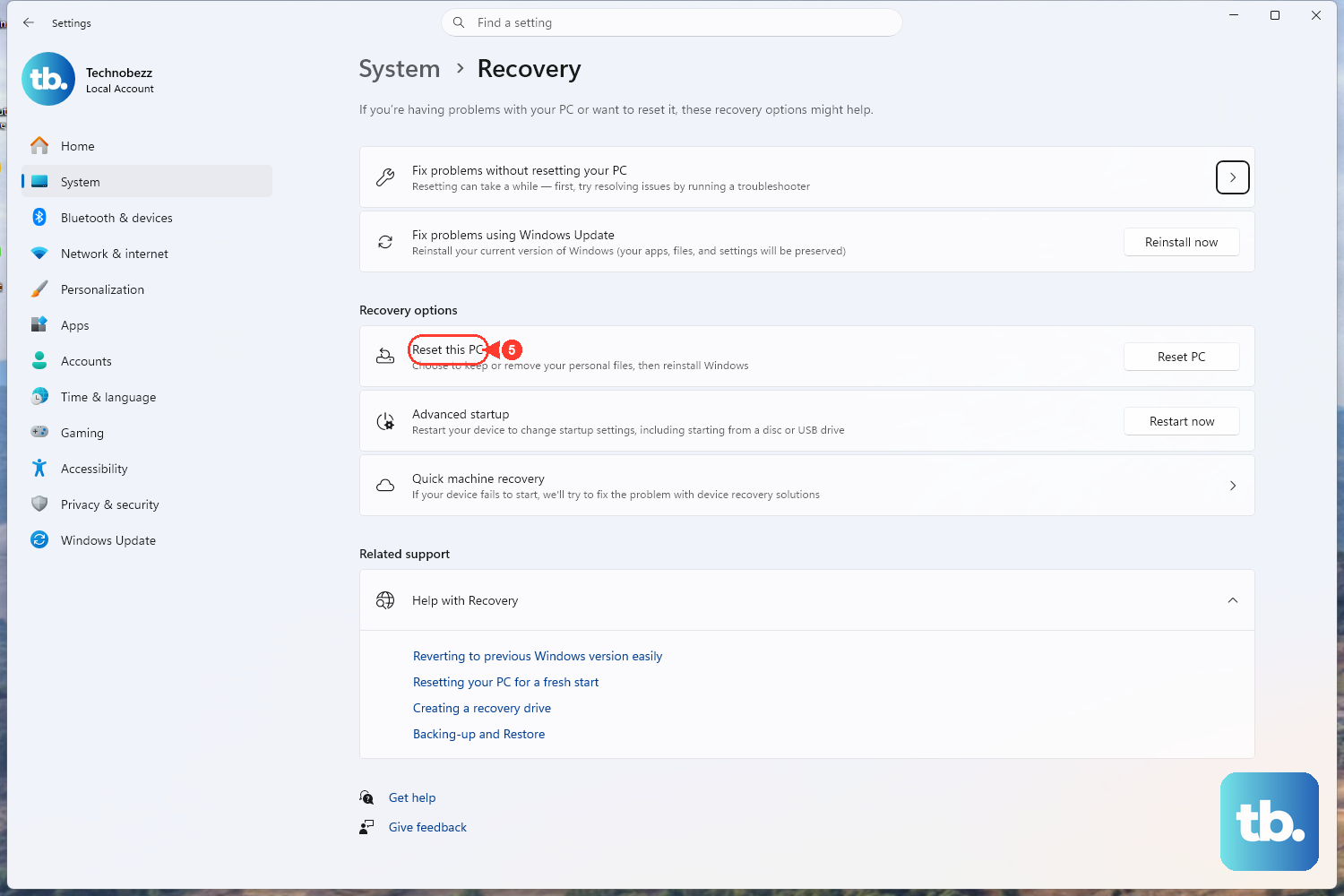
A full PC reset is the last move for a damaged Windows installation, not an ordinary audio fix. Go to Start > Settings > System > Recovery > Reset this PC or Reset PC, then choose Keep my files or Remove everything, choose Cloud download or Local reinstall, and follow the prompts. For installation media or a reinstall, use Microsoft’s official Windows 11 download page.
Frequently Asked Questions
Will resetting audio settings delete my files?
No. Resetting the Volume mixer, changing the output device, turning off enhancements, restarting audio services, or re-pairing Bluetooth audio does not delete personal files.
What should I reset first when only one app has no sound?
Reset the Windows 11 Volume mixer first. It restores per-app volume levels and app-specific input or output routing to Microsoft recommended defaults.
Why does Windows audio work in system sounds but not in Chrome, Edge, or Teams?
That points to an app or browser setting. Check Chrome site sound permissions, Edge media autoplay, or Teams audio devices before changing Windows drivers.
When should I reinstall the audio driver?
Reinstall the driver after the mixer reset, output device, enhancements, format, Bluetooth pairing, troubleshooter, services, and app settings have all failed.