A reset can fix a computer that is slow, broken, misconfigured, or ready for a new owner. The right path depends on the device and on whether you want to keep personal files, erase everything, or repair the operating system without a full wipe. Start with the least destructive option that matches your goal, then move to recovery media only when the built-in reset tools cannot finish the job.
1. Pick the reset that matches the problem
Choose the option by outcome first.
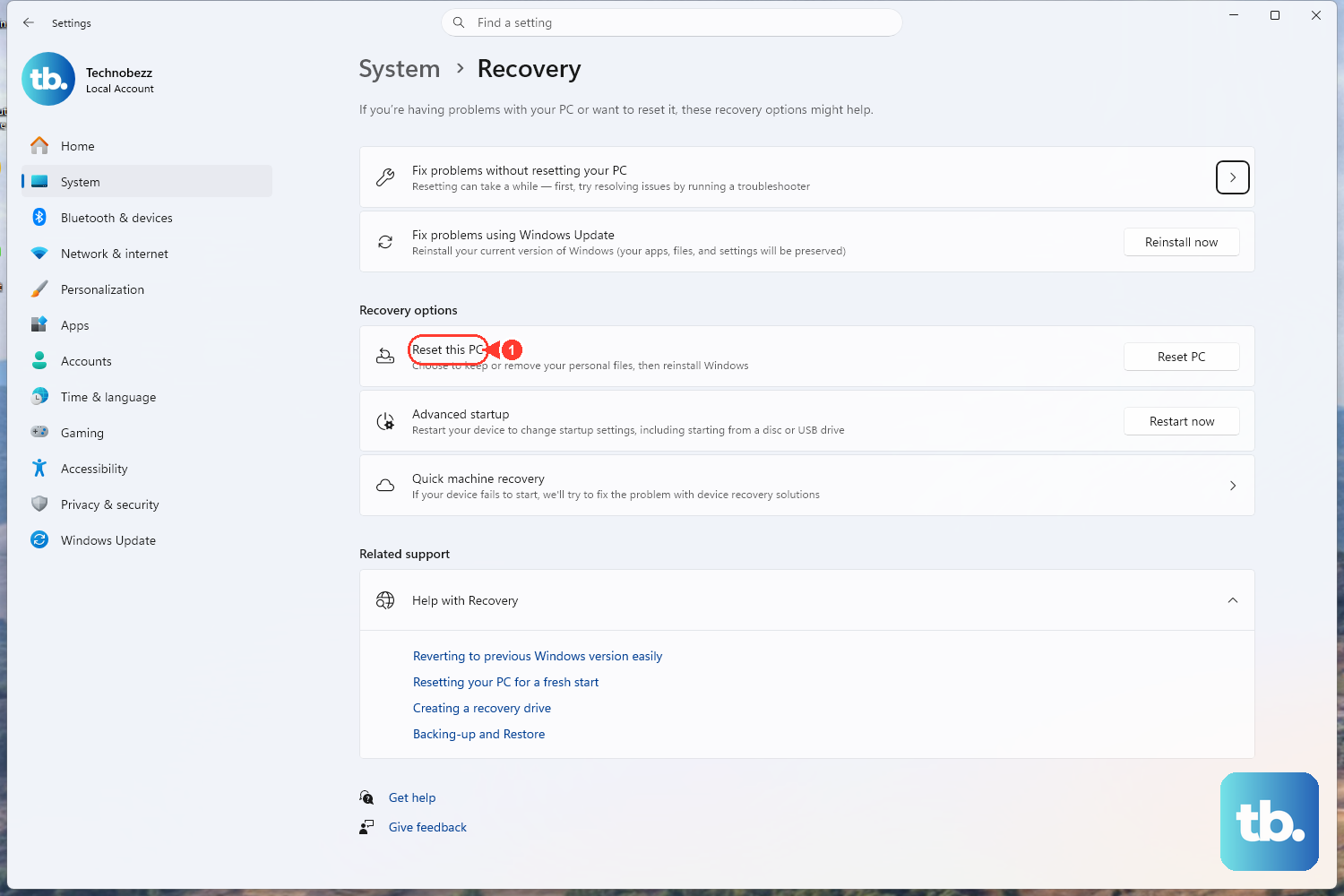
- If Windows still opens and you want a clean reinstall while keeping personal files, use Reset PC with Keep my files.
- If Windows 11 is damaged but you want to preserve apps, files, and settings, use Fix problems using Windows Update and Reinstall now.
- For a computer you are selling, giving away, or handing to someone else, use the erase path. On Windows, that means Remove everything and, when shown, Clean data. On a supported Mac, use Erase All Content and Settings. On a Chromebook, use Powerwash.
- For pop-ups, network trouble, changed settings, or extension problems on ChromeOS, use Safety reset when you want to keep local data and apps.
2. Reset Windows 11 from Settings
- 1.Open Start, then select Settings.
- 2.Select System, then Recovery.
- 3.Under Recovery options, select Reset PC.
- 4.Choose Keep my files or Remove everything.
- 5.Choose Cloud download or Local reinstall.
- 6.Review the remaining reset choices, then follow the on-screen instructions.
Use this when Windows opens normally and you want Microsoft’s main consumer reset path. If you choose Remove everything, Windows may also show Clean data. Some PCs also show Restore preinstalled apps, which controls whether manufacturer apps return after the reset.
3. Repair Windows 11 without wiping it
Use the Windows Update repair reinstall when you need to reinstall the current version of Windows 11 while preserving apps, files, and settings. This option requires Windows 11 with the 2022 annual update plus the February 2024 optional update or later, and it is unavailable on some work or school managed PCs.
- 1.Open Start, then Settings.
- 2.Select System, then Recovery.
- 3.Under Fix problems using Windows Update, select Reinstall now.
- 4.Choose whether Windows should automatically restart 15 minutes after installation completes.
- 5.Select OK.
- 6.Restart the PC when Windows asks you to finish the repair.
This is not a factory reset. It reinstalls the current Windows version through Windows Update and leaves apps, files, and settings in place.
4. Open Windows recovery when the PC will not start
- 1.If Windows still opens, go to Start > Settings > System > Recovery > Advanced startup > Restart now.
- 2.If you are at the sign-in or power screen, hold Shift while selecting Power > Restart.
- 3.In Windows Recovery Environment, select Troubleshoot.
- 4.Select Reset this PC.
- 5.Choose Keep my files or Remove everything.
- 6.Choose Cloud download or Local reinstall, then follow the prompts.
If Windows cannot start cleanly, use Windows Recovery Environment and run Reset this PC from there. A BitLocker-encrypted PC may require the BitLocker recovery key. If the internal recovery tools do not load, boot from a recovery drive.
5. Build Windows recovery media if reset fails
A recovery drive gives Windows an external route into recovery tools.
- 1.Search Recovery Drive from Start, or run recoverydrive.exe.
- 2.Select Back up system files to the recovery drive.
- 3.Select Next.
- 4.Connect a USB drive.
- 5.Select Next, then Create.
To use that drive, boot the PC from the USB recovery drive and let Windows Recovery Environment load. Select Recover from a drive, choose Just remove my files or Fully clean the drive, then select Recover. Microsoft recommends recreating recovery media annually.
Installation media is the other current Windows path. On Microsoft’s Download Windows 11 page, use Create Windows 11 Installation Media and Download Now, run MediaCreationTool.exe, connect the media, open the drive in File Explorer, run setup.exe, select Yes, then choose Change what to keep. Select Keep personal files and apps, Keep personal files only, or Keep nothing, then select Next and Install. The Windows edition and license must match.
6. Erase a Mac from System Settings
- 1.Open the Apple menu.
- 2.Select System Settings.
- 3.Select General.
- 4.Select Transfer or Reset.
- 5.Select Erase All Content and Settings.
- 6.Enter administrator credentials.
- 7.Back up with Time Machine when you want a backup.
- 8.Select Continue.
- 9.Enter your Apple Account password if asked.
- 10.Select Erase All Content & Settings.
On a Mac with Apple silicon or a Mac with the Apple T2 Security Chip running macOS Monterey 12 or later, Erase All Content and Settings is the simplest erase path. On macOS Monterey 12, open the Apple menu, select System Preferences, choose the System Preferences menu in the menu bar, then select Erase All Content and Settings.
7. Reinstall macOS from Recovery
Use Recovery when Erase All Content and Settings is unavailable or when you need to erase the disk and reinstall macOS manually.
On a Mac with Apple silicon, shut down the Mac, press and hold the power button until startup options appear, select Options, then Continue. If prompted, select the startup disk or user. Open Disk Utility, select Macintosh HD, choose Erase, name the volume Macintosh HD, set the format to APFS, then select Erase or Erase Volume Group. If Apple asks for Apple Account information, enter it, select Erase Mac and Restart, activate the Mac on Wi-Fi or Ethernet, exit to Recovery Utilities, then select Reinstall macOS and Continue.
On an Intel-based Mac without the Apple T2 Security Chip, open the Apple menu, select Restart, then immediately hold Command-R. In Recovery, select Disk Utility, select the volume in the sidebar, choose Erase, set the format to APFS, select Erase Volume Group, then Done. Quit Disk Utility, select Reinstall macOS, then Continue.
For a reinstall that does not erase data by itself, skip Disk Utility and choose Reinstall macOS from Recovery. On Intel Macs, Option-Command-R installs the latest compatible macOS, Option-Shift-Command-R reinstalls the original or closest available macOS, and Command-R reinstalls the current macOS.
8. Powerwash or recover a Chromebook
- 1.Sign out of the Chromebook.
- 2.Press and hold Ctrl + Alt + Shift + r.
- 3.Select Restart.
- 4.In the box, select Powerwash.
- 5.Select Continue.
- 6.Follow the remaining steps and sign in with your Google Account.
A Chromebook factory reset is called Powerwash. It erases local hard-drive data, settings, apps, and files, but it does not erase Google Drive or external drive files. The Google Account used after the reset becomes the owner account.
For a lighter ChromeOS fix, select the time at the bottom right, then open Settings > System preferences > Reset > Safety reset. ChromeOS shows Your device is back to safety and asks you to re-enable extensions and review network and input settings. Safety reset disables extensions, resets Chrome settings and shortcuts, deletes cookies and temporary site data, and keeps bookmarks, history, saved passwords, local data, and apps.
When ChromeOS is missing or damaged, enter recovery mode and select Recover using internet connection. On a Chromebook, hold Esc + Refresh, press Power, then release Power. Some models use Esc + Maximize + Power. If internet recovery is unavailable, use another Chromebook, Windows PC, or Mac with Chrome, install the Chromebook Recovery Utility extension, launch it from Extensions, create recovery media on a USB drive of at least 8 GB, then choose Recover using external disk on the affected Chromebook.
9. Use special reset tools only when they apply
Surface recovery image is the Surface-specific path when the standard Windows options are not enough. Go to the Surface Recovery Image Download page, select the Surface model, download the recovery image .zip file, create a USB recovery drive, copy the recovery image files to the USB drive, boot the Surface from that USB recovery drive, and reset the Surface. Microsoft describes this as returning Surface to factory settings, deleting personal files, resetting settings, and removing installed apps.
- If the computer belongs to work or school, the organization may control reset options remotely. Windows devices can be wiped from Microsoft Intune admin center > Devices > All devices > the device > Wipe.
- Managed Macs can receive the EraseDevice command through device management.
- Managed ChromeOS devices can be reset in the Google Admin console under Menu > Devices > Chrome > Devices; click the device serial number and select Reset, or select devices and choose More > Reset, then choose Clear User Profiles or Factory Reset and confirm.
These are administrator tools, not options for an unmanaged personal computer.
Skip older consumer reset methods when you see them in outdated instructions. Do not use Windows Fresh Start as a current consumer reset path, do not rely on older ChromeOS Settings paths for Powerwash, and do not use the old Chromebook Recovery Utility app workflow. Use Reset PC, Reinstall now, the sign-in screen Powerwash shortcut, and the Chromebook Recovery Utility extension instead.
Frequently Asked Questions
What is the safest way to reset a computer without losing files?
On Windows 11, use Reset PC with Keep my files, or use Fix problems using Windows Update with Reinstall now when you want to preserve apps, files, and settings. On ChromeOS, use Safety reset for settings and extension problems without wiping local data and apps.
Does reinstalling macOS erase everything?
Reinstalling macOS does not erase data by itself. A Mac is erased when you use Erase All Content and Settings or erase Macintosh HD in Disk Utility before reinstalling macOS.
Which Windows reset option should I use before selling a PC?
Use Reset PC, choose Remove everything, and select Clean data when that option appears. That is the erase path in Microsoft’s current Windows reset guidance.
Can a school or company stop me from resetting a computer?
Managed Windows, Mac, and ChromeOS devices can have reset options controlled by the organization. Work and school devices may require administrator tools or approval before a wipe.