Want a password prompt before someone can open your private files? Windows has no built-in setting that adds a separate password to an ordinary folder, but an encrypted archive or container gives you that protection. Start with 7-Zip for a protected copy, or use VeraCrypt to access your folder through a password-protected drive.
Password protect a folder with 7-Zip
Download the Windows installer matching your computer’s x64, x86, or ARM64 architecture from the official 7-Zip download page. Install 7-Zip using the downloaded installer, then open 7-Zip File Manager. Select the folder you want to protect.
Click Add to open Add to Archive. Set Archive format to 7z. Enter your password under Encryption, then enter the same password in the confirmation field.
Choose AES-256 as the encryption method. Select Encrypt file names to protect filenames as well as file contents. Click OK to create the encrypted archive. Tip: Keep 7z selected when you want filename encryption, because 7-Zip’s zip option does not offer it.
If the original folder still opens without a password
Archive creation leaves your original folder separately accessible, so opening that copy will not ask for a password.
Open the encrypted archive in 7-Zip File Manager with your password. Check that the protected copy contains the files you need, then remove the original plaintext copy only after that check.
The same rule applies to containers and vaults: copying a folder into protected storage leaves any copies outside it unprotected.
Create a password-protected drive with VeraCrypt
A VeraCrypt file container gives your folder encrypted storage that opens as a drive after you enter its password.
Download the Windows package matching your processor architecture from the official VeraCrypt downloads page. Current Windows support covers Windows 11 x64 and ARM64, plus Windows 10 version 1809 or later on those architectures.
Install VeraCrypt using the downloaded package, then open VeraCrypt. Click Create Volume and choose the file-container option in the volume-creation wizard.
Select the standard volume type, then use Select File to specify a new container file. Choose the encryption settings in the wizard, then set the container’s size.
Assign its password, then complete Format to create the container. Select a drive letter in VeraCrypt’s main window, then click Select File.
Choose your container file, then click Mount. Enter the password and click OK to unlock the encrypted volume.
Copy your folder into the mounted drive. Select Unmount when you finish to close access to the mounted volume.
When Windows account encryption is enough
Use Windows Encrypting File System, or EFS, to encrypt an existing NTFS folder with your Windows account’s encryption certificate. It works on Windows 11 Pro, Enterprise, and Education, and corresponding Windows 10 editions, without adding an independent folder password.
Right-click the folder and select Properties. Click Advanced..., then select Encrypt contents to secure data.
Click OK, then click Apply. Choose to apply encryption to the folder, subfolders, and files when prompted, and confirm with OK. Open Command Prompt to back up your EFS certificate and private key.
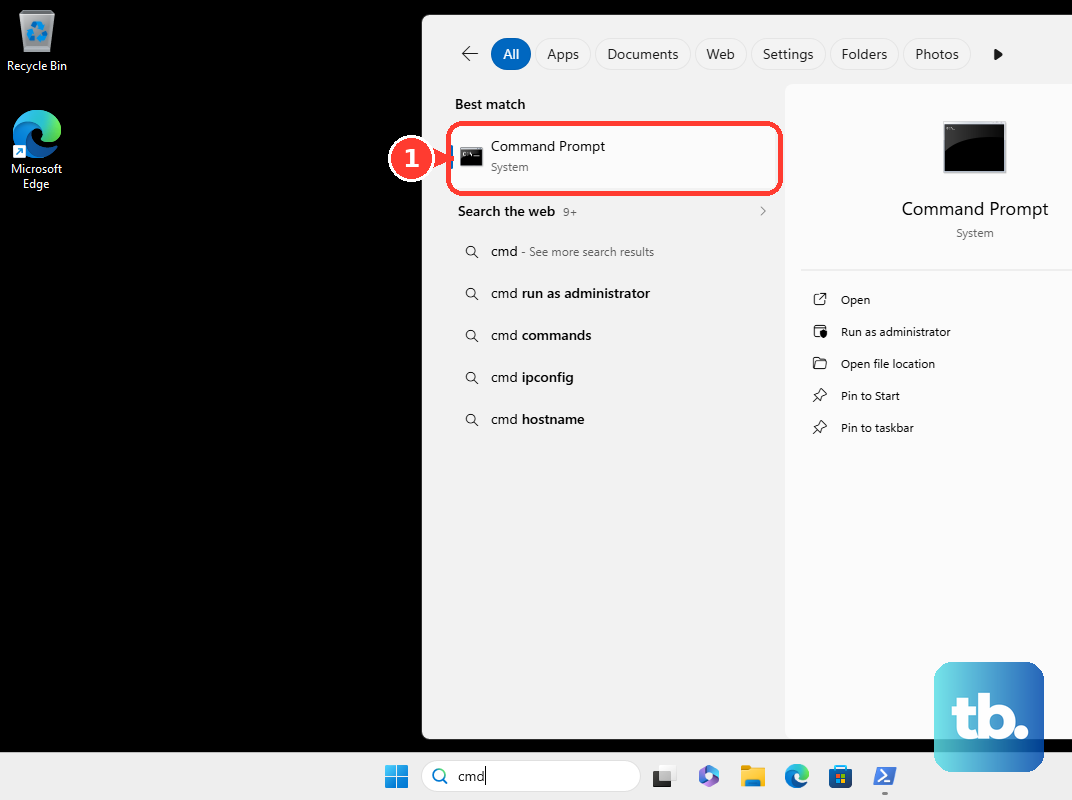
Run cipher /x "C:\SafeBackup\EFS-key", replacing the example backup path with your chosen location. The backup password protects the exported key. For a separate password on your protected files, use an encrypted archive or container.
What Windows Home and ordinary ZIP files can do
Windows Home does not offer EFS or the full BitLocker management interface. Eligible Windows 11 Home devices support whole-device encryption through Settings > Privacy & security > Device encryption, but that feature does not create a folder password.
File Explorer’s Compressed (zipped) folder command creates an archive without password protection. Microsoft directs you to third-party software for encrypted archives, so making a ZIP in Explorer alone leaves its contents without password protection.
Hidden-folder and Locker.bat tricks change visibility without encrypting files or creating a secure password boundary. Use an encrypted archive or container to protect file contents.
Protect a whole data drive with BitLocker
Choose BitLocker to protect the entire drive containing your folder, including a removable drive through BitLocker To Go. Its management interface requires Windows 11 Pro, Enterprise, or Education, or a corresponding Windows 10 edition.
Sign in to Windows as an administrator. Search Start for BitLocker, then open Manage BitLocker. Select the data drive containing your folder.
Click Turn on BitLocker and configure unlocking through the wizard. Save the recovery key when prompted, then complete the wizard to encrypt the drive.
For an already encrypted data drive, expand its entry in Manage BitLocker. Select Add password, then enter the drive password. Confirm the password and click Finish. Adding a password protector alone does not encrypt an unencrypted drive.
To recover access with a key saved to your Microsoft account, open Microsoft’s recovery-key page. Sign in to the Microsoft account associated with the device, then match the displayed key ID to the corresponding 48-digit recovery key. Use that recovery key to unlock the drive.
If organizational policy restricts password unlocking on a work or school device, contact your administrator for an approved protection method or recovery assistance.
Frequently Asked Questions
Can I put a password on an existing folder without creating an archive?
Yes. Folder Guard can assign a password to an existing folder and prompt you to unlock it in Explorer. It restricts access but does not encrypt the files.
How do I remove protection from a VeraCrypt folder?
Mount the container with your password, then copy the folder outside the mounted drive. Those exported files are plaintext. Deleting the container or uninstalling the application does not decrypt its contents.
Does locking Windows password protect my folder?
Windows key + L locks your Windows session, which you unlock with your account’s configured sign-in method. It does not assign a separate folder password. Applications and files remain open in the locked session.
Does a password on a OneDrive sharing link protect my local folder?
No. The password protects that sharing link. It does not protect the local synchronized folder or remove access already granted through another route.