

Your Bluetooth accessory is ready, but the phone, PC, TV, or tablet either cannot see it or refuses to stay connected. Start with the official pairing screen for your device, then remove the saved pairing record and use the current repair paths when the connection still fails. The steps below stick to current vendor-documented methods and skip old fixes that no longer belong in a 2026 troubleshooting flow.
1. Start with pairing mode and the right Bluetooth screen
- 1.Turn Bluetooth on from the phone, computer, tablet, TV, or Chromebook Bluetooth settings.
- 2.Put the headphones, speaker, keyboard, mouse, controller, printer, scanner, or other accessory into pairing or discovery mode.
- 3.Open the device’s Bluetooth pairing screen.
- 4.Select the accessory name when it appears.
- 5.Follow the prompts, then select Done, Pair, Connect, or enter the requested PIN or passcode when shown.
Before changing drivers or resetting anything, make the accessory discoverable and use the Bluetooth picker on the device you want to connect from.
Fast-pairing prompts shorten that flow on supported devices. On Windows 11, turn Bluetooth on, put a Swift Pair accessory near the PC, then, if Windows asks to allow Swift Pair the first time, select Yes, and select Connect on the Swift Pair notification. On Android, turn on Bluetooth and Location, put a Fast Pair accessory near the phone in pairing mode, then tap the Fast Pair notification and follow the prompts.
2. Pair from iPhone iPad Android or Galaxy
Phones and tablets keep pairing in the main Bluetooth settings. On iPhone or iPad, open Settings, tap Bluetooth, and turn Bluetooth on. Put the accessory in discovery mode, then tap the accessory name when it appears onscreen below the devices list. Enter a PIN or passcode if prompted.
On Android, open Settings, tap Connected devices, and tap Bluetooth if shown. Tap Pair new device, select the accessory name, and follow the on-screen instructions.
On Samsung Galaxy, swipe down from the top of the screen and touch and hold the Bluetooth icon. Turn Bluetooth on, tap Scan if needed, select the device, and follow the prompts.
When an accessory depends on a companion app on iPhone or iPad, check the app permission as well: open Settings, tap Privacy & Security, tap Bluetooth, then turn Bluetooth access on for that app.
3. Connect on Windows Mac Chromebook or Ubuntu
Use the current system settings path first on a computer, which keeps pairing on the surface each vendor documents now.
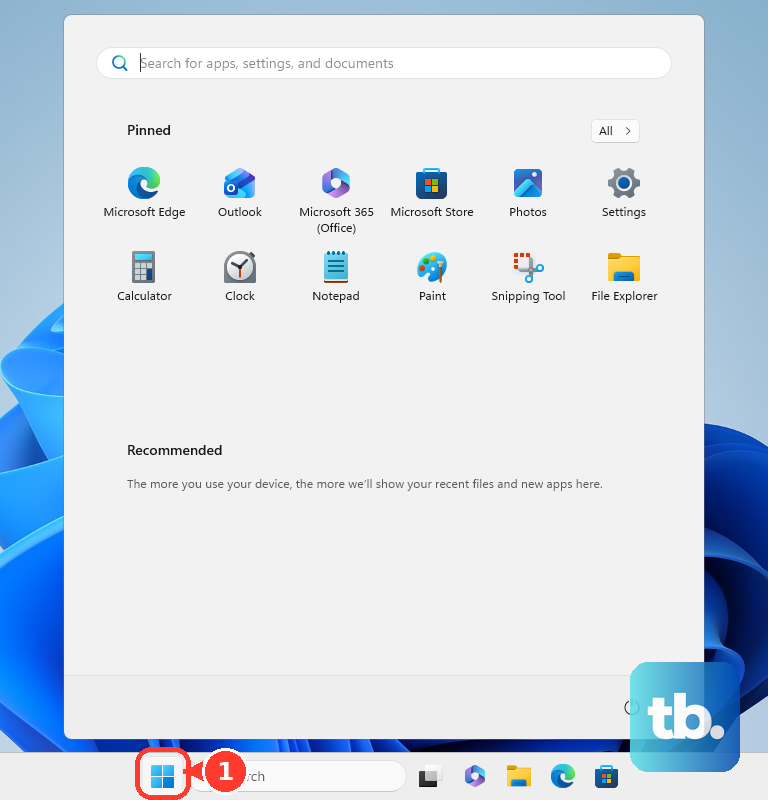
On Windows 11, select Start > Settings > Bluetooth & devices > Devices > Add device > Bluetooth. Choose the accessory, follow the prompts, then select Done.
From the taskbar, select the Network, Sound, or Battery icon. Select the Manage Bluetooth devices chevron on the Bluetooth quick setting, choose the device under New devices, follow the prompts, then select Done.
On Mac, choose the Apple menu > System Settings and click Bluetooth in the sidebar. Put the device in discovery mode, hold the pointer over the device in the list, then click Connect.
On Chromebook, select the time at the bottom right and select Bluetooth. Turn Bluetooth on if needed, select Pair new device, choose the device, and follow the prompts.
On Ubuntu, open the Activities overview, type Bluetooth, and click Bluetooth. Turn on the switch at the top of the panel, wait for the device to appear, select it, and complete the pairing prompts.
Skip older Control Panel-only Windows instructions when pairing on Windows 11.
4. Use product screens for AirPods TVs printers and Chrome
AirPods 1, 2, 3, AirPods Pro 1, or AirPods Pro 2: open the case. Press and hold the setup button on the back for about 5 seconds or until the status light flashes white. Then select the AirPods in Bluetooth settings or follow the Apple pairing prompt.
AirPods 4 or AirPods Pro 3: open the case near the device. Double-tap the front of the case until the status light flashes white. Then select the AirPods from the pairing prompt or Bluetooth settings.
AirPods Max: take them out of the Smart Case. Press and hold the listening mode button for about 5 seconds or until the status light flashes white. Then select them in Bluetooth settings.
Apple TV: put the accessory in pairing mode. Go to Settings > Remotes and Devices > Bluetooth. Then choose the accessory.
Samsung TV headphones or speakers: put the headphones into Bluetooth pairing mode. Then open Menu > Settings > Sound > Sound Output > Bluetooth Speaker List and select the headphones.
Samsung TV keyboard or gamepad: open Settings > General > External Device Manager > Input Device Manager > Bluetooth Device List. Put the device in pairing mode, then select it.
Windows 11 printer or scanner: turn on the printer or scanner and make it discoverable. Then select Start > Settings > Bluetooth & devices > Printers & scanners. Select Add device next to Add a printer or scanner.
Chrome website pairing: turn on Bluetooth and make the device discoverable. Open the webpage that connects to the device, click or tap the page, and choose the device from the prompt. Then choose Pair or Connect.
Web Bluetooth supports Bluetooth Low Energy devices only, and works in Chrome on a computer or Android device; Chrome on iPhone or iPad does not support connections between Bluetooth devices and websites.
Some products pair through their own hardware button, TV menu, printer surface, or browser prompt, so start there instead of forcing the standard phone or computer flow.
Chromebooks do not support Bluetooth printing. Use compatible internet or USB printing for Chromebook printing instead.
5. Forget the device and pair it again
Remove the saved pairing record when a device appears in the list but will not connect, then put the accessory back into pairing mode and add it again.
On Windows 11, select Start > Settings > Bluetooth & devices. Locate the device, select More options, and select Remove device. Then select Add device and choose the device again.
On iPhone, open Settings > Bluetooth. Tap the Info button next to the accessory, tap Forget This Device, then tap Forget Device.
On iPad, open Settings > Bluetooth. Tap the Actions Available button next to the accessory, tap Forget This Device, then tap Forget Device.
On Android, open Settings > Connected devices > Saved devices. Select the device, then forget or remove it. Return to Connected devices, put the accessory in pairing mode, and pair it again.
On Chromebook, select the time and go to Settings > Bluetooth. Select the device name, then select Forget. Under Previously connected, select the device name and select Forget.
On Mac, choose the Apple menu > System Settings > Bluetooth. Control-click the device name, then click Forget.
On Apple TV, go to Settings > Remotes and Devices > Bluetooth, choose the accessory, unpair it, then pair it again from the same Bluetooth screen.
6. Reset AirPods or network pairing records
Resets come after the ordinary forget-and-pair step fails, because these flows remove saved connection information.
For AirPods 1, 2, 3, 4, AirPods Pro 1, 2, or 3, put the AirPods in the charging case, close the lid, and wait 30 seconds. On a paired iPhone or iPad, go to Settings > Bluetooth. If the AirPods appear in My Devices, tap the More Info button, tap Forget This Device, and confirm. Open the lid and follow Apple’s model-specific reset steps until the status light flashes amber, then white.
For AirPods Max, press and hold the listening mode button and the Digital Crown for 15 seconds, until the LED flashes amber, then white. Then pair them again with an iPhone, iPad, Mac, or other Bluetooth device.
On Android, use the reset option for Bluetooth and Wi-Fi or network settings. Restart, then pair again.
On Samsung Galaxy, open Settings > General management > Reset > Reset Wi-Fi and Bluetooth settings > Reset settings. This removes saved Wi-Fi and Bluetooth connections.
7. Repair drivers updates and Bluetooth support
Windows 11 Bluetooth toggle: select Start > Settings > Bluetooth & devices. Then switch Bluetooth off and on.
Windows Update: select Start > Settings > Windows Update. Select Check for updates, install available updates, then restart the PC.
Windows driver update: select Start > Device Manager. Select Bluetooth, select the Bluetooth adapter name, right-click it, and select Update driver > Search automatically for drivers. Follow the steps, select Close, then restart if prompted.
Windows driver reinstall, if updating the driver does not help: open Device Manager and expand Bluetooth. Right-click the Bluetooth adapter, select Uninstall device, then restart the PC. Windows automatically reinstalls the Bluetooth driver after restart.
Windows automated troubleshooter: open Microsoft Get Help Bluetooth troubleshooter and follow the diagnostics and repair prompts.
Chromebook: check for system updates. Turn Bluetooth off and back on, turn the Chromebook off and back on, then hard reset the Chromebook if pairing still fails.
Ubuntu: open the Bluetooth panel and confirm the adapter is not disabled. Confirm the adapter or dongle is recognized and supported. Use a different supported Bluetooth adapter when the current adapter lacks Linux support.
If pairing mode, the correct Bluetooth screen, and a fresh pairing record do not fix it, move to system repair.
Do not use old Windows Control Panel-only pairing tutorials as the primary Windows 11 method. Do not use old Android “clear Bluetooth cache/data” advice as the general fix; Google’s current consumer troubleshooting uses Bluetooth off and on, restart, clearing saved devices, and reset flows.
8. Check work school and account controls
A managed device can block Bluetooth features while the hardware still works. After normal pairing and forget-and-pair steps fail on a work or school device, check the management rules instead of repeatedly resetting the device.
Windows management can block Bluetooth or block Swift Pair and proximity pairing. Apple supervised devices can restrict Bluetooth setting changes. ChromeOS admins can turn Bluetooth on or off, and managed Chrome browsers can control whether websites request access to nearby Bluetooth devices.
Ask the organization that manages the device whether Bluetooth pairing, nearby-device prompts, or Web Bluetooth access is allowed.
For Google Assistant speakers and displays, use the Google Home app instead of the phone’s normal Bluetooth picker: open Google Home, tap Home, touch and hold your device, tap Device settings > Audio > Paired Bluetooth devices, then tap Enable pairing mode.
Frequently Asked Questions
How do I turn Bluetooth on quickly on Android?
Swipe down from the top of the screen, then tap Bluetooth. To reconnect a saved accessory, touch and hold Bluetooth, then select the device under Saved devices.
Where do I manage Android Fast Pair saved devices?
Open Settings, tap your profile, tap All services, then under Connected devices & sharing tap Devices > Saved Devices.
Why does the Android Fast Pair notification not show up?
Turn on scanning for nearby devices. Open Settings, tap your profile, tap All services, then under Connected devices & sharing tap Devices and turn on Scan for nearby devices.
How do I disconnect Bluetooth on a Mac without forgetting it?
Choose the Apple menu > System Settings, click Bluetooth, hold the pointer over the device in the list, then click Disconnect.