You need the old Windows Sound dialog, but Windows 11 does not put it in the same obvious places older tutorials describe. The good route is still built into Windows: open More sound settings, or launch the same panel directly with mmsys.cpl. Use the steps below to get there quickly, then set speakers, microphones, communications audio, alert sounds, and device names from the right tab.
1. Start with the Windows 11 Settings route
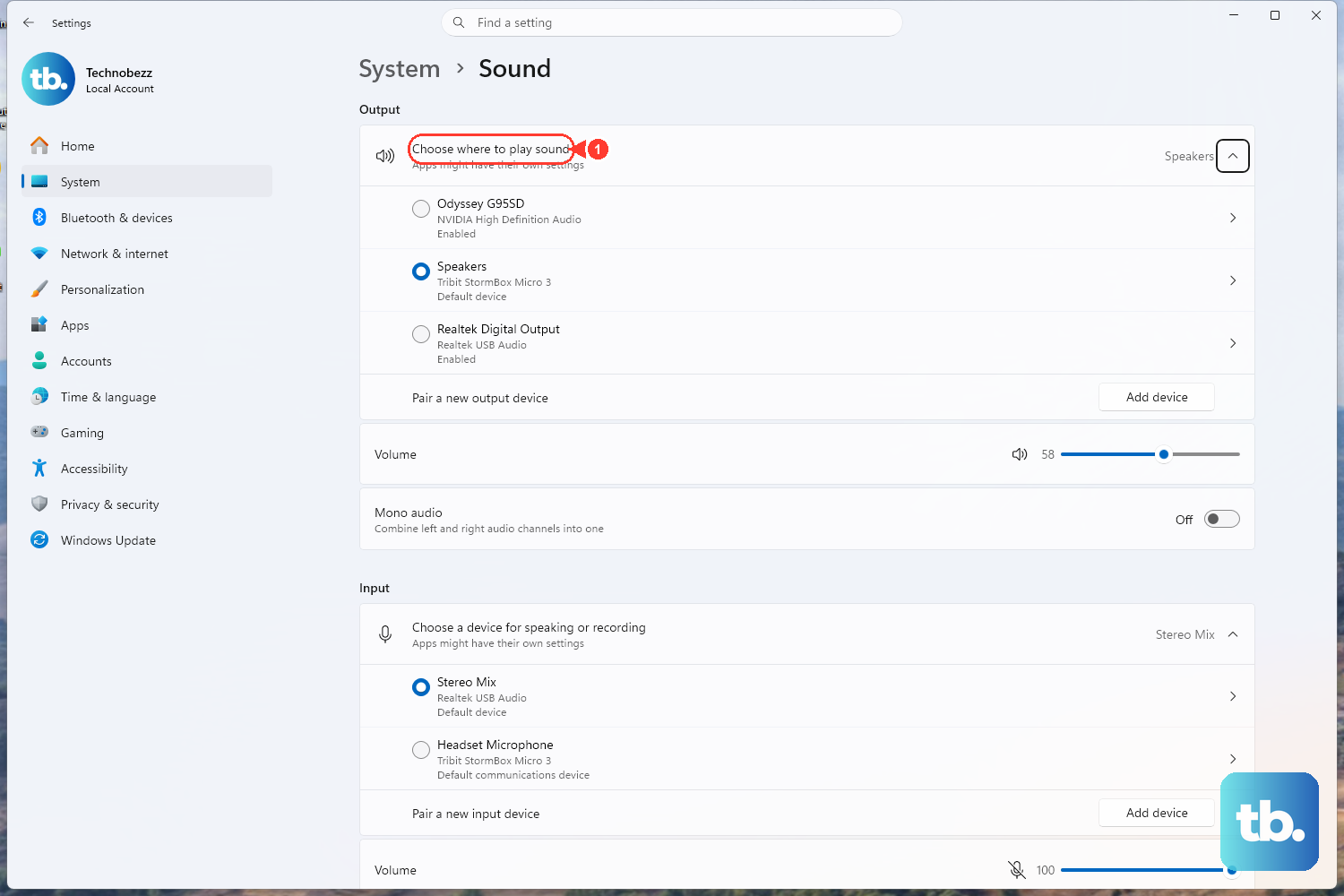
Best first route: use the current Microsoft-documented Windows 11 path, including on Surface devices, especially when you are helping someone else over the phone.
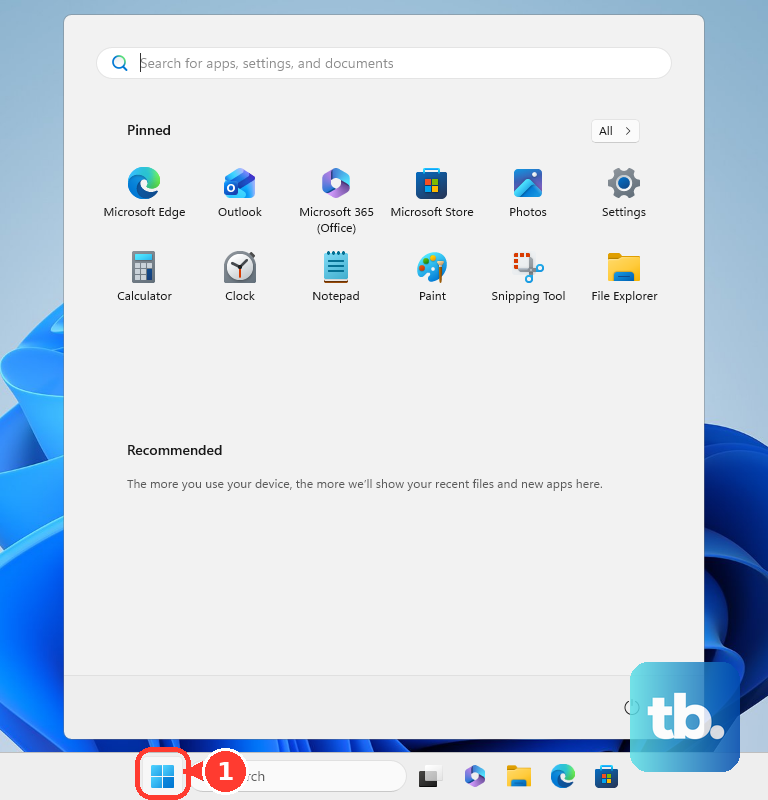
- 1.Select Start.
- 2.Open Settings.
- 3.Select System.
- 4.Select Sound.
- 5.Scroll down and select More sound settings.
The classic Sound dialog opens with four tabs: Playback, Recording, Sounds, and Communications.
2. Launch it faster from Run
- 1.Press Windows + R.
- 2.Type mmsys.cpl.
- 3.Press Enter.
Use the direct command when you already know you need the classic panel. You can enter mmsys.cpl in Run, Command Prompt, Windows Terminal, PowerShell, or a shortcut target. control mmsys.cpl opens the same Windows multimedia control panel.
For a permanent shortcut, create one with mmsys.cpl or %windir%\System32\mmsys.cpl as the target. The Sound Control Panel is built into Windows, so there is no separate app to download.
3. Jump through the modern Sound page
Use this route when you want to land on the Windows 11 Sound page first, then open the classic dialog from there.
- 1.Press Windows + R.
- 2.Type ms-settings:sound.
- 3.Press Enter.
- 4.In Settings > System > Sound, select More sound settings.
This is useful when you need both the modern sound controls and the classic tabs in one troubleshooting session.
4. Find it from Control Panel search
Control Panel still exposes the classic Sound dialog through search: open Control Panel, click the Search box at the top of the window, type Sound, and select Sound.
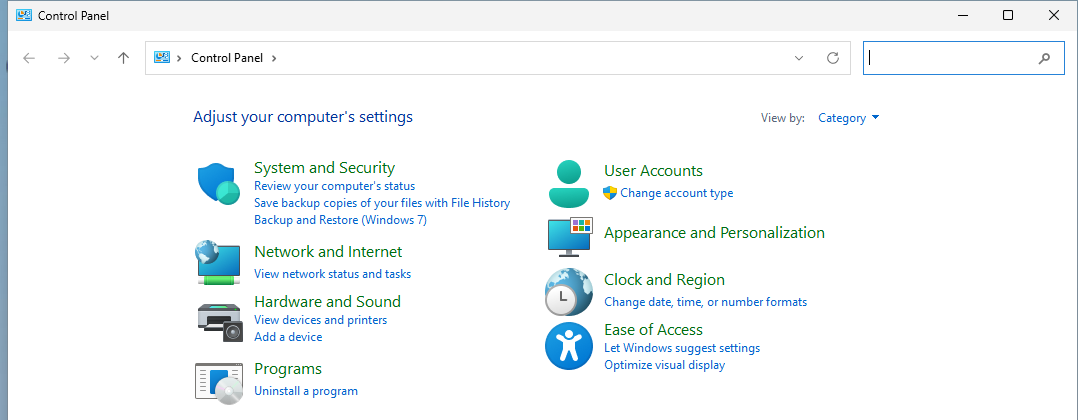
Use this route when Control Panel is already open, or when you are following another Windows setting that begins there.
5. Set the right speakers or headphones
- 1.Open Sound.
- 2.Select the Playback tab.
- 3.Select your speakers, headphones, or other audio output device.
- 4.Select Set Default.
When audio plays through the wrong device, fix the playback default from the Playback tab.
For call audio, select the playback device you want for communications, then select Set Default Communication Device. To set the communications microphone, switch to the Recording tab, select the microphone, and choose Set Default Communication Device.
6. Adjust microphone levels and names
For built-in mics and connected microphones that appear in Windows, the classic panel is still the place to check levels.
- 1.Open Sound.
- 2.Select the Recording tab.
- 3.Select the microphone you want to adjust.
- 4.Select Properties.
- 5.Select the Levels tab.
- 6.Move the available sliders.
To rename an audio endpoint device, open Sound with mmsys.cpl, select a rendering device, select Properties, select the General tab, edit the friendly name box, and select OK. To view jack details, open Sound with control mmsys.cpl, select a playback or recording device, select Properties, and check the General tab. Jack information appears there when the device driver provides it.
7. Change Windows alert sounds
Use the Sounds tab when you want Windows program events to use a different sound.
- 1.Open Sound.
- 2.Select the Sounds tab.
- 3.Under Program Events, select the event you want to change.
- 4.Under Sounds, choose the sound you want.
- 5.Select Test.
- 6.Select Apply.
- 7.Select OK.
For the Outlook new-mail sound workflow documented by Microsoft, the sound file must use the .wav format.
8. Navigate by voice or understand blocked PCs
On Windows 11 version 22H2 and later, voice access can navigate to the same Settings route. Turn on voice access, then say Open Settings, Click System, Click Sound, and Click More sound settings. You can also say Show numbers and then speak the number shown over each visible control.
On managed work or school PCs, admins can hide the Windows Settings Sound page or the classic Microsoft.Sound Control Panel item through policy. When the panel is blocked, use the sound controls your organization exposes or contact IT for access.
9. Skip outdated Sound Control Panel shortcuts
- Older guides often point to tray-menu labels such as Playback Devices or Recording Devices. Those labels belong to older Windows UI instructions, not the current Windows 11 path Microsoft documents for opening the classic Sound dialog.
- You may also see control.exe /name Microsoft.Sound in older guides. That canonical name is not deprecated: Microsoft's canonical-name reference still lists Microsoft.Sound as the current name for the Sound item, and the PowerShell Get-ControlPanelItem reference lists it on Windows 8 and newer, so the command still works on Windows 11. It is just longer than mmsys.cpl, which stays the simpler direct command, and for most users Microsoft documents the Settings > System > Sound > More sound settings route.
Frequently Asked Questions
What command opens Sound Control Panel directly?
Use mmsys.cpl. Press Windows + R, type mmsys.cpl, and press Enter.
Where is Sound Control Panel in Windows 11 Settings?
Open Start > Settings > System > Sound, then select More sound settings.
Can I make a desktop shortcut for Sound Control Panel?
Yes. Create a shortcut and use mmsys.cpl or %windir%\System32\mmsys.cpl as the target.
Which tab changes Windows notification sounds?
Use the Sounds tab. Select an event under Program Events, choose a sound under Sounds, then select Test, Apply, and OK.