Windows sound settings get annoying fast when audio comes from the wrong device, one app goes silent, or your microphone fails right before a call. Most controls are now in Settings, while a few advanced options still live behind More sound settings. Start with the everyday controls below, then move into app, Bluetooth, and driver fixes only when you need them.
1. Open Sound Settings Fast
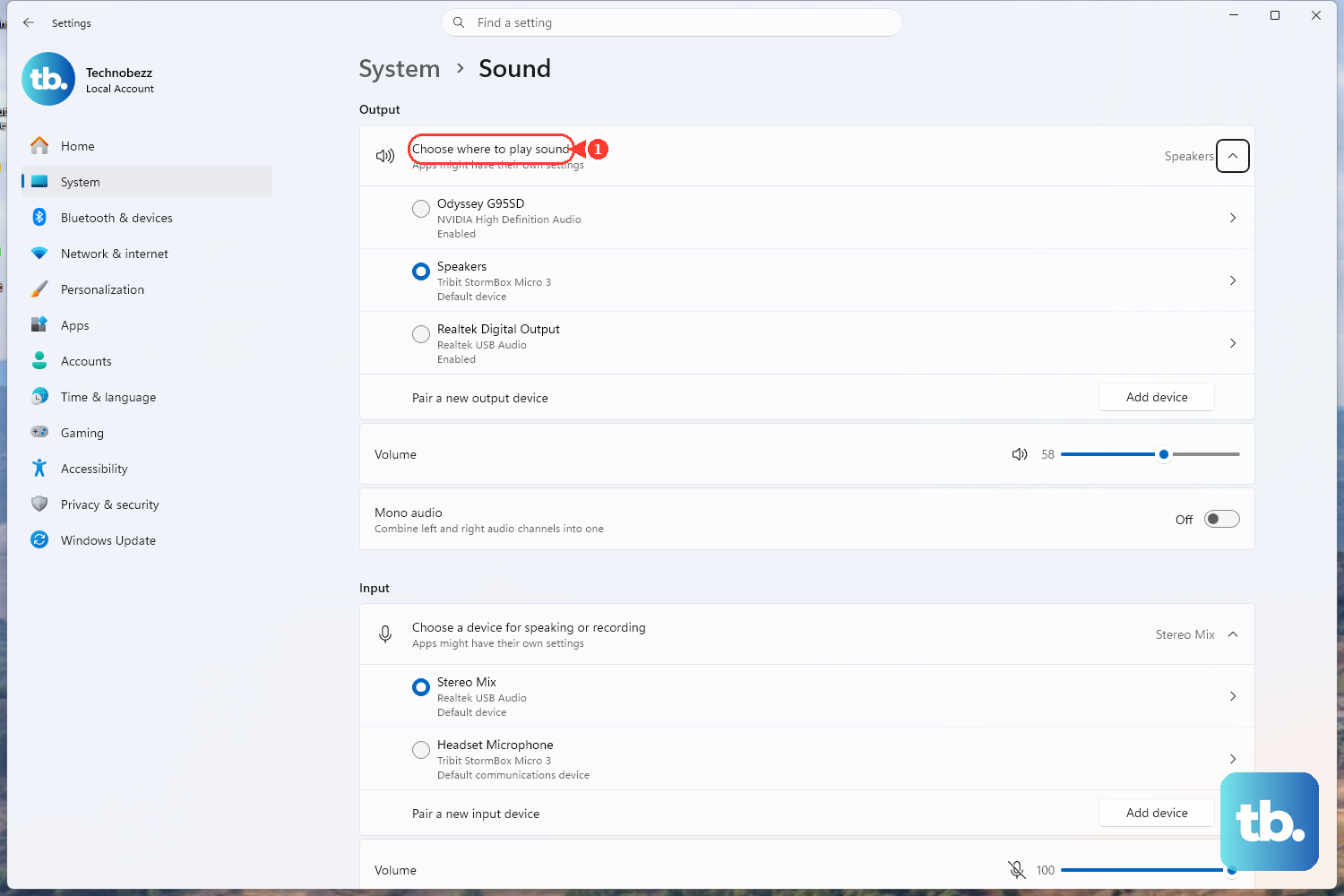
Main path: select Start > Settings > System > Sound.
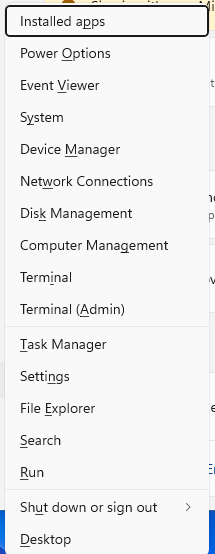
Alternate path: right-click Start, select Settings, and then choose System > Sound.
Keyboard shortcuts are faster when you are already working. Press Windows key + I to open Settings, then search for sound. For the quick output panel, press Windows key + Ctrl + V; Windows opens the sound output page in Quick Settings with output device options, spatial sound, and volume mixer access.
2. Pick The Right Speakers Or Headphones
Go straight to the output picker when sound is playing from the wrong place.
Open Start > Settings > System > Sound.
Under Output, choose the speakers, headphones, monitor, or Bluetooth device you want Windows to use.
Adjust Volume there, and check the mute control if Windows is silent.
For a quick switch, select the Sound icon on the taskbar and choose the correct Bluetooth or other audio output. Also check your keyboard media keys, PC volume buttons, headset volume, speaker volume, and the app's own volume control, since Windows, accessories, and apps can each have separate levels.
3. Fix One Quiet Or Muted App
When Windows sounds work but one app is too quiet, muted, or using the wrong speaker, use the mixer.
- 1.Open Start > Settings > System > Sound.
- 2.Select Volume mixer.
- 3.Under Apps, find the app with the sound problem.
- 4.Turn off mute for that app, move its volume slider, and set the correct Output device.
Use this Windows 11 path instead of older Windows 10 instructions that start by right-clicking the taskbar volume icon for Open Volume mixer.
4. Set Up Your Microphone
Open Start > Settings > System > Sound.
Under Input, choose the microphone you use for calls, recordings, or voice input, then select the > button next to it.
Under Input settings, select Start test.
Select Stop test.
Select Play.
Move the Input volume slider until the test recording is at the right level.
If an app still cannot hear you, open Start > Settings > Privacy & security > Microphone. Turn on Microphone access, turn on Let apps access your microphone, then choose the apps you allow. For desktop apps, turn on Let desktop apps access your microphone.
5. Change Defaults And System Sounds
Some sound choices still use the classic sound dialog, but Microsoft still documents it for current Windows sound tasks. Open Start > Settings > System > Sound > More sound settings.
Set a default playback device: On Playback, select your audio device, then select Set Default.
Set a communications device: On Playback, select the headset or speaker for calls, then choose Set Default Communication Device. On Recording, select the call microphone and choose Set Default Communication Device.
Enable a disabled device: Select Playback or Recording, select the device, open Properties, then set Device usage to Use this device.
Change event sounds: Open the Sounds tab, choose an item under Program Events, pick a sound under Sounds, select Test, then select Apply > OK.
To jump straight to the same sound dialog, select the Windows button, type sound, and select Change system sounds.
6. Tune Audio Quality And Listening Options
Audio enhancements: Open Start > Settings > System > Sound, select your output device under Output, then use Audio enhancements to turn enhancements off or choose the setting you want.
Default format: On the same output device page, select Advanced, choose a different Default format, and test audio.
Spatial sound: In Sound, select your playback device under Output devices, open Device Properties, choose Windows Sonic for Headphones under Spatial sound, then select Apply when it appears.
Bluetooth LE Audio quality: On supported Windows 11 devices, open Settings > System > Sound, select the > button next to the Bluetooth LE Audio device under Output, expand Output settings > Format, then choose Mono or Stereo under Format when microphone is active.
These settings change how audio is processed, so use them when sound works but does not sound right. The Format when microphone is active control requires Windows 11 version 24H2 or newer (build 26100.4484 or later), factory-integrated Bluetooth LE support, up-to-date manufacturer Bluetooth drivers, and a Bluetooth LE Audio device. If that control is missing, your PC does not support stereo audio while the microphone is active and will use mono.
7. Quiet Notifications Or Add Visual Alerts
Use Start > Settings > System > Notifications for notification sounds. Turn Notifications on or off, or select an app under Notifications from apps and other senders and change Play a sound.
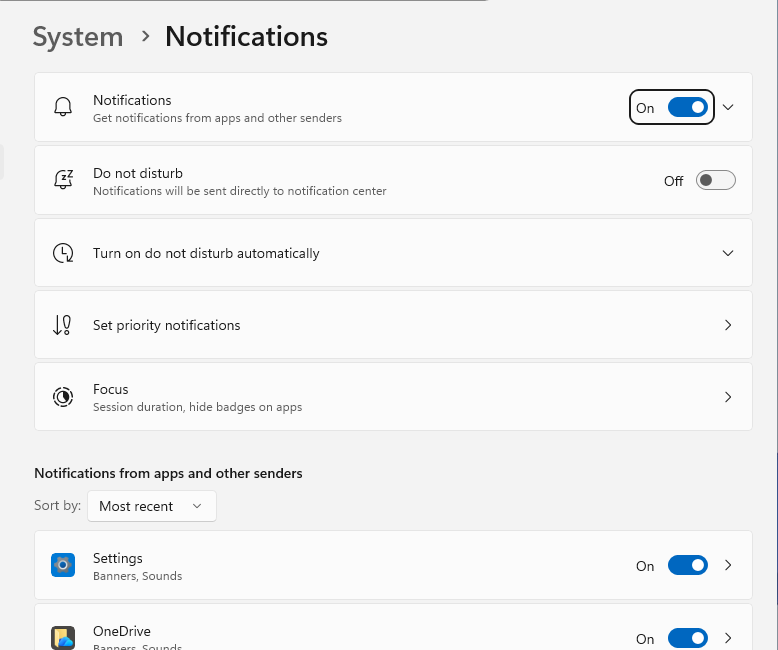
For a temporary break, open Notification Center and select the bell icon with zZ to turn on Do not disturb.
To schedule it, open Start > Settings > System > Notifications > Turn on do not disturb automatically, then choose your conditions.
Starting a Focus session turns on Do not disturb by default, blocking notifications, sounds, and alerts from apps and contacts during the session.
For hearing accessibility, open Start > Settings > Accessibility > Audio. Turn on Mono audio to combine left and right channels, or use Flash my screen during audio notifications to display audio alerts visually.
8. Check Meeting And Browser Audio
If Windows looks correct, the app itself may still be using separate audio controls.
Microsoft Teams devices: In Teams, open Settings and more > Settings > Devices. Under Audio settings, choose your Speaker, Microphone, Automatically adjust mic sensitivity, Sync device buttons, or Make a test call. Use Manage devices only to connect Bluetooth-enabled Teams devices like displays or desk phones.
Teams meeting audio: Before joining, use the pre-join screen to choose your audio source. During a meeting, select Mic to mute or unmute, or open the dropdown next to Mic and choose More audio settings.
Teams taskbar mute: During a Teams meeting on Windows, select the taskbar mic icon or press Windows key + Alt + K. In Teams desktop, hold Ctrl + Spacebar to temporarily unmute when that feature is enabled.
Teams shared sound: In a Teams meeting, select Share, turn on Include sound, then choose the window or screen to share.
Microsoft Edge tabs: Open the tab you want to mute, then press Ctrl + M. The shortcut applies to the active tab and has no effect on a tab with no sound.
Google Chrome sound: Open More > Settings > Privacy and security > Site settings > Additional content settings > Sound, then choose the default sound permission.
Google Chrome microphone: Open More > Settings > Privacy and security > Site settings > Microphone, choose the default microphone, and manage site access.
On a work or school PC, an unavailable Teams, microphone, sound scheme, or Settings page control can be managed by your organization. Contact your IT admin when those controls are locked.
9. Run The Audio Fixes When Nothing Works
Start with the built-in troubleshooter.
Open Start > Settings > System > Troubleshoot > Other troubleshooters.
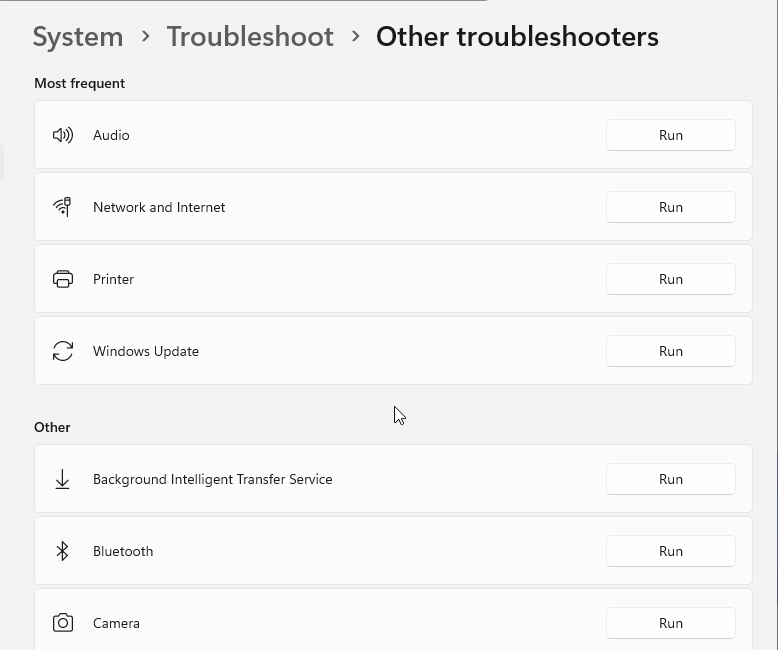
In Audio, select Run.
For microphone troubleshooting, go to Settings > System > Sound, scroll to Advanced, then choose Output devices or Input devices under Troubleshoot common sound problems.
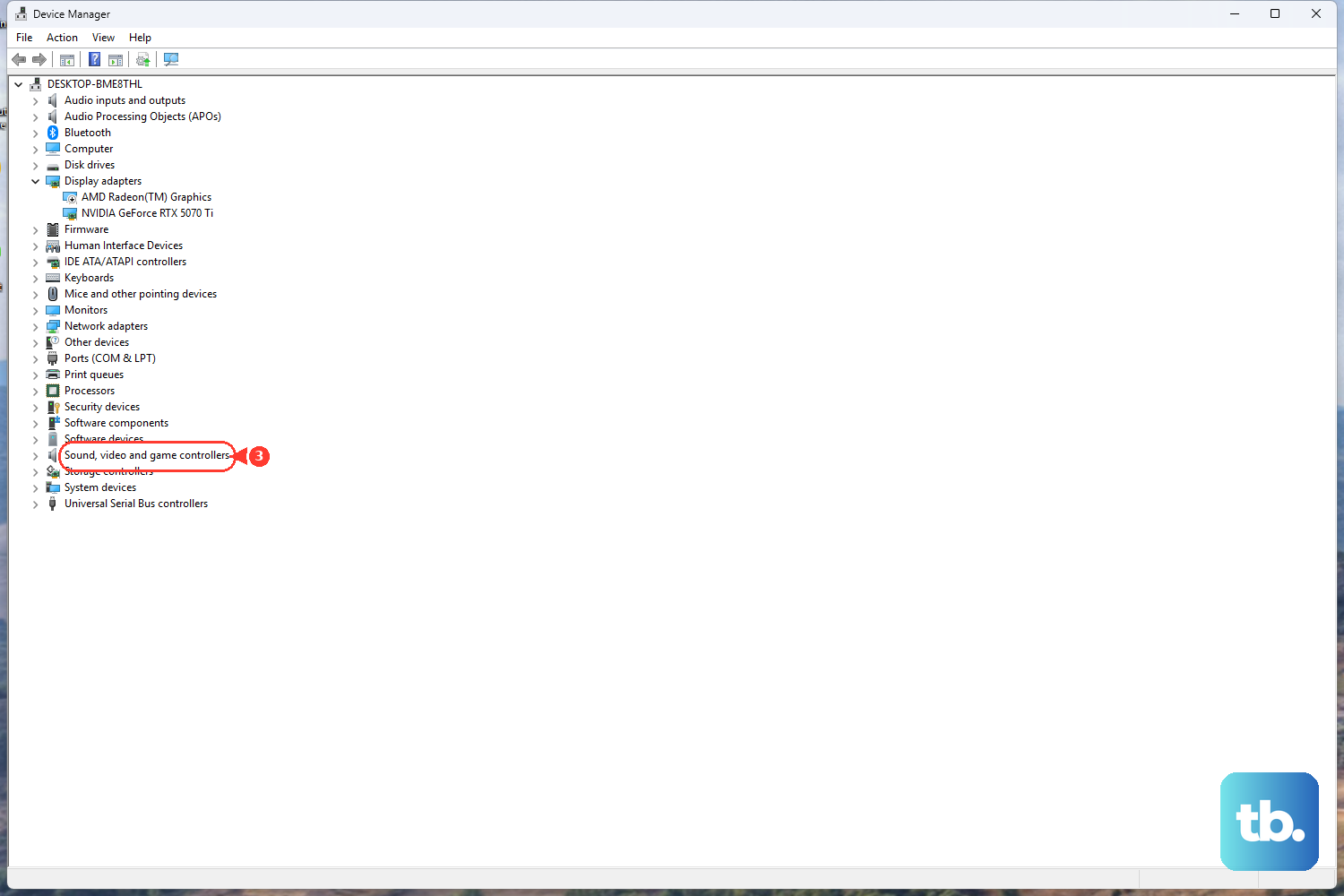
If Windows does not detect an audio device, open Start, type Device Manager, and select Device Manager. Expand Sound, video and game controllers, right-click the audio device, and choose Enable device when that option appears. If the device is missing, select View > Show hidden devices, then Action > Scan for hardware changes.
Next, update the driver. Open Start > Settings > Windows Update > Check for updates, install available audio driver updates, and restart the PC. You can also open Device Manager > Sound, video and game controllers, right-click your audio device, select Update driver > Search automatically for drivers, follow the prompts, and restart.
To reinstall the audio driver, open Device Manager > Sound, video and game controllers, right-click your audio device, select Uninstall device, confirm when prompted, and restart. Windows automatically reinstalls the audio driver. For Bluetooth audio that will not reconnect properly, open Start > Settings > Bluetooth & devices, locate the audio device, select More options > Remove device, then select Add device and pair it again.
Skip older tips that tell you to use Cortana voice commands for Windows sound settings. Microsoft retired Cortana voice assistance in Windows as a standalone app in spring 2023; use Settings, Quick Settings, or the keyboard shortcuts above instead.
Frequently Asked Questions
What is the fastest way to open sound output settings in Windows 11?
Press Windows key + Ctrl + V. Windows opens the Quick Settings sound output page with output device, spatial sound, and volume mixer options.
Why does my microphone work in Windows but not in an app?
The app may not have microphone permission. Open Start > Settings > Privacy & security > Microphone, turn on Microphone access and Let apps access your microphone, then allow the app you want to use.
How do I make calls use my headset instead of speakers?
Open Start > Settings > System > Sound > More sound settings. On Playback, select the headset and choose Set Default Communication Device. On Recording, select the headset microphone and choose Set Default Communication Device.
Can I turn off Windows notification sounds without turning off all notifications?
Yes. Open Start > Settings > System > Notifications, select the app under Notifications from apps and other senders, then change Play a sound for that app.