Slow mobile internet usually comes down to a weak signal, the wrong network band, or background apps quietly eating your bandwidth. Most of it is fixable in a few minutes from your phone's own settings, no new app or hardware required.
This guide walks through the changes that actually move the needle on both iPhone and Android, starting with the quick wins and ending with full resets for stubborn cases. Every step below reflects current iOS and One UI menus.
Restart Your Phone First
A restart clears temporary memory, drops stale network connections, and forces your phone to re-register with the nearest cell tower. It is the single fastest fix for a connection that was working fine yesterday and feels slow today.
On most iPhones, hold the side button and a volume button, then drag the slider to power off. On Galaxy phones, hold the side button and volume down, then tap Power off. Wait about 15 seconds before turning it back on.
If you would rather not fully power down, switching Airplane Mode on for 10 seconds and then off again does a lighter version of the same thing by forcing the radios to reconnect.
Check Your Signal and Connection Type
Your speed is capped by the network you are actually on, so check the status bar first. On Android, a 5G or LTE icon means you have a fast data connection, while older markers like 3G, E, or H point to a slow fallback that no setting can fully rescue.
Signal strength matters as much as the network type. One or two bars in a basement or elevator will be slow no matter what, so move toward a window or outdoors and retest before changing any settings.
If you are on Wi-Fi, remember that a full bar only means a strong link to your router, not a fast connection to the internet beyond it. A quick speed test on both Wi-Fi and cellular tells you which one is the real bottleneck.
Switch Between Wi-Fi and Cellular
Phones cling to a saved Wi-Fi network even when its connection to the internet has died, leaving you stuck on a dead link while cellular sits idle. The quick test is to turn Wi-Fi off for a minute and see if pages suddenly load faster over cellular.
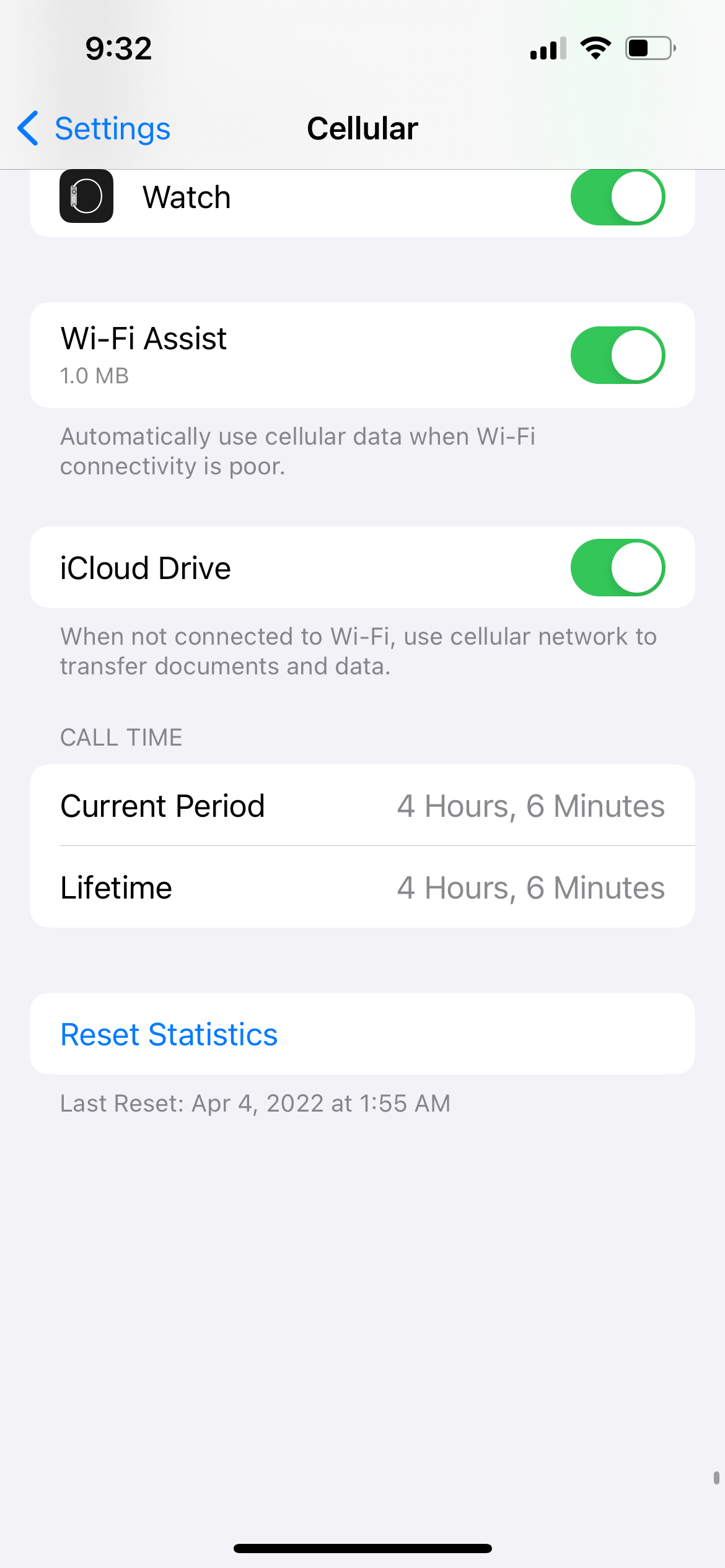
Apple builds this in with Wi-Fi Assist, which automatically falls back to cellular when Wi-Fi is too weak to load a foreground app. To check it, go to:
> Settings > Cellular > Wi-Fi Assist
Wi-Fi Assist is on by default and only kicks in for apps you are actively using, not background downloads, and it stays off while roaming. Because it can switch you to cellular, it may use a little more mobile data.
Use Intelligent Wi-Fi on Galaxy Phones
Samsung's equivalent lives under Intelligent Wi-Fi and can hand you off to mobile data when your Wi-Fi turns slow or unstable. Open:
> Settings > Connections > Wi-Fi > More options (three dots) > Intelligent Wi-Fi
Turn on Switch to mobile data so the phone leaves a struggling network on its own. As with Wi-Fi Assist, this trades a little extra cellular data for a more reliable connection.
The Intelligent Wi-Fi menu also includes Switch to better Wi-Fi networks, which jumps to a faster or more stable network on its own, so it is worth a look if your home has more than one access point.
Pick the Faster Cellular Mode on iPhone
If cellular feels slow, confirm your iPhone is allowed to use its fastest available network. Head to:
> Settings > Cellular > Cellular Data Options > Voice & Data
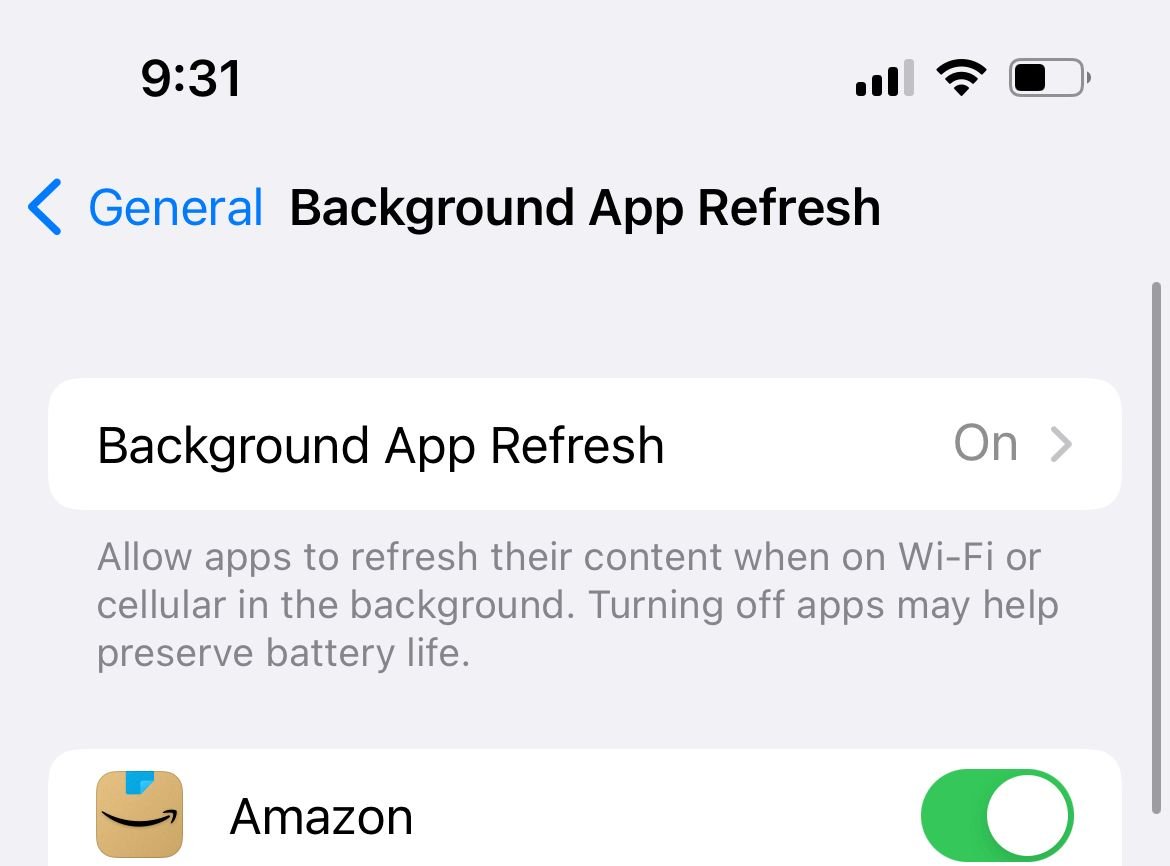
On iPhone 12 and later, 5G Auto uses 5G only when it is meaningfully faster, which balances speed and battery. If you want raw speed and have a strong 5G signal, choose 5G On instead. Where 5G is weak or unstable, switching to LTE can actually feel faster and steadier.
For higher-quality video and FaceTime on 5G, open Data Mode in the same area and pick Allow More Data on 5G. Note that this consumes more data.
Fix a Slow Personal Hotspot
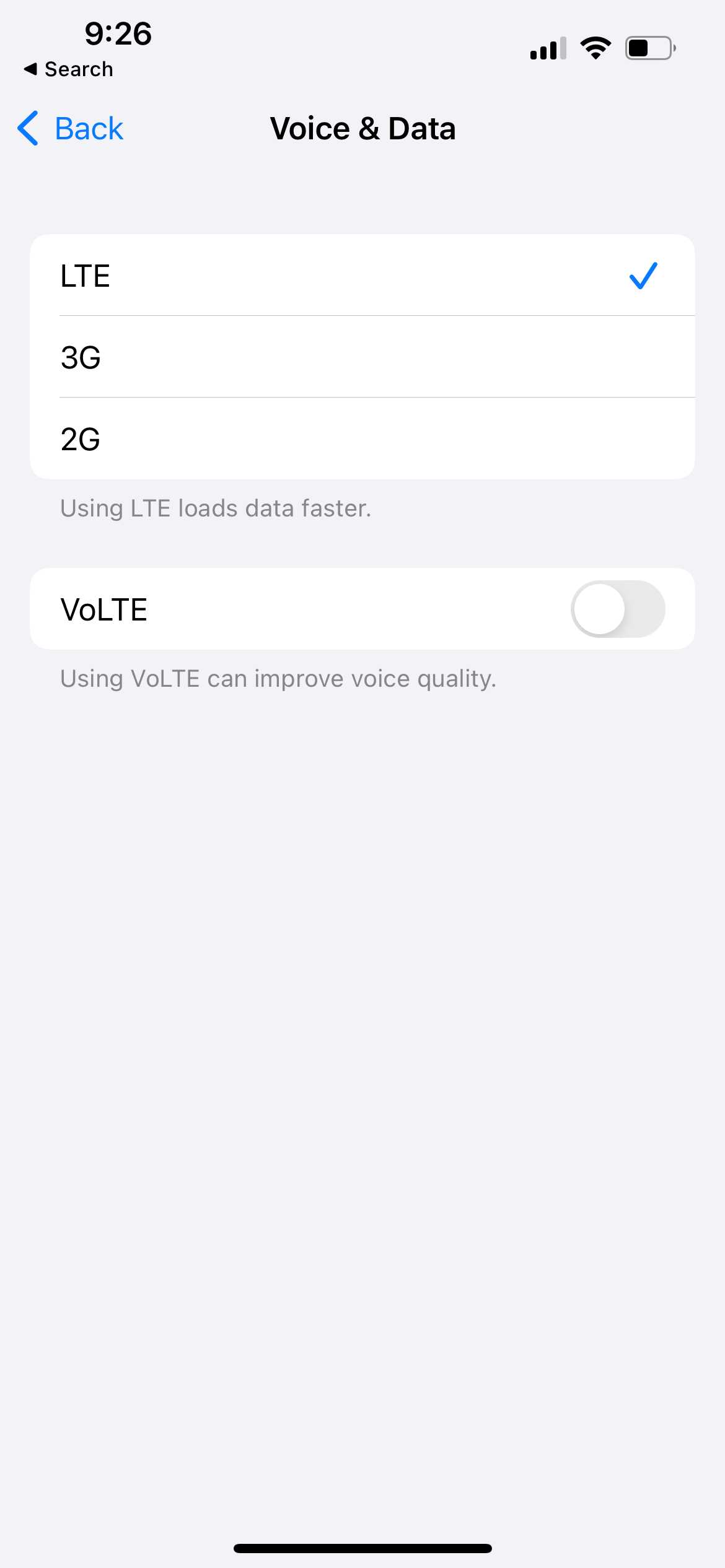
When you share an iPhone 12 or later connection, the hotspot can run on the faster 5GHz Wi-Fi band. A setting called Maximize Compatibility forces it down to the slower 2.4GHz band so older devices can connect.
If your tethered laptop or tablet supports 5GHz, keep Maximize Compatibility off for the best speed. Find it under:
> Settings > Personal Hotspot > Maximize Compatibility
Only turn it on if a device genuinely cannot see or hold the hotspot, since the trade for compatibility is a noticeably slower connection.
Reduce Background Data Use
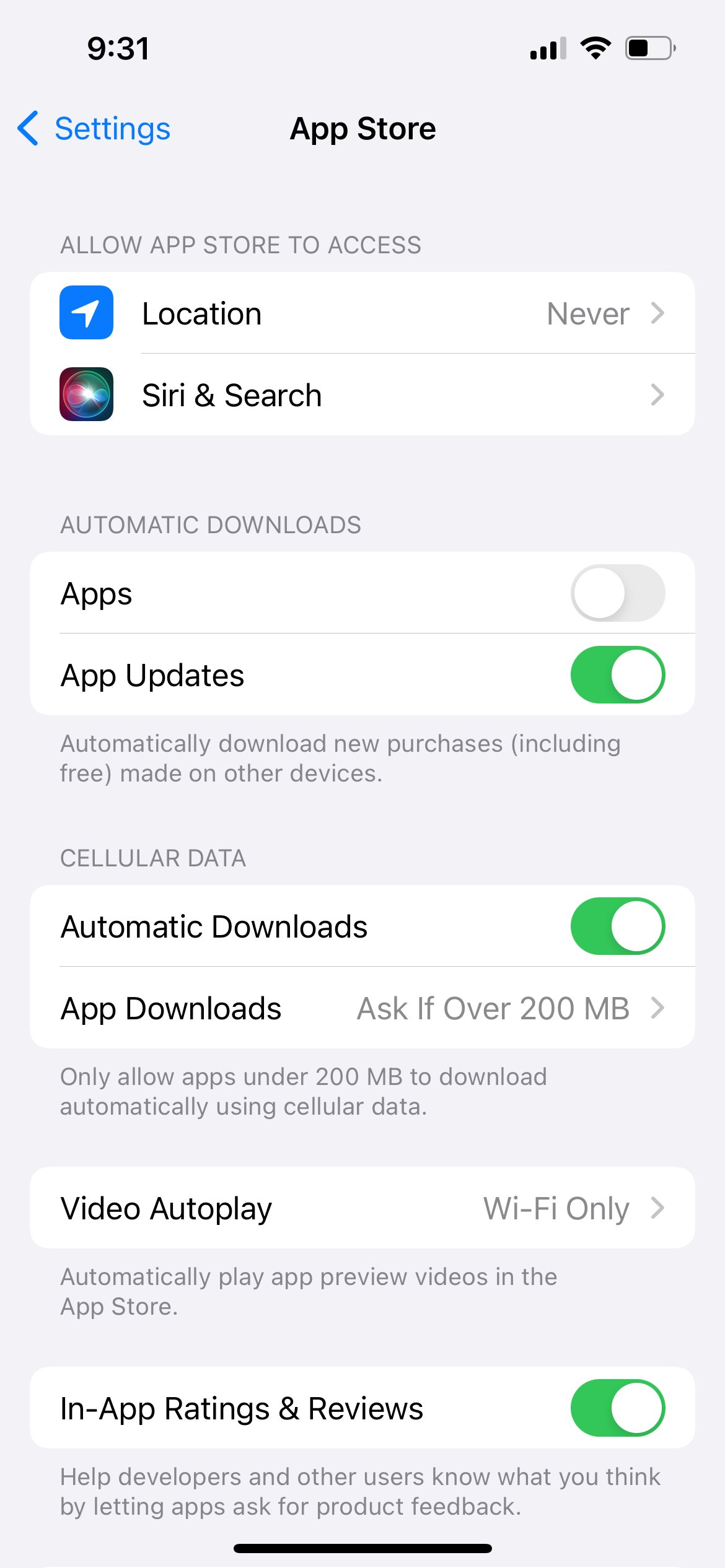
Apps that sync, update, and pull notifications in the background compete with whatever you are doing in the foreground. Reining them in frees up bandwidth for the page or video you actually want.
On iPhone, Low Data Mode pauses automatic updates and background tasks. You set it separately for cellular and Wi-Fi:
> Settings > Cellular > Cellular Data Options > Data Mode > Low Data Mode
> Settings > Wi-Fi > info icon next to your network > Low Data Mode
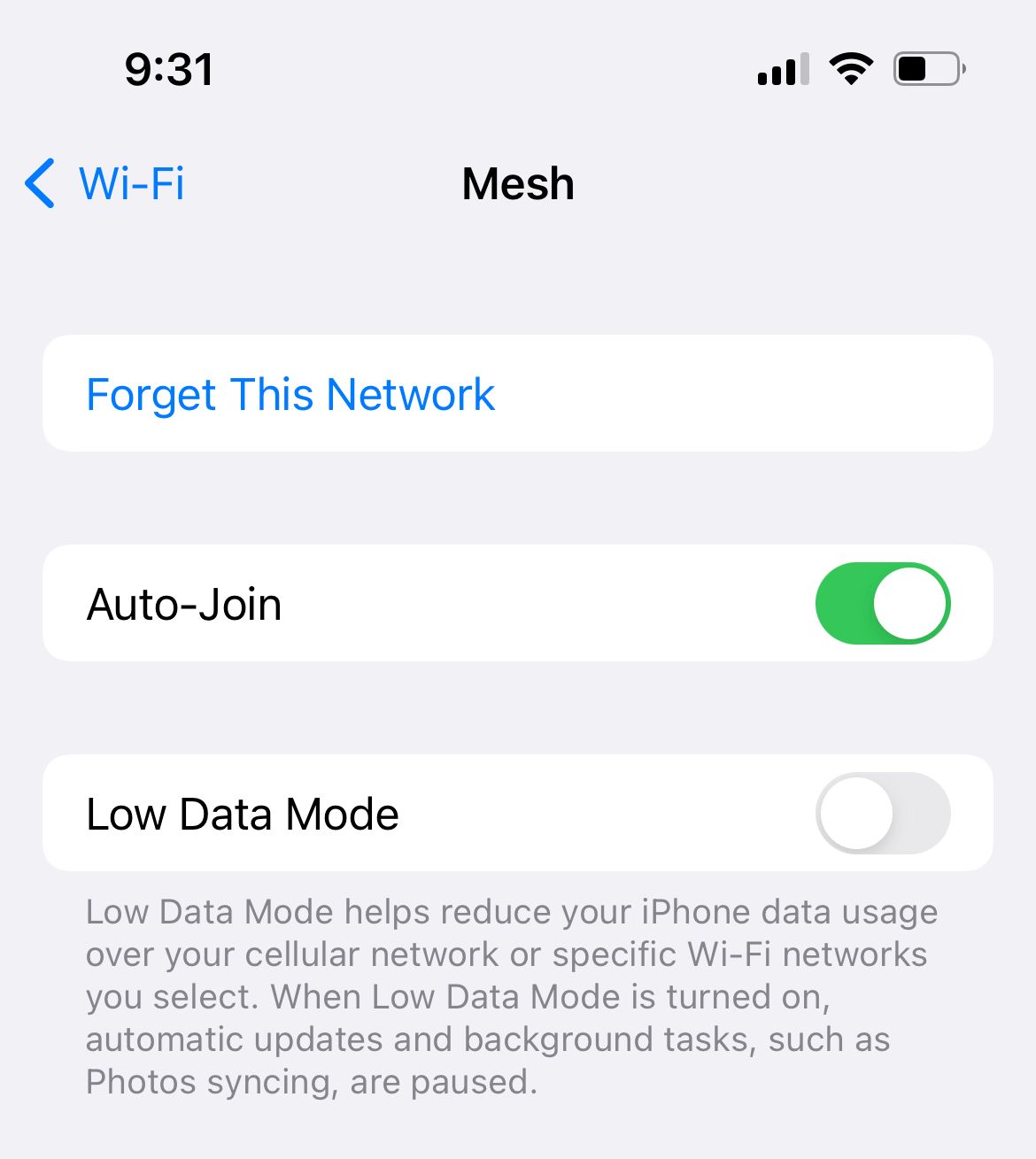
You can also limit Background App Refresh under Settings > General > Background App Refresh, where you can turn it off entirely or leave it on only for the apps you trust.
Turn On Data Saver on Galaxy Phones
Samsung's Data Saver blocks background apps from using mobile data unless you grant an exception. Enable it from:
> Settings > Connections > Data usage > Data saver
Toggle it on, then use Allowed to use data while Data saver is on for any app, such as messaging, that must stay live in the background.
To stop one specific app from hogging data, open Settings > Connections > Data usage > Mobile data usage, tap the app, and turn off Allow background data usage.
Close and Clear Heavy Apps
Force-closing apps you are not using returns memory and CPU to the active app, which can smooth out a sluggish browser or video. Open the app switcher and swipe each app card away.
On Android, a corrupted cache can also make connected apps misbehave. For Google's networking layer, go to Settings > Apps, open Google Play services, tap Storage, and choose Clear cache, which leaves your login and data intact.
Restarting a single stubborn app, rather than the whole phone, is often enough when only one app feels slow while everything else is fine.
Clear Your Browser Cache
A bloated browser cache can make page loads feel slow even on a fast connection. Clearing it removes stale files so sites rebuild fresh.
On iPhone, open Safari's settings (Settings > Apps > Safari on current iOS, or Settings > Safari on older versions), then tap Clear History and Website Data and confirm. This signs you out of sites, so have your passwords handy.
In Chrome on Android, tap the three-dot menu, go to Delete browsing data, choose a time range, select Cached images and files, and tap Delete data.
Turn Off Your VPN to Test
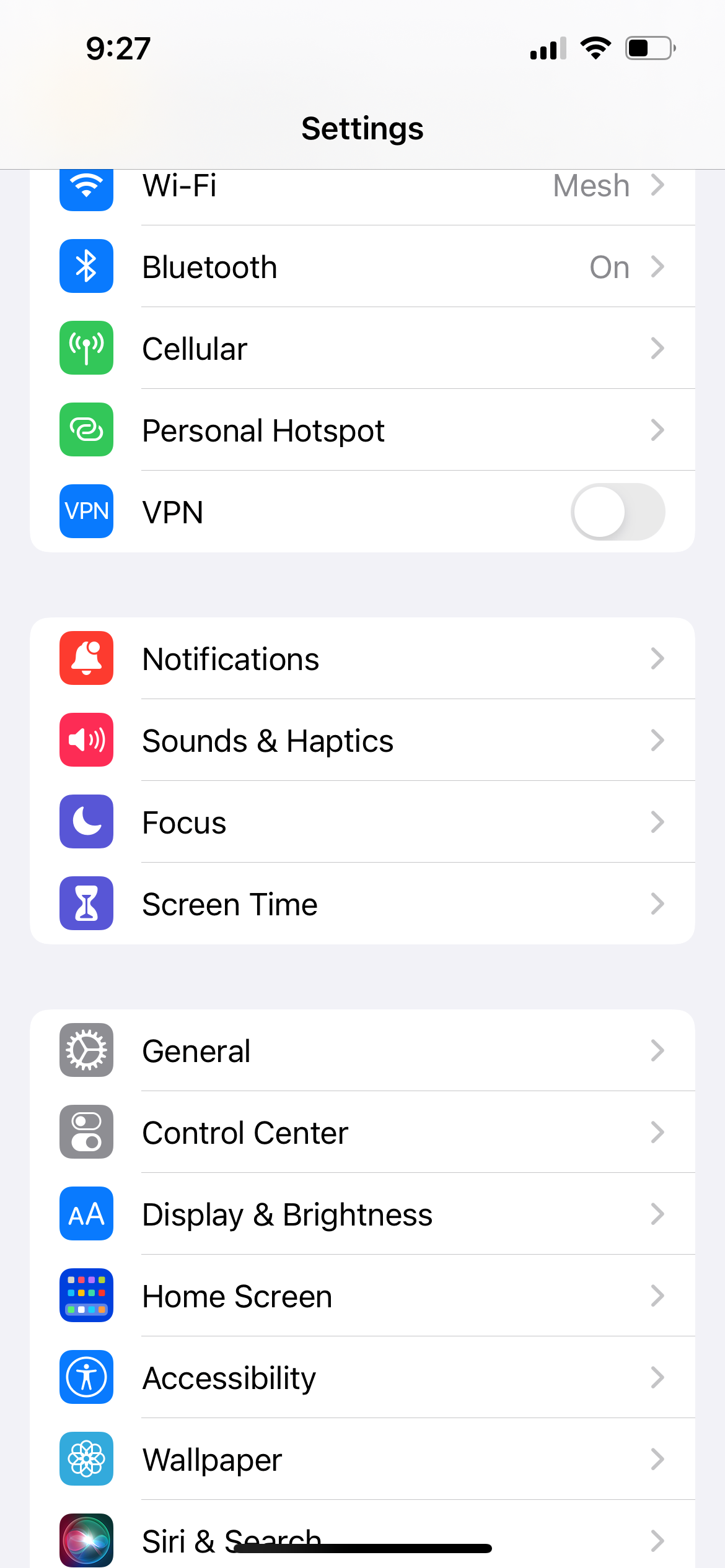
A VPN routes your traffic through an extra server, which almost always adds some latency and can sharply cut speed if the server is far away or overloaded. If browsing feels slow, disable the VPN and retest.
If you need the VPN on, switch to a server geographically closer to you, or try its WireGuard or lightweight protocol option if available. Some free VPNs throttle speed by design, so that is worth ruling out too.
Correct the Date and Time
A wrong clock can break the secure handshake that websites and apps rely on, causing pages to stall or fail to load. Setting the time automatically keeps it accurate with your carrier.
On iPhone, go to Settings > General > Date & Time and turn on Set Automatically. On Galaxy phones, open Settings > General management > Date and time and enable Automatic date and time.
After fixing the clock, reload the page that was failing, since the change takes effect immediately.
Use Reader View on Safari
Reader View strips a page down to its text and core images, skipping heavy ads and scripts so articles appear almost instantly. On Safari, tap the page menu (the Aa or page icon) in the address bar and choose Show Reader.
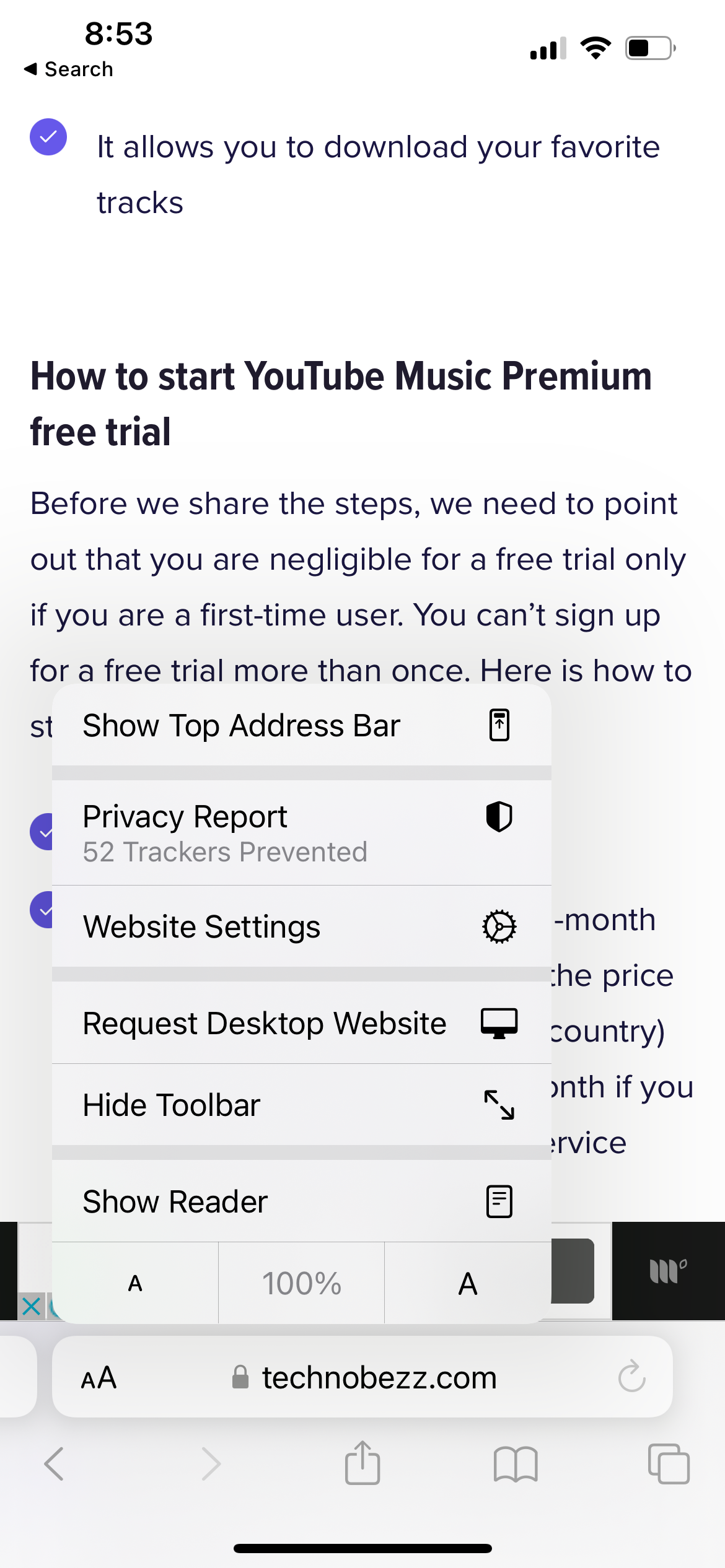
It only works on article-style pages, not on shops or web apps, but for news and long reads it is one of the most noticeable speed boosts you can get without changing any system setting.
You can have Safari open eligible pages in Reader automatically by tapping the page menu, choosing Website Settings, and turning on Use Reader Automatically.
Keep iOS and One UI Updated
System updates regularly include modem firmware and network fixes that improve real-world data performance, so an out-of-date phone can be slow for reasons no setting exposes. Check for updates on Wi-Fi to avoid a large cellular download.
On iPhone, go to Settings > General > Software Update. On Galaxy phones, open Settings > Software update and tap Download and install.
Carrier settings updates matter too. On iPhone, briefly opening Settings > General > About prompts your phone to check for one if it is available.
Reset Network Settings
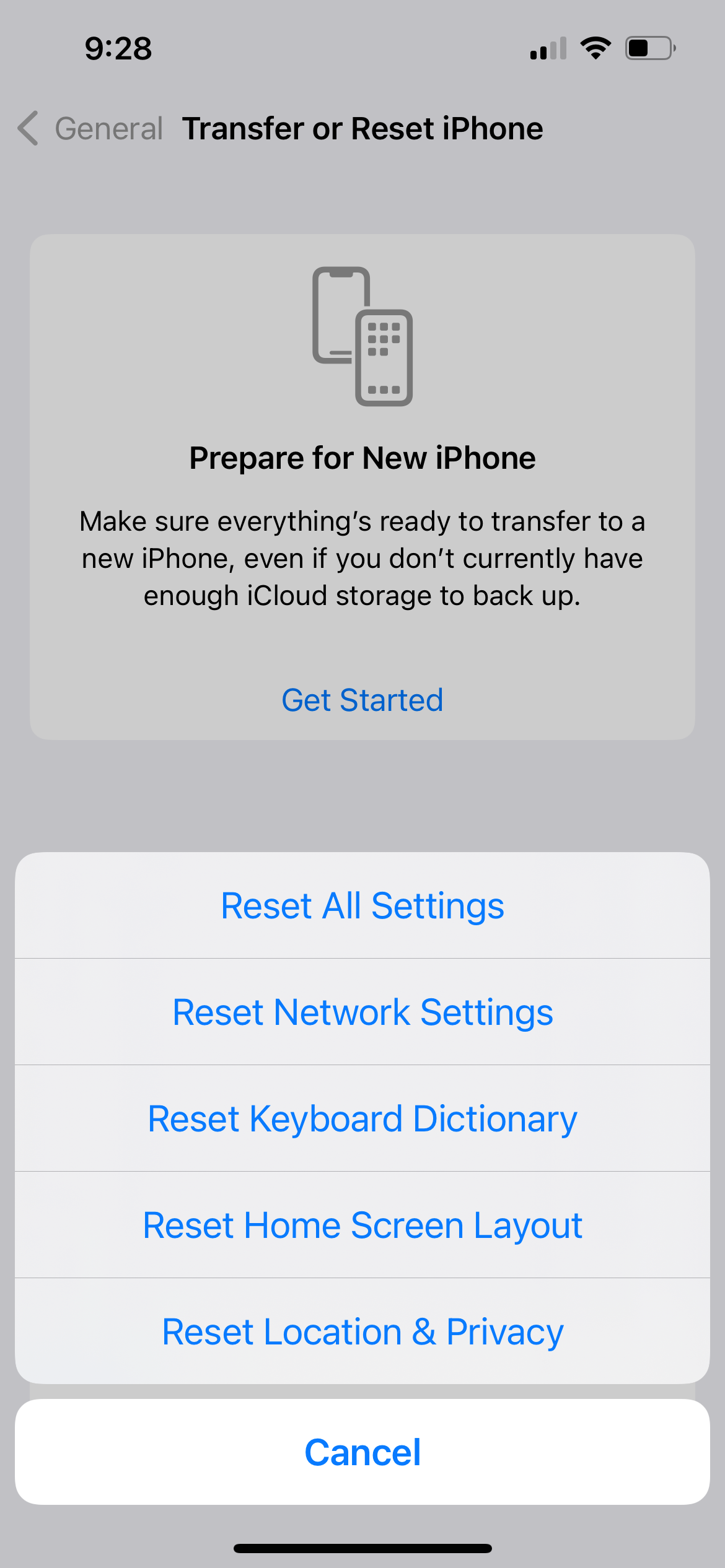
When nothing else helps, a network reset rebuilds your connection settings from scratch, which clears corrupted configurations behind persistent slowness. It does not delete photos, apps, or messages, but you will need to rejoin Wi-Fi networks afterward.
On iPhone, this wipes saved Wi-Fi networks, Bluetooth pairings, and cellular preferences in one step:
> Settings > General > Transfer or Reset iPhone > Reset > Reset Network Settings
On Galaxy phones, the resets are split. For cellular trouble, use Settings > General management > Reset > Reset mobile network settings, then tap Reset settings. For Wi-Fi and Bluetooth, choose Reset Wi-Fi and Bluetooth settings in the same menu, and have your Wi-Fi passwords ready before you start.
When to Contact Your Carrier
If speeds stay slow across both Wi-Fi and a strong cellular signal, and a network reset did not help, the problem may be outside your phone. Network congestion, an area outage, or a plan that has hit its high-speed data cap can all throttle you.
Check whether your carrier shows an outage in your area and confirm you have not exceeded any monthly high-speed allowance, after which many plans drop to much slower speeds for the rest of the cycle.
For Wi-Fi that is slow at home regardless of phone settings, restart your router and modem, and test a second device to confirm whether the issue is the phone or the broadband line.
Frequently Asked Questions
Why is my phone internet so slow all of a sudden
The most common causes are a weak or congested signal, a Wi-Fi network that has lost its internet connection, or a background app or update consuming bandwidth. Restart the phone, toggle Airplane Mode, and test Wi-Fi against cellular to find the bottleneck.
Is 5G always faster than LTE on my phone
Not always. 5G is faster where coverage is strong, but a weak or crowded 5G signal can be slower and less stable than LTE. If 5G feels slow, switching to LTE in your cellular data options often gives a steadier connection.
Does resetting network settings delete my data
No. It only removes saved Wi-Fi networks and passwords, Bluetooth pairings, and cellular preferences. Your photos, apps, and messages stay intact, but you will need to reconnect to Wi-Fi networks afterward.
Will a VPN slow down my mobile internet
Usually a little, since your traffic takes an extra hop through a VPN server. Distant or overloaded servers, and some free VPNs that throttle on purpose, can slow you down significantly. Try a closer server or turn the VPN off to compare.
Should I use the 2.4GHz or 5GHz Wi-Fi band
Use 5GHz when you are close to the router for the fastest speeds, and 2.4GHz when you are farther away or behind walls, since it reaches farther at lower speeds. On an iPhone hotspot, keeping Maximize Compatibility off keeps you on the faster 5GHz band.
First published October 13, 2025. Last updated June 4, 2026.