Your PC has started running hot, the fan is loud, and games or even ordinary apps stutter while the chassis turns into a small radiator. Overheating is not just uncomfortable; sustained high temperatures force your processor to throttle, which is exactly why everything feels slow right when you need the speed. The good news is that most of what drives those temperatures is software load and airflow, both of which you can address yourself. Work through the steps below in order, from the quickest software checks to the physical cleanup, and you will usually bring temperatures back under control without buying anything.
Find Out What Is Pinning Your Processor
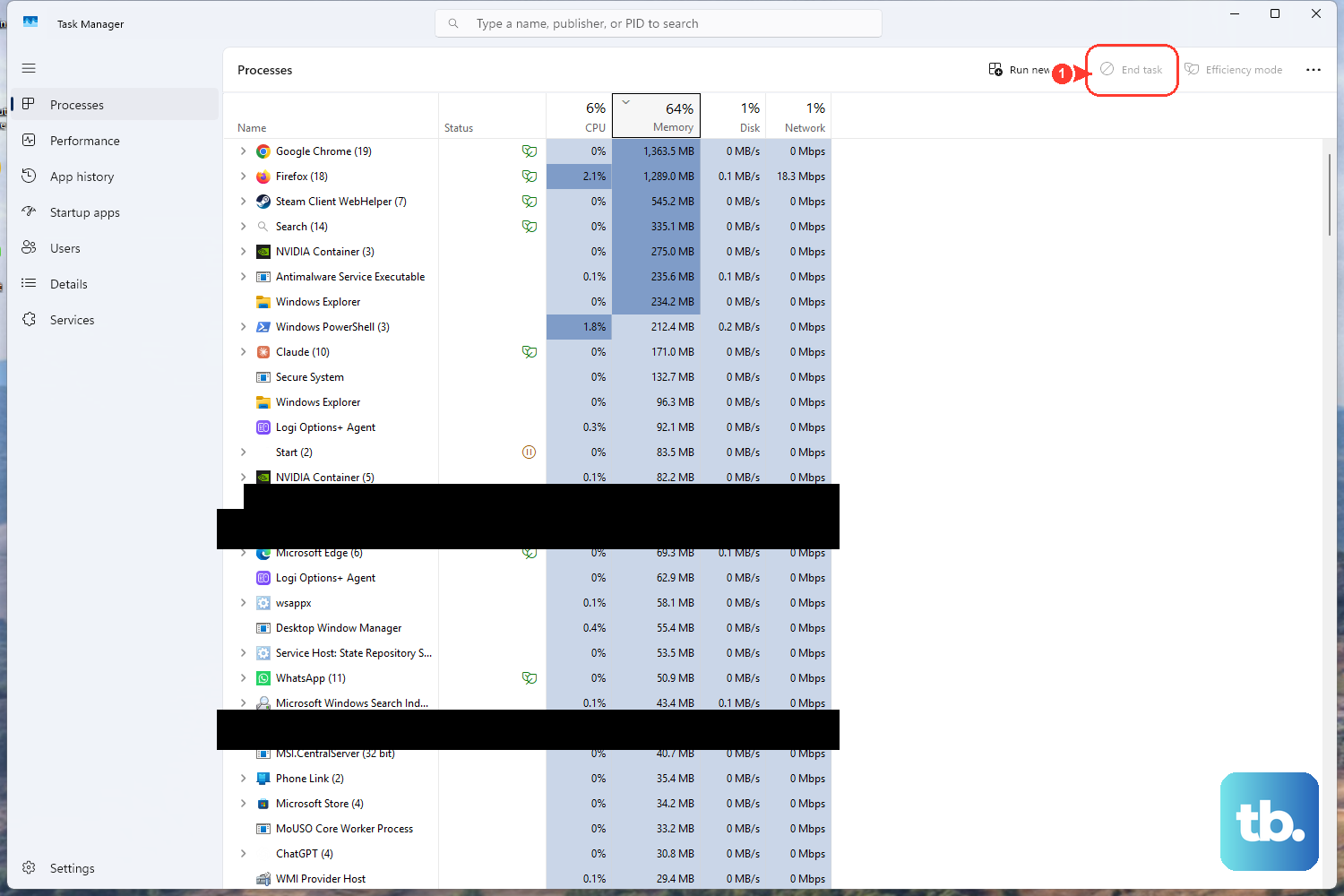
Before you change settings, see what is actually demanding the work. A CPU that runs hot is almost always a CPU that is busy, so identifying the busy process is the fastest path to relief.
Press Ctrl + Shift + Esc to open Task Manager. On the Processes tab, look at the CPU, Memory, and Disk columns, then click a column header (for example CPU) so the list sorts from highest to lowest usage. The process at the top is the one driving the load.
- 1.Press
Ctrl + Shift + Escto open Task Manager. - 2.Open the Processes tab and click the CPU column header so it sorts highest to lowest.
- 3.Identify the process consuming the most CPU.
- 4.Right-click any app you are not actively using and close it.
You can also review the Startup apps tab to see what loads at sign-in and uses resources in the background. If closing a runaway app drops your CPU usage and the fan calms down within a minute or two, you have found the culprit and the rest of this guide will help you keep it in check.
Install Windows Updates and Optional Driver Updates
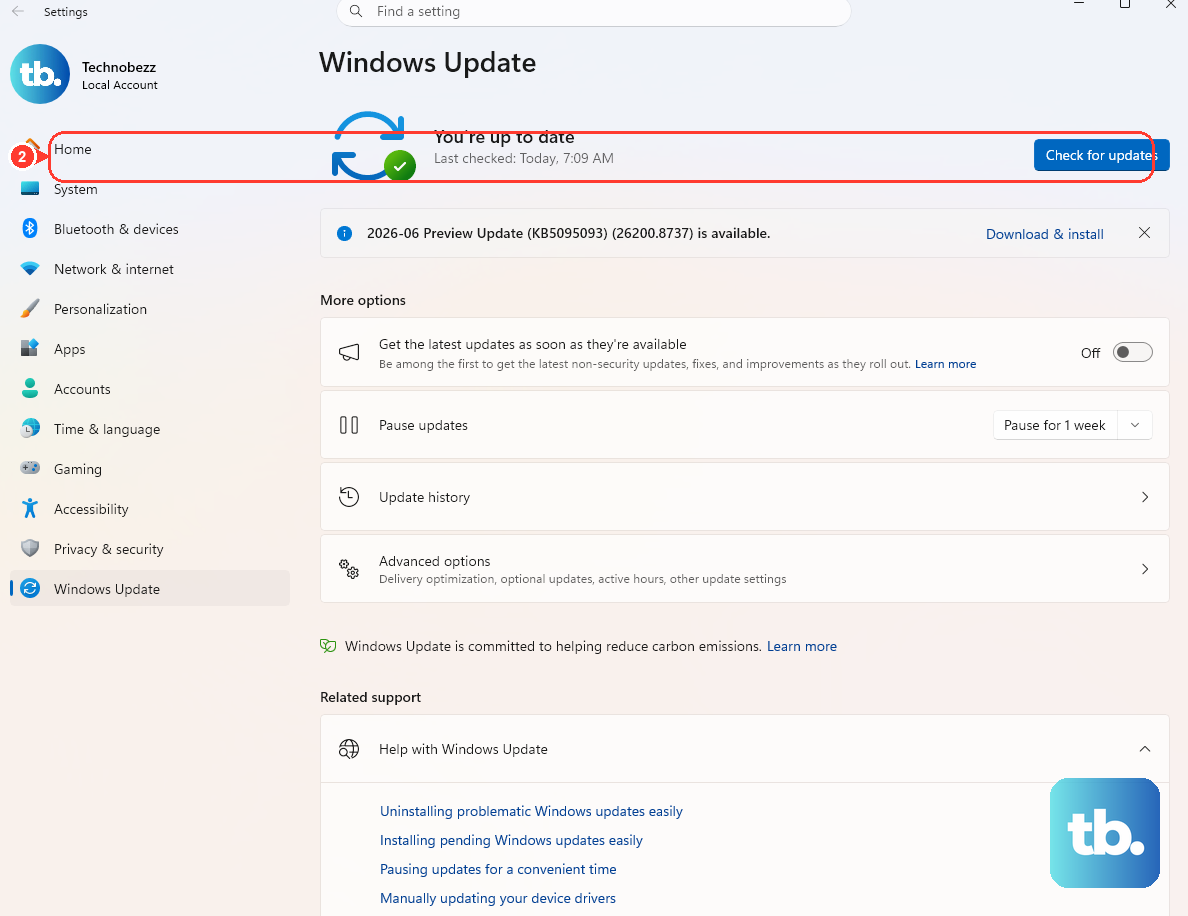
Updates frequently include performance and reliability fixes, and an outdated component can keep a processor working harder than it needs to. Getting current is one of the lowest-effort, highest-value moves you can make.
On Windows 11, go to Start > Settings > Windows Update > Check for updates. On Windows 10, go to Start > Settings > Update & Security > Windows Update > Check for updates. Install whatever is offered and restart if prompted.
Driver fixes sometimes arrive separately. On Windows 11, open Windows Update > Advanced options > Optional updates, select any listed driver updates, then choose Download and install. Picking up these driver fixes can resolve a device that has been quietly burning cycles in the background.
Update a Misbehaving Device Driver
If Task Manager points to a single device or its driver as the source of high CPU, updating that specific driver through Device Manager can settle it down. This is more targeted than a broad update and useful when one piece of hardware is the problem.
- 1.Right-click the Start menu and select Device Manager.
- 2.Select the arrow next to the relevant device category to expand it.
- 3.Right-click the device, then select Update driver.
- 4.Select Search automatically for drivers.
Windows installs an updated driver if it finds one. This approach applies to both Windows 10 and Windows 11, and it is worth doing whenever a particular component shows unusually high activity.
Rule Out Malware Eating Your CPU
Malicious software can quietly consume CPU and disk, which both raises temperatures and slows the machine. A scan with the built-in protection is a sensible step whenever usage stays high for no obvious reason.
On Windows 11, go to Start > Settings > Privacy & security > Windows Security > Virus & threat protection and select Quick scan. On Windows 10, go to Start > Settings > Update & security > Windows Security > Virus & threat protection, and under Current threats choose Quick scan.
For a deeper check, select Scan options and choose Full scan, which scans every file and program on the device, then start the scan. A Full scan takes longer, so you may prefer to run it when you do not need the machine for a while.
Choose the Right Power Mode
Windows power modes change how aggressively your PC chases performance, and the setting directly affects how hard the processor pushes. If your machine runs hot under light tasks, this is a lever worth checking.
Go to Start > Settings > System > Power & battery and set the Power mode dropdown. The documented options are Best power efficiency, which saves battery life; Balanced, which balances performance and battery; and Best performance, which maximizes performance.
For a desktop or a laptop on AC where you want responsiveness, Best performance is appropriate. If you are chasing cooler, quieter operation on battery, Best power efficiency or Balanced will ease the load. This dropdown is a Windows 11 feature; on Windows 10 you instead click the battery icon on the taskbar and drag the power slider between Best battery life, Better battery, Better performance, and Best performance (the slider is not available on every Windows 10 PC).
Trim Visual Effects and Startup Load
Animations, shadows, and background apps all add work that contributes to heat, especially on lower-powered hardware. Reducing them frees the processor to spend its effort where it matters and run cooler in the process.
Select Start, type 'Adjust the appearance and performance of Windows', and open it. On the Visual Effects tab, select Adjust for best performance. This strips back the cosmetic effects so your CPU and GPU have less to render moment to moment.
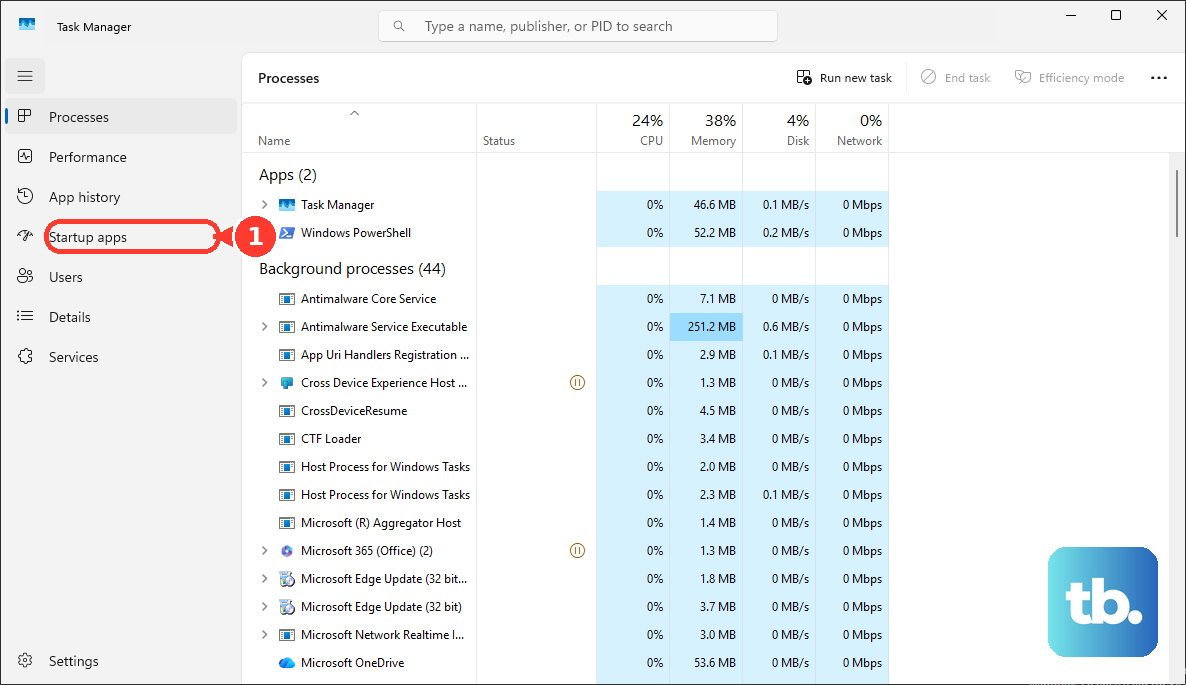
Next, lower background activity at boot. Open Task Manager with Ctrl + Shift + Esc, go to the Startup apps tab, right-click apps you do not need running at startup, and select Disable. Fewer programs launching with Windows means less competing load the moment you sign in.
Give the Machine Room to Breathe
Software is only half the story. If hot air cannot escape, even a lightly loaded laptop will climb in temperature, so placement and airflow matter as much as any setting.
HP recommends keeping the computer upright on a sturdy, level surface and leaving clear space around each vent so air can move freely. Do not place a laptop on cloth surfaces such as your lap, a bed, or a couch cushion, because that restricts or blocks airflow and causes overheating.
Ambient temperature counts too. HP recommends keeping the computer in a cool environment, since a hot room makes it harder for the cooling system to do its job. If your PC tends to overheat in a warm spot, simply relocating it can make a measurable difference.
Clear the Dust and Keep Firmware Current
Software is not the whole picture, because dust gradually builds up inside any machine and chokes airflow until the fans cannot keep up. HP highlights cleaning the vents as part of routine care to keep a computer running cool.
To address it, use canned (compressed) air to remove dust from the vents and improve airflow. HP also recommends ensuring adequate ventilation, cleaning the fan vents regularly, keeping the computer in a cool environment, and keeping the BIOS up to date. Current firmware can include fan and thermal handling improvements, so it belongs on your maintenance list.
On select HP models, first-party tools can manage temperature and fan behavior automatically. HP CoolSense, HP Cool Control, or HP Command Center can adjust performance and fan settings to keep heat in check, with availability varying by model and available from HP's support site.
Frequently Asked Questions
How do I quickly tell whether my overheating is software or hardware?
Open Task Manager with Ctrl + Shift + Esc and sort the Processes tab by the CPU column. If one process is consistently high, closing or updating it usually addresses a software cause. If usage is low yet the machine still runs hot, the problem points toward airflow, dust, or placement instead.
Will switching to Best power efficiency reduce heat?
It can, because the power modes change how hard your PC pushes for performance. Best power efficiency saves battery life and eases the load, Balanced balances performance and battery, and Best performance maximizes performance. Choose Best power efficiency or Balanced if you want cooler, quieter operation under everyday tasks.
Can a virus cause my CPU to overheat?
Yes. Malware can consume CPU and disk, which raises temperatures and slows the system. Run a scan from Start > Settings > Windows Security > Virus & threat protection, starting with a Quick scan and using a Full scan for a deeper check that covers every file and program on the device.
How often should I clean my laptop's vents?
HP recommends cleaning the fan vents regularly as part of routine maintenance. Use canned (compressed) air to clear the vents and improve airflow, and make it a habit rather than waiting until the fan is constantly running.
What should I do first if my PC is overheating right now?
Start by opening Task Manager and closing the process using the most CPU, then move the machine onto a hard, level surface with clear space around the vents. Those two steps address the most common immediate causes; from there, work through updates, a malware scan, and your power mode for a lasting fix.