You can install the iOS 27 developer beta on your iPhone today, and you do not have to pay for anything. The short version is this. Back up your iPhone, sign in at developer.apple.com with your Apple Account, then go to Settings > General > Software Update > Beta Updates, choose the developer beta, and install it from the Software Update screen.
Apple released iOS 27 developer beta 1, build 24A5355q, on June 8, 2026. This is early, unfinished software, so expect bugs, faster battery drain, and apps that misbehave, and remember that anything you see in the beta can change before the free public release this fall. If that sounds like too much risk for your main phone, Apple says a public beta arrives through the Apple Beta Software Program at beta.apple.com next month, in July 2026.
Check That Your iPhone Can Run iOS 27
iOS 27 supports iPhone 11 and later, including iPhone SE (2nd generation and later). The official compatibility list runs from the iPhone 11, iPhone 11 Pro, and iPhone 11 Pro Max through the iPhone 12, iPhone 13, and iPhone 14 families, the iPhone 15 lineup, every iPhone 16 model including iPhone 16e, the full iPhone 17 lineup including iPhone 17e, and iPhone Air.
There is one important catch before you get excited. Siri AI and the broader Apple Intelligence features require an iPhone 15 Pro, iPhone 15 Pro Max, or any iPhone 16 model and later. Installing the beta on an iPhone 11 through iPhone 14 still gets you iOS 27, but it does not get you Siri AI.
Back Up Your iPhone Before You Touch the Beta
Apple's own pre-install warning is blunt. The company says to always back up your devices before installing beta software, and that advice matters more here than usual. A current backup is your only realistic way back if the beta breaks something you rely on.
For a quick iCloud backup, go to Settings > [your name] > iCloud > iCloud Backup > Back Up Now. Apple's full backup guide at support.apple.com/en-us/118426 covers iCloud, Mac, and Windows PC backups, and the iCloud steps are detailed at support.apple.com/en-us/108366.
If you have access to a computer, make a backup there too and keep it untouched. Going back to the released version of iOS later requires an erase and restore, and a computer backup made before you installed the beta is the safest thing to restore from.
Install the iOS 27 Developer Beta Step by Step
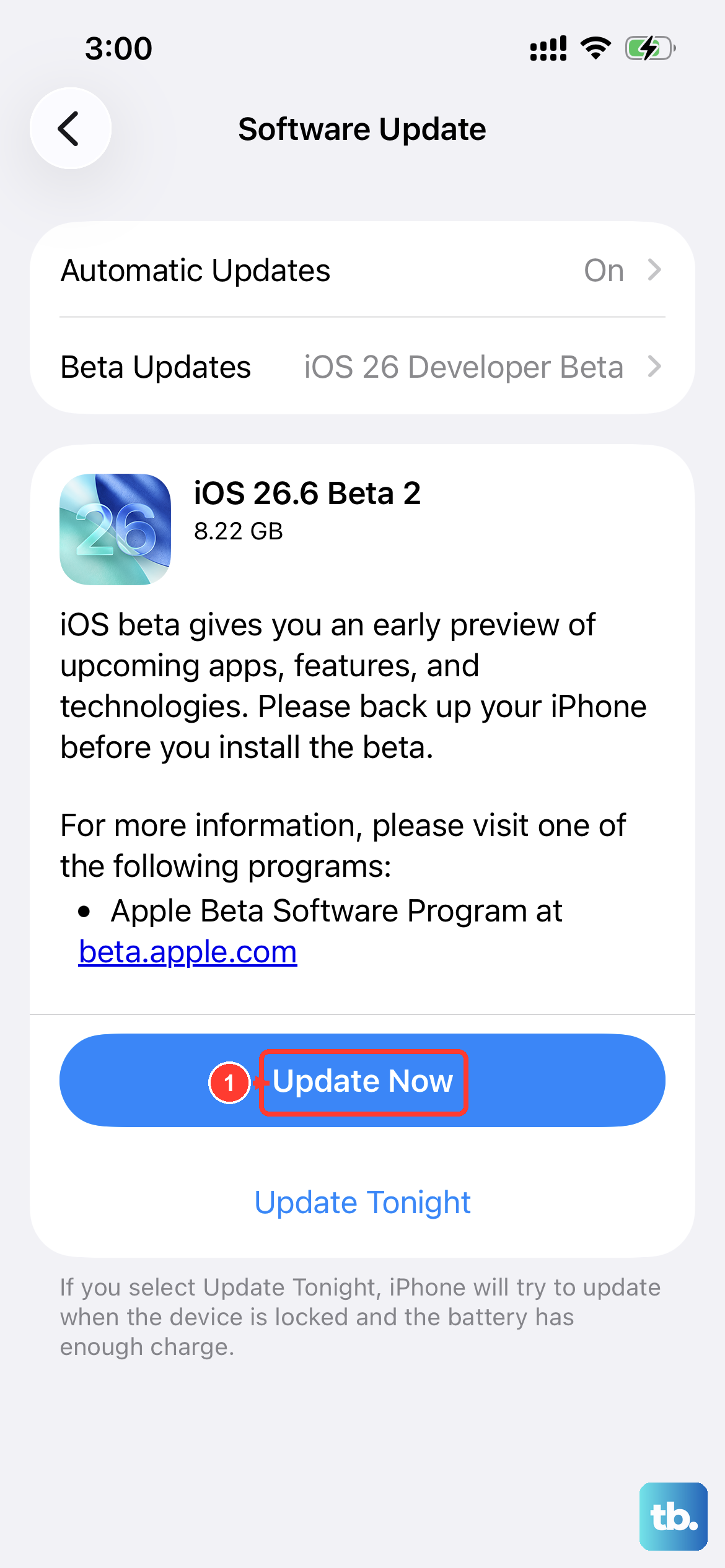
With your backup done, the actual installation takes only a few minutes. Here is the full sequence.
- 1.Sign in at developer.apple.com with your Apple Account and accept the developer agreement. You do not need the paid Apple Developer Program membership, which costs $99 per year, because Apple's official membership comparison lists OS beta releases as included with a free Apple Account.
- 2.Make sure your iPhone is signed in with that same account. Apple states the iPhone must be signed in with the Apple Account you use to sign in to the Apple Developer website in order to access the beta software.
- 3.On the iPhone, go to Settings > General > Software Update > Beta Updates. This menu appears on iOS 16.4 or later once the device is signed in with an eligible Apple Account.
- 4.Select the iOS 27 developer beta from the list of available betas.
- 5.Return to Settings > General > Software Update, then download and install the iOS 27 beta when it appears. Keep the iPhone on Wi-Fi and connected to power for the entire update.
One thing you can skip is Developer Mode. Apple notes it is only required if you are developing apps for the device, so you do not need it just to install the beta over the air.
If you want to see what Apple has documented about this build, the official iOS and iPadOS 27 beta release notes live on Apple's developer documentation and are linked from developer.apple.com/news/releases/.
What iOS 27 Brings and What to Expect From Beta 1
The headline feature of iOS 27 is Siri AI, a reimagined assistant with conversational ability, personal context, onscreen awareness, and the power to take actions across multiple apps. Apple says it is powered by the next generation of Apple Foundation Models that run on device and on servers using Private Cloud Compute.
Manage your expectations on timing, though. Apple says Siri AI will be available as a beta later this year for users with a supported device set to English, and it will not be available initially in the EU on iPhone, a delay Apple attributes to the Digital Markets Act. So even on an eligible iPhone, installing developer beta 1 today does not guarantee the finished Siri experience.
Beyond Siri, Apple's stated iOS 27 changes include app launches up to 30 percent faster, new photos loading in the Photos library up to 70 percent faster, and AirDrop transfers up to 80 percent faster. There are also new child safety and parental controls, Liquid Glass design refinements with customizable tint levels, and Safari additions such as automatic tab organization plus Notify Me alerts for price drops and restocks. All of these are beta features, which means Apple can tweak, delay, or rework them before the final release.
Why the Public Beta in July May Suit You Better
If your iPhone is the phone you depend on every day, the developer beta is the riskiest way to try iOS 27. Apple's public beta, delivered through the free Apple Beta Software Program, follows next month, and beta.apple.com currently lists the iOS 27 public betas as coming soon. Apple has not given a specific day, only July 2026.
The program is open to anyone with a valid Apple Account, costs nothing, and lets you send Apple bug reports through the Feedback Assistant app. The program site also includes an Unenroll page if you later decide to leave. And if you want zero risk, iOS 27 ships as a free software update for everyone this fall.
How to Stop Beta Updates and What Downgrading Involves
Turning off future betas is easy. Go to Settings > General > Software Update > Beta Updates and set it to Off. Your iPhone then stays on the beta it already has and moves to the next publicly released version of iOS when that arrives.
Actually removing the beta right away is a bigger job. To go back to the current publicly released version of iOS, you need to erase and restore the device, then restore the backup you made before installing the beta. This is exactly why the computer backup from earlier is worth the extra few minutes.
One more quirk to know about. Betas expire, so if your iPhone tells you an update is available, the installed beta has expired and you must update to keep going.
Frequently Asked Questions
Do I need the paid Apple Developer Program to install the iOS 27 beta?
No. Apple's membership comparison shows OS beta releases are included with a free Apple Account as well as with the paid program. Signing in at developer.apple.com with your Apple Account and accepting the agreement is enough.
Will the beta bring Siri AI to my older iPhone?
No. Siri AI requires an iPhone 15 Pro, iPhone 15 Pro Max, or any iPhone 16 model and later. An iPhone 11 through iPhone 14 can run iOS 27 but will not get Siri AI, and Apple says Siri AI itself arrives as a beta later this year for supported devices set to English.
When does the iOS 27 public beta come out?
Apple says the public beta will be available through the Apple Beta Software Program next month at beta.apple.com, which puts it in July 2026. The site currently lists the iOS 27 public betas as coming soon, and Apple has not announced a specific day.
Can I uninstall the beta and go back to the released version of iOS?
Not with a simple toggle. Turning Beta Updates off only stops future betas, and you stay on the installed beta until the next public release. To return to the released version immediately, you must erase and restore the iPhone and then restore a backup made before you installed the beta.
Do I need to enable Developer Mode to install the beta?
No. Apple says Developer Mode is only required if you are developing apps for the device. Installing the beta through Settings > General > Software Update does not need it.
When will the final version of iOS 27 be released?
Apple says iOS 27 will ship as a free software update this fall. The company has not given an exact date, only fall 2026.