File Explorer problems usually show up at the worst time: a folder will not open, a file is missing, or Windows sends you in circles. The fastest fix is to use Microsoft’s current help paths first, then move to support or trusted remote help when the problem needs another person.
One thing changes the support picture in 2026: Windows 10 standard support ended on October 14, 2025. The help tools below still appear in Microsoft’s current Windows guidance, but support options follow Microsoft’s product, account, region, and lifecycle rules.
1. Open Get Help from Start
Start here when you want the cleanest Microsoft route for File Explorer help.
Select Start.
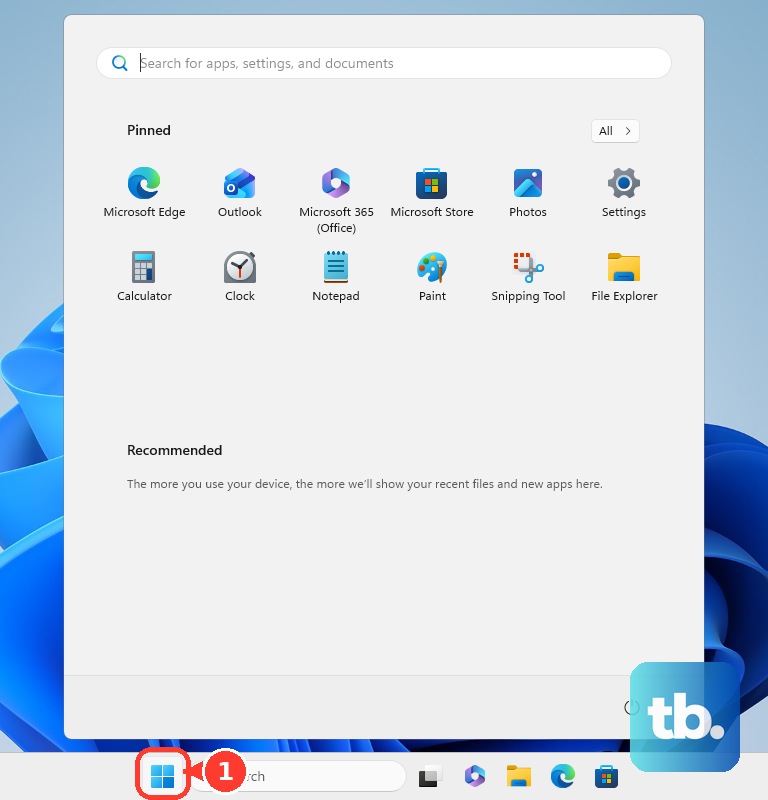
Type get help in the search box.
Select Get Help from the results.
Enter File Explorer, File Explorer won’t open, or get help with file explorer in windows 10.
Review the recommended solutions.
Use the contact options shown in Get Help.
Get Help works with Microsoft personal accounts and work or school accounts. Personal account users can sign in to submit support requests.
2. Search Windows from the taskbar
Select the Search box on the taskbar.
Type get help with file explorer in windows 10 or File Explorer won’t open.
Open the Microsoft help result that matches your issue.
Use this when you know the problem but not the right Microsoft page. It keeps the search inside Windows and gets you to official help without guessing through old forum posts.
3. Read Microsoft’s File Explorer help page
For basic File Explorer tasks, use Microsoft’s official File Explorer support page. Open the page, then use the Windows 10 section for Windows 10 steps.
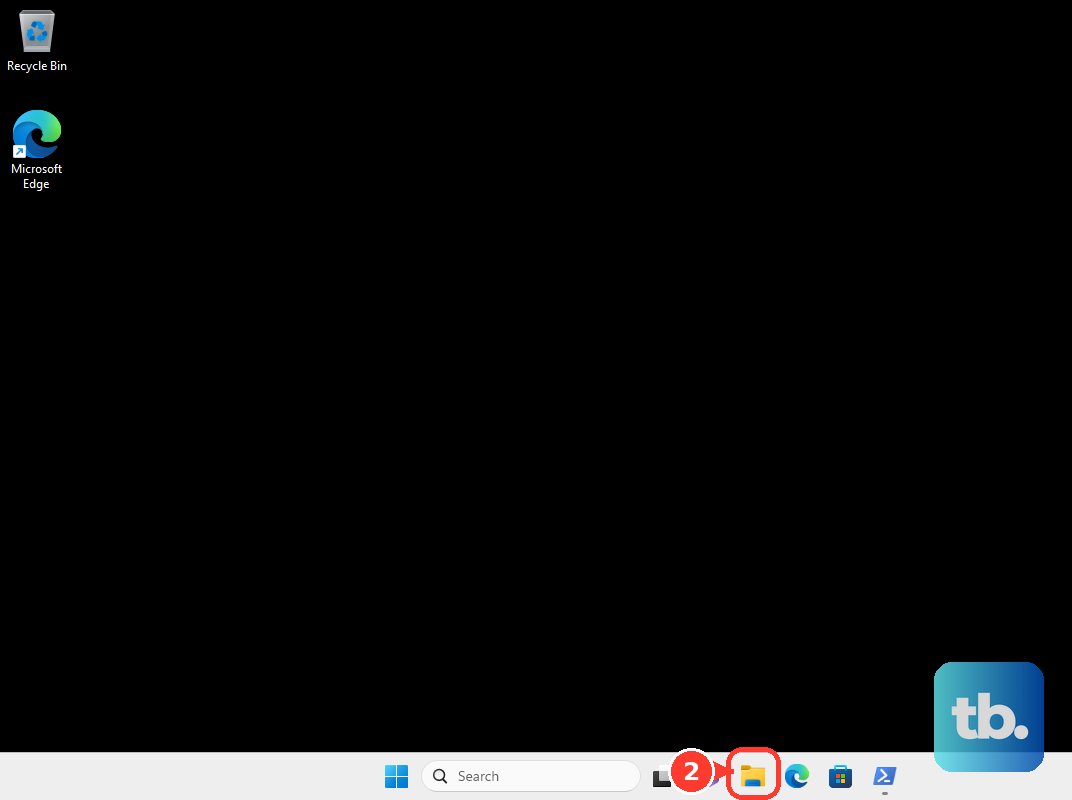
The same page confirms the standard ways to open File Explorer: press Windows logo key + E, select File Explorer on the taskbar, or open it from Start.
When the page shows Need more help? Try Copilot, select a prompt such as How do I delete a file in File Explorer? or start a Copilot conversation about your File Explorer question.
4. Follow the fix page when File Explorer will not open
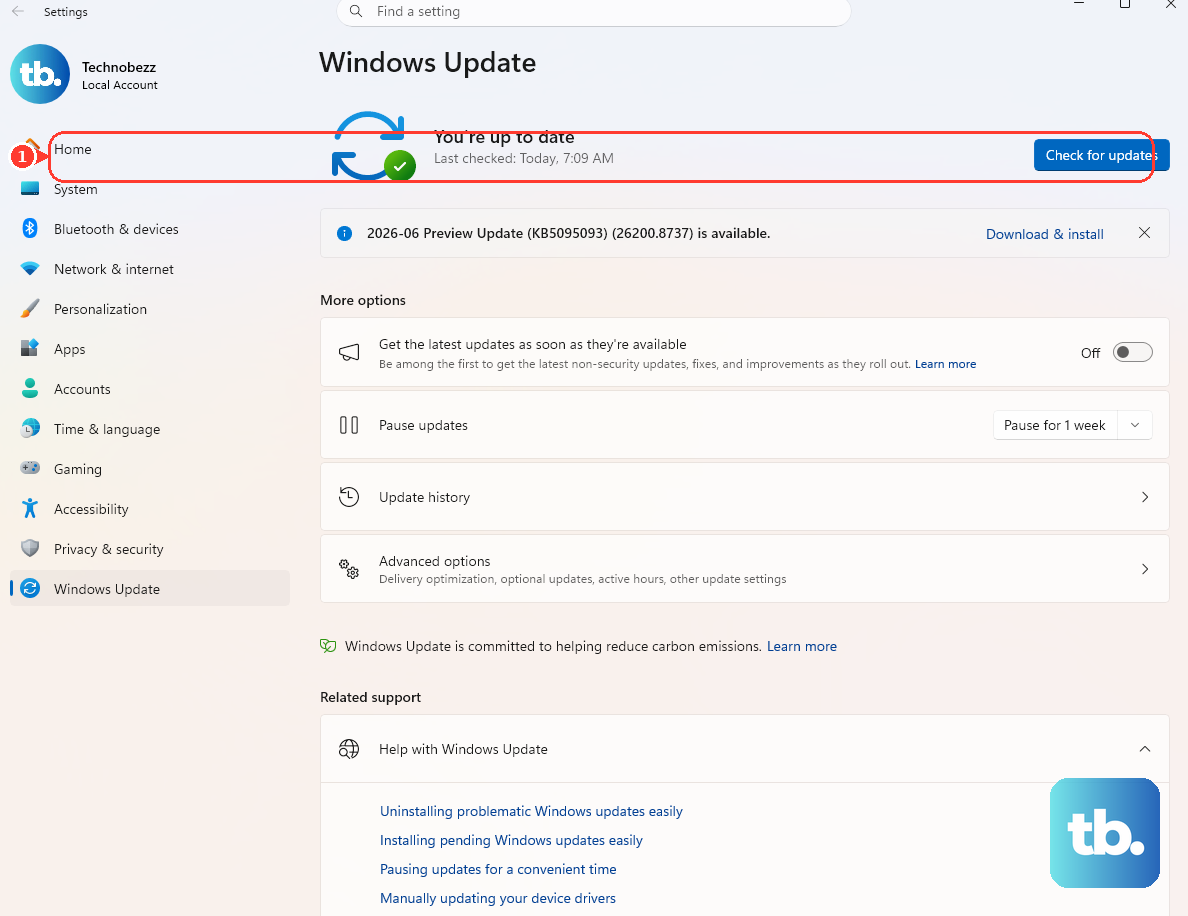
Open Microsoft’s page for fixing File Explorer when it will not open or start.
Choose Windows 10.
Start with Check for updates.
Continue through the troubleshooting steps in the order Microsoft lists them.
A File Explorer window that will not open needs Microsoft’s troubleshooting flow, not a general help search. Use this path before trying older Windows 10 repair tricks.
It is the current Microsoft support page for that specific File Explorer problem.
5. Use Settings help for related Windows options
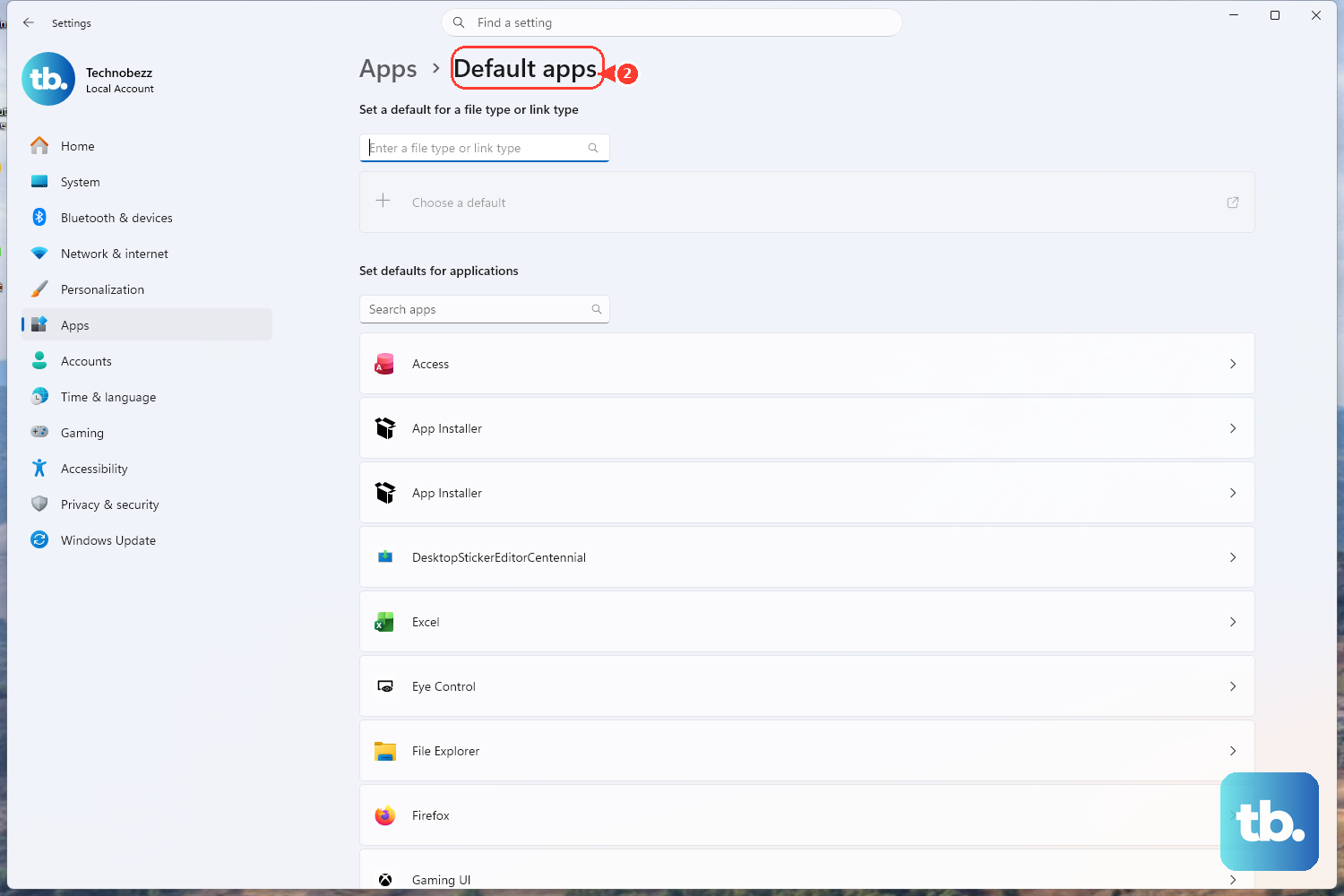
Some File Explorer issues come from Windows settings, especially storage, search, updates, or default app behavior.
Open Settings.
Select the settings page tied to the issue.
Select Get help.
Search for the File Explorer setting or problem you want to understand.
This works best for File Explorer-adjacent settings. For help inside File Explorer itself, use Get Help or Microsoft’s File Explorer support page.
6. Press F1 inside File Explorer
Open File Explorer, then press F1. Microsoft documents F1 as the common shortcut for app Help.
When F1 does not bring up useful File Explorer help, go straight back to Get Help or Microsoft Support. Microsoft says common shortcuts do not work in every app.
7. Contact Microsoft or ask the community
Move to a support channel when the self-help pages do not solve it.
On Microsoft Support, select Get Help on the web or Get Help in Windows, then describe the File Explorer problem.
For phone support, go to Technical support phone numbers, select your region and country or territory, and use the number Microsoft lists (for the United States, +1 800 642 7676).
Note that Windows 10 reached end of support on October 14, 2025, and Microsoft no longer provides Windows 10 technical support, so contact routes may point you to self-help or to a supported Windows version.
For peer help, select Discover Community or Ask the Microsoft Community from Microsoft’s Windows help page, then search or post your File Explorer question.
Microsoft support availability depends on product, account, subscription, region, and support lifecycle. Community answers are peer help, not a Microsoft support case.
8. Share your screen with Quick Assist
- 1.Open Quick Assist, or press Ctrl + Windows logo key + Q.
- 2.Enter the helper’s 6-digit code in Code from assistant.
- 3.Select Submit.
- 4.Select Allow to share your screen.
- 5.Select Allow again only when you want to give full control.
- 6.Select Leave when finished.
Use Quick Assist when someone you trust needs to see your screen or control the PC to help with File Explorer.
If Quick Assist is not installed, open Start, select All apps, open Microsoft Store, search for Quick Assist, then select Get or Install. When a verified Microsoft support agent directs you to the Quick Assist web app, enter the security code on the page the agent provides.
9. Skip deprecated Windows 10 help methods
Older guides point people to Tips or the standalone Cortana app for Windows help. Microsoft lists both as deprecated, so do not use them as your File Explorer help path.
Use Get Help, Microsoft Support, Microsoft Community, Copilot prompts on Microsoft’s File Explorer page, or Quick Assist. On work or school PCs, use your organization’s support path when Get Help, Microsoft Store, or Quick Assist is restricted.
Frequently Asked Questions
Does Windows 10 still have File Explorer help?
Yes. Microsoft still documents Windows 10 help paths for File Explorer, including Windows Search, Get Help, Microsoft Support pages, Microsoft Community, and Quick Assist. Windows 10 standard support ended on October 14, 2025, so support options follow lifecycle rules.
What should I type in Get Help for File Explorer?
Use the exact problem first, such as “File Explorer won’t open.” For general help, search “File Explorer” or “get help with file explorer in windows 10.”
Can Microsoft Support help with File Explorer by phone?
Microsoft lists technical support phone numbers by country or region (for the United States, +1 800 642 7676), but Windows 10 reached end of support on October 14, 2025, and Microsoft no longer provides Windows 10 technical support. Use Microsoft's self-help pages, Get Help, Microsoft Community, your organization's support desk, or move to a supported Windows version. Contact options depend on product eligibility, lifecycle, subscription, and region.
Is Quick Assist the same as Microsoft Support?
No. Quick Assist is a remote help tool for sharing your screen with a trusted helper. Microsoft Support is the official support channel for self-help, chat, call options, and support requests.
Should I use Cortana or Tips for Windows 10 File Explorer help?
No. Microsoft lists the Tips app and standalone Cortana in Windows as deprecated. Use Get Help, Microsoft Support, Microsoft Community, Copilot prompts, or Quick Assist instead.