Your AOL inbox stopped pulling in new messages, or it is crawling under the weight of years of newsletters, receipts, and forwarded threads. A full mailbox is more than an annoyance; once you hit AOL's storage limits, incoming mail can bounce and you can lose attachments you actually care about. The good news is that clearing space is mostly housekeeping, and AOL gives you several ways to do it from the web, your phone, and even a desktop mail app. This guide walks through each method so you can free up room and keep it that way.
Start From the Web Where You Have the Most Control
The cleanest place to manage a crowded AOL mailbox is the browser. Go to mail.aol.com and sign in with your AOL username and password. AOL recommends accessing your mail through mail.aol.com or the official AOL app, because AOL owns these and can ensure the most secure sign-in technology.
Working from the web matters because it shows your real server-side folders, including Trash and Spam, which is where a lot of your wasted space actually lives. Mobile and desktop apps mirror your account, but the webmail view is the one AOL documents most thoroughly for cleanup tasks. Start here, then use your phone for quick maintenance later.
Clear Out Inbox Clutter a Batch at a Time
Deleting old messages is the fastest way to reclaim space. Open the folder or Inbox that holds the messages you want to remove. Click the checkbox next to each message you want to delete, then click the Delete icon.
If you want to clear an entire folder, click the checkbox in the upper-left of the message list to select every message in the folder, then click the Delete icon. This is handy for promotional folders or old newsletter archives where you do not need to keep anything. Work through your largest folders first to make the biggest dent quickly.
Keep one thing in mind as you go: deleted messages move to the Trash folder. They are not gone from your account yet, which is exactly why the next step matters.
Why Deleting Alone Does Not Free Space Until Trash Empties
Here is the part people miss. Deleting messages alone only moves them to Trash; they are fully removed once Trash empties. So a mailbox can still read as "full" even after you have deleted thousands of messages, because those messages are simply sitting in Trash.
By default, AOL automatically clears these folders for you. Trash is deleted after 7 days, and Spam is deleted after 30 days. These schedules are set systemically by AOL and cannot be changed, so you do not have to remember to empty them manually.
If you would rather not wait the full 7 days for Trash to clear, you can delete the messages inside Trash yourself to remove them sooner. Open the Trash folder, select the messages, and delete them the same way you cleared the inbox. The same approach works for Spam if it has piled up before the 30-day cycle runs.
Tidy Your Inbox From the AOL Mail App
If you are away from a computer, the AOL Mail app on iOS and Android handles cleanup too. To remove many messages at once, tap Edit at the top right of the email list, tap Select all, then tap Delete at the bottom of the screen.
For a one-off, you do not need to enter edit mode at all. Tap and hold the email you want gone, then tap the Delete icon at the bottom of the page. This is the quickest way to clear a single bulky message with an attachment while you are on the move.
Just remember the Trash rule still applies on mobile. Anything you delete from the app lands in Trash and counts against your storage until that folder empties on its 7-day schedule.
Recover a Message You Deleted by Accident
Aggressive cleanup sometimes catches a message you actually wanted. AOL gives you a short window to undo it. Click the Trash folder, select the message you want back, then click Restore to inbox at the top of the page.
Recovery is only possible for messages lost or deleted within the last 7 days, which lines up with how long Trash holds them before AOL clears it. If a message has been permanently deleted or has gone missing within that window and you cannot find it in Trash, AOL says to give them a call and they will try to recover it. After that window, restoring through the inbox is no longer an option, so check Trash promptly if you suspect a mistake.
Delete Folders You No Longer Use
Over time, custom folders can collect messages you have long forgotten, and each one quietly holds storage. To remove a folder, mouse over the folder you want to delete, click the Folder Options icon, then select Delete folder.
There is one order-of-operations rule to know. To rename or delete a folder that has subfolders, you must first move or delete all of its subfolders. So if a Delete folder option seems blocked, clear out the nested folders inside it first, then delete the parent.
Archive Older Mail Off the Server Instead of Losing It
Sometimes you do not want to delete old mail, you just want it out of your AOL mailbox so it stops counting against your storage. AOL lets you download your email to a third-party app to keep older messages without leaving them on the server.
For a full download, AOL provides a set of dedicated settings. Use the incoming server export.imap.aol.com on port 993 with SSL, and the outgoing server smtp.aol.com on port 465 with SSL. Sign in with your full @aol.com address as the username, and generate an app password if your app uses a less-secure sign-in method.
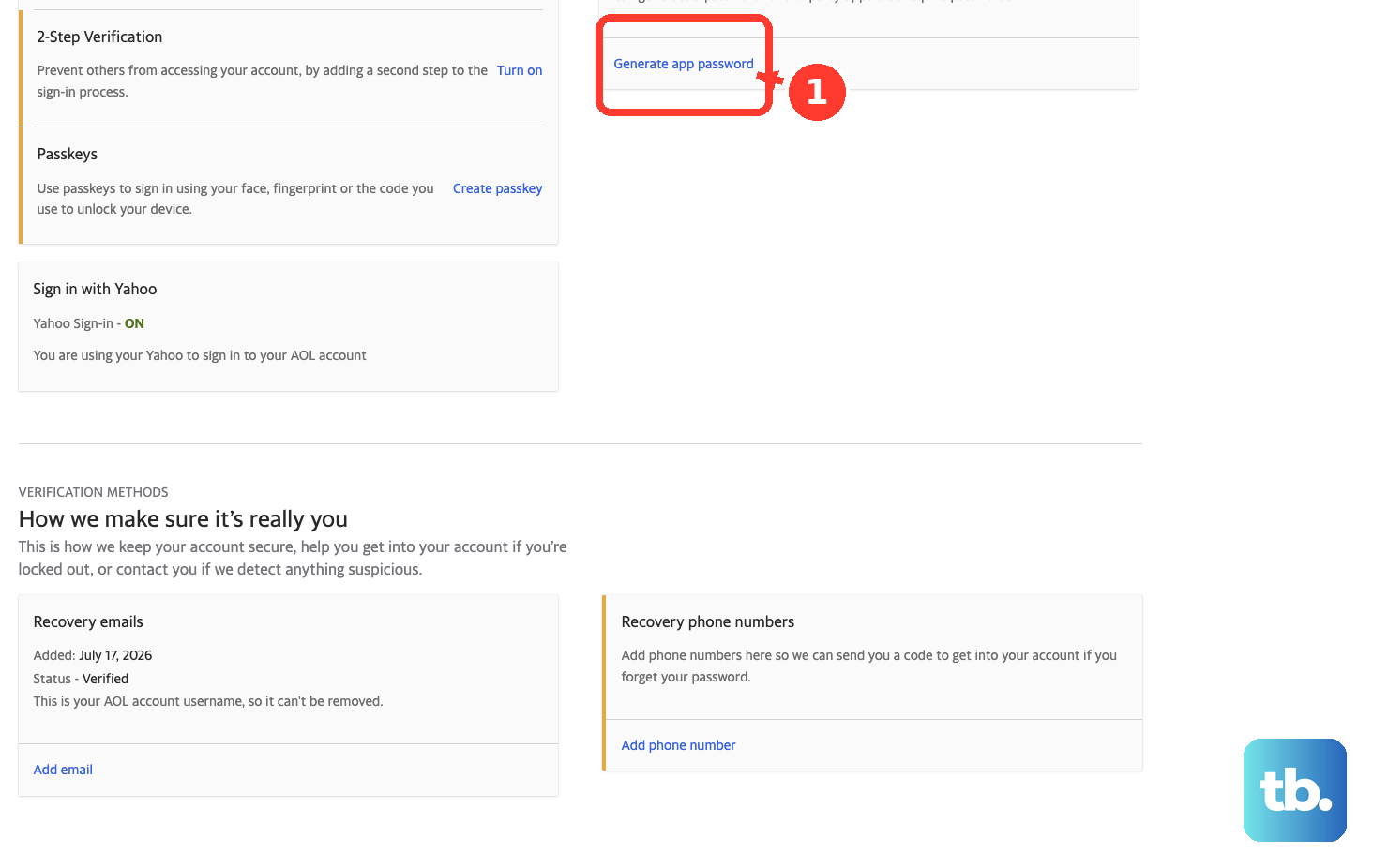
Set your expectations on timing before you start. AOL notes that for accounts with a lot of content, the download can take several days or longer. Once your messages are safely copied into the app, you can delete them from AOL to reclaim the space while still keeping a personal archive.
Connect a Desktop or Mobile App for Ongoing Management
If you would rather manage AOL Mail day to day from a program like Outlook, Thunderbird, or Apple Mail, you can connect it for ongoing sync. The recommended setup uses IMAP for the incoming server: imap.aol.com on port 993 with SSL, paired with the SMTP outgoing server smtp.aol.com on port 465 with SSL.
POP is also supported if you prefer it, using pop.aol.com on port 995 with SSL and the same SMTP outgoing server. In every case, use your full @aol.com address as the username, and generate an app password if your app uses a less-secure sign-in method.
An always-connected app makes routine cleanup easier, because you can sort, search, and delete in bulk using your client's tools. Just remember that IMAP keeps the app and AOL in sync, so messages you delete in the app are deleted on the server too.
Stop Mail From Being Purged for Inactivity
Freeing up space is one side of the equation; keeping the mail you want is the other. AOL retains your emails and attachments subject to its storage limits and abuse policies, so staying within those limits is what these cleanup steps are really about.
There is also a separate protection worth knowing. AOL offers an Extended AOL Mail subscription so that your emails and the files and photos attached to them are not purged from your account due to long periods of inactivity. If you do not log in often and want assurance that long-stored mail and attachments stick around, that subscription is the feature designed to cover it.
Frequently Asked Questions
Why does my AOL inbox still look full after I deleted a bunch of emails?
Because deleting messages only moves them to the Trash folder; they are fully removed once Trash empties. AOL empties Trash automatically after 7 days, or you can open the Trash folder and delete the messages inside it to free the space sooner.
Can I recover an email I deleted by mistake?
Yes, within a short window. Open the Trash folder, select the message, and click Restore to inbox at the top of the page. Recovery is only possible for messages lost or deleted within the last 7 days. If a message has been permanently deleted or has gone missing in that window, AOL says to give them a call and they will try to recover it.
How do I keep old emails without leaving them in my AOL mailbox?
Download them to a third-party app using AOL's settings: incoming server export.imap.aol.com on port 993 with SSL and outgoing smtp.aol.com on port 465 with SSL, signing in with your full @aol.com address. For accounts with a lot of content, this download can take several days or longer.
Does deleting a folder remove the emails inside it?
Deleting a folder removes the folder along with the messages it holds. To delete a folder, mouse over it, click the Folder Options icon, then select Delete folder. If the folder contains subfolders, you must first move or delete all of its subfolders before you can delete or rename the parent folder.
How do I stop AOL from purging my mail if I do not log in often?
AOL offers an Extended AOL Mail subscription so that your emails and the files and photos attached to them are not purged from your account due to long periods of inactivity. AOL otherwise retains your mail subject to its storage limits and abuse policies.