

YouTube full screen not working usually comes down to one of four things: the player control, your browser, screen rotation, or the app session on your device. Start with the fastest fix, then jump to the section that matches where you watch YouTube.
The steps below use current YouTube, browser, Android, iPhone, iPad, Mac, Windows, and TV controls, and they skip old Flash and Internet Explorer advice that no longer applies.
1. Start with the YouTube player controls
Open the video on YouTube and click Full screen at the bottom-right of the video player. If you prefer the keyboard, click the player once and press f. Press f again or press Esc to exit.
Want a bigger player without true fullscreen? Select Theater mode in the bottom corner of the player. Theater mode expands the video area on the page, while Full screen takes over the screen.
2. Make the YouTube app fill the screen
On Android: Open the video in the YouTube app, tap Full screen at the bottom of the player, then turn your device horizontally. The current YouTube app requires Android 9.0 or later.
On iPhone or iPad: Open the video in the YouTube app, tap Full screen at the bottom of the player or swipe up on the video, then turn your device horizontally.
If the video enters fullscreen but stays vertical, fix rotation next.
3. Unlock rotation on your phone or tablet
iPhone: Swipe down from the top-right corner to open Control Center, tap Portrait Orientation Lock so it is off, close Control Center, then turn your iPhone sideways.
On iPhone models with a Home button, open Control Center from the bottom edge.
iPad: Swipe down from the top-right corner to open Control Center, tap Rotation Lock so it is off, close Control Center, then turn your iPad sideways.
Android: Open Settings, go to Display & touch, turn on Auto-rotate screen, then rotate the device.
On many devices, swipe down to Quick Settings and turn on Auto-Rotate.
4. Refresh the YouTube app before reinstalling it
Close the YouTube app, reopen it, and play the video again. If fullscreen still fails with other playback problems, reboot the device.
On Android: Open Google Play Store, tap your profile picture, choose Manage apps & device, open Updates available, then tap Update next to YouTube.
To clear the app cache, open Settings, then Apps, then YouTube, then Storage, then Clear cache.
Use Clear storage or Clear data only when you are ready to permanently delete app data.
On iPhone or iPad: Open the App Store, tap the My Account button or your photo, tap App Updates, then tap Update next to YouTube.
If the app still has broader playback errors, uninstall and reinstall YouTube.
5. Switch to a supported desktop browser
YouTube supports the newest versions of Chrome, Firefox, Safari, Microsoft Edge, and Opera on desktop. Update the browser first when the fullscreen button does nothing or the player controls look broken.
Do not use Internet Explorer or IE compatibility mode for YouTube fullscreen problems. YouTube no longer supports Internet Explorer, so the working fix is a current browser.
6. Clear site data and turn off extensions
If YouTube fullscreen works in one browser but not another, clean up the browser that fails and test again after each change.
Chrome: Open More, choose Delete browsing data, select Cookies and other site data and Cached images and files, choose Time range, then click Delete data.
For extensions, open More, then Extensions, then Manage extensions, and turn extensions off one at a time.
Microsoft Edge: Open Settings and more, then Settings, then Privacy, search, and services, then Clear browsing data, then Choose what to clear.
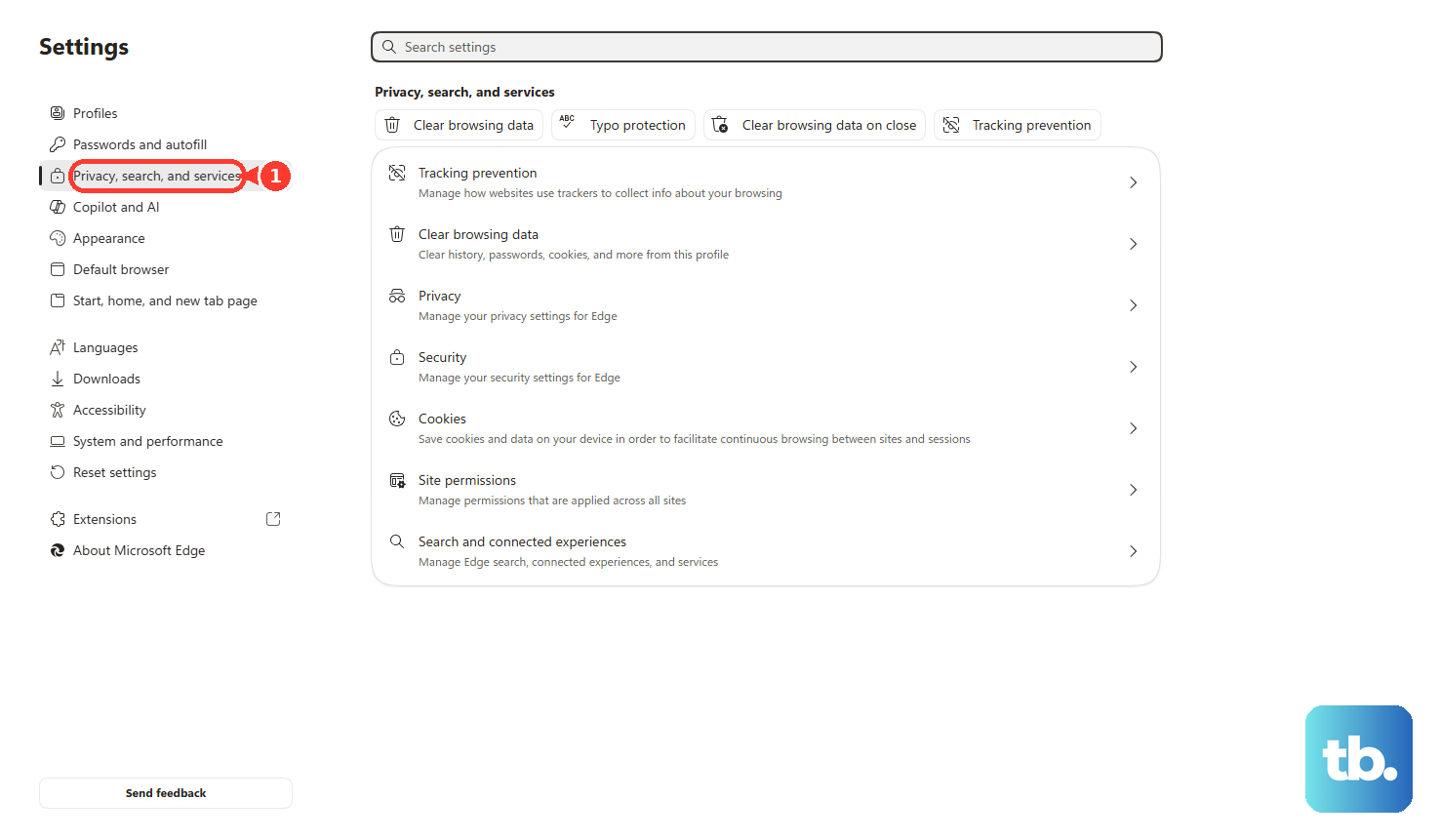
Select Cookies and other site data and Cached images and files, then click Clear now.
For extensions, open Extensions, then Manage extensions, and turn them off to test.
Safari on Mac: Open Safari, then Settings, then Privacy, then Manage Website Data.
Select the YouTube website data and click Remove, or click Remove All.
For extensions, open Safari, then Settings, then Extensions, and deselect an extension checkbox.
Ignore old Safari instructions that rely on Empty Cache. Current Apple guidance uses Safari, then Settings, then Privacy, then Manage Website Data.
7. Fix black screens and display glitches
- 1.Use the browser’s own fullscreen shortcut. In Chrome, press F11 on Windows or Linux, Control-Command-f on Mac, or the Full screen key on ChromeOS. In Edge, press F11 or Control-Command-F on Mac. In Firefox, press F11 on Windows or Linux, or Command-Shift-F on Mac. In Safari on Mac, click the green window button or press Control-Command-F.
- 2.In Chrome, open More, then Settings, then System, turn off Use hardware acceleration when available or Use graphics acceleration when available, then restart Chrome.
- 3.In Firefox, open the menu, then Settings, then General, then Performance. Uncheck Use recommended performance settings, uncheck Use hardware acceleration when available, then restart Firefox.
- 4.On Windows, open Device Manager, expand Display adapters, right-click the display device, choose Update driver, then choose Search automatically for updated driver software. For optional drivers, open Start, then Settings, then Windows Update, then Advanced options, then Optional updates.
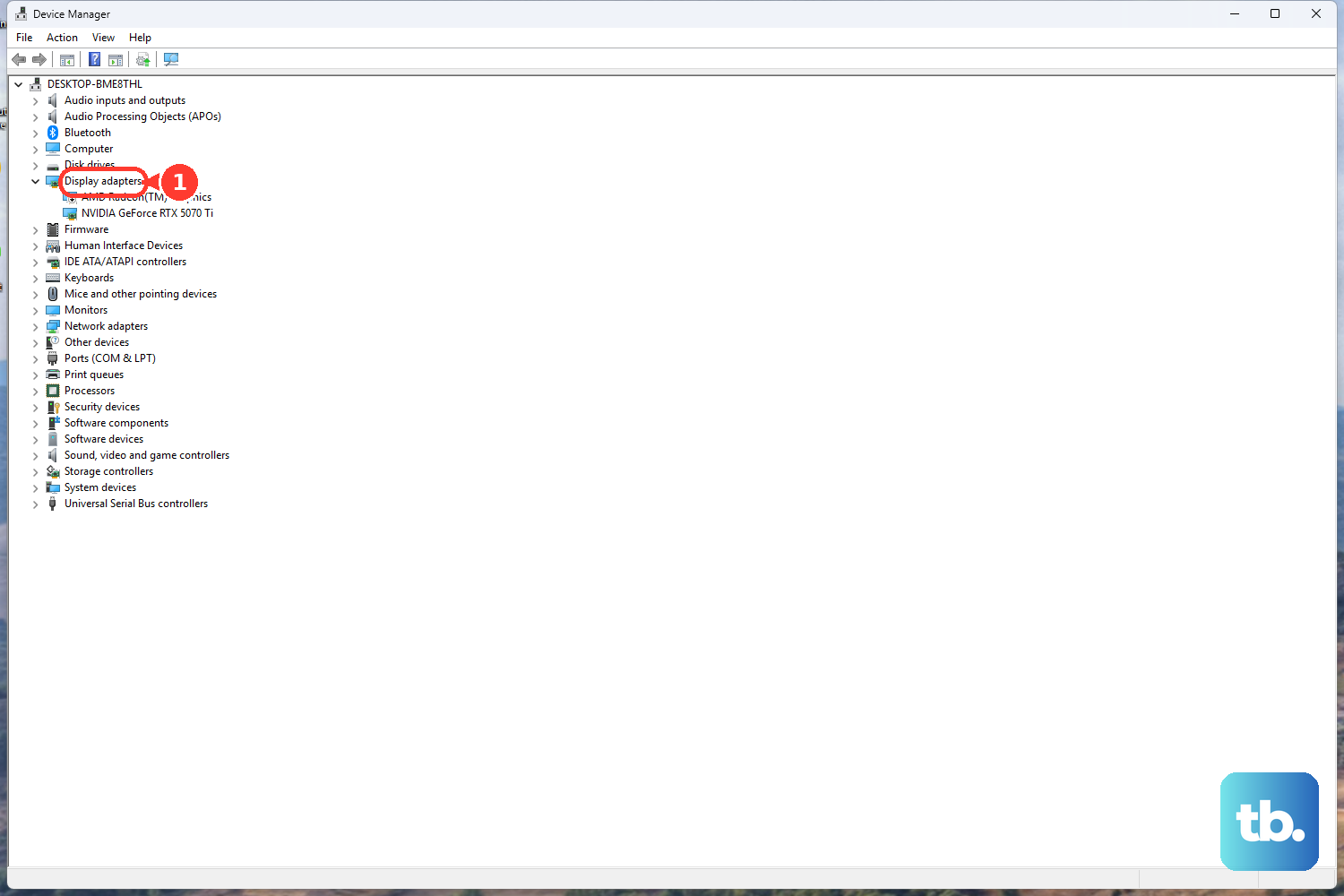
Use this path when fullscreen opens to a black screen, the video glitches, or the problem follows the display instead of the YouTube button.
8. Open embedded videos directly on YouTube
Embedded YouTube videos on other websites need fullscreen permission from the site owner. If a video has no Full screen option, open it directly on YouTube or in the YouTube app.
If the same video works on YouTube, the website embed is blocking fullscreen. A visitor cannot override that from YouTube settings.
9. Reset YouTube fullscreen on your TV
Press the Home button on your remote, reopen the YouTube app, and replay the video.
If fullscreen still fails, unplug the TV or streaming device for 30 seconds, then plug it in again.
On Android TV or Google TV, turn on app updates from Home, then Apps, then Google Play Store, then Settings, then Auto-Update Apps, then Auto-update apps at any time.
For YouTube multiview, use the direction pad to highlight the view you want in full screen, press Select, then press Back to return to multiview.
If the YouTube app on your smart TV, streaming device, or game console keeps failing, open Settings inside the YouTube app and choose Reset app.
If you are signed in, this signs you out.
On a school or work browser, ask IT to check whether FullscreenAllowed is disabled in Chrome Enterprise or Microsoft Edge policy.
Skip Flash Player fixes entirely; Adobe ended Flash Player support after December 31, 2020, and blocked Flash content beginning January 12, 2021.
Frequently Asked Questions
Why does YouTube fullscreen work after I press F11 but not the player button?
F11 uses the browser’s fullscreen mode. The YouTube button uses the video player. Clear YouTube site data, turn off extensions, and restart graphics acceleration checks in the browser that fails.
Why is YouTube fullscreen sideways or stuck vertical on my phone?
The app is entering fullscreen, but the device is not rotating. Turn off Portrait Orientation Lock on iPhone, turn off Rotation Lock on iPad, or turn on Auto-rotate screen on Android.
Can a school or work computer block YouTube fullscreen?
Yes. Managed Chrome and Microsoft Edge browsers have a FullscreenAllowed policy. If fullscreen is blocked everywhere, IT has to change that setting.
Does Theater mode fix YouTube fullscreen?
No. Theater mode only enlarges the player inside the YouTube page. Use the Full screen button or the f key for real fullscreen.