

Xbox Remote Play breaks when the console is not ready to wake, the wrong account is signed in, Xbox services are down, or the network test is failing. The current fix starts at the web Remote Play page, then moves through the Xbox settings that actually control streaming. These are the current Remote Play steps for Xbox Series X|S and Xbox One, including the post-2025 mobile change that removed the old app-based Remote Play button.
1. Start with the current Remote Play page
Old mobile-app instructions send you to the wrong place. Microsoft's current entry point is the web Remote Play flow.
- 1.Open a supported browser.
- 2.Go to https://www.xbox.com/remoteplay.
- 3.Sign in with the same Microsoft account used on your Xbox console.
- 4.Select your console.
- 5.Select Remote play on this device.
On mobile, you can also go to Xbox.com/play, open the top-left menu, then switch to remote play.
2. Check Xbox status before changing settings
If Remote Play suddenly stopped on every device, check the service first. Open https://support.xbox.com/en-US/xbox-live-status, then expand Cloud gaming & remote play when it appears.
In the Xbox mobile app, select your profile picture, open Settings, then under Support, select Xbox status. When Xbox status is normal, restart both ends.
Press and hold the Xbox button on the controller, choose Restart console, then select Restart. Restart the phone, tablet, PC, TV, or browser device too, then try https://www.xbox.com/remoteplay again.
3. Match the account and console
Remote Play needs the same Microsoft account on the console and on the device you are streaming to. On the Xbox, sign in to the Xbox profile used for Remote Play, then on the browser or Xbox app surface, sign in with that same Microsoft account.
In the Xbox app for Windows, select your profile picture, choose View profile, then under Where I play, select Add a console. If the Xbox mobile app shows the wrong or stale console, refresh the list.
On the console, go to Profile & system > Settings > Devices & connections > Remote features, then turn off Enable remote features. In the Xbox mobile app, open My Library > Consoles, pull down to refresh, then turn Enable remote features back on.
4. Turn on Remote features
On the console, press the Xbox button. Open Profile & system, select Settings, choose Devices & connections, then open Remote features.
Select the Enable remote features checkbox. Remote features must be enabled on the Xbox Series X|S or Xbox One console you want to stream from.
5. Switch the console to Sleep
Remote Play can wake your Xbox from Sleep. It does not work from shutdown unless the console is already on.
Use Profile & system > Settings > Devices & connections > Remote features. Under Power options, select Sleep.
You can also go to Profile & system > Settings > General > Power options, then select Sleep. If an older tutorial says Instant-On, use Sleep instead. Instant-On is the old label, not the current Xbox UI.
6. Run Test remote play
The built-in console test tells you exactly what is blocking the stream. Press the Xbox button, open Profile & system, select Settings, choose Devices & connections, then open Remote features.
Select Test remote play. Upload speed: Xbox Support requires at least 4.75 Mbps upload. 9 Mbps or faster is optimal.
Power: set Power options to Sleep. NAT, network type, or Latency: open Profile & system > Settings > General > Network settings and fix the failed check shown there.
7. Use a supported browser and device
For web Remote Play on Windows, use Microsoft Edge or Google Chrome on Windows 10 version 20H2 or later, then open xbox.com/remoteplay. Microsoft lists Remote Play support for supported PCs, phones, tablets, TVs, and VR headsets.
The Remote Play product page lists Android 6.0 or later, iOS 15.1 or later, and Windows 10 or 11 version 22H2 or later. The Xbox mobile app still works for companion features, account checks, console management, and Xbox status. It is not the current mobile Remote Play launch path.
8. Tighten the home network
Start with the connection between your Xbox and router. Use Ethernet for the console.
If you use Wi-Fi, use 5 GHz Wi-Fi, move the console or client device closer to the router, and avoid Wi-Fi extenders when Remote Play has latency, disconnects, or poor video quality. For the client side, Microsoft's Remote Play page lists 5 GHz Wi-Fi or mobile data and 10 Mbps down.
For NAT checks, open Profile & system > Settings > General > Network settings. If the console reports Strict NAT and Remote Play still will not connect, Xbox Support says you may need to manually forward UDP 9002 in your router for Remote Play.
Current Xbox consoles otherwise default to UDP 3074 for multiplayer, party chat, and console streaming. For multiple consoles, use Advanced settings > Alternate port selection.
If UPnP Not Successful appears in Network settings, check or update the router, restart the router and console, then run Test remote play again.
9. Update the console, app, and controller
On the console, press the Xbox button, then open Profile & system > Settings > System > Updates. If Console update available appears, select it and install the update.
On Windows, update or reinstall the official Xbox app from Microsoft Store > Library. If the app itself is broken on Windows 11, open Start > Settings > Apps > Installed apps, select the Xbox app, open Advanced options, then choose Repair.
Use Reset if Repair does not fix it. On Windows 10, use Start > Settings > Apps > Apps & features, select the app, open Advanced options, then choose Repair or Reset.
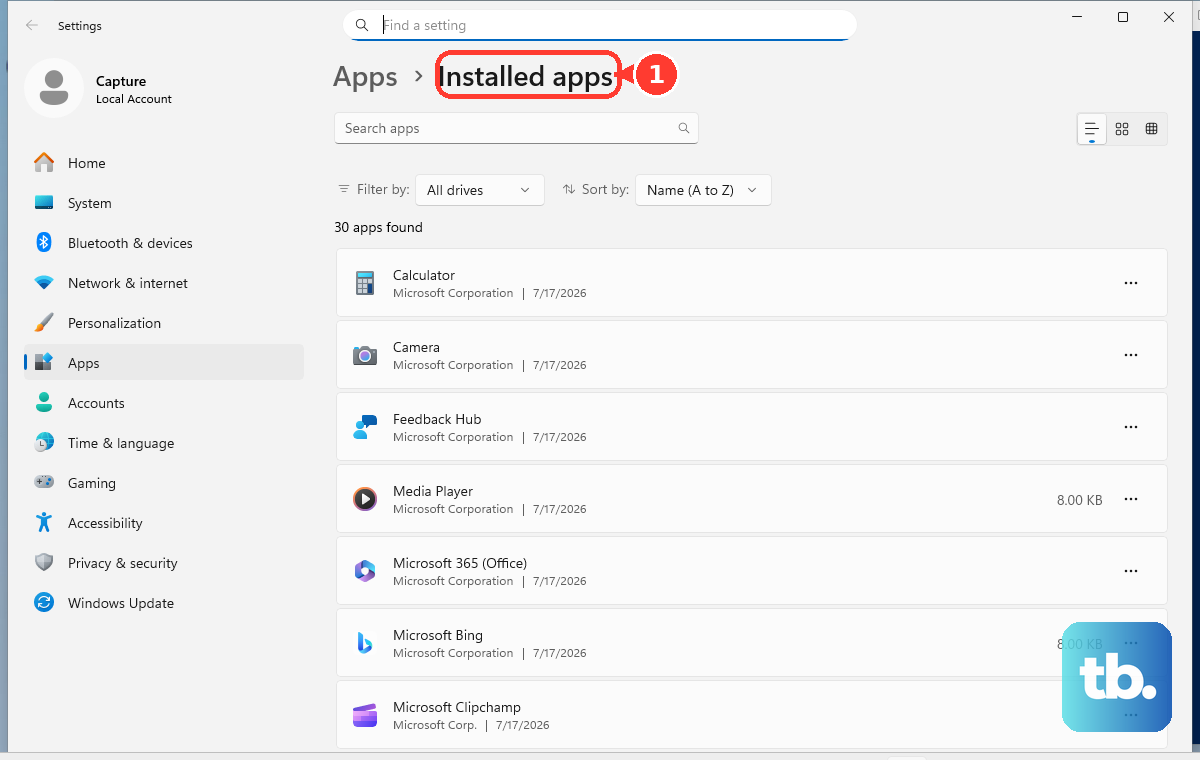
When the Xbox app for PC or Gaming Services is malfunctioning, open the Xbox app for PC, click your profile picture, select Support, choose Gaming Services Repair Tool, then select Start Troubleshooting. If Remote Play opens but the controller does not respond, update the Xbox Wireless Controller from Profile & system > Settings > Devices & connections > Controllers & headsets, then select the controller and install the update when prompted.
On Android, pair it through Settings > Connected devices > Pair new device. On iPhone or iPad, pair it through Settings > Bluetooth.
For child and teen accounts, check privacy settings on the console through Profile & system > Settings > Account > Privacy & online safety > Xbox privacy. Choose Child, Teen, or Adult, or open View details & customize.
One final gotcha: browser, media, and streaming apps on the console are blocked during Remote Play. If Remote Play connects but one of those apps fails, switch to a game or supported console surface.
Frequently Asked Questions
Why did Xbox Remote Play disappear from the Xbox mobile app?
Microsoft removed direct mobile-app Remote Play in the April 2025 Xbox mobile update. Use a supported browser and go to xbox.com/remoteplay instead.
Does Xbox Remote Play work on Xbox 360?
No. Current Xbox Remote Play applies to Xbox Series X|S and Xbox One consoles. Do not use Xbox 360 SmartGlass or Xbox Console Companion instructions for current Remote Play.
What upload speed does Xbox Remote Play need?
Xbox Support requires at least 4.75 Mbps upload from the console side. A 9 Mbps upload speed or faster is optimal.
Why does Remote Play connect but my streaming app does not work?
External applications on the console are blocked during Remote Play. Use a game or supported console surface instead.