An Xbox controller that will not turn on, will not pair, keeps disconnecting, sends the wrong button inputs, or works on one device but not another needs a step-by-step reset of the basics first. Start with power, restart the link, pair it again, then move to firmware, Windows Bluetooth, mobile setup, and service. The fixes below use current Xbox, Microsoft, Apple, Google, and Windows support guidance.
1. Rule out power before changing settings
Start here when the controller is dead, shuts off quickly, or lights up only for a moment. Remove the battery cover, then Insert fresh AA batteries using the orientation shown inside the battery compartment, or fully recharge the Xbox Rechargeable Battery Pack.
For an Xbox Elite Wireless Controller Series 2, fully recharge the internal battery. Press and hold the Xbox button on the front of the controller to turn it on.
Hold the Xbox button for 5 to 10 seconds until the controller turns off. Wait a few seconds, then press and hold the Xbox button again.
If the controller powers on but ignores input, continue with the console restart and pairing steps. Battery power only proves the controller can turn on; it does not prove the console, PC, or Bluetooth link is healthy.
2. Restart the Xbox to refresh the link
A stuck console-controller connection makes a working controller look broken. Restart the console before digging into firmware or service.
When the controller works enough to open the guide, press and hold the Xbox button to open Power Center. Select Restart console, then choose Restart.
Or press the Xbox button. Go to Profile & system, Settings, General, Power options, then Restart now.
When the controller cannot open the guide, press and hold the console Xbox button or power button for about 10 seconds until the console shuts down. Wait, then turn the console back on.
3. Pair the controller to the console again
- 1.Turn on the Xbox console.
- 2.Press and release the console Pair button.
- 3.Within 20 seconds, press and hold the controller Pair button until the Xbox button flashes.
- 4.Wait for the Xbox button to stay lit. That means the controller is connected.
For a wired reset of the connection, plug a compatible USB cable into the controller and the Xbox console. Press the controller Xbox button, then use USB during setup, pairing problems, and firmware-update troubleshooting.
Xbox Series X|S-era controllers, the Xbox Elite Wireless Controller Series 2, and the Xbox Adaptive Controller use USB-C; older Xbox One controllers use micro-USB.
4. Update firmware through Xbox Accessories
Use a firmware update when the controller connects but behaves badly, disconnects, or fails during an update. On Xbox, press the Xbox button to open the guide.
Go to Profile & system, Settings, Devices & connections, then Controllers & headsets. Select the controller, select ... under the controller, then open Firmware version.
When Update available appears, select Firmware version. Choose Update now, then follow the prompts.
On Windows, install or open Xbox Accessories. Connect the controller with USB or the Xbox Wireless Adapter for Windows, select the controller, then open More options. Install the firmware update when prompted.
Use USB or the Xbox Wireless Adapter for Windows for firmware updates; updating over Bluetooth is not supported. Skip older Xbox One menu paths that mention System, Kinect & devices, and Devices & accessories.
The current Xbox path is Profile & system, Settings, Devices & connections, and Controllers & headsets.
5. Connect correctly on Windows
Match the fix to the connection type you use on the PC. USB: Plug a USB cable into the controller and Windows PC.
After the PC wakes from sleep, press the Xbox button to re-enable the controller. Unplug and reconnect the USB cable instead.
Bluetooth on Windows 11: Press the Xbox button. Hold the controller Pair button for three seconds until the Xbox button flashes rapidly. Open Start, Settings, then Bluetooth & devices, and turn Bluetooth on.
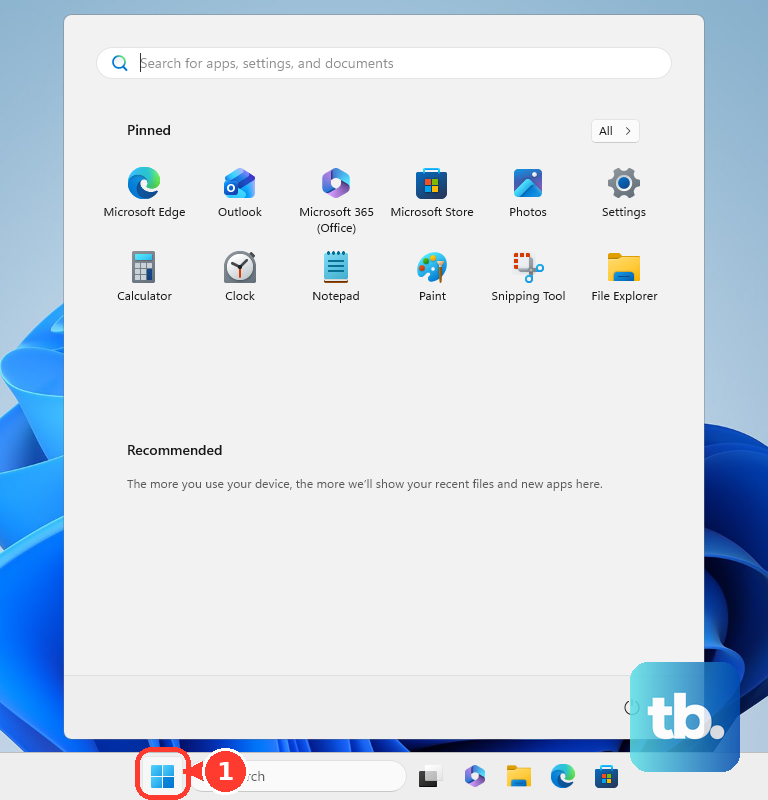
Select Add device. Choose Bluetooth, select Xbox Wireless Controller or Xbox Elite Wireless Controller, then choose Done.
Bluetooth on Windows 10: Press the Xbox button. Hold Pair for three seconds until the Xbox button flashes rapidly. Open Start, Settings, Devices, then Bluetooth & other devices.
Turn Bluetooth on. Select Add Bluetooth or other device, choose Bluetooth, select the controller, then choose Done.
Xbox Wireless Adapter for Windows: Plug in the adapter. Turn on the controller, then hold the adapter Pair button until its light blinks. Hold the controller Pair button until the Xbox button flashes faster.
When paired, the Xbox button stays lit. Built-in Xbox Wireless: On Windows 10, open Start, Settings, then Devices.
On Windows 11, open Settings, then Bluetooth & devices. Select Add Bluetooth or other device or Add device, choose Everything else, then select Xbox Wireless Controller or Xbox Elite Wireless Controller.
For Bluetooth, connect one controller at a time. Controller-attached headsets, chatpads, and stereo adapters do not work over Bluetooth.
6. Repair Bluetooth when Windows keeps failing
When Windows says the controller is paired but it does not respond, remove it and pair it again. On Windows 11, open Start, Settings, then Bluetooth & devices.
Find the controller. Select More options, choose Remove device, select Add device, then pair it again.
On Windows 10, open Start, Settings, Devices, then Bluetooth & other devices. Select the controller, choose Remove device, select Yes, then pair it again.
Next, check the Windows Bluetooth stack itself. On Windows 11, open Start, Settings, then Bluetooth & devices.
Turn Bluetooth on. Select the taskbar network, sound, or battery icons, then turn Airplane mode off.
On Windows 10, open Start, Settings, Devices, then Bluetooth & other devices. Turn Bluetooth on.
Open Start, Settings, Network & Internet, then Airplane mode. Turn Airplane mode off.
Run the Bluetooth troubleshooter. On both Windows 11 and Windows 10, start with the automated Bluetooth troubleshooter in the Get Help app.
If that does not resolve it, use the Settings route where available. On Windows 11, open Start, Settings, System, Troubleshoot, Other troubleshooters, then run Bluetooth.
On Windows 10, open Start, Settings, Update & Security, Troubleshoot, Additional troubleshooters, then run Bluetooth.
Update the Bluetooth driver. Select Search on the taskbar, type Device Manager, then open Device Manager.
Select Bluetooth. Right-click the Bluetooth adapter, select Update driver, then follow the prompts.
Reinstall the Bluetooth adapter. In Device Manager, select Bluetooth, right-click the Bluetooth adapter, then choose Uninstall device.
Select Uninstall. Open Start, Power, then Shut down. Turn the PC back on so Windows reinstalls the adapter.
For the Xbox Wireless Adapter for Windows, plug the adapter directly into USB. Confirm its light works, try another USB port, then re-pair with the adapter Pair button and controller Pair button.
Check Windows driver updates. Restart the PC if the adapter does not install or respond.
7. Restore buttons and recalibrate sticks
Wrong button actions usually come from mappings. Open Xbox Accessories, select the controller or profile, then choose Restore to default.
Then test the buttons again. For stick drift, sticks that do not center, or thumbsticks that respond incorrectly, update the firmware first.
Restart the controller by holding the Xbox button for 5 to 10 seconds. Wait, then turn it back on.
Open Xbox Accessories. Select the affected controller, open the recalibration tool, then follow the on-screen prompts.
The recalibration tool appears only for supported controller models in Xbox Accessories, and it handles minor stick and trigger calibration; drift from normal wear and tear may not be fixable and can require repair or replacement.
8. Reconnect phones TVs and streaming devices
On iPhone, iPad, Apple TV, or Mac, press the controller Xbox button. Hold the controller Connect button for a few seconds to enter pairing mode.
Open the Apple device Bluetooth settings. Select the controller from the nearby devices list.
When the Apple device says firmware is required, update the controller using Microsoft’s Xbox controller firmware instructions. On Android, press the Xbox button.
Hold Pair or Connect until the Xbox button flashes rapidly. Swipe down from the top of the screen, touch and hold Bluetooth, then tap Pair new device.
Tap the controller name. When the controller does not appear, check Available devices.
Otherwise, tap More, then Refresh. For the Xbox app on a supported smart TV or streaming device, use the TV remote to select the Controller icon.
Choose Pair a controller. Select your controller, then put the controller in pairing mode when prompted.
9. Roll back firmware or request service
Use firmware reversion only for frequent Bluetooth connection problems with non-Xbox devices after a controller firmware update. On Xbox, press the Xbox button.
Go to Profile & system, Xbox Support, Get help, Help topics, Hardware & networking, then Controllers. Open My Xbox controller has connection issues after the last update.
Select Check your controller’s firmware to open the Xbox Accessories firmware reversion screen. Follow the prompts.
On Windows, install Xbox Accessories. Open the same Xbox Support page, then use Check your controller’s firmware when Microsoft offers that option for your controller.
Older controller models do not always show a reversion option. On a work or school PC, stop local troubleshooting when Windows says the device is managed or device installation is blocked by policy.
Contact the organization’s IT admin and say that Bluetooth pairing or controller driver installation is being blocked. Use Xbox controller warranty replacement or service when supported troubleshooting does not fix persistent button failure, damaged controls, battery or charging faults, or another hardware problem.
Sign in with the Microsoft account used for the device. Register the controller or device when required, choose the controller, describe the issue, then follow the replacement or service prompts.
Frequently Asked Questions
Why is my Xbox controller flashing but not connecting?
Pair it again. Press the console or adapter Pair button, then hold the controller Pair button until the Xbox button flashes faster. The controller is connected when the Xbox button stays lit.
Why does my Xbox controller work with USB but not Bluetooth?
Repair the Bluetooth path in Windows or the target device. Remove the controller from Bluetooth settings, turn Bluetooth on, turn Airplane mode off on Windows, then pair the controller again.
Can I use an attached headset with an Xbox controller over Bluetooth?
No. Microsoft says controller-attached headsets, chatpads, and stereo adapters do not work over Bluetooth.
What should I do when a school or work PC blocks the controller?
Contact the organization’s IT admin. Managed Windows devices can block Bluetooth pairing or controller driver installation through policy.











