Your Windows laptop keys stopped responding, type the wrong characters, or act like shortcut keys are stuck. Start with the fastest checks, then move through Windows settings, drivers, brand diagnostics, and recovery only when the simpler fixes fail.
1. Restart the Laptop and Clear the Obvious Blocks
Save your work, close open apps, then select Start > Power > Restart. Disconnect docks, USB receivers, Bluetooth keyboards, and other accessories you do not need before Windows starts again.
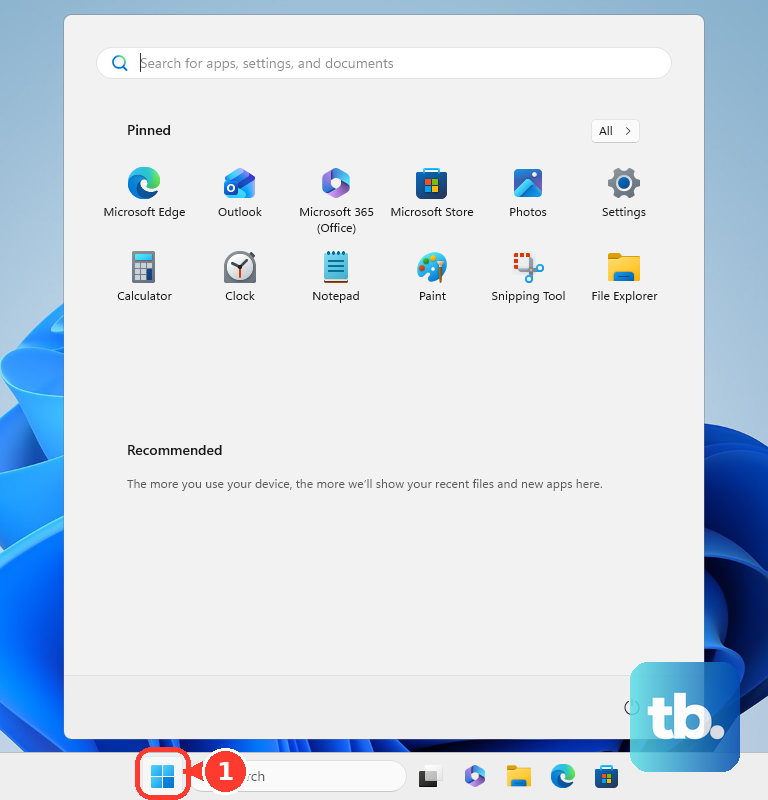
Open a plain text box after the restart and test the problem keys.
If one key or a small group of keys still fails, shut the laptop down and look for crumbs, dust, or anything wedged under the key edges.
Use compressed air to clear debris.
Wipe the keyboard gently with a soft microfiber cloth.
Keep harsh chemicals off the keys.
Liquid spill? Stop here. Turn the laptop off immediately, tilt it to drain liquid, wipe it with a soft microfiber cloth, and let it dry thoroughly for at least 24 to 48 hours before using it again.
2. Use a Temporary Keyboard While You Fix It
Connect a USB, wireless, or Bluetooth keyboard if the built-in keyboard is blocking your work.
For the Windows On-Screen Keyboard, press Windows + Ctrl + O.
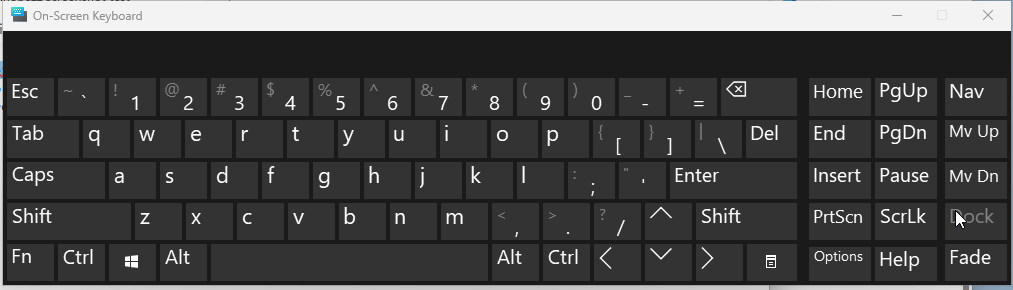
You can also open Start, search for OSK, and launch it.
The Settings path is Start > Settings > Accessibility > Keyboard > On-screen keyboard.
For quick dictation on Windows 11, click inside a text box, press Windows + H, wait for Listening, and speak.
For hands-free control on Windows 11 version 22H2 or later, go to Start > Settings > Accessibility > Speech > Voice access and complete setup.
3. Turn Off Settings That Block Keystrokes
Filter keys is the first setting to check when keys feel dead, delayed, or require repeated pressing.
- 1.Holding the right Shift key for 8 seconds turns it on by accident.
- 2.Open Start > Settings > Accessibility > Keyboard.
- 3.Turn Filter keys off.
- 4.Turn Sticky keys and Toggle keys off unless you use them intentionally.
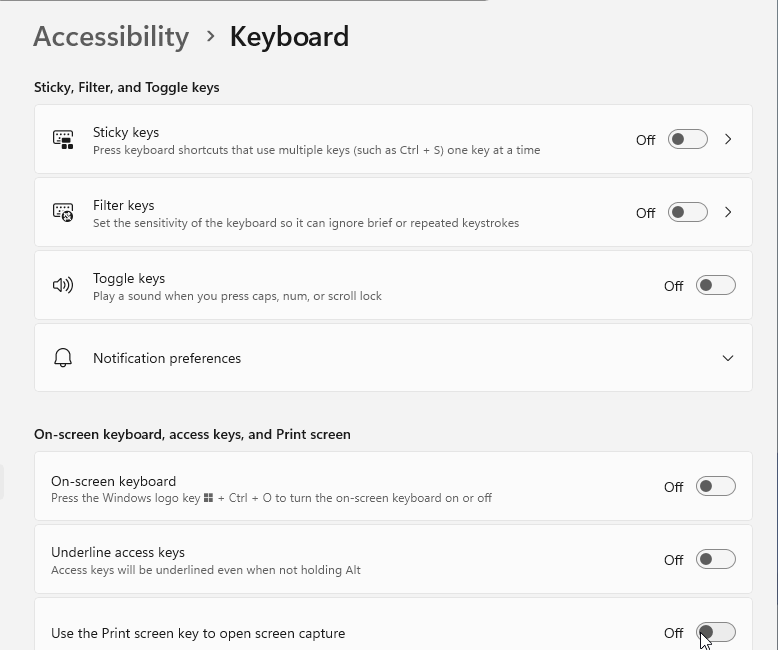
Press Windows + U to reach Accessibility settings faster.
If one keypress creates repeated letters, search for Control Panel, open it, set View by to Large icons, open Keyboard, choose the Speed tab, drag Repeat delay toward Long, then select Apply and OK.
4. Correct Wrong Characters and Number Lock
Wrong letters or symbols usually point to the keyboard layout first.
Go to Start > Settings > Time & language > Language & region.
To add a layout, select the ellipsis next to your Windows display language, open Language options, then use Keyboards to add the correct one.
To remove a wrong layout, open Language options for the language that actually contains it, since installed layouts are not always listed under your display language, then remove it under Keyboards.
To switch layouts immediately, select the taskbar input language icon or hold Windows and press Spacebar.
If compact laptop keys are acting like a numeric keypad, open Run, type osk, select OK, choose Options, check Turn on numeric key pad, select OK, then check NumLock on the on-screen keyboard and click it to turn it off if it is highlighted so the keys type letters again.
5. Reset Fn Lock and Hotkey Controls
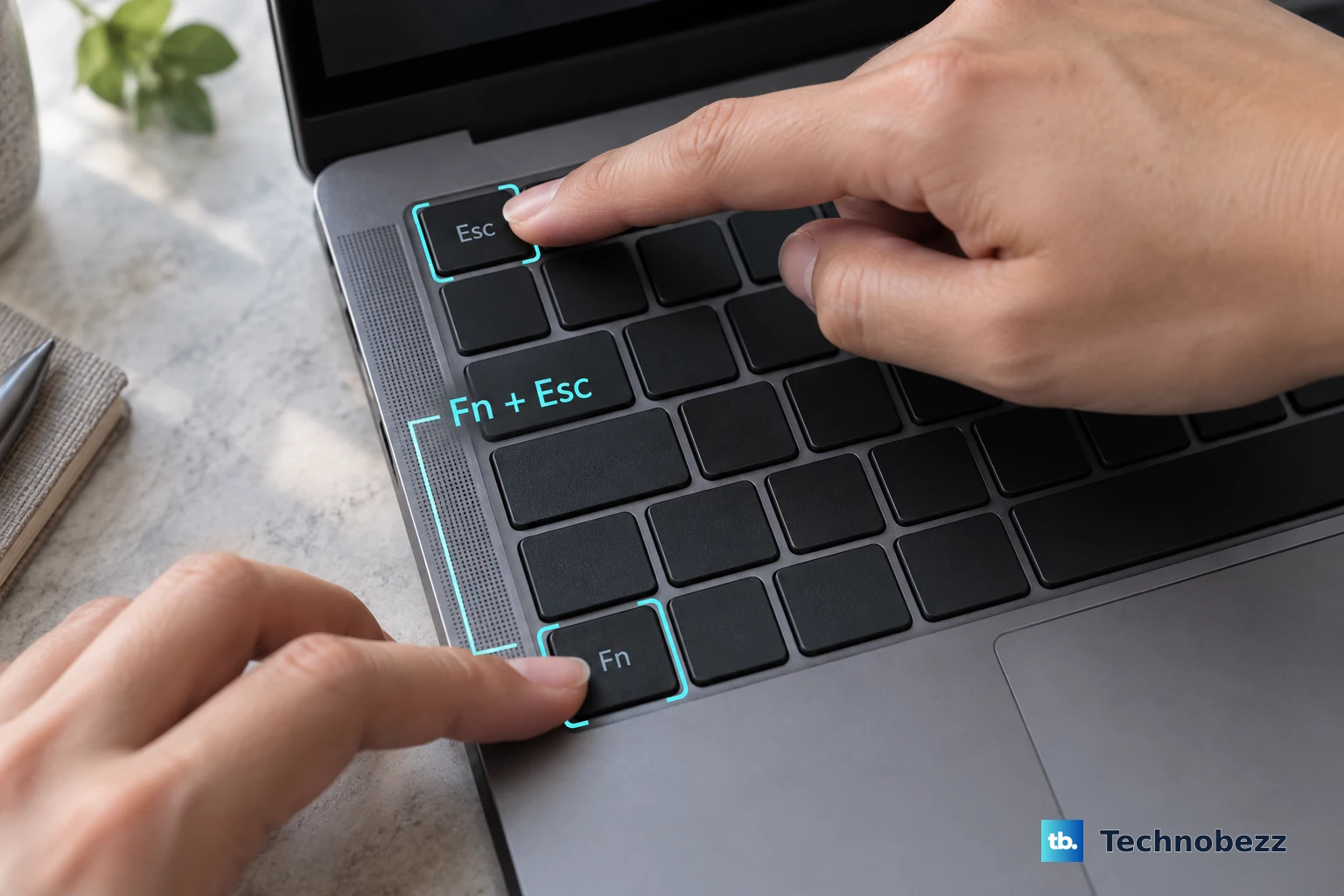
On supported laptops, press Fn + Esc to switch between standard F1 to F12 behavior and special controls such as brightness, volume, camera, touchpad, airplane mode, or keyboard backlight.
On ASUS: Open MyASUS from Start or Search, then check the device settings area for keyboard hotkey behavior. Choose the hotkey mode or F1-F12 mode your model offers.
On Dell: For backlit-key issues, hold Fn, press Esc, release both keys, then test the backlight key again. Dell backlight keys appear on F5, F6, F7, F10, the right arrow, or a dedicated backlight key, depending on the model.
Function keys need a different fix than normal letter keys. Many ASUS notebooks use Fn + F7 for the keyboard backlight.
Other ASUS models use Fn + F4 and Fn + F3, or Fn + Up and Fn + Down on gaming notebooks.
If typing works but hotkeys do not, update the laptop maker’s BIOS, chipset, input, hotkey, and control-interface packages from the official support app or driver page.
6. Update or Reinstall the Keyboard Driver
Use Windows Update before Device Manager.
Open Start > Settings > Windows Update > Advanced options > Optional updates.
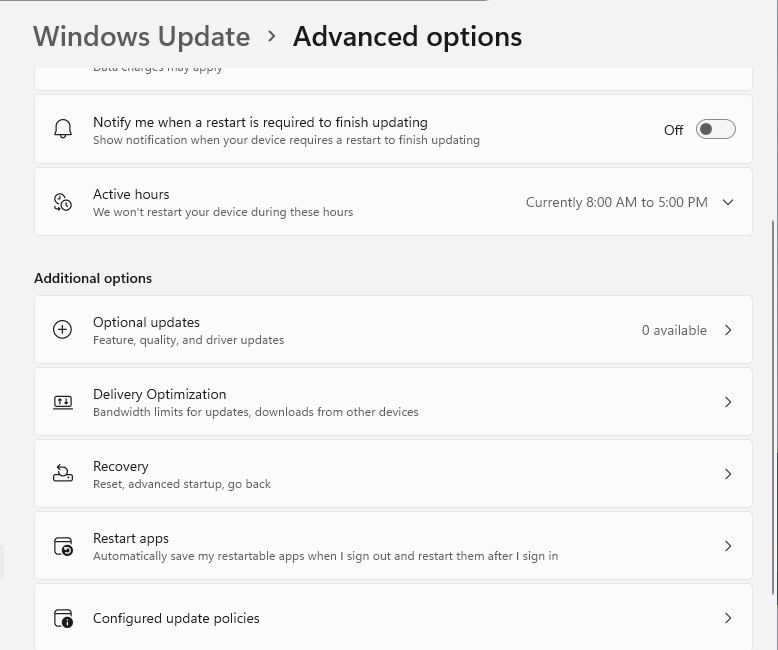
If relevant driver updates appear, select them, choose Download and install, then restart.
Right-click Start and open Device Manager.
Expand Keyboards.
Right-click the keyboard device and select Update driver.
Choose Search automatically for updated driver software.
If Windows shows Search for updated drivers on Windows update, select it and follow the Windows Update steps.
For a downloaded OEM driver, choose Browse my computer for drivers, select Browse, pick the downloaded driver folder, then select OK and Next.
If the driver state is corrupted, open Device Manager, expand Keyboards, right-click the keyboard device, select Uninstall device, choose Uninstall, and restart.
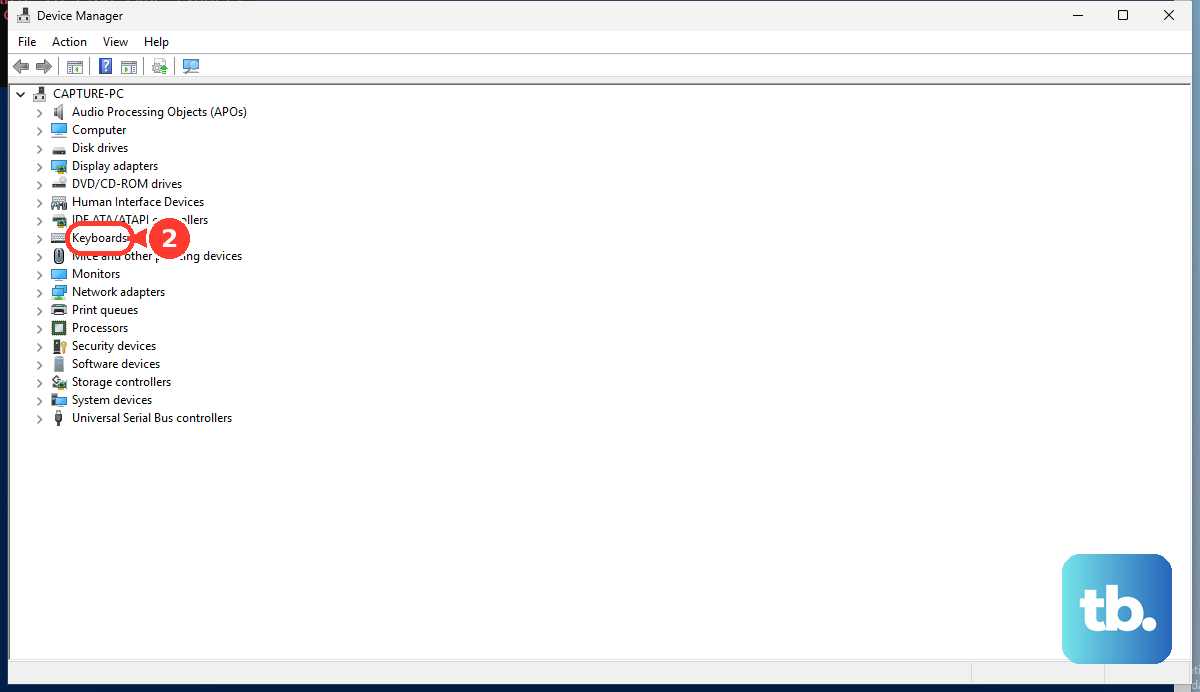
Windows attempts to reinstall the keyboard driver after the restart, so set up the On-Screen Keyboard or an external keyboard first.
If it does not reinstall automatically, update it through Device Manager or install the OEM driver.
Remove keyboard remapping, macro, RGB, or hotkey apps when the problem started after installing one.
Go to Start > Settings > Apps > Installed apps, find the app, open More, and select Uninstall.
Reinstall the laptop maker’s hotkey utility afterward when the official utility is required for Fn keys.
7. Test the Hardware With Brand Tools
Run a hardware test when the whole built-in keyboard fails, several nearby keys stop together, keys feel physically damaged, or Windows fixes change nothing.
On HP: Shut down the computer, press Power, immediately press Esc repeatedly, press F2 for System Diagnostics or HP PC Hardware Diagnostics UEFI, then open Component Tests > Input Devices or Keyboard Test and run the test.
If the HP Startup Menu does not open with the built-in keyboard, HP says the integrated keyboard hardware is not working and needs service or replacement.
On Dell: Run the Dell SupportAssist keyboard diagnostic, follow the on-screen instructions, and review the result. If SupportAssist reports a hardware issue, follow Dell’s update or repair guidance.
On Surface Pro or Surface Go: Detach the removable keyboard or Type Cover, force restart the Surface, reattach the keyboard, then press Caps and Fn a few times to check whether the LEDs turn on and off.
For a Surface Laptop built-in keyboard, use the Surface app, Windows updates, settings checks, and service guidance instead.
For Surface Pro Flex Keyboard wireless failures, detach it, hold Esc for about 5 seconds until the LED on Fn lights, connect it to the Surface Pro, and leave it connected for at least 30 seconds before using it wirelessly again.
8. Repair Windows After Updates or Corruption
If the keyboard failed right after a Windows update, open the Get Help app and run the automated Windows Update troubleshooter first on Windows 11.
If it cannot fix the problem, open Start > Settings > System > Troubleshoot > Other troubleshooters, run Windows Update, restart, then go to Start > Settings > Windows Update and select Check for updates.
Skip the old Keyboard troubleshooter when it appears in outdated tutorials.
Microsoft is retiring and removing legacy MSDT troubleshooters, including the Keyboard troubleshooter.
Open the Get Help app, search for the keyboard or device issue, select Start if a relevant troubleshooter appears, and follow the prompts.
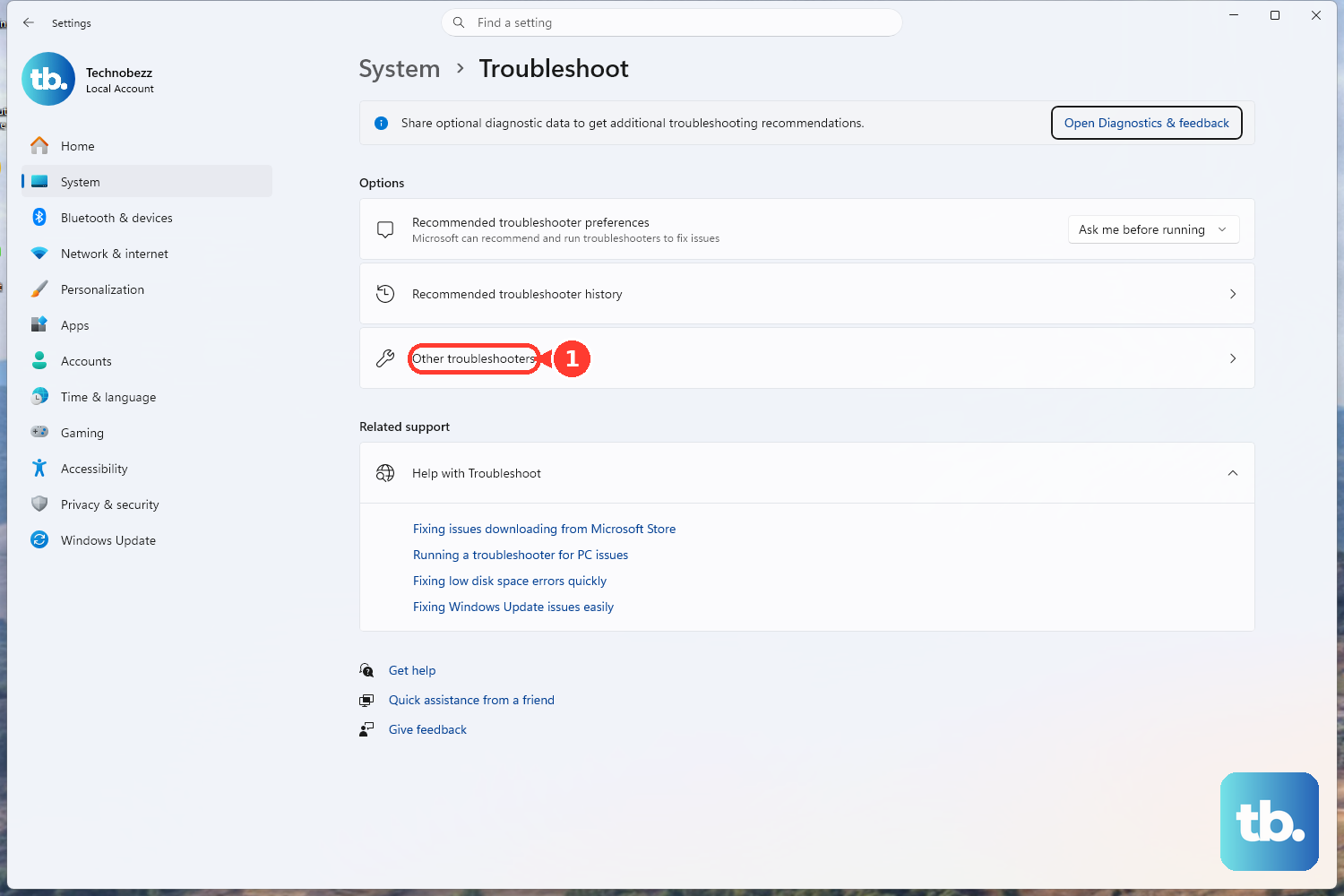
For broader Windows corruption, install the latest Windows updates and restart.
Then search for Command Prompt, right-click it, choose Run as administrator, select Yes, run DISM.exe /Online /Cleanup-image /Restorehealth, then run sfc /scannow.
After verification reaches 100 percent, type exit.
When the issue began after a specific update, go to Start > Settings > Windows Update > Update history > Uninstall updates, select the removable update, and choose Uninstall.
Windows does not allow every update to be removed.
Use recovery only after settings, drivers, updates, and diagnostics are finished.
Search for Create a restore point, open it, choose System Restore when available, and pick a restore point from before the keyboard problem.
On eligible Windows 11 devices, use Start > Settings > System > Recovery > Fix problems using Windows Update > Reinstall now.
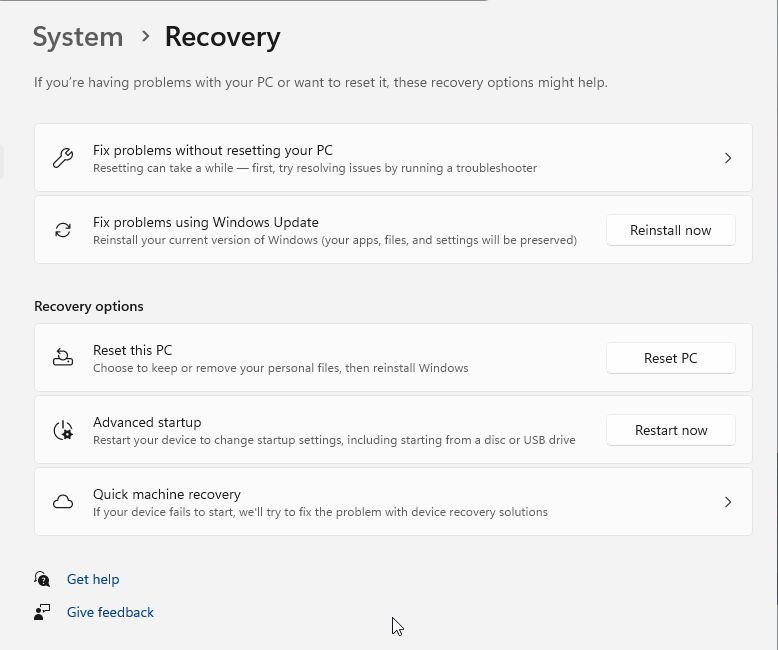
As the final software step, use Reset this PC from Recovery and back up first.
9. Hand Managed Laptop Problems to IT
Work and school laptops can block external USB or Bluetooth keyboards, suppress certain key combinations, or restrict driver installation by policy.
On Windows Pro, Enterprise, Education, and locked-down editions, administrators control these rules through device-installation restrictions in Group Policy.
Keyboard Filter is a separate lockdown feature limited to Enterprise, Education, and IoT Enterprise editions, so it is not available on Windows Pro.
If the same external keyboard works on another computer but not on the managed laptop, contact your IT team.
Do not change device policies yourself on a managed machine.
Frequently Asked Questions
Why are only some keys on my Windows laptop not working?
One or a few failed keys points to debris, a physically stuck key, liquid damage, or local keyboard hardware failure. Turn the laptop off, clean gently with compressed air and a microfiber cloth, then run the laptop maker’s keyboard diagnostic if the keys still fail.
Why does my laptop keyboard type the wrong letters or symbols?
Windows is using the wrong keyboard layout or input language. Open Settings > Time & language > Language & region, choose Language options for the language that contains the wrong layout (installed layouts are not always under your display language), remove it under Keyboards, or switch layouts with Windows + Spacebar.
How do I type while my laptop keyboard is broken?
Connect an external USB, wireless, or Bluetooth keyboard. You can also press Windows + Ctrl + O for the On-Screen Keyboard, or use Windows + H for voice typing on Windows 11.
Should I reset Windows to fix laptop keys not working?
Reset Windows only after restart, accessibility settings, layout settings, driver reinstall, updates, and hardware diagnostics. If diagnostics show a physical keyboard failure, Windows reset will not repair the hardware.