
When your ASUS ZenBook 14's keyboard stops responding, it can feel like you've hit a brick wall. Whether it's a single row of keys, the entire keyboard, or keys typing the wrong characters, the problem is usually fixable without a trip to the repair shop.
To separate a hardware fault from a driver or settings issue, try a keyboard tester. What registers on screen tells you exactly where to focus.
Let's start with the quickest solution. If your keyboard is completely dead, hold down the power button for about 10 seconds to force a shutdown. Wait a few seconds, then press the power button again to turn it back on. This simple restart can clear temporary software glitches that lock up the keyboard driver.
Check for Physical Debris
Turn your ZenBook upside down and give it a gentle shake. Crumbs, dust, or a tiny piece of debris can easily get lodged under a keycap and prevent it from making contact. For a more thorough clean, use a can of compressed air to blow between the keys.
I've seen many cases where what seemed like a major hardware failure was just a single, stubborn crumb blocking a key's mechanism. It's always worth checking before moving to more complex fixes.
Disable Windows Filter Keys
An accidentally enabled accessibility feature can make your keyboard seem broken. Go to Settings > Accessibility > Keyboard. Look for the setting called Filter Keys and make sure it's toggled off.
While you're there, also check that Sticky Keys and Toggle Keys are disabled. These features can cause significant input lag or unexpected behavior, especially if they were turned on by holding a key down for too long.
Update or Reinstall Keyboard Drivers
Outdated or corrupted drivers are a common culprit. Press the Windows key + X and select Device Manager. Expand the Keyboards section, right-click on "Standard PS/2 Keyboard" or a similar entry, and choose Update driver.
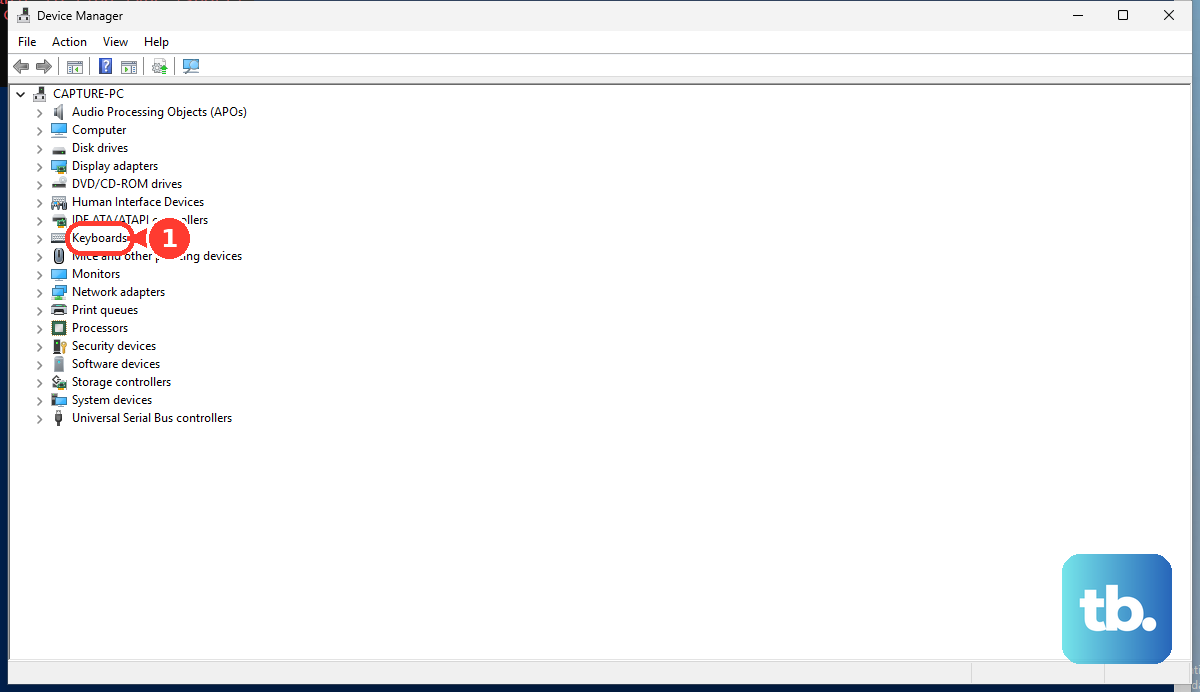
If that doesn't work, try uninstalling the device. Right-click the keyboard again and select Uninstall device. Restart your laptop, and Windows will automatically reinstall a fresh, default driver. This often resolves conflicts.
Use the MyASUS App for Diagnostics
ASUS includes a powerful tool for this exact scenario. Open the MyASUS app on your laptop. Navigate to Customer Support > System Diagnosis.
Run the keyboard diagnostic test. This built-in hardware check will tell you definitively if there's a physical problem with the keyboard matrix or its connection. It's the most reliable way to rule out a hardware fault.
Verify Your Keyboard Language and Layout
If your keys are typing incorrect characters, your input language may have switched. Go to Settings > Time & language > Typing > Advanced keyboard settings.
Ensure your preferred language is set correctly. Remove any extra keyboard layouts you don't use by clicking on the three-dot menu next to a language and selecting Remove. A stray shortcut like Windows key + Space can switch layouts without you realizing.
Boot into Safe Mode
If the keyboard works in Safe Mode, you know a third-party application is causing the conflict. To boot into Safe Mode, go to Settings > System > Recovery and click Restart now next to "Advanced startup."
After the restart, choose Troubleshoot > Advanced options > Startup Settings > Restart. Press 4 or F4 to enable Safe Mode. Once in, you can uninstall recently added software to find the culprit.
Check for Critical Updates
Sometimes, a Windows Update or an ASUS driver update can introduce a bug. First, check for any pending updates in Settings > Windows Update and install them.
If the problem started after a recent update, you can roll it back. Go to Settings > Windows Update > Update history > Uninstall updates. Look for recent driver or quality updates, right-click, and select Uninstall.
Test with an External Keyboard
Plug in a USB keyboard or pair a Bluetooth one. If the external keyboard works flawlessly, it strongly suggests an issue with your ZenBook's internal keyboard hardware.
This could be a loose ribbon cable connecting the keyboard to the motherboard, or in less common cases, damage from a past liquid spill. The internal connection on the ZenBook 14 is relatively accessible, but opening the chassis should be a last resort.











