Realtek Audio Console can refuse to open, hang on launch, or show a device connection/RPC service error. Start with the Store app, then fix the Realtek driver it depends on. These fixes use current Microsoft, ASUS, Dell, and Realtek-supported paths.
1. Open the right Realtek app
Start with the current app: on supported Windows 11 and Windows 10 PCs, the Store listing is Realtek Audio Control, while many PCs show Realtek Audio Console in Start.
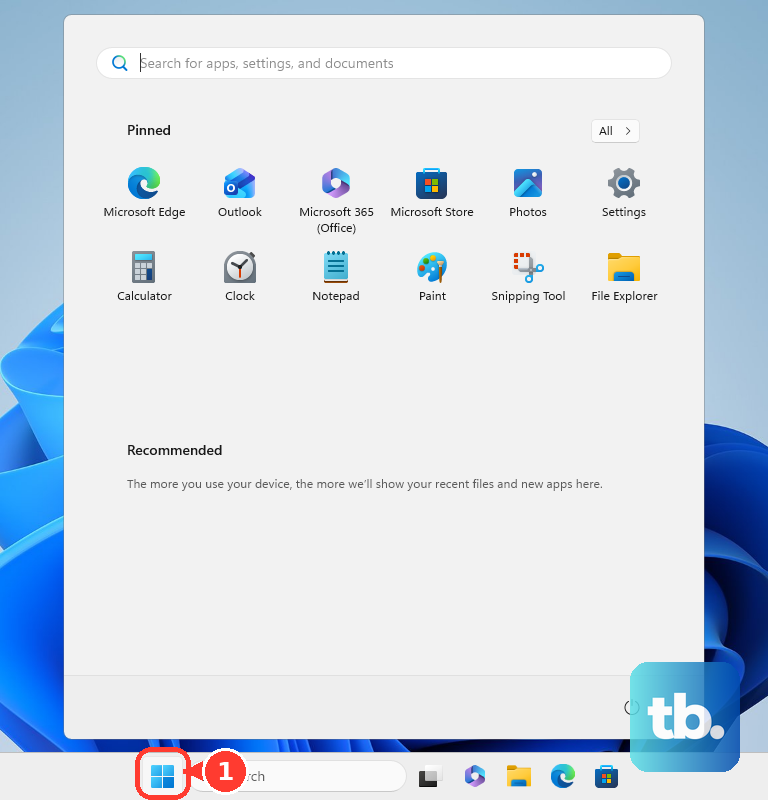
- 1.Select Start.
- 2.Select All apps.
- 3.Select Realtek Audio Console.
- 4.When you do not see it, select Start, type Realtek Audio Console, and select Open.
- 5.When the app is missing, open the Microsoft Store page for Realtek Audio Control and select Get or Open.
When the app opens but says it cannot connect to the device or RPC service, install the matching OEM Realtek audio driver, then return to the Store page and open the app again.
2. Restart the app and update Windows
Close Realtek Audio Console with the X button. Next, select Start and open Realtek Audio Console again.
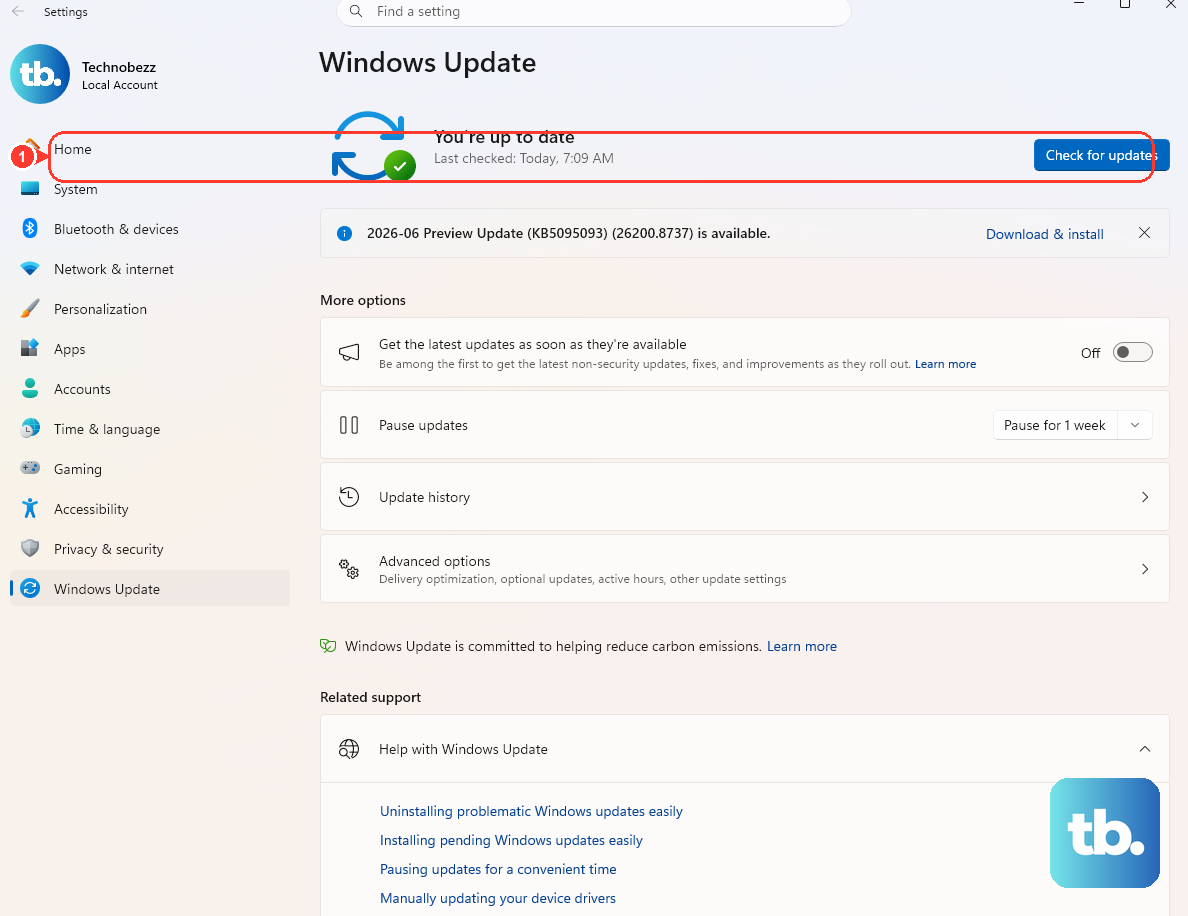
Then go to Start > Settings > Windows Update and select Check for updates. Select Install now when updates appear, and restart when Windows asks.
A stuck Store app deserves the quick reset first: close it, reopen it, then let Windows pull available updates. On Windows 10, use Start > Settings > Update & Security > Windows Update > Check for updates.
3. Repair or reset Realtek Audio Console
Use Windows' built-in repair tool for Microsoft Store apps before you remove anything. Repair keeps app data; Reset removes the app's local data and settings.
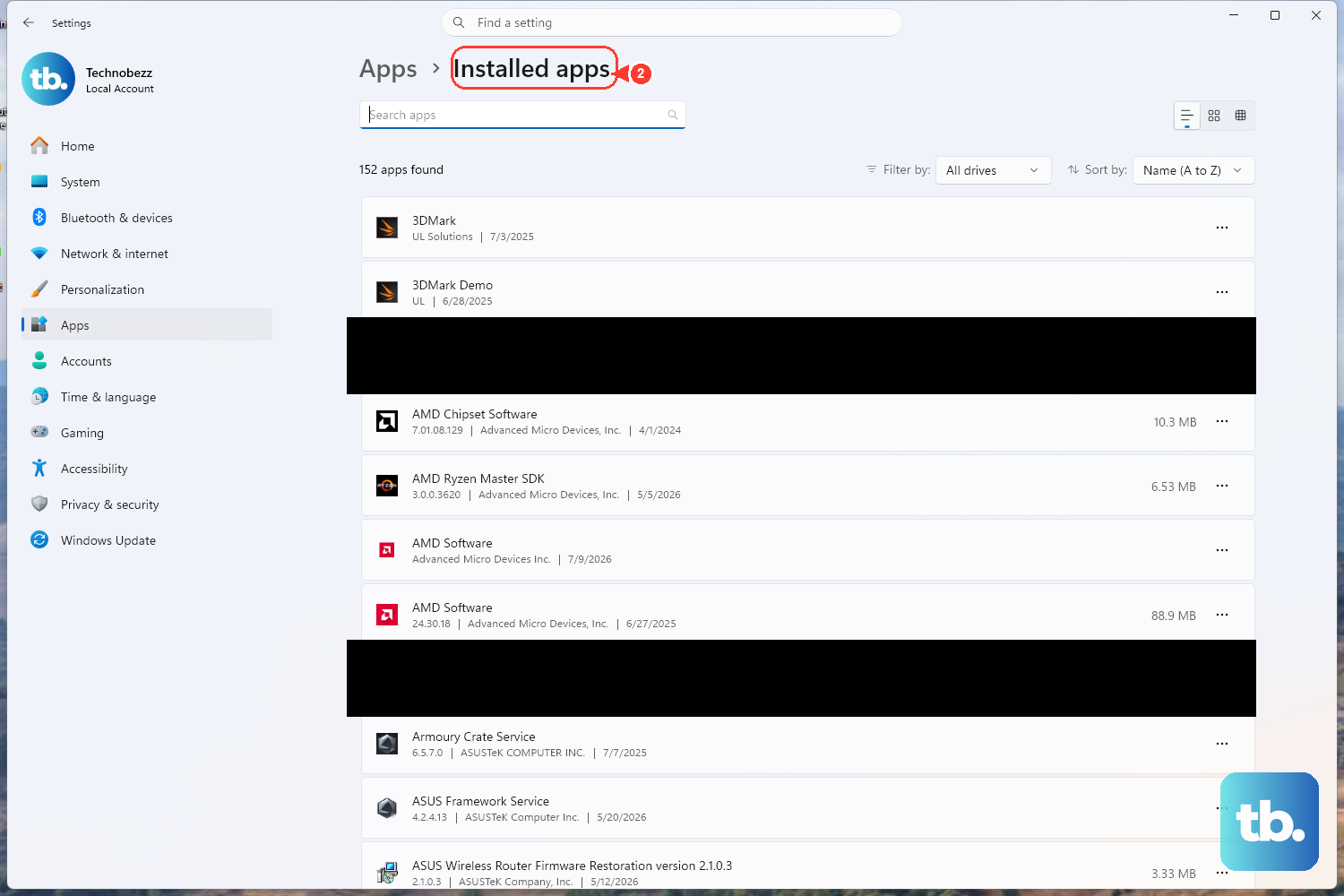
On Windows 11, go to Start > Settings > Apps > Installed apps. Find Realtek Audio Console, select More, and select Advanced options.
Select Repair, then reopen Realtek Audio Console. Return to the same screen and select Reset when repair does not fix it.
On Windows 10, use Start > Settings > Apps > Apps & features > Realtek Audio Console > Advanced options > Repair, then use Reset.
4. Refresh Microsoft Store updates
Open Microsoft Store, then select Library. Select Get updates and install the available updates.
Once that finishes, open Realtek Audio Console again. The console and driver software component need to match, so give the Store side a clean update pass.
On Windows 10, use Microsoft Store > See more > Downloads and updates > Get updates. Turn on automatic Store updates next: open Microsoft Store, select your Profile, open Store Settings, and switch App updates to On.
5. Reinstall the Store app cleanly
When the app package is broken, remove it and install a fresh copy from Microsoft Store. Go to Start > Settings > Apps > Installed apps.
Choose Realtek Audio Console, select More, and select Uninstall. Then open Microsoft Store > Library.
Find Realtek Audio Console or Realtek Audio Control, then select Install. On Windows 10, uninstall it from Start > Settings > Apps > Apps & features > Realtek Audio Console > Uninstall, then reinstall it from Microsoft Store > See more > My Library > the app > Install.
When Microsoft Store will not install or update the app, press Windows logo key + R, type wsreset.exe, and select OK. Wait for the blank Command Prompt window to close and Microsoft Store to reopen, then install Realtek Audio Control again.
6. Update or reinstall the Realtek driver
Install Windows Update drivers: Go to Start > Settings > Windows Update > Check for updates, install Realtek or audio updates, then restart.
Check optional drivers: Go to Start > Settings > Windows Update > Advanced options > Optional updates, select listed audio or Realtek driver updates, choose Download and install, then restart.
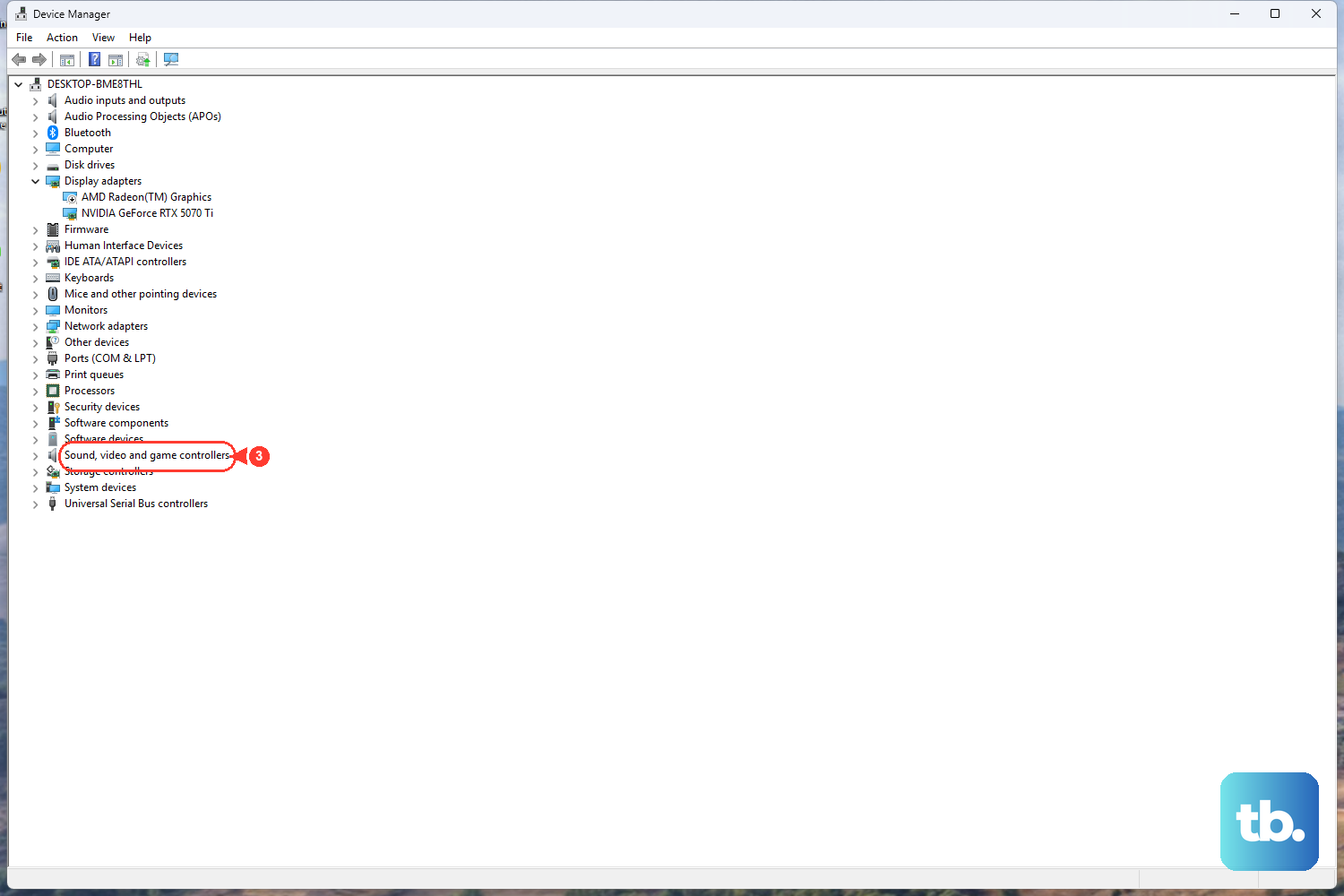
Update in Device Manager: Right-click Start, select Device Manager, expand Sound, video and game controllers, right-click Realtek Audio or the Realtek audio device, select Update driver, then choose Search automatically for drivers.
Reinstall the device driver: In Device Manager, right-click the Realtek audio device, select Uninstall device, select Uninstall, and restart. Windows attempts to reinstall the driver.
Roll back a bad driver: In Device Manager, right-click the Realtek audio device, open Properties, select the Driver tab, choose Roll Back Driver, choose a reason, select Yes, and restart when prompted.
Realtek Audio Console needs a compatible Realtek driver/software component, especially when the app opens but cannot connect. Use Roll Back Driver when Realtek Audio Console stopped opening right after a driver update. The button works only when Windows still has a previous driver available.
7. Install your PC maker's audio package
The manufacturer-matched Realtek package is the key fix for laptops, desktops, and motherboards when Windows Update and Device Manager miss it.
For any brand, go to your PC manufacturer's support website, search for your exact device model, download the latest audio driver for Windows 11, run the manufacturer's installer, restart, then open Realtek Audio Console.
Dell users can open SupportAssist from Start, choose the Home tab, select Update software, and select Start. Dell also supports Drivers & Downloads with Detect This PC, Service Tag lookup, or manual model search. On supported Dell business PCs such as Latitude, OptiPlex, and Precision, Dell Command | Update > Check > Install also works.
ASUS users can open MyASUS from Start, go to System Update, select the driver package, and choose Update Selected Items. When your device does not show the System Update tab, it does not support that feature, so use the ASUS support site for your exact model instead. On the ASUS support site, use Support > Driver & Tools > Driver & Utility, select your operating system, download the audio/Realtek driver, install it, and restart.
8. Check detection and skip legacy fixes
Select the Speakers icon on the taskbar. From there, select the arrow next to the volume slider and choose the correct Realtek speaker or headphone output.
Confirm Mute is off and volume is up. Check that external speakers have power, and make sure 3.5 mm cables are in the correct jack.
Finish by checking whether Windows sees the correct audio output. A wrong output choice or disabled onboard audio makes the console look broken when the device itself is the problem.
Run the Windows audio troubleshooter next. Open Get Help, search for audio troubleshooter, select Yes for diagnostics consent when asked, and follow the prompts.
On ASUS motherboards that use Realtek USB Audio, enable the controller in BIOS when the Realtek device is missing. Power on the PC and press Delete, press F7 for Advanced Mode, then go to Advanced > Onboard Device Configuration > USB Audio Controller > Enabled, and press F10 to save.
Skip tutorials that send you to Realtek HD Audio Manager, Control Panel entries, RAVCpl64.exe, or legacy HDA codec packages on current Windows 11 DCH/UAD systems. Use Realtek Audio Console or Realtek Audio Control with the matching OEM Realtek driver. Use legacy HD Audio Manager only on older PCs where the PC maker supplies that exact HDA driver.
For a work or school PC with Microsoft Store blocked, contact the device admin and ask for Realtek Audio Console or Realtek Audio Control plus the matching Realtek audio driver. On an eligible, unmanaged Windows 11 PC, after the app, Store, and driver fixes fail, use Start > Settings > System > Recovery > Fix problems using Windows Update > Reinstall now. This option needs Windows 11 version 22H2 or later with the February 2024 update or newer, and it does not appear on PCs managed by a work or school organization.
Frequently Asked Questions
Why does Realtek Audio Console say it cannot connect to the RPC service?
That error points to a missing, outdated, or corrupted matching Realtek driver/software component. Install the Realtek audio driver through Windows Update, Device Manager, or your PC maker's support tool, restart, then open Realtek Audio Console again.
Is Realtek Audio Console the same as Realtek Audio Control?
They are the current Store app surface for supported Realtek audio hardware. The Microsoft Store product page uses Realtek Audio Control, while many PCs list the installed app as Realtek Audio Console in Start.
Why is Realtek Audio Console missing from Microsoft Store search?
Use the direct Microsoft Store product page for Realtek Audio Control. The app does not appear in Store search on some systems, while the direct product page remains the consumer install path.
What should Dell or ASUS users try first?
Use the brand support tool before hunting for random drivers. Dell users should run SupportAssist or Dell Drivers & Downloads. ASUS users should run MyASUS System Update or download the audio driver from the ASUS support page for the exact model.
Does Windows 10 still use these Realtek Console fixes?
Yes, the app repair, Store update, Device Manager, and driver paths still apply to Windows 10 systems. Windows 11 is the current consumer target because Windows 10 support ended on October 14, 2025.