Your PeoplePC webmail login can fail when an old bookmark, blocked browser setting, stale password, or account check gets in the way. PeoplePC mail now uses EarthLink Web Mail, so the fix starts with the right sign-in page and then moves through the common blockers in order.
Start at the top and stop when your inbox opens.
1. Open the current EarthLink Web Mail page
Begin with the current EarthLink Web Mail address, not an old PeoplePC-branded page from an old tutorial.
- 1.Open https://webmail.earthlink.net.
- 2.Let it redirect to https://webmail1.earthlink.net/.
- 3.Enter your full PeoplePC or EarthLink-family email address.
- 4.Enter your password.
- 5.Sign in after the redirect finishes.
If an old PeoplePC bookmark does not redirect cleanly to EarthLink Web Mail, replace it with https://webmail.earthlink.net.
2. Reset your Web Mail password
Go to https://webmail.earthlink.net.
Click Forgot your password?.
Follow the verification prompts.
Create a new password.
Return to Web Mail and sign in with the full email address.
Use this when the login page accepts your address but rejects the password. If that route does not restore access, open https://portal.earthlink.net, click Sign In, then click Forgot Password?. EarthLink passwords must be 8 to 32 characters and meet its complexity rules.
3. Register or update the EarthLink Portal
Some recovery and security settings sit in the EarthLink Portal, not inside the inbox.
Open https://portal.earthlink.net/start or the portal sign-in page.
Click Register My Account.
Complete the verification steps.
After signing in, open Account Security.
If you have never registered portal access, do that before chasing more browser fixes. To change a known password from the portal, click Account Security, use Change Password, then click Save.
4. Allow cookies and JavaScript
For Chrome cookies, open More > Settings > Privacy and security > Third-party cookies.
Choose Allow third-party cookies, and make sure Block third-party cookies is not selected.
For Chrome JavaScript, open More > Settings > Privacy and security > Site settings > JavaScript.
Then select Sites can use JavaScript.
For Microsoft Edge cookies, open Settings and more > Settings > Cookies and site permissions > Cookies and site data.
Then turn on Allow sites to save and read cookie data (recommended).
For Microsoft Edge JavaScript, open Settings and more > Settings > Cookies and site permissions > JavaScript.
Then turn on Allowed (recommended).
For Firefox cookies, open menu > Settings > Privacy & Security.
Select Standard, or use custom settings without blocking All Cookies.
A blank Web Mail page, a login form that will not work, or the message You need to enable JavaScript to run this app. points straight at browser settings. On iPhone, open Settings > Apps > Safari > Advanced and turn off Block All Cookies. To clear Safari site data, use Settings > Apps > Safari > Advanced > Website Data > Remove All Website Data > Remove Now.
5. Clear browser data and try again
When Web Mail opens but the inbox looks wrong or empty, clear the browser data EarthLink calls out for Web Mail loading problems. First, close the browser completely, including other open browser windows. Reopen it, go back to https://webmail.earthlink.net, and sign in again.
If Web Mail still loads incorrectly, clear cookies and cache:
In Chrome, open More > Delete browsing data.
Choose All time or the range you need, select Cookies and other site data and Cached images and files, then click Delete data.
In Microsoft Edge, open Settings and more > Settings > Privacy, search, and services > Clear browsing data > Choose what to clear.
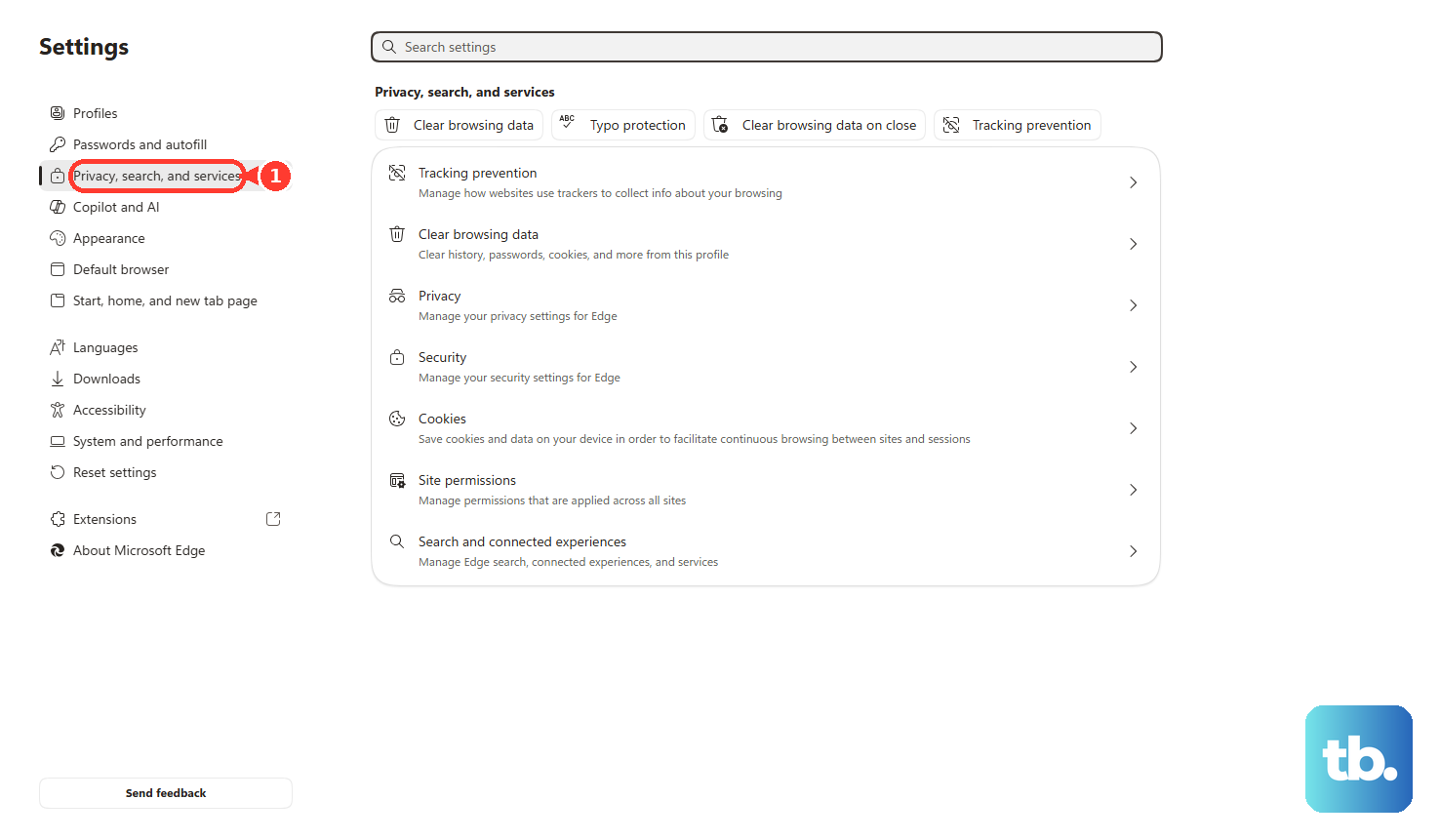
Choose a Time range, select cookies and cache data, then click Clear now.
In Firefox, open menu > Settings > Privacy & Security > Cookies and Site Data > Clear Data....
Set When to Everything if needed, select Cookies and site data and Temporary cached files and pages, then click Clear.
Now test Web Mail in another current browser or on another phone, tablet, or computer. If it works there, the problem is local to the original browser profile or device.
6. Fix MFA and verification loops
Sign in at https://portal.earthlink.net.
Click Account Security.
Find Multi-Factor Authentication.
Select Mobile Phone (SMS/Text) or Authentication With App with the radio button.
Click Save.
A verification loop is an account security problem, not a normal password typo, so use the EarthLink Portal to set the MFA method you can actually receive. To remove MFA, click the radio button to the right of the activated MFA method to turn it off, then click Save. If you cannot complete verification because the email or phone on file is wrong, contact EarthLink Support.
7. Use the myEarthLink Mail app or phone Mail
If browser Web Mail is the problem, use the official app or your phone's mail app to reach the same mailbox.
For myEarthLink Mail, install myEarthLink Mail from the Apple App Store or Google Play.
Open it, log in with your EarthLink email address and password, then tap Mail or the email feature.
For iPhone or iPad Mail, open Settings > Apps > Mail > Mail Accounts > Add Account.
Enter your email address, tap Next, then tap Add Other Account > Mail Account.
Enter Name, Email, Password, and Description, tap Next, then choose IMAP and tap Save.
For Android Gmail, open Gmail, tap the profile icon, choose Add another account > Other.
Enter the email address, tap Next, choose Personal (IMAP) if prompted, enter the password, then tap Next.
For manual IMAP setup, use imap.earthlink.net as the incoming server, port 993, and SSL/TLS. Use smtpauth.earthlink.net as the outgoing server, port 587, and STARTTLS. Authentication must use your full email address and password.
8. Reactivate delivery or contact support
If you can sign in but new mail stopped arriving, the mailbox may be inactive from lack of access. Sign in once through EarthLink WebMail, MyEarthLink, or the EarthLink Portal; EarthLink says new delivery resumes after access.
To prevent it from happening again, access the mailbox at least once every 90 days. You can also set a vacation message in Web Mail through Preferences > Sending & Replying > Vacation Message > Enabled, then set Start, End, Subject, and Message, and click Save.
For recovery that cannot be completed online, use EarthLink support. Choose Chat With Us or Text With Us for 24/7 support. For password reset by phone, call 888-327-8454 and use the automated system to send a reset to the address on file.
If your browser says it is managed by your organization, ask the work, school, or family administrator to allow cookies and JavaScript for Web Mail.
Frequently Asked Questions
Can I still use a PeoplePC-only webmail recovery page?
Use EarthLink recovery instead. Current vendor documentation points to https://webmail.earthlink.net for Web Mail and https://portal.earthlink.net or EarthLink password recovery for account access.
What should I enter as the username in a mail app?
Use the full email address as the username. EarthLink lists full-address authentication for IMAP and outgoing SMTP setup.
What are the manual IMAP settings for PeoplePC mail?
Use imap.earthlink.net on port 993 with SSL/TLS for incoming mail, and smtpauth.earthlink.net on port 587 with STARTTLS for outgoing mail.
What should I do if my PeoplePC account asks for a code I cannot receive?
If you cannot complete verification because the recovery email or phone is wrong, contact EarthLink Support. MFA removal requires portal access.











