A Windows 10 PC with no internet stops browsing, updates, work apps, and setup dead in their tracks. Start with the connection checks that take a minute, then move into drivers, settings, and resets only after the simple fixes fail. Every step below follows Microsoft’s current support guidance, with Windows 10’s support status covered near the end.
1. Start with Wi-Fi and Airplane Mode
First, make sure Windows is actually allowed to connect. Select the Network icon on the taskbar, then make sure Wi-Fi is turned on.
Select your Wi-Fi network and select Connect. Enter the network password, then select Next.
Open Settings > Network & Internet > Airplane mode, then turn Airplane mode off. If Windows asks whether your PC should be discoverable, choose the answer that matches the network you are using.
2. Reboot the Modem and Router
Unplug the power cable from the router, then unplug the power cable from the modem. If the modem lights stay on, remove the backup battery. Wait at least 30 seconds.
Put the battery back in if you removed it, then plug in the modem. Wait for the lights to stop blinking, plug in the router, and wait a few minutes.
Try the Windows 10 connection again. Do this early when every device on the same network is slow or offline, since a clean modem and router restart gives Windows a fresh connection to work with.
For Wi-Fi, move closer to the router and check the signal bars. Five full bars mean the strongest connection.
3. Reconnect to the Saved Wi-Fi Network
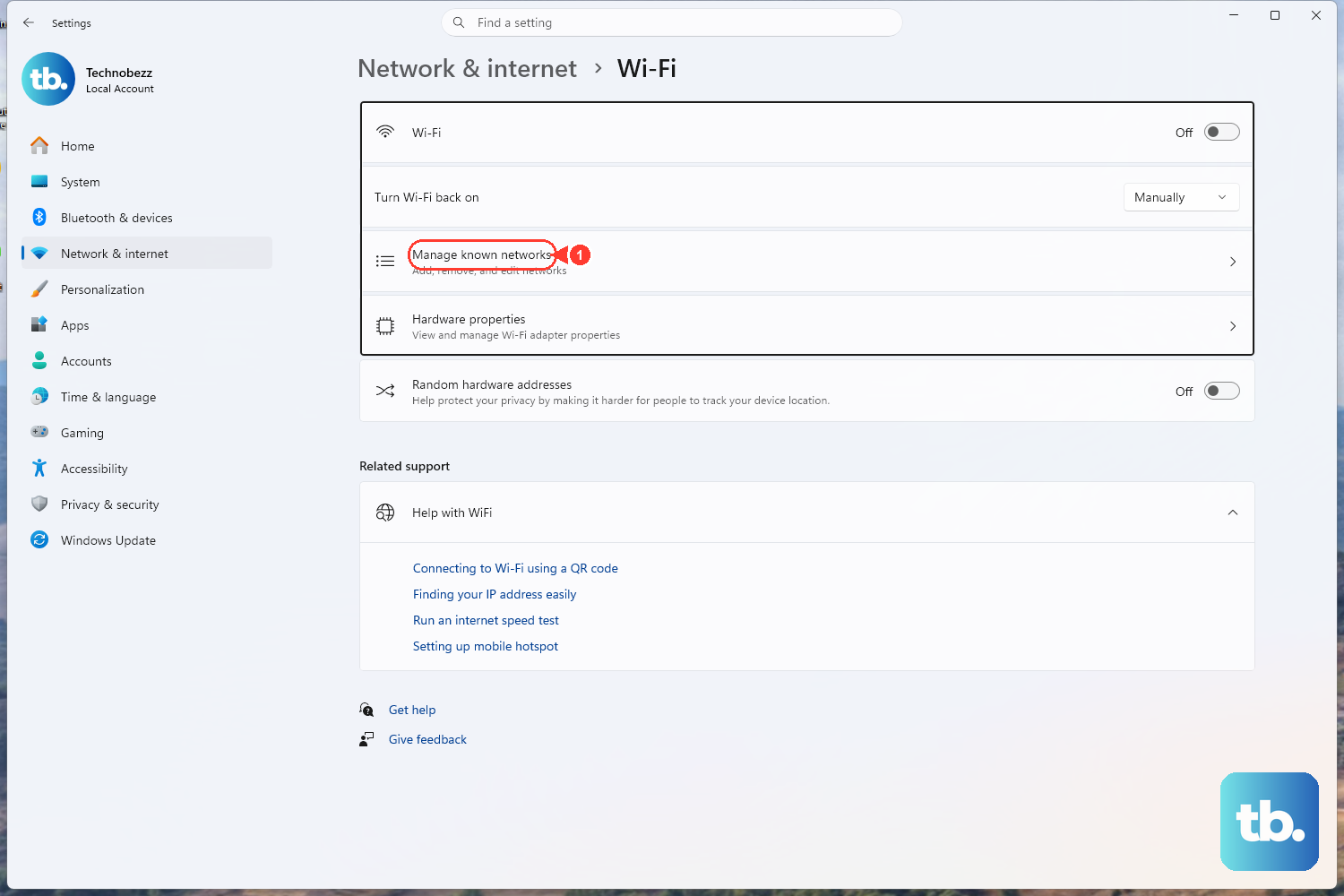
A bad saved Wi-Fi profile can keep failing even when the password and router are fine. Delete the saved profile and connect again.
Open Settings > Network & internet > Wi-Fi, then select Manage known networks. Select your Wi-Fi network, then select Forget.
Select the Network icon on the taskbar, then select the same Wi-Fi network. Select Connect, enter the password, and select Next.
If the router has separate 2.4 GHz and 5 GHz network names, connect to the other one from the Wi-Fi list. To isolate the problem, connect to a trusted different Wi-Fi network.
Need the password from another Windows PC already connected to the same network? On that PC, open Settings > Network & Internet > Status > Network and Sharing Center.
Under Connections, select the Wi-Fi name. Open Wireless Properties > Security > Show characters.
4. Inspect Ethernet Before Changing Software
Make sure the Ethernet cable is firmly plugged into the PC and the router. Use a router Ethernet port, not the Internet port used between the modem and router. Try another Ethernet cable when you have one.
Open Settings > Network & internet and check the Ethernet status at the top of the screen. If Windows shows Action needed, select Ethernet to view the connection settings.
For wired connections, check the physical link before digging through Windows settings. Then isolate the connection type: connect to Wi-Fi when Ethernet fails, or plug in Ethernet when Wi-Fi fails. Use a USB to Ethernet adapter on a laptop without a built-in Ethernet port.
5. Run the Windows Network Troubleshooter
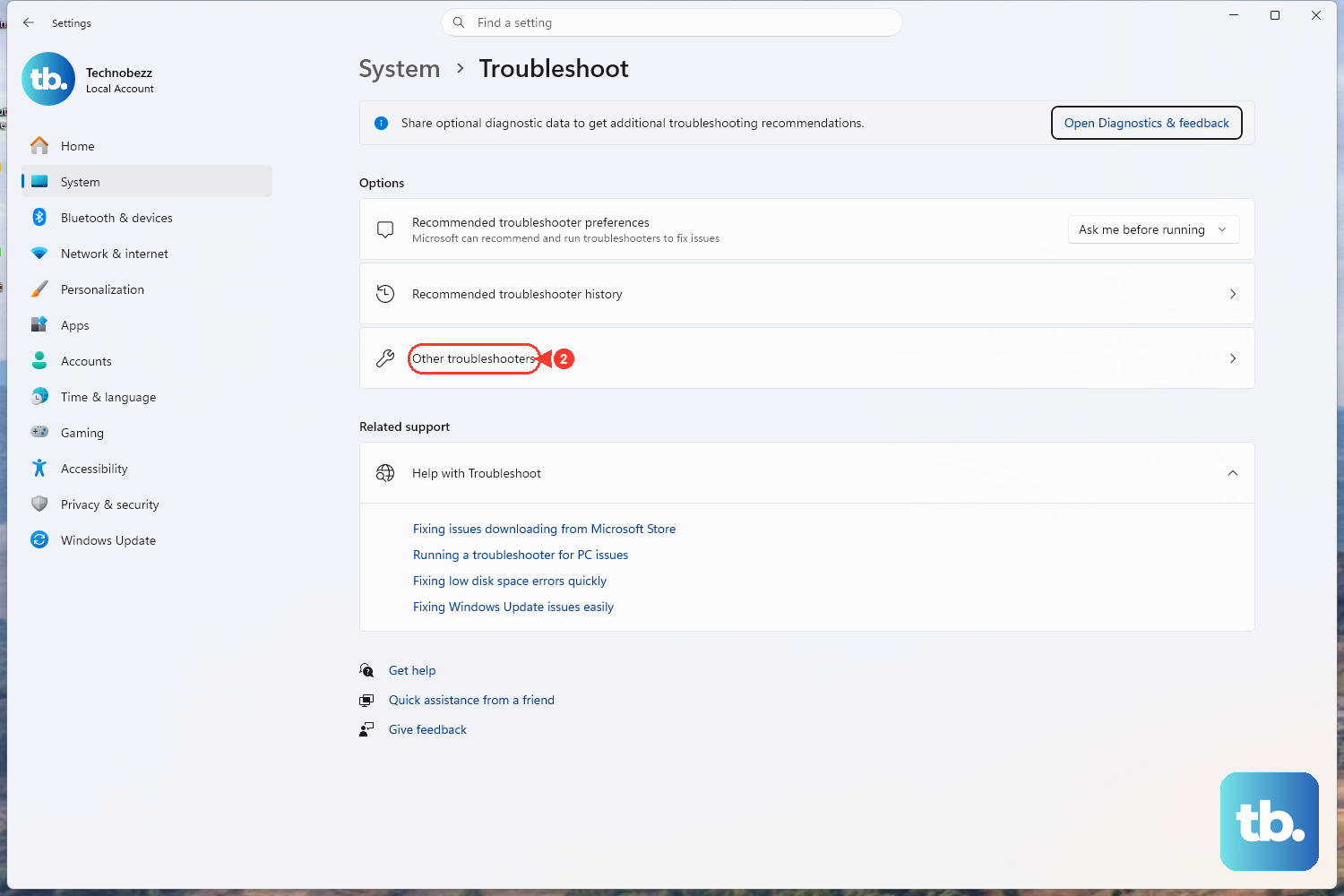
Use the built-in troubleshooter for common network problems.
- 1.Open Start > Settings.
- 2.Select Network and Internet.
- 3.Select Status.
- 4.Select Network troubleshooter.
- 5.Follow the on-screen instructions.
If you are setting up a PC and the main connection will not work, use another available path: mobile hotspot, cellular connection, Wi-Fi, or Ethernet, depending on the hardware and service you have.
6. Repair the Adapter and Driver
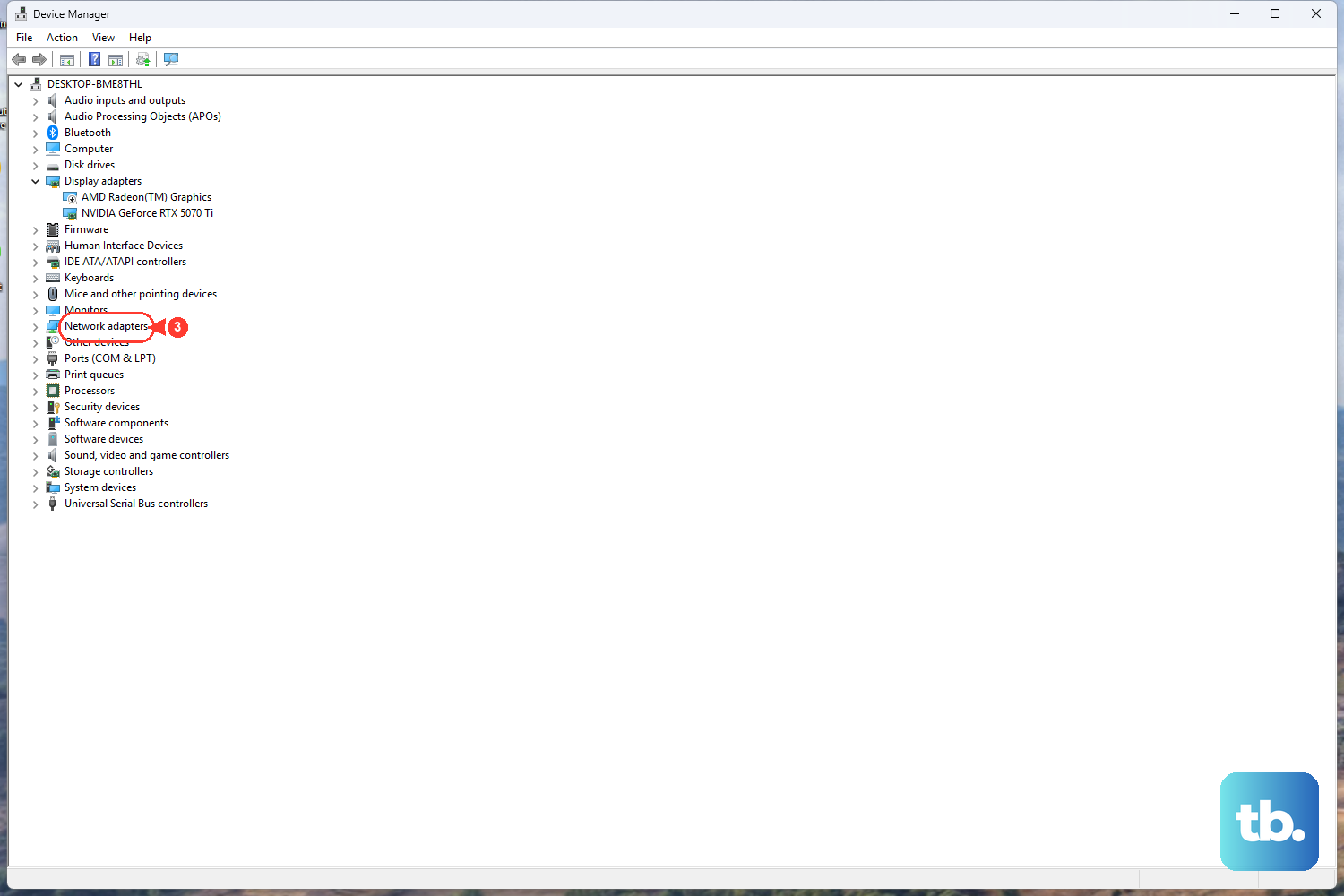
Open Device Manager and expand Network adapters. Right-click your Wi-Fi adapter, then select Enable device. When Wi-Fi is missing or the adapter is disabled, start with Device Manager.
Next, check the driver. Right-click Start, select Device Manager, and expand Network adapters. Right-click the network adapter, select Update driver, then select Search automatically for updated driver software.
If Windows offers it, select Search for updated drivers on Windows update. Windows Update can also list optional driver updates.
Go to Start > Settings > Update & Security > Windows Update > Advanced options, then turn on Receive updates for other Microsoft products when you update Windows. Return to Windows Update and select Check for updates. If View optional updates appears, select the driver updates, then choose Download and install.
If the problem started right after a driver update, open the adapter’s Properties. Select the Driver tab, then select Roll Back Driver. Choose a reason, select Yes, and restart if prompted.
For a deeper repair, uninstall the adapter. Restart. In Device Manager, right-click the network adapter, select Uninstall device, and check Attempt to remove the driver for this device. Select Uninstall, then restart from Start > Power > Restart. Windows will attempt to reinstall the driver after the restart.
7. Correct Proxy VPN Firewall and IP Settings
Change one setting group at a time, then test the connection. Proxy: Open Settings > Network & internet > Proxy.
Turn on Automatically detect settings. Under manual proxy setup, turn Use a proxy server off or correct the Proxy IP address and Port. Select Save.
VPN: Open Start > Settings > Network & Internet > VPN. Disconnect the VPN, or select the VPN connection and open Advanced options to fix its settings.
Firewall: Open Windows Security > Firewall & network protection. For one blocked app, select Allow an app through firewall.
IP assignment: Open Network & internet settings, then select your Wi-Fi or Ethernet network. Next to IP assignment, select Edit. Choose Automatic (DHCP). Save.
Data limit: Open Network & Internet settings > Data usage. Select the network connection, then choose Remove limit.
A wrong network setting can make the internet look broken even when the adapter and router are working. For local sharing problems, check the network profile.
In Network & internet settings, select the connected Wi-Fi or Ethernet network. Choose Public network or Private network under Network profile type.
8. Reset Networking Only at the End
Select Search on the taskbar and type command prompt. Next to Command Prompt, select Run as administrator, then select Yes.
Run netsh winsock reset. Run netsh int ip reset. Run ipconfig /release. Run ipconfig /renew.
After that, run ipconfig /flushdns. Use these repairs after the connection checks, router restart, troubleshooter, and driver steps fail.
To test the router path, run ipconfig. Find the Default gateway for the Wi-Fi network, then run ping followed by that gateway address.
To test DNS reachability, run ipconfig /all | findstr /c:"DNS Servers". Note the DNS server address. Ping that address.
For Wi-Fi diagnostics, run netsh wlan show wlanreport in an administrator Command Prompt. Open the generated HTML report in a browser, then review the Wi-Fi events, errors, command output, and adapter list.
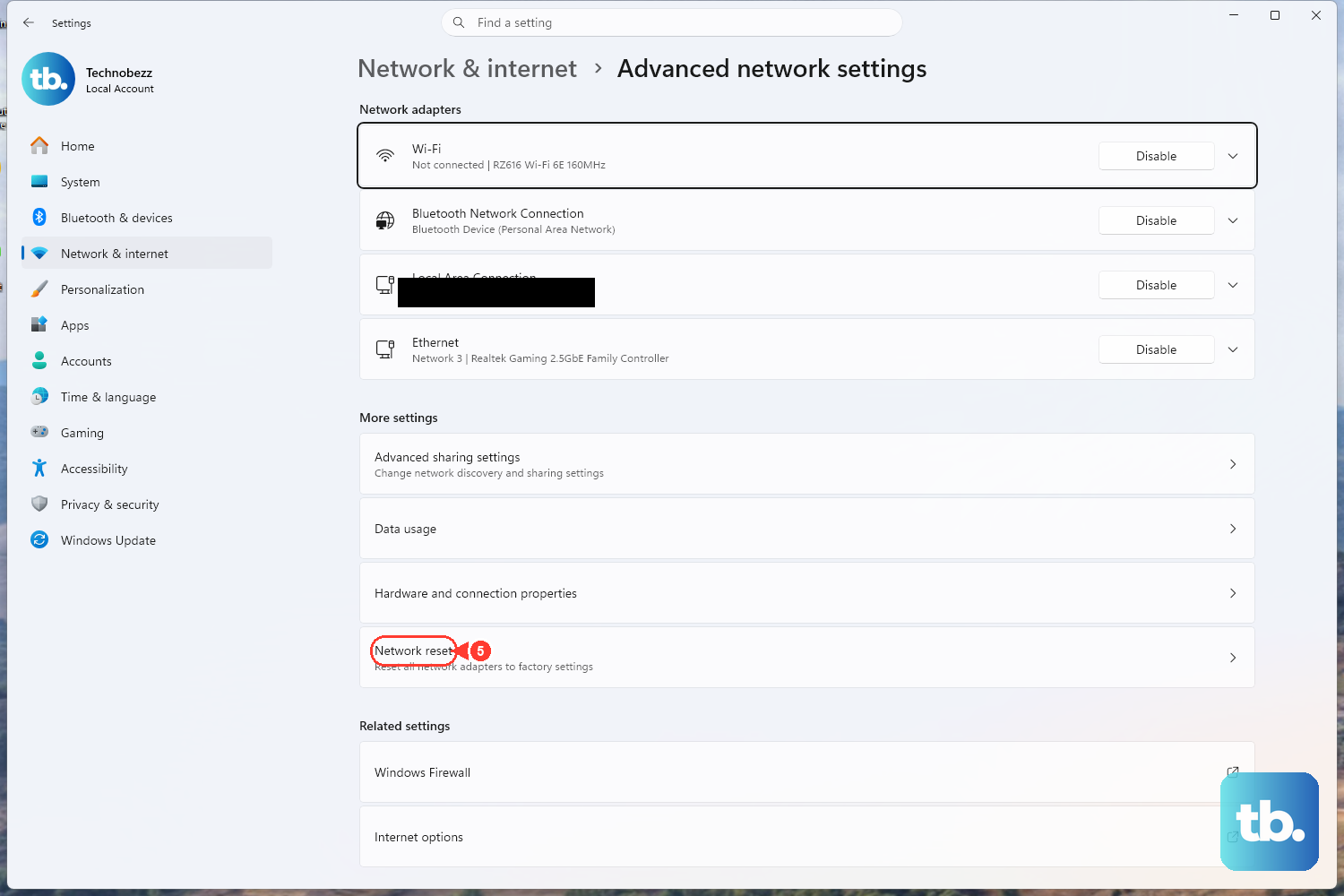
Use Network reset last. Open Start > Settings > Network & internet > Status > Network reset > Reset now > Yes.
Wait for the PC to restart. Network reset removes installed network adapters and settings, so reinstall VPN clients or virtual switches afterward when you use them.
9. Handle Windows 10 Support Limits
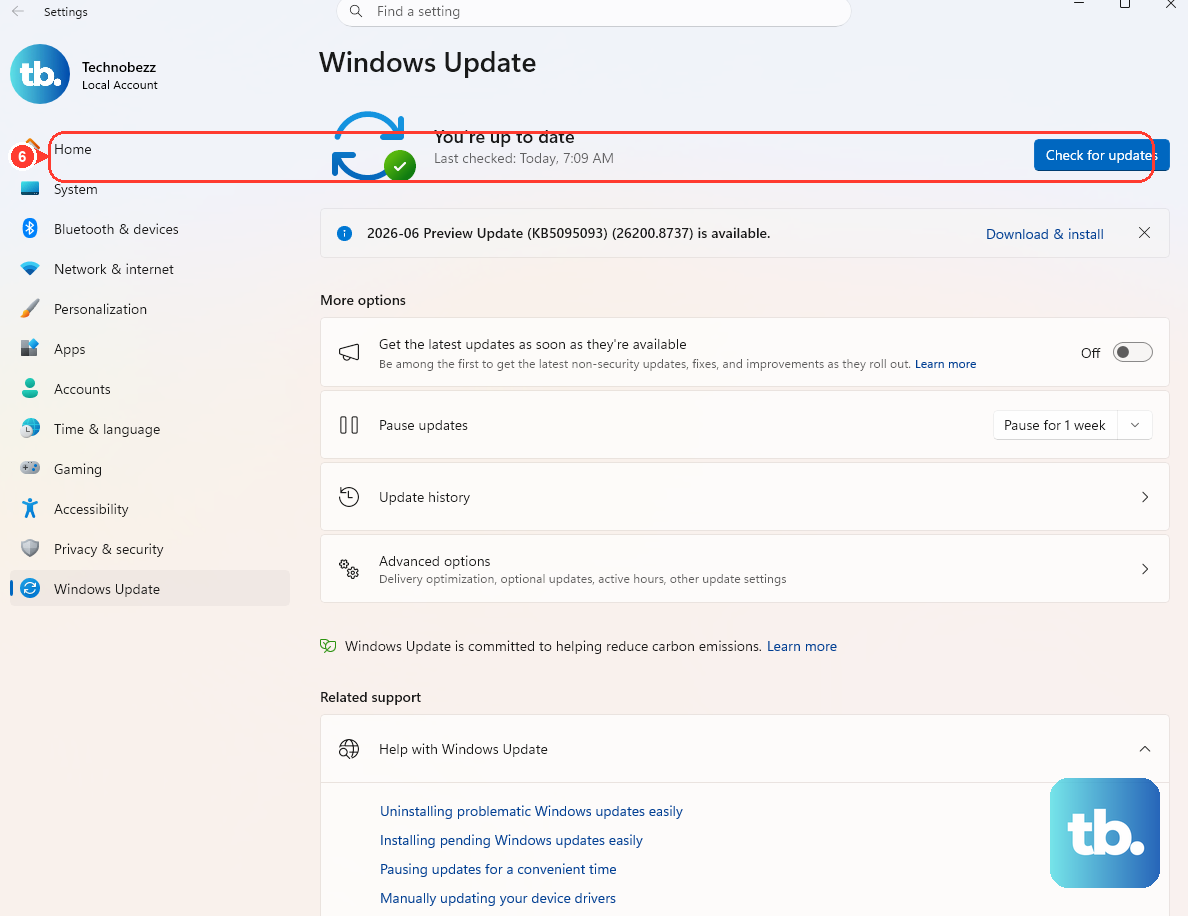
Microsoft says Windows 10 support ended on October 14, 2025. After October 14, 2025, standard Windows 10 support no longer includes technical support, feature updates, or quality and security updates. Extended Security Updates (ESU) provide critical and important security updates only, for eligible enrolled devices.
On an eligible PC, move to Windows 11 through Start > Settings > Update & Security > Windows Update > Check for updates when the upgrade is offered. If you are staying on Windows 10, eligible personal PCs can enroll in consumer ESU through Settings > Update & Security > Windows Update.
Managed work or school devices need the organization’s commercial ESU route. On a work or school PC, the organization controls proxy settings, metered settings, firewall behavior, and VPN access. If Windows blocks those changes, contact IT support.
Skip old Internet Explorer proxy instructions. The current Windows proxy path is Settings > Network & internet > Proxy.
Frequently Asked Questions
Why does Windows 10 say connected but there is no internet?
The PC can be connected to the router while DNS, proxy, VPN, firewall, IP assignment, or the modem/router internet link is failing. Restart the modem and router, then check proxy, VPN, firewall, DHCP, and the Network troubleshooter.
Will network reset delete my Wi-Fi password?
Network reset removes installed network adapters and network settings, then restarts the PC. Reconnect to Wi-Fi afterward and reinstall VPN clients or virtual switches when you use them.
Should I turn off Windows Firewall to fix internet problems?
No. Microsoft recommends allowing the needed app through the firewall instead of turning Microsoft Defender Firewall off.
Can I still fix Windows 10 network problems after support ended?
Yes. The troubleshooting paths still exist, but Microsoft says Windows 10 support ended on October 14, 2025. For full ongoing Windows support, move eligible PCs to Windows 11. If you stay on Windows 10, ESU provides critical and important security updates only, for eligible enrolled PCs.