

Messenger can stop opening, freeze during a chat, leave messages unsent, or block camera and microphone access during calls. Start with the quick app, update, storage, and connection checks, then move into the stronger resets only when Messenger still fails.
1. Restart Messenger And Your Phone
Start here when Messenger freezes, crashes, closes, or refuses to open. This clears the current app session without changing your account.
On iPhone or iPad, open the App Switcher. Swipe right until you find Messenger, then swipe up on Messenger. Open Messenger again from the Home Screen or App Library.
If Messenger still fails, restart the device, then open Messenger again. On Android, press the phone's Power button for about 30 seconds until the phone restarts. On phones that show restart controls, tap Restart, then tap Restart again.
2. Update Messenger From The Official Store
On iPhone or iPad, open the App Store, tap your Account button or photo, go to App Updates, then tap Update next to Messenger.
On Android, open the Google Play Store, tap your Profile icon, choose Manage apps & device, open Updates available, tap See details, then tap Update next to Messenger.
From the Messenger store page, tap Get, Update, or Open, depending on what the store shows.
An outdated Messenger app causes login, loading, and sending problems. Install updates only through the App Store or Google Play.
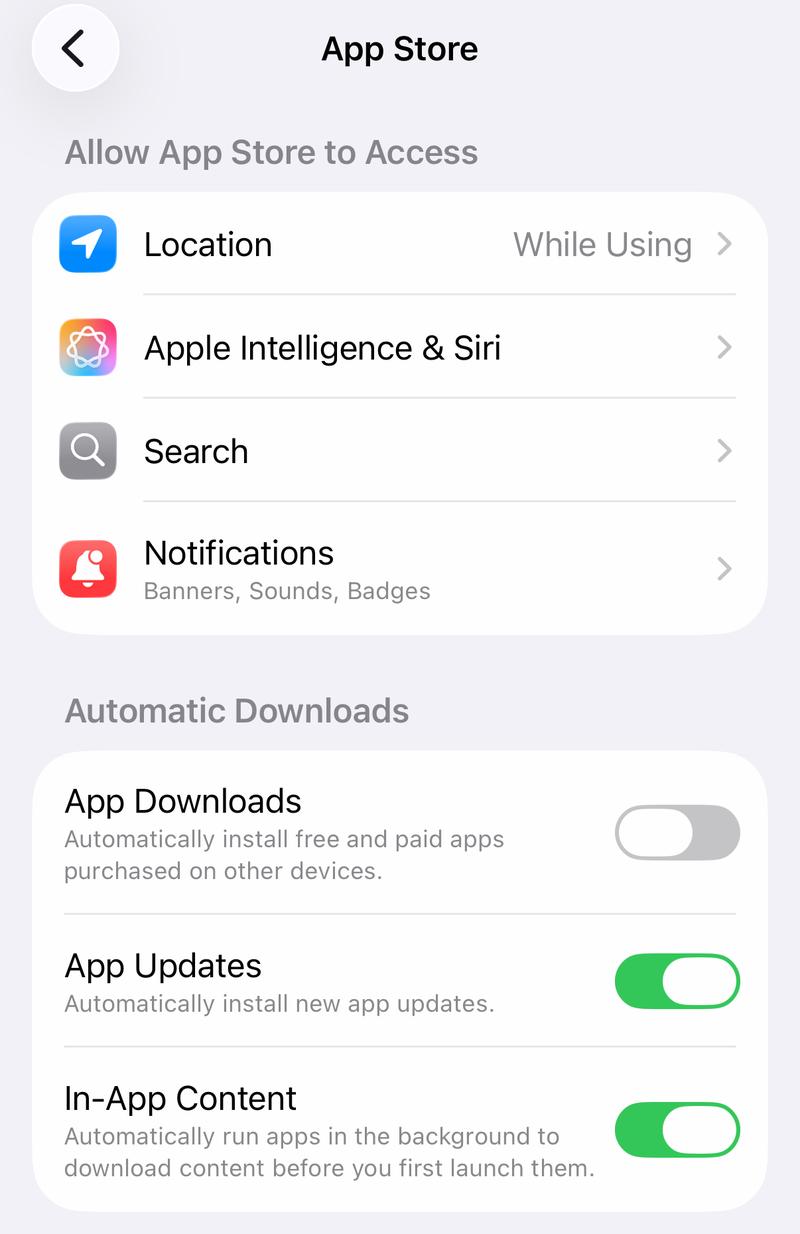
Turn on automatic updates if Messenger keeps falling behind. On iPhone, go to Settings > Apps > App Store > App Updates and turn it on. On Android, go to Google Play Store > Profile icon > Manage apps & device > Manage > Messenger > More > Enable auto update.
3. Free Storage And Update The System
Low storage can block Messenger installs, updates, sending, and loading, and it can also get in the way of app and system updates.
On iPhone, open Settings > General > iPhone Storage. On Android, open Settings > Storage. Free space if the phone shows storage is low.
Once storage is handled, check for system updates. On iPhone or iPad, open Settings > General > Software Update and install any available update. On Android, open Settings > System > Software update or System update, then follow the on-screen instructions.
Meta tells Messenger users to check device storage when the app will not update, install, send, or load. If Messenger will not update from Google Play, update the Play Store too. Open Google Play Store > Profile picture > Settings > About > Update Play Store > Got it.
4. Fix Messages That Will Not Send
On Android, open Settings > Network & internet or Connections. Turn Wi-Fi off. Turn Mobile data on, then test Messenger.
If Messenger still fails on Android, turn Mobile data off. Turn Wi-Fi back on, then test again.
On iPhone, open Settings > Cellular. Turn on Cellular Data, then turn on the Messenger switch.
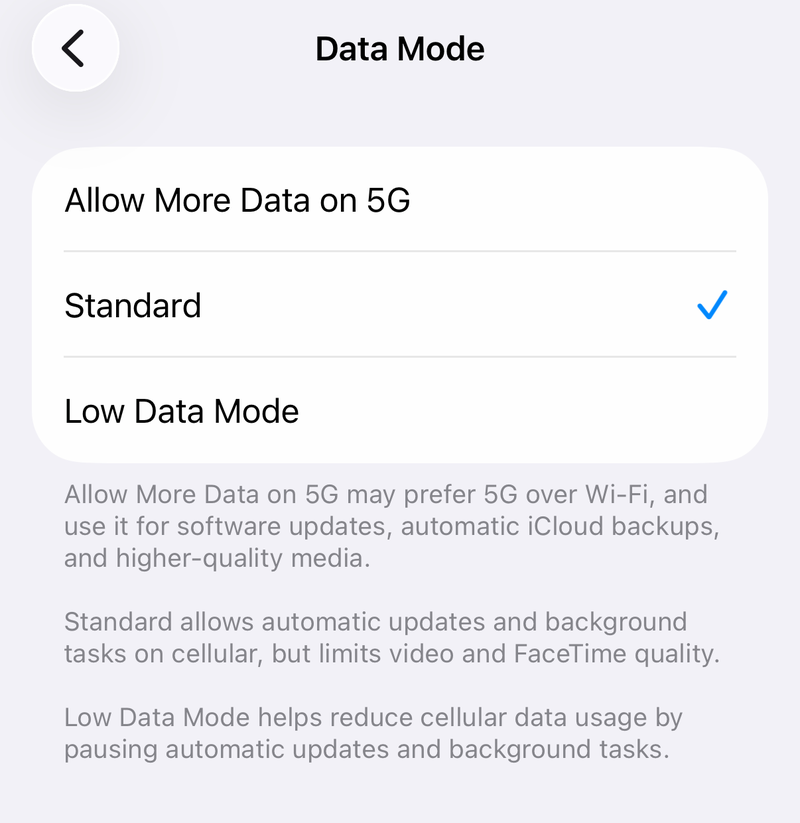
On iPhone cellular, open Settings > Cellular > Cellular Data Options, then turn off Low Data Mode. On some carriers, tap Data Mode first, then turn off Low Data Mode. On iPhone Wi-Fi, open Settings > Wi-Fi, tap the Info button next to the network, then turn off Low Data Mode.
When Messenger opens but messages will not send, test the connection first. Meta's sending checklist points to a reliable Wi-Fi connection, the latest Messenger app, and enough device storage.
Use the iPhone network reset after those checks. Go to Settings > General > Transfer or Reset iPhone > Reset > Reset Network Settings. This removes saved network settings.
5. Clear Android Cache And App Data
Use the lighter cleanup first; save the stronger reset for when Messenger still will not open, respond, or work properly.
Open Settings, then tap Apps or Applications. Choose Messenger, and open Storage or Storage & cache. Tap Clear cache.
Android gives Messenger a lighter cleanup and a stronger reset. If Messenger still breaks, use Settings > Apps > Messenger > Force stop, then reopen the app. If that fails, go back to Settings > Apps > Messenger > Storage or Storage & cache, tap Clear storage or Clear data, then sign back in when Messenger asks.
6. Restore Camera And Microphone Access
On iPhone or iPad, open Settings > Privacy & Security > Camera, then turn Messenger on. Next, open Settings > Privacy & Security > Microphone, then turn Messenger on. If Messenger appears under app settings, open Settings > Apps > Messenger and turn on the camera and microphone switches shown there.
On Android, open Settings > Apps > Messenger > Permissions > Camera, then choose Allow only while using the app. After that, open Settings > Apps > Messenger > Permissions > Microphone, then choose Allow only while using the app. On Android, open Quick Settings or privacy controls and turn on Camera access and Microphone access before starting a call.
Use these permissions when Messenger calls, voice messages, camera capture, or video chat cannot access the camera or microphone.
For browser calls, allow the website too. In Chrome, open facebook.com/messages, use the View site information icon in the address bar, or open Settings > Privacy and security > Site settings > Camera or Microphone, then allow facebook.com. In Microsoft Edge on Windows, open Windows Privacy & security settings, allow Edge access to Camera and Microphone, then grant permission on facebook.com/messages.
7. Reinstall Messenger Cleanly
Use this only after restarting, updating, checking storage, fixing the connection, and clearing Android cache or data.
On iPhone or iPad, touch and hold Messenger. Tap Remove App, then tap Delete App. Tap Delete.
Open the App Store. Search for Messenger, then tap Get.
Reinstalling Messenger gives the app a clean install from the official store. On Android, open Google Play Store > Profile icon > Manage apps & device > Manage > Messenger > Uninstall. Then search for Messenger in Google Play and tap Install.
8. Resolve Login Chat And Web Issues
Login problems need account recovery, not more cache clearing. Update Messenger first, then tap Forgot password? on the Messenger login screen. Enter your email address, mobile phone number, full name, or username, then follow the prompts. You can also visit facebook.com/login/identify from a browser you used before.
When Messenger works except for one person, check the block list. Open Messenger, then tap Menu. Open Settings, then tap Privacy & safety. Open Blocked profiles.
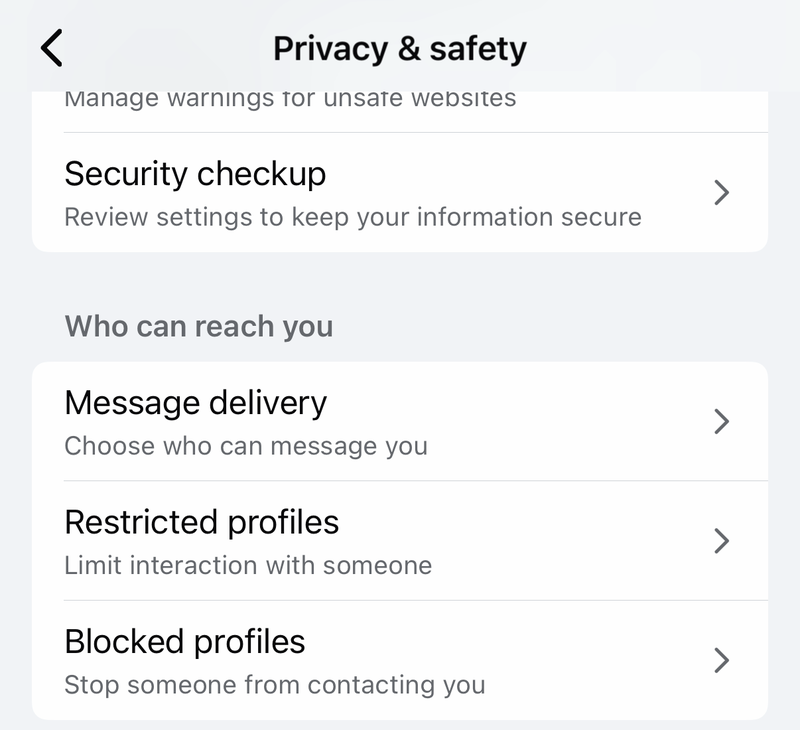
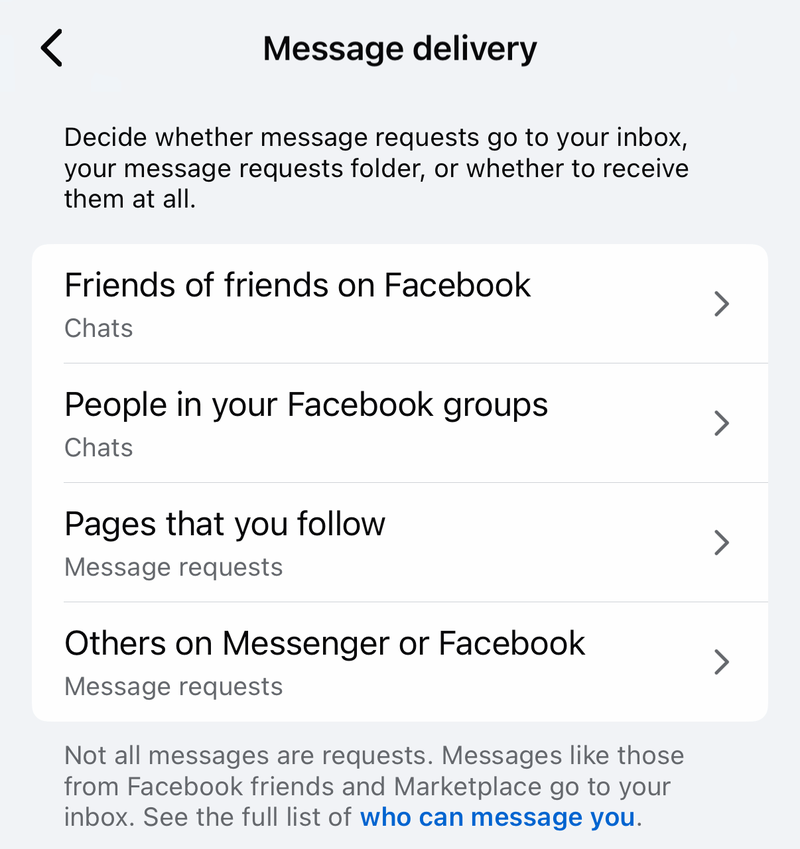
Tap the person's name, then tap Unblock. For a blocked Page, open Chats, type the Page name, tap the Page, tap Unblock, then tap Unblock again. For missing messages from non-friends or Pages, check Menu > Settings > Privacy & safety > Message delivery.
On a computer, use Facebook Messages at facebook.com/messages. If the page is blank, loops, or keeps stale sessions, clear the browser cache and cookies, reload facebook.com/messages, sign in again, or test another supported browser.
Do not use the discontinued Messenger desktop app as a fix. Do not rely on Messenger as the Android SMS app. For current desktop messaging, use facebook.com/messages. For SMS or RCS texts on Android, use the phone's SMS or RCS app.
On work, school, or managed devices, contact the IT admin when the App Store, Play Store, installation, updates, deletion, permissions, or network access are restricted. If Messenger still fails after the fixes above, update the app, open Messenger, shake your phone, then follow Meta's report prompt.
Frequently Asked Questions
Why is Messenger not sending messages even though it opens?
Use a reliable connection, update Messenger, and check device storage. Meta lists those as key checks when Messenger cannot send messages.
Why does Messenger work on Wi-Fi but not cellular data?
Cellular data can be off for Messenger. On iPhone, go to Settings > Cellular, turn on Cellular Data, then turn on the Messenger switch.
Will clearing Messenger data on Android delete my account?
No. It resets Messenger data stored on the device and can require another sign-in, but it does not delete the account.
What should I use now that the Messenger desktop app is discontinued?
Use Facebook Messages in a browser at facebook.com/messages. The discontinued Windows and macOS Messenger desktop app is not a current fix path.