If your MacBook Air won't let you in, start by checking if you're entering the right password. I've seen this fix more login issues than anything else. Make sure Caps Lock isn't on and try typing your password slowly to avoid typos.
Key Points
- Reset Your Password in Recovery Mode – Hold down Command + R while turning on your MacBook Air to enter Recovery Mode.
- Check for Startup Disk Issues – If your MacBook Air shows a flashing question mark or folder icon.
- Boot in Safe Mode – Safe Mode loads only essential system components and can bypass many login issues.
- Reset NVRAM or PRAM – Older Intel-based MacBook Air models store settings in NVRAM that can sometimes interfere with startup.
- Create a New User Account – If you can get into Recovery Mode but still can't access your main account, create a new administrator account.
- Check for macOS Updates – Sometimes a partial or corrupted update can prevent login.
Sometimes the keyboard itself might be the problem. Try connecting an external USB keyboard to see if your built-in keys are working properly. This is especially common on older MacBook Air models where keys can wear out or get stuck.
Reset Your Password in Recovery Mode
Hold down Command + R while turning on your MacBook Air to enter Recovery Mode. From the Utilities menu, choose Terminal and type resetpassword then press Return. This opens the password reset utility where you can create a new login password for your user account.
You'll need to restart your MacBook Air after changing the password.
If FileVault is on, you'll need your recovery key instead.
Check for Startup Disk Issues
If your MacBook Air shows a flashing question mark or folder icon, it can't find a valid operating system. Restart while holding Option to see available startup disks.
If you see your macOS drive, select it and press Return to boot normally.
Sometimes the system needs to rebuild its directory. Restart into Recovery Mode (Command + R) and open Disk Utility. Select your main drive and click First Aid to check for and repair disk errors.
This process takes a few minutes but often resolves startup problems.
Boot in Safe Mode
Safe Mode loads only essential system components and can bypass many login issues. Restart your MacBook Air and immediately hold the Shift key until you see the login window. You'll notice "Safe Boot" in the menu bar if it worked.
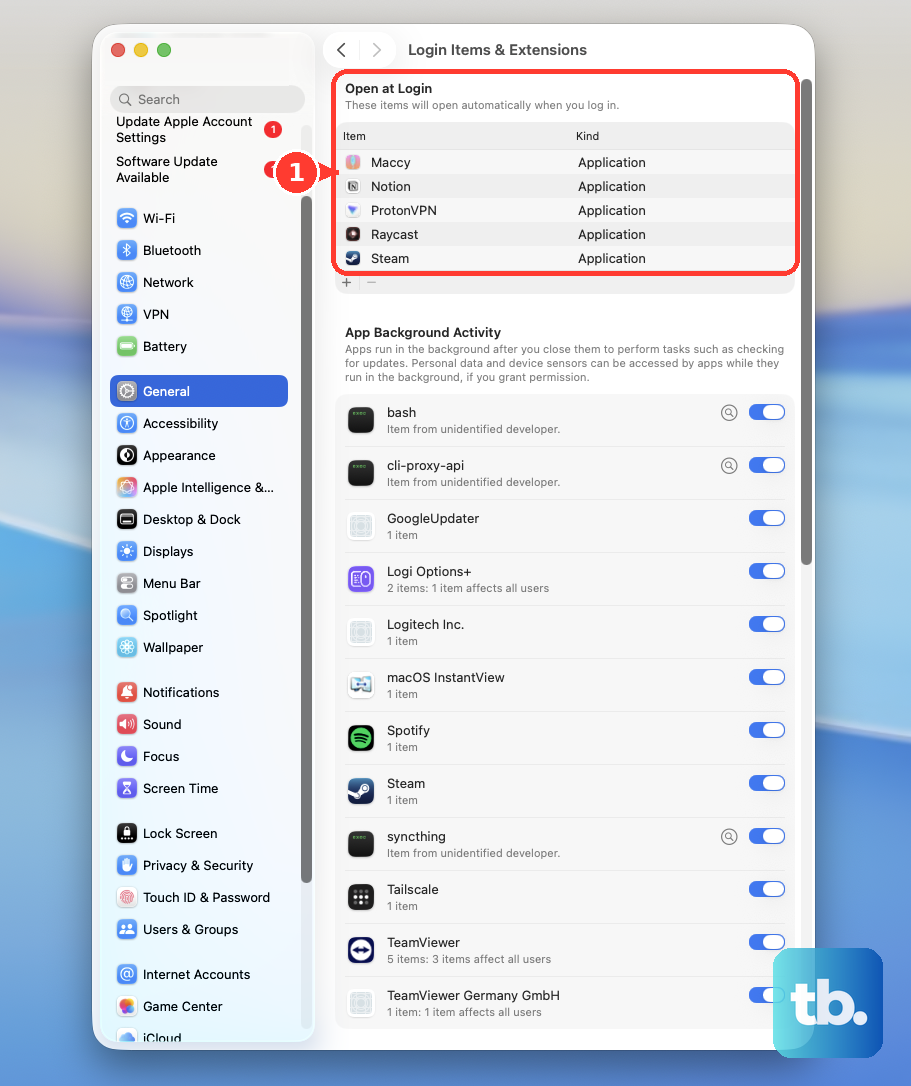
In Safe Mode, try logging in with your password. If it works here but not normally, you likely have a login item or system extension causing the problem. Check System Settings > General > Login Items for anything suspicious.
Reset NVRAM or PRAM
Older Intel-based MacBook Air models store settings in NVRAM that can sometimes interfere with startup. Turn off your Mac completely, then turn it on and immediately press Command + Option + P + R. Hold for about 20 seconds until you hear the startup sound a second time.
For Apple Silicon MacBook Air models (M1, M2, M3, or M4), the process is different. These don't have traditional NVRAM to reset, but you can try shutting down completely for 30 seconds before restarting. This clears temporary system caches that might be causing issues.
Create a New User Account
If you can get into Recovery Mode but still can't access your main account, create a new administrator account. From the login screen, click the question mark or plus icon (depending on your macOS version) to add a new user. Give it administrator privileges.
Once logged into the new account, you can access files from your old account through Users > [Your Old Username]. You can also use this new account to reset permissions or move important files before troubleshooting the original account further.
Check for macOS Updates
Sometimes a partial or corrupted update can prevent login. If you have another Mac available, create a bootable installer using a USB drive. Apple's support site has instructions for creating macOS installers for different versions.
Boot from the installer by holding Option at startup, then choose Reinstall macOS. This installs a fresh copy over your existing system without erasing your files. It often fixes login issues caused by system file corruption while preserving your data.