Instagram sharing to Facebook breaks when the accounts are disconnected in Meta Accounts Center, automatic sharing is off, or the app is stuck on an old session. Start with the account link, then check the content type that failed, and only then repair the apps. The current path runs through Accounts Center, not the older Linked Accounts menu.
Put both accounts in Accounts Center
Start here when Instagram does not show Facebook as a sharing option.
- 1.Open Instagram and go to your Profile or profile picture.
- 2.Tap Menu, then open Accounts Center.
- 3.Choose Accounts or Manage accounts, then tap Add accounts.
- 4.Sign in to the Facebook account you want to share to and finish setup.
Switch on automatic sharing
This fixes posts, stories, and reels that stay on Instagram because cross-posting is off.
Open Instagram and go to your Profile or profile picture. Tap Menu, then open Accounts Center. Select Connected experiences.
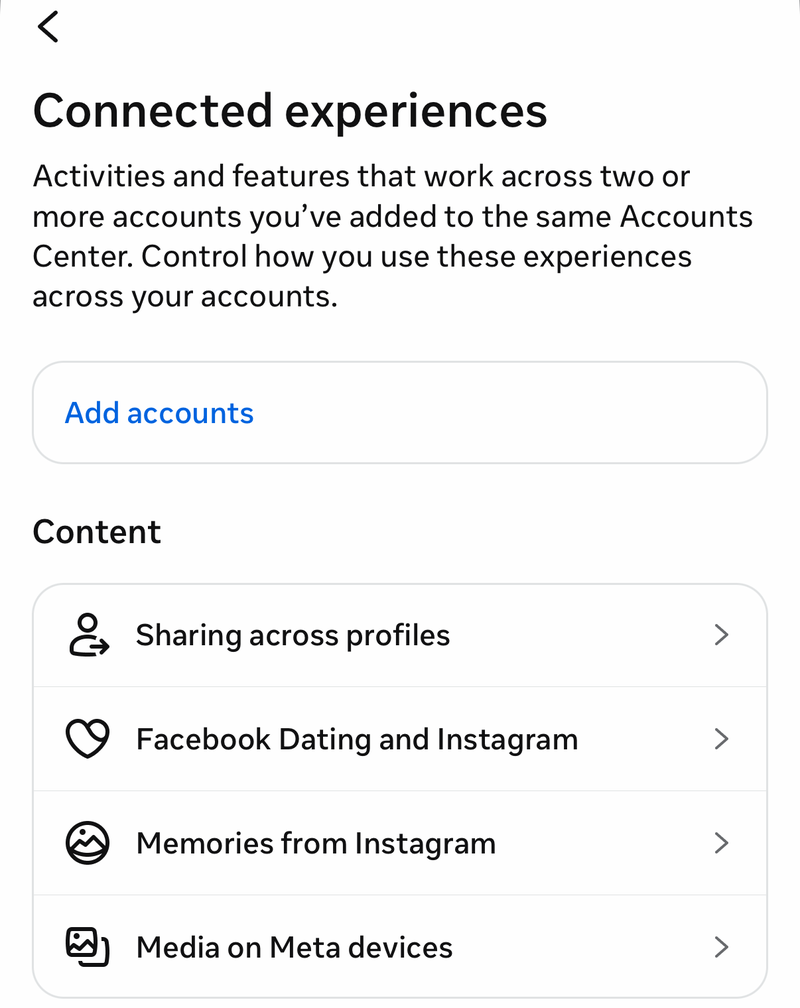
Choose Sharing across profiles. Meta documents both menu layouts, so take whichever one your app shows. Most current Meta help pages route through Accounts Center > Connected experiences > Sharing across profiles.
Instagram's reels help page documents Accounts Center > Sharing across profiles with no Connected experiences step, so if you do not see Connected experiences, tap Sharing across profiles straight from Accounts Center.
Under Share from, choose your Instagram account. Under Share to, choose your Facebook account. Turn on automatic sharing for Instagram posts, Instagram stories, or Instagram reels.
Refresh a sharing pair that stopped working
A stale Instagram-to-Facebook sharing pair can stop reels or other content from crossing over even while both accounts still appear connected.
Open Instagram and go to Profile or profile picture > Menu > Accounts Center > Connected experiences > Sharing across profiles. Select the Instagram-to-Facebook sharing pair, turn the affected sharing option off, then turn it back on.
Retry the same content type that failed. If this method fails, remove and re-add the Facebook account in Accounts Center.
Reset the Accounts Center link
Use this when both accounts stay signed in but Instagram still will not cross-post correctly.
- 1.Open Accounts Center from Instagram or Facebook.
- 2.Go to Accounts or Manage accounts.
- 3.Select the Facebook account connected to Instagram.
- 4.Choose Remove next to that account. Depending on your app version this control can read Remove account or Remove from Accounts Center.
- 5.Return to Accounts, tap Add accounts, and add Facebook again.
Share one post, story, or reel manually
This fixes the single item that automatic sharing missed.
For a story, start creating the story in Instagram. Tap Next. Under Your Story, tap Sharing options. Select Share to Facebook every time or Share Once, then tap Share.
For an existing Instagram post, open the post that did not cross-post. Tap Share below the post. Choose Facebook or the available Facebook sharing destination and finish the share flow.
For a reel, create the reel, tap Share on Facebook before posting, then publish it.
Use Accounts Center in a browser
Open Facebook or Instagram in a browser. Go to Settings & privacy or Settings. Open Accounts Center. Choose Connected experiences.
Select Sharing across profiles. Choose the correct Share from and Share to accounts. Adjust the sharing options for the content you want to cross-post if the toggles appear.
Know the limits of the browser route. Meta documents adding and removing accounts in Accounts Center on a phone, tablet, or computer, so use the browser to confirm the account link. Meta also states that sharing Instagram posts to Facebook is only available in the Instagram app on Android or iPhone, and that Instagram story sharing is not available on computers. Set the actual sharing toggles in the Instagram app.
Check creator and business destinations
For a creator or business profile, the Facebook destination matters. Open your creator or business profile, go to Menu > Crossposting, which opens Sharing across apps, then under Share to, tap Change and choose the destination your account type allows. A business account can cross-post only to a Facebook Page. A personal or creator account can cross-post to a Facebook Page or a personal Facebook account.
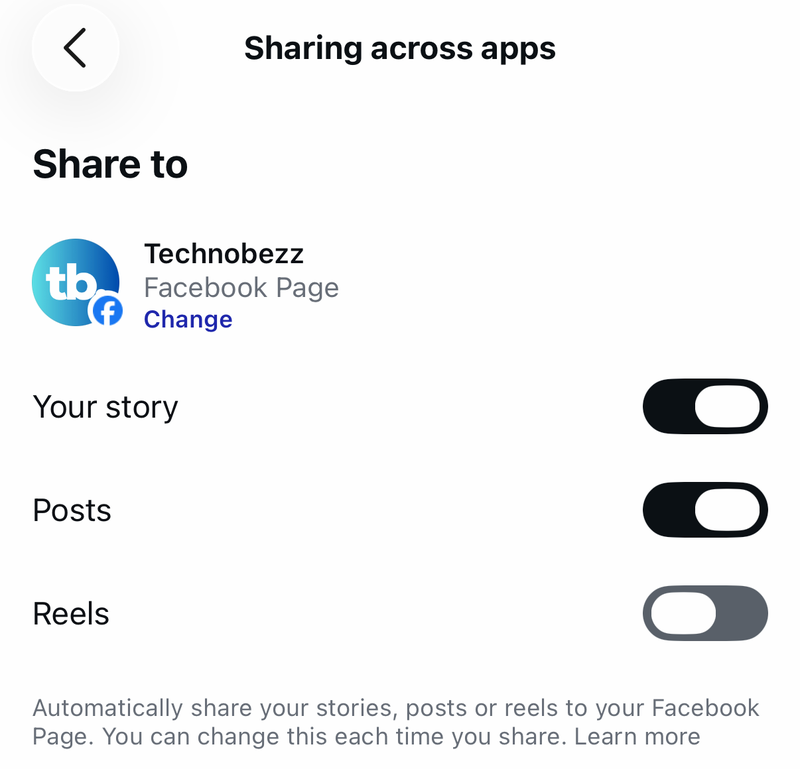
If the Instagram profile needs to share to a Facebook Page, open Edit profile. Under Public business information, use Page, Connect, or Create, then select or connect the Facebook Page and finish the prompts.
For Page managers and shared business assets, use Meta Business Suite. Choose Create post, select the Facebook Page and Instagram account under Post to, add the content, then choose Publish or Schedule.
The person posting needs the required business portfolio and business asset permissions to create content on the Facebook Page and Instagram account.
Repair the Instagram and Facebook apps
When the account settings are correct, clear the app state before changing the connection again.
On iPhone or iPad, open the App Switcher, swipe to Instagram or Facebook, swipe up on the app, and reopen it from the Home Screen or App Library.
Restart the iPhone next. On iPhone X or later, hold either volume button and the side button until the power-off slider appears, drag the slider, wait 30 seconds, then hold the side button until the Apple logo appears.
On iPhone 6, iPhone 7, iPhone 8, or iPhone SE (2nd or 3rd generation), hold the side button until the power-off slider appears, drag the slider, then power the phone back on. On iPhone SE (1st generation), iPhone 5, or earlier, hold the top button instead.
On most Android phones, hold the Power button for 5 to 7 seconds until the phone restarts. If prompted, tap Restart > Restart.
Update Instagram and Facebook on iPhone or iPad through App Store > My Account or your photo > App Updates, then tap Update next to Instagram and Facebook or Update All.
Update Instagram and Facebook on Android through Google Play Store > profile icon > Manage apps & device > See details, then tap Update next to Instagram and Facebook or Update all.
On Android, open Settings > Apps > Instagram or Facebook > Force stop, then reopen the app. On Android, open Settings > Apps > Instagram or Facebook > Storage & cache, then tap Clear cache.
Google notes that Settings vary by Android device, so this section can read Storage and sit under Application manager on some phones. Use Clear storage or Clear data only when you are ready to sign back in, because it removes local app data.
Delete and reinstall Instagram and Facebook from the official App Store or Google Play as the last app repair step. If repairing or reinstalling the apps fails, check Account Status and report the problem from Instagram.
Check Account Status and skip old menu names
The most common old-guide trap is looking for Linked Accounts instead of the current Accounts Center sharing controls.
Open Instagram and go to Profile > Menu > Help > Account Status. Review restrictions, removed content, and any actions Instagram offers to request review.
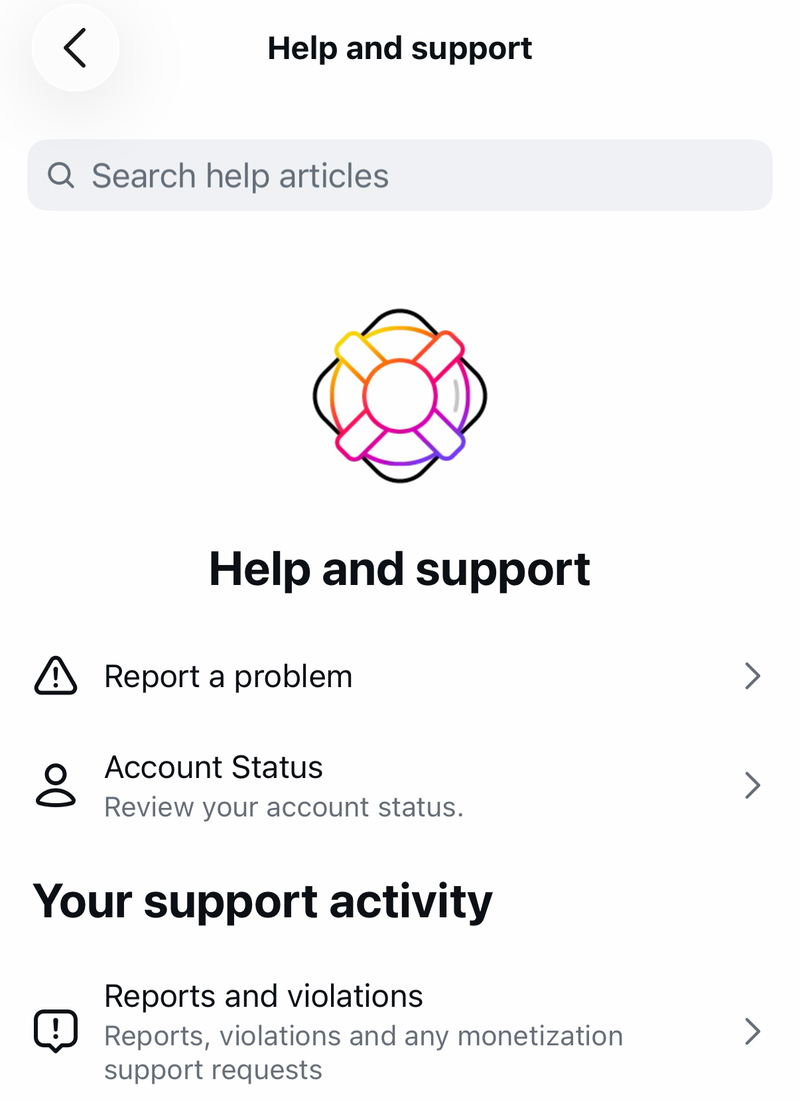
To report the technical problem, shake your phone and tap Report a problem. You can also use Profile > Menu > Help > Report a Problem, then follow the on-screen instructions.
Older tutorials point to Settings > Account > Linked Accounts or Sharing to Other Apps > Facebook. Use Accounts Center > Connected experiences > Sharing across profiles instead.
Frequently Asked Questions
Why did Instagram stop sharing to Facebook after it worked before?
The Instagram-to-Facebook sharing pair can get stuck. Open Accounts Center, go to Connected experiences, choose Sharing across profiles, and turn the affected sharing option off and back on.
Can I share an Instagram post to Facebook after it is already live?
Yes. Open the Instagram post, tap Share below the post, choose Facebook or the available Facebook destination, and complete the share flow.
Why can’t my business Instagram share to a Facebook Page?
Choose the Page destination in Crossposting or connect the Page from Edit profile under Public business information. The person posting also needs permission to create content on that Page and Instagram account.
Should I use Instagram’s old Linked Accounts setting?
No. Use Accounts Center, then Connected experiences, then Sharing across profiles. Older Linked Accounts and Sharing to Other Apps paths are not the current Meta route.