Your Android phone won't connect to Wi-Fi, and you're just staring at that spinning icon wondering what went wrong. Don't worry, this is one of the most common issues on Android and it's almost always fixable. Whether you're on a Galaxy S26, Pixel 11, or any phone running Android 15 or 16, these fixes work across the board.
Quick Fix: Toggle Wi-Fi and Restart
Before you do anything else, try the two-second fix. Pull down your notification shade, tap the Wi-Fi icon to turn it off, wait about five seconds, then tap it back on. This forces your phone to re-scan and reconnect, and it solves the problem more often than you'd think.
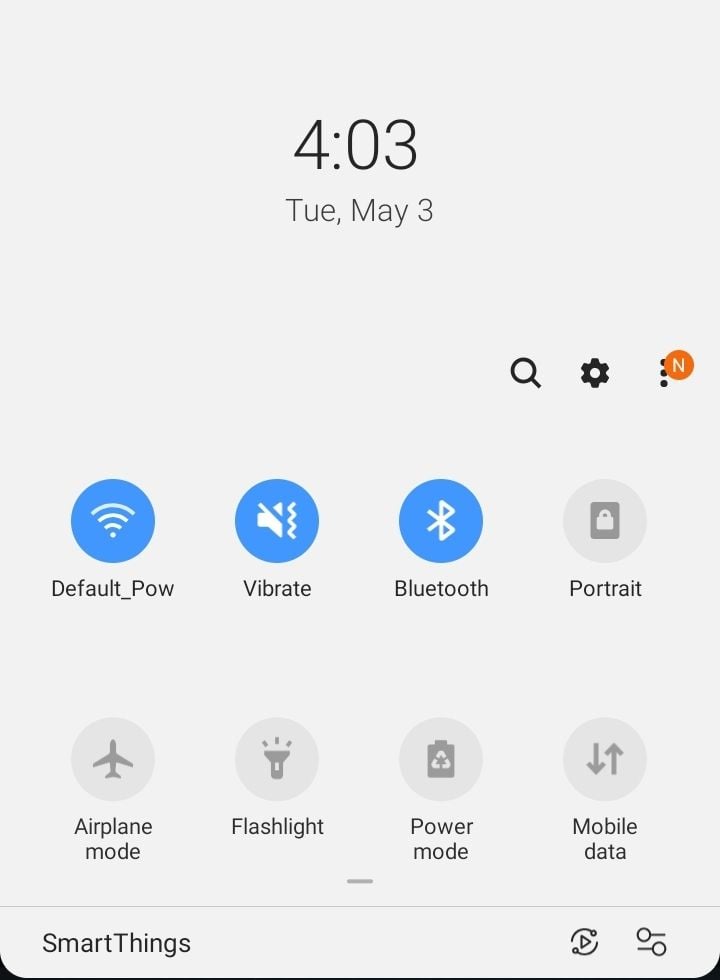
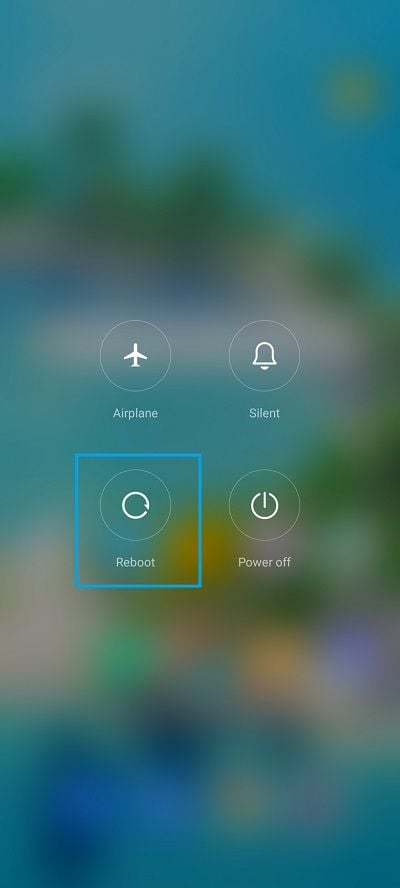
If that didn't do it, restart your phone. Hold the power button (or power + volume up on newer Pixels and Galaxy phones), tap Restart, and give it a minute. A reboot clears out temporary software glitches that love to mess with your wireless connections.
Turn Airplane Mode On and Off
This one's a classic for a reason. Flipping airplane mode on kills all your wireless radios (Wi-Fi, Bluetooth, cellular), and turning it back off forces everything to reconnect fresh. Leave it on for about 15 seconds before switching it off again.
Forget the Network and Reconnect
Sometimes your phone is holding onto old or corrupted network credentials. Go to Settings, then Wi-Fi (or Network & Internet on stock Android 16), tap on your network name, and hit "Forget." Now reconnect by selecting the network again and typing in the password.
This is especially useful if you recently changed your Wi-Fi password or got a new router. Your phone might still be trying to connect with the old credentials, which will fail every time.
Check Your Password and Network Name
It sounds obvious, but double check that you're connecting to the right network. If your neighbor has a similar network name, your phone might be trying to join theirs instead. Also make sure caps lock isn't on when you're typing the password, because Wi-Fi passwords are case-sensitive.
Turn Off Bluetooth Temporarily
Bluetooth and Wi-Fi both use the 2.4GHz frequency band, and on some devices they can interfere with each other. Try turning off Bluetooth from your quick settings and see if Wi-Fi connects. If it does, you've found your culprit.
Disable Smart Network Switch
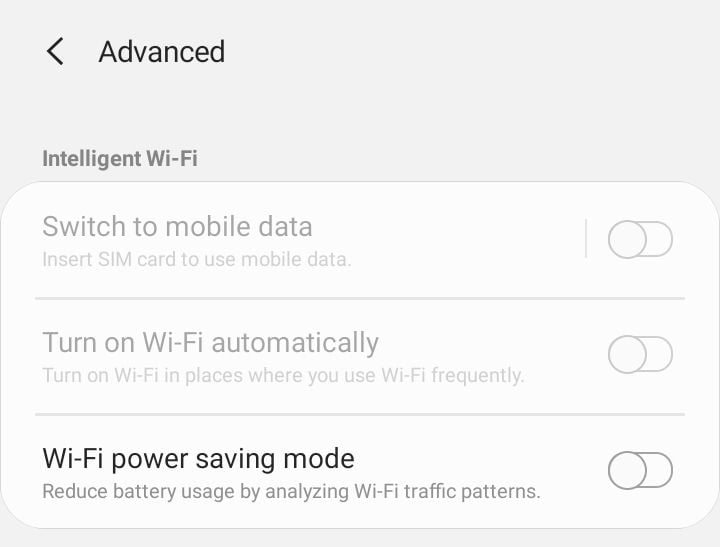
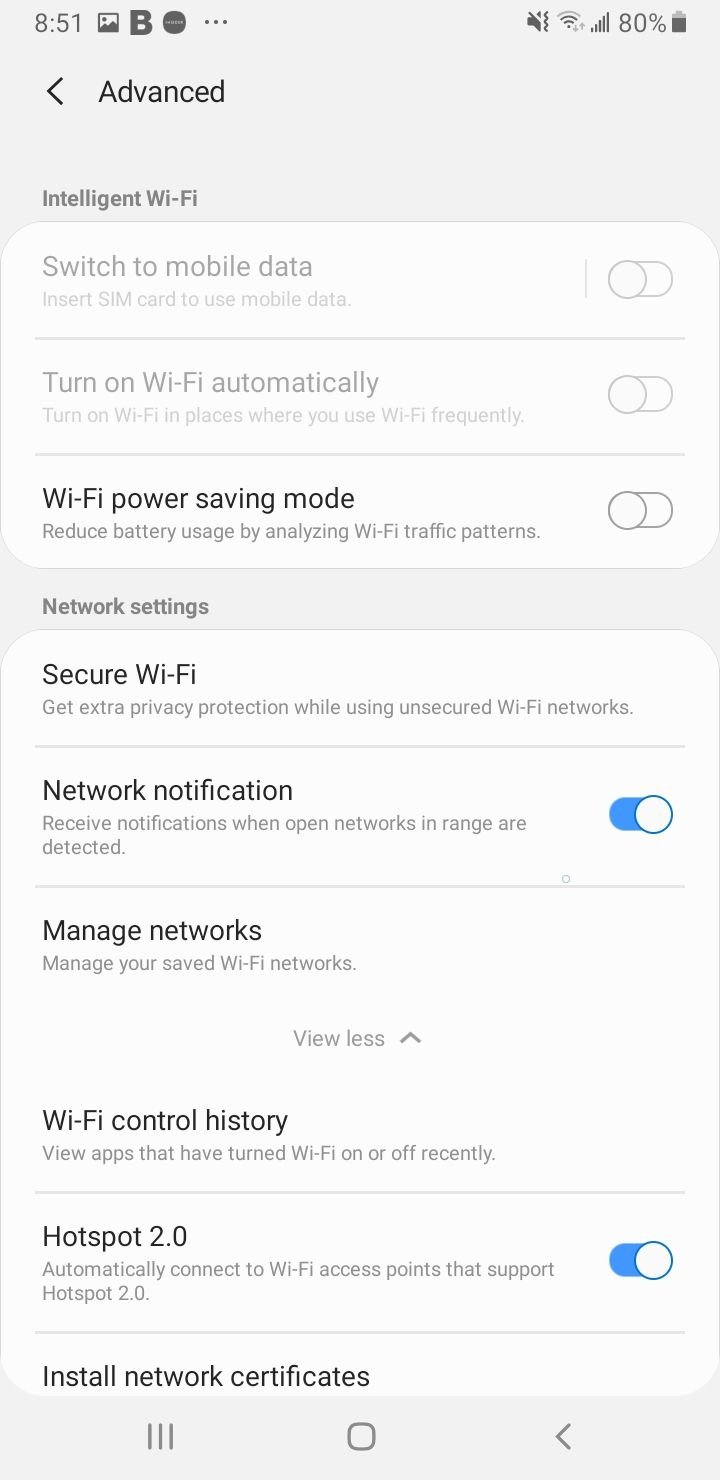
Android has a feature that automatically switches you to mobile data when your Wi-Fi signal is weak. While that sounds helpful, it can actually prevent your phone from connecting to Wi-Fi at all. Head to Settings, then Wi-Fi, then Advanced, and turn off "Switch to mobile data" or "Smart network switch."
Check Power Saving Mode
Power saving mode is great for squeezing out extra battery life, but it can throttle or even disable Wi-Fi in the background. If you've got battery saver turned on, head to Settings, then Battery, and switch it off. You should see your Wi-Fi connection come back almost immediately.
Update Your Android Software
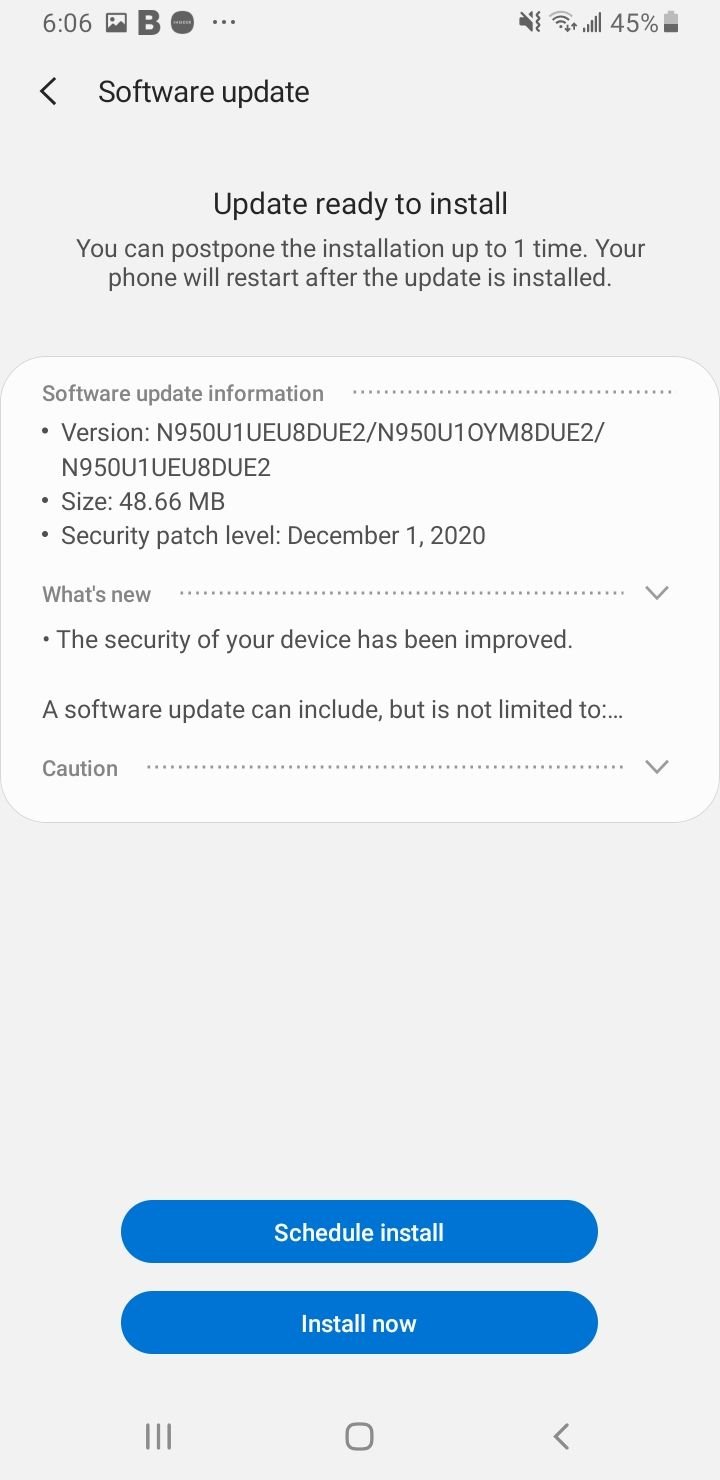
Running an older version of Android can cause all sorts of weird connectivity bugs. Go to Settings, then Software Update (or System, then System Update), and install anything that's available. Google and Samsung regularly push patches in 2026 that specifically address Wi-Fi stability issues on Android 15 and 16.
Fix Your Date and Time Settings
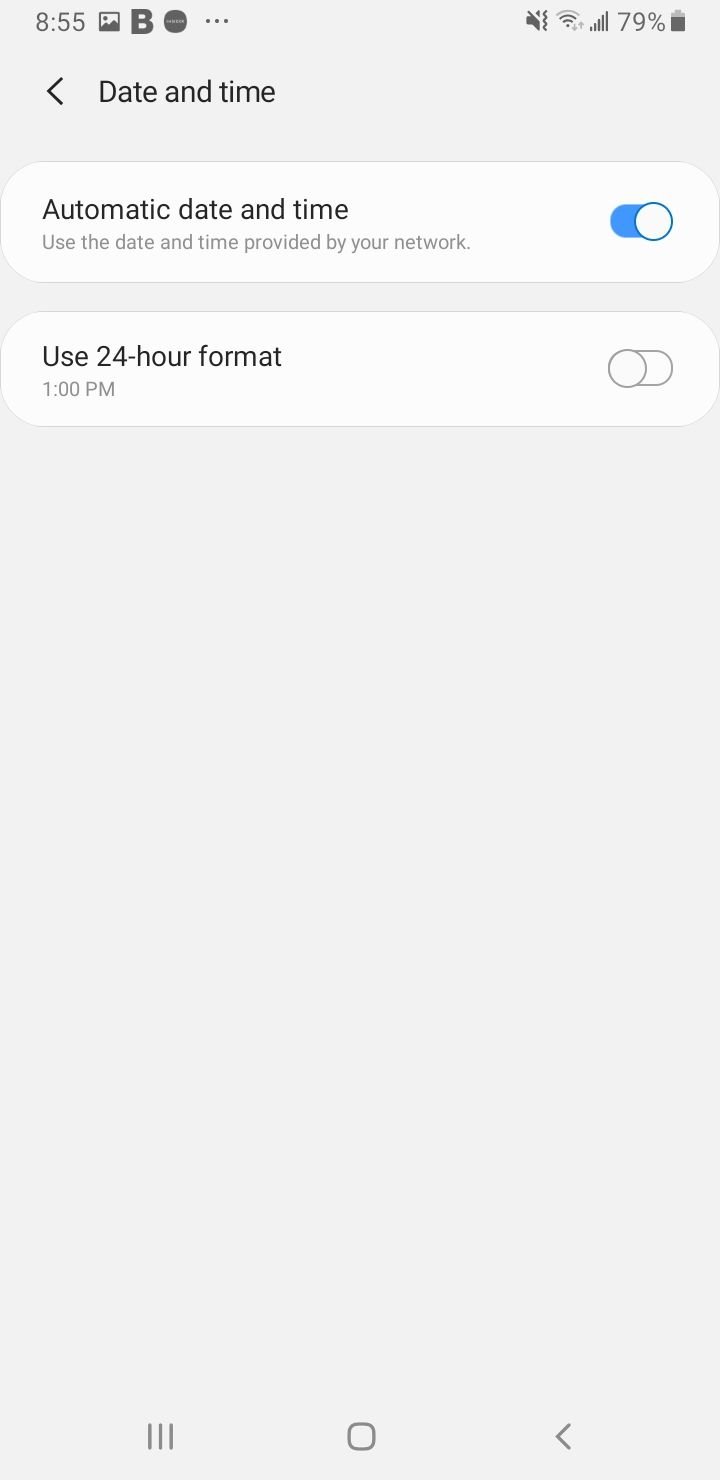
This one catches people off guard. If your phone's date and time are wrong, Wi-Fi authentication can fail because security certificates won't validate properly. Go to Settings, then General Management (or System), then Date and Time, and make sure "Automatic date and time" is turned on.
Reset Network Settings
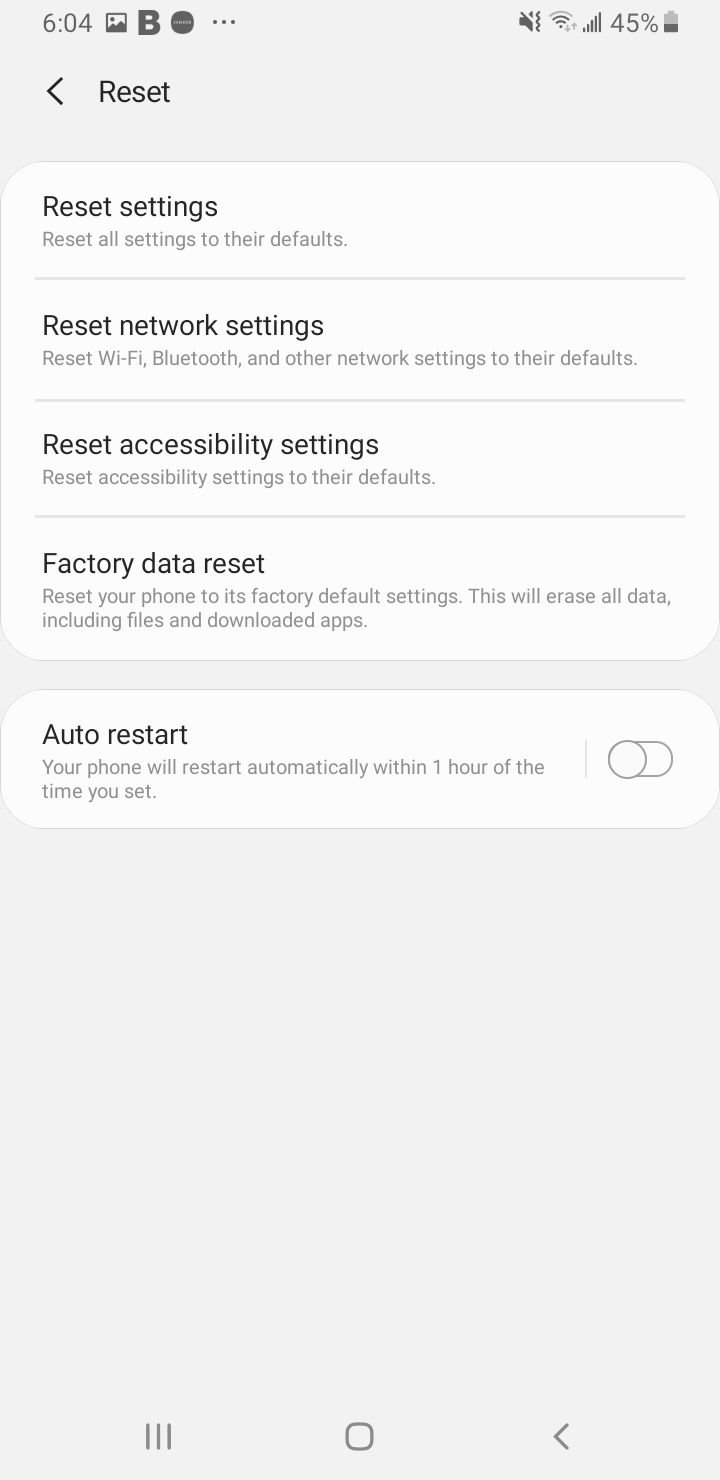
If you've tried everything above and Wi-Fi still won't cooperate, it's time to reset your network settings. Go to Settings, then System (or General Management), then Reset, and tap "Reset network settings." This wipes all saved Wi-Fi networks, Bluetooth pairings, and mobile data settings, so you'll need to reconnect to everything afterward.
Restart Your Router
Here's something people forget: the problem might not be your phone at all. Unplug your router from power, wait a full 60 seconds, then plug it back in. If other devices in your house are also having Wi-Fi issues, the router was almost certainly the problem.
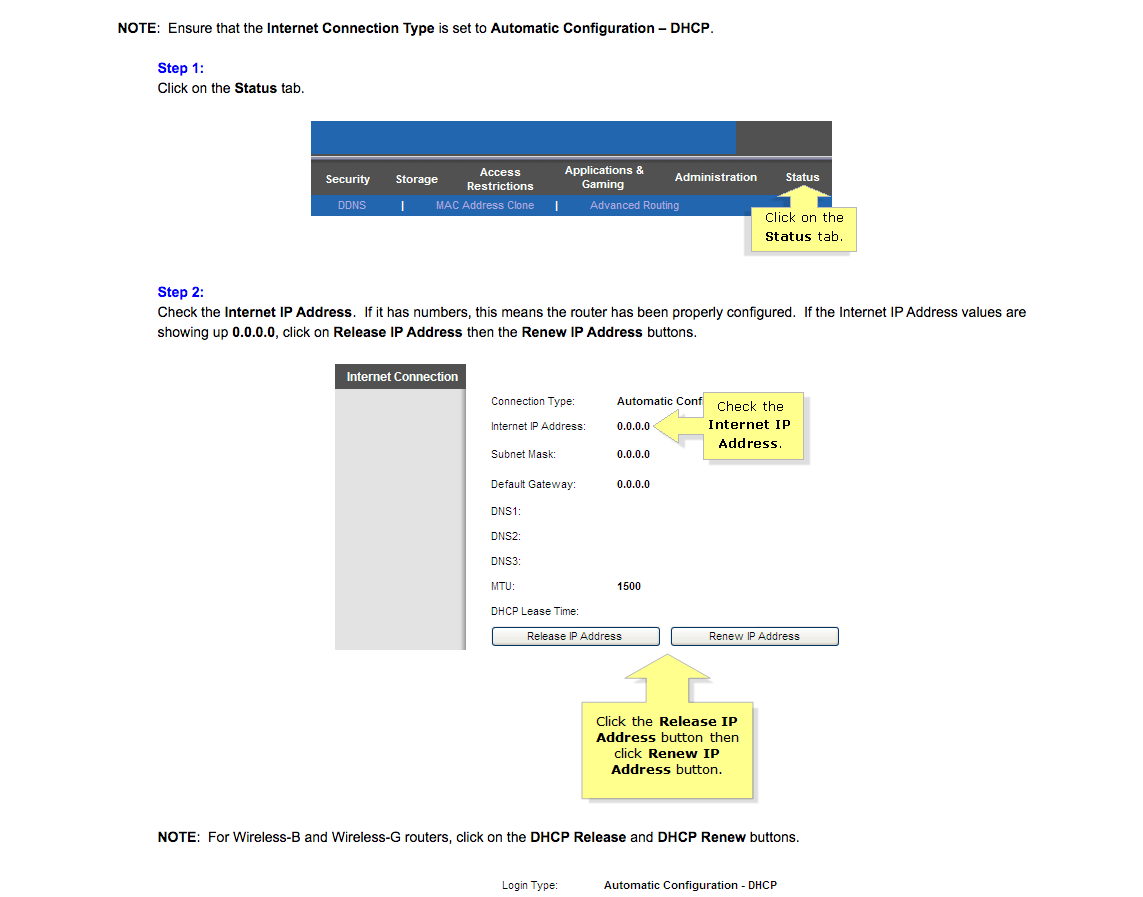
While you're at it, check if your router's firmware needs an update. Older firmware can have compatibility issues with newer Android versions. Most routers let you update through their admin page or companion app.
Boot Into Safe Mode
Third-party apps (especially VPNs, ad blockers, and security apps) can interfere with Wi-Fi. To test this, boot your phone into safe mode by pressing and holding the power button, then tapping and holding "Power off" until the safe mode option appears. If Wi-Fi works fine in safe mode, one of your apps is the troublemaker.

Factory Reset (Last Resort)
If absolutely nothing has worked, a factory reset will bring your phone back to its default state. Back up everything first (photos, contacts, app data) because this erases it all. Go to Settings, then System, then Reset, and tap "Factory data reset."
Only go this route if you've exhausted every other option on this list. In most cases, one of the simpler fixes above will solve the problem. If Wi-Fi still doesn't work after a factory reset, you might be dealing with a hardware issue, and it's time to visit a repair shop or contact your phone manufacturer.
Frequently Asked Questions
Why does my Android keep disconnecting from Wi-Fi?
The most common causes are power saving mode throttling your connection, a weak signal from being too far from the router, or the "smart network switch" feature automatically pushing you to mobile data. Try disabling battery saver and the smart network switch first.
Why does my phone say "Saved, Secured" but won't connect to Wi-Fi?
This usually means your phone has the network saved but can't actually authenticate. The fix is to forget the network and reconnect with the correct password. If that doesn't work, try resetting your network settings.
Can a phone case block Wi-Fi signal?
Yes, cases made from metal or thick materials can weaken your Wi-Fi signal. If you're using a metal or heavily reinforced case, try removing it to see if your connection improves.
Will a factory reset fix Wi-Fi problems on Android?
It can, but it's a nuclear option. A factory reset wipes everything and returns your phone to its out-of-the-box state. It's worth trying if nothing else works, but make sure you back up your data first.