Gmail not working in Chrome usually comes down to a bad tab, old browser build, blocked cookie, stubborn extension, or broken Chrome profile. Start with the fixes that take seconds, then move into the deeper Chrome settings only when Gmail still refuses to load.
Check Gmail Status And Reload The Page
This confirms whether Gmail is down on Google's end, and it fixes Gmail that is stuck in a stale tab or opened from the wrong address. When the dashboard reports a disruption or outage, Google restores service on its side, so wait a few minutes and sign in again instead of changing Chrome settings.
Open the Google Workspace Status Dashboard and find the row labeled Gmail.
Check whether Gmail shows Available, Service disruption, or Service outage.
In Chrome, make sure the address is https://mail.google.com/.
Select Reload this page at the top left of Chrome.
If Gmail opens after the reload, replace any old bookmark that was sending you to a broken page.
Update Chrome First
Gmail works best in the newest Chrome version and the last prior major version, so update Chrome before digging into Gmail settings.
- 1.Open Chrome and select More.
- 2.Choose Help, then About Google Chrome.
- 3.Wait for Chrome to check for updates.
- 4.Select Relaunch if it appears.
- 5.If Relaunch is not shown, Chrome is already on the latest version.
Open Gmail In Incognito
An Incognito window gives Gmail a separate Chrome session, which makes it the fastest way to separate a Gmail problem from a regular-profile problem. One caveat: any extension you already turned on with Allow in incognito keeps running there, so check that before you rule extensions out. Open More, choose New Incognito window, then go to https://mail.google.com/.
You can also press Ctrl + Shift + n on Windows, Linux, or ChromeOS. On Mac, press ⌘ + Shift + n.
If Gmail works in Incognito, turn off your extensions in normal Chrome next. If Gmail still fails there, use the cookie and JavaScript fix below because third-party cookies are blocked by default in Incognito.
Turn Off Problem Extensions
This fixes blank Gmail pages, broken loading, and failures caused by ad blockers, privacy tools, security extensions, script blockers, or Gmail add-ons.
Open More.
Go to Extensions, then Manage extensions.
Turn off one extension.
Reopen Gmail.
Repeat one extension at a time until Gmail starts working.
When you find the bad extension, select Remove, then confirm with Remove. If its toolbar icon is visible, right-select the icon and choose Remove from Chrome.
If Chrome marks an extension as corrupted, select Repair, then Repair extension. If it stays corrupted, run antivirus or anti-malware software, remove unwanted software, and repair it again.
Clear Gmail Cookies And Site Data
Bad Google site data can keep Gmail stuck even when Chrome and your connection are fine.
- 1.Open More, then choose Settings.
- 2.Select Privacy and security, then Third-party cookies.
- 3.Choose See all site data and permissions.
- 4.Search for google.com or mail.google.com.
- 5.Select Delete, then confirm with Delete.
Allow Cookies And JavaScript
Use this when Gmail loads halfway, sign-in loops, or Chrome says cookies are blocked. Gmail needs cookies and JavaScript turned on.
Open More, then Settings, Privacy and security, and Third-party cookies. Under Sites allowed to use third-party cookies, select Add, enter [*.]google.com or mail.google.com, then select Add.
If Gmail is already open and Chrome shows cookies are blocked, select Third-party cookies blocked in the address bar. Turn on Third-party cookies, then select Close to reload the page.
For JavaScript, open More, then Settings, Privacy and security, Site settings, and JavaScript. Choose Sites can use JavaScript.
Fix Gmail Settings And Sign In Again
Gmail can show Oops or Bad Request errors when an Advanced feature is getting in the way. Open Gmail, select Settings, then See all settings, and open Advanced.
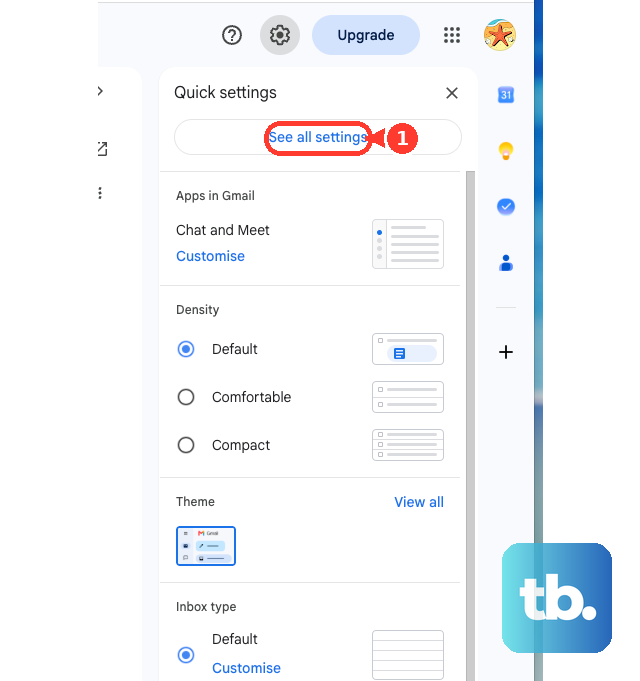
Next to each enabled feature, choose Disable. Select Save Changes, then reopen Gmail in Chrome.
If Gmail still acts stuck, close Chrome and reopen it. Sign out of Gmail, then sign back in with your Google Account.
Skip old Basic HTML workarounds. Gmail redirects desktop web and mobile web users to Standard view, so fix the current Chrome session, site settings, extensions, profile, or network instead.
Repair Network Or Managed Device Blocks
The most common cause on work, school, or filtered networks is a blocked cookie, blocked JavaScript setting, controlled extension, firewall, proxy, antivirus rule, or network restriction.
Restart your device.
Turn Wi-Fi or mobile data off, then turn it back on.
If you are using Wi-Fi and Gmail still will not load, restart your router according to the router manual.
Connect to another network and reopen Gmail.
If Gmail works on the other network, contact your service provider, Wi-Fi network host, school, or workplace support.
If Google sign-in fails only on one computer or network, temporarily turn off the firewall, proxy, or antivirus program and try signing in again. If that fixes it, use that program's support page to allow Google or Gmail without leaving protection disabled.
Reset Chrome As A Last Step
A damaged Chrome profile can carry broken settings, extension state, sync data, or local browser data from tab to tab. Open Profile, select Add Chrome profile, choose a name, photo, and color scheme, then open Gmail in the new profile.
On desktop Chrome except Chromebooks, Guest mode is another clean test. Open Profile, choose Open Guest profile, then go to https://mail.google.com/.
If Gmail works in a new or guest profile, keep using a clean Chrome profile or remove the broken settings from the old one. If this method fails, go to More, Settings, Reset settings, Restore settings to their original defaults, then select Reset settings.
Frequently Asked Questions
Why does Gmail work in Incognito but not normal Chrome?
That points to your regular Chrome profile, extensions, cookies, cached data, or site settings. Turn off extensions one by one, then delete Gmail or Google site data.
Does clearing Chrome cookies sign me out of websites?
Yes. Clearing cookies and other site data can sign you out and remove site data. Delete only google.com or mail.google.com site data first if you want the narrower fix.
Should I use Gmail Basic HTML view to fix Chrome problems?
No. Basic HTML view is no longer a current Gmail web fix. Use Standard view and fix Chrome updates, cookies, JavaScript, extensions, profile data, or network access instead.
What if Gmail does not work only on my work or school computer?
Your administrator may control Chrome settings, extensions, cookies, JavaScript, security software, or network access. Try another network or device, then contact workplace or school support.