Facebook can fail in a few different ways: the page will not load, login loops, comments break, or the site works everywhere except your usual browser. Start by separating a Meta outage from a browser problem, then move through the current fixes Facebook, Apple, Google, Microsoft, and Mozilla support.
Check Whether Facebook Is Down
Open Meta Status and check Platform Status. Meta Status tracks Meta’s business and developer products, grouped as Ads, Business Tools, Developer Platform, and Transparency Tools, so read it as a signal that something is broken on Meta’s side rather than an official availability monitor for consumer facebook.com.
The Facebook Login entry there sits under Developer Platform. It covers the Facebook Login product other apps integrate, so check it when “sign in with Facebook” fails in another app, not for your own facebook.com sign-in.
Use View History or the RSS Feed when you want to confirm recent incidents.
Close the Facebook tab or window, open a new one, and go back to https://www.facebook.com/.
When Facebook fails on multiple devices or networks, wait for Meta to recover before changing browser settings.
Use A Supported Browser
The most common browser-side cause is an outdated or unsupported browser.
Open Facebook in the latest version of Google Chrome, Mozilla Firefox, Safari, or Microsoft Edge. Facebook lists those as supported browsers for facebook.com.
If Facebook works in one supported browser and fails in another, fix the broken browser’s site data, cookie setting, extension setup, or privacy controls next.
Refresh Facebook Without Old Cache
A stale cached copy of Facebook can keep the page hanging, loading oddly, or showing an old error after the site is available again.
In Chrome on Windows, Linux, or ChromeOS, press Shift+F5 or Ctrl+Shift+R while Facebook is open. On Mac, press Command+Shift+R.
In Microsoft Edge on Windows or Linux, press Ctrl+Shift+R. On Mac, press Command+Shift+R.
If the hard reload fails, clear Facebook site data next so the browser rebuilds cookies and cached files from scratch.
Clear Facebook Cookies And Cached Data
Use the path for the browser where Facebook is failing.
- 1.In Chrome, open More > Settings > Privacy and security > Third-party cookies > See all site data and permissions, search for facebook.com, then choose Delete.
- 2.In Microsoft Edge, open Settings and more > Settings > Privacy, search, and services > Cookies > See all cookies and site data, search for facebook.com, then choose Delete.
- 3.In Firefox, open the Firefox menu > Settings > Privacy & Security > Cookies and Site Data or Browsing data, then clear cached files and cookies or site data.
- 4.In Safari on Mac, open Safari > Settings > Privacy > Manage Website Data, select facebook.com or related Meta entries, then choose Remove.
- 5.On iPhone or iPad Safari, open Settings > Apps > Safari > Advanced > Website Data > Remove All Website Data > Remove Now.
Fix Cookie And Tracking Protection Blocks
The most common cause after clearing site data is a cookie or tracking setting that stops Facebook from keeping you signed in or loading page features.
In Chrome, open Facebook and select Third-party cookies blocked in the address bar. Turn on Third-party cookies, then choose Close to reload.
To allow Facebook from Chrome settings, open More > Settings > Privacy and security > Third-party cookies > Sites allowed to use third-party cookies > Add. Enter https://www.facebook.com, then choose Add.
In Edge, open Settings and more > Settings > Privacy, search, and services > Cookies, then enable Allow sites to save and read cookie data (recommended).
For strict Edge tracking prevention, use the page info flyout on facebook.com to disable tracking prevention for that site.
In Firefox, visit facebook.com, click the shield icon at the left of the address bar, and turn off Enhanced Tracking Protection. Firefox adds Facebook to the exception list and reloads the page.
In Safari on Mac, open Safari > Settings > Advanced and deselect Block all cookies.
Then open Safari > Settings > Security and enable JavaScript.
Test Without Extensions
Open a private test window before changing every add-on you use.
In Chrome, open More > New Incognito Window, or press Ctrl+Shift+N on Windows, Linux, or ChromeOS. On Mac, press Command+Shift+N, then go to facebook.com.
In Edge, open Settings and more > New InPrivate window, or press Ctrl+Shift+N, then load Facebook.
In Firefox, open the Firefox menu > Help > Troubleshoot Mode…, then choose Restart. When the Open Firefox in Troubleshoot Mode? window appears, choose Open. Firefox only enters the diagnostic mode after that second confirmation. Then test Facebook.
If Facebook works in the clean test window or Troubleshoot Mode, turn off ad blockers, privacy blockers, script blockers, VPN or proxy extensions, and antivirus extensions one at a time.
Two checks keep that test honest. Extensions can be individually permitted in a private window, so open chrome://extensions or edge://extensions, choose Details, and confirm Allow in Incognito or Allow in InPrivate is off before you treat that window as extension-free. Firefox Troubleshoot Mode also loads the default theme, turns off hardware acceleration, and restores default toolbar settings, so a pass there points at an extension, a theme, or hardware acceleration.
The extension that breaks Facebook when turned back on is the one to remove or restrict for facebook.com.
Update Or Reinstall Your Browser
Chrome users should open More > Help > About Google Chrome, then choose Relaunch after the update installs. When Relaunch is not shown, Chrome says it is already on the latest version.
Edge users should open Settings and more > Help and feedback > About Microsoft Edge. If an update is available, choose Download and install, then select Restart when prompted.
Firefox users should follow Mozilla’s escalation order after the basic fixes: restart the computer, clear cookies and cache, restart Firefox in Troubleshoot Mode, reinstall Firefox, refresh Firefox, then create a new Firefox profile.
Skip Internet Explorer, Compatibility View, and Adobe Flash Player. Current Facebook troubleshooting uses Chrome, Firefox, Safari, or Edge instead.
Reset The Network When Other Sites Also Fail
If Facebook will not resolve, loads only on some networks, or other websites are failing too, the device’s network setup is the next place to work.
On Windows, open Command Prompt as Administrator, type ipconfig /flushdns, and press Enter.
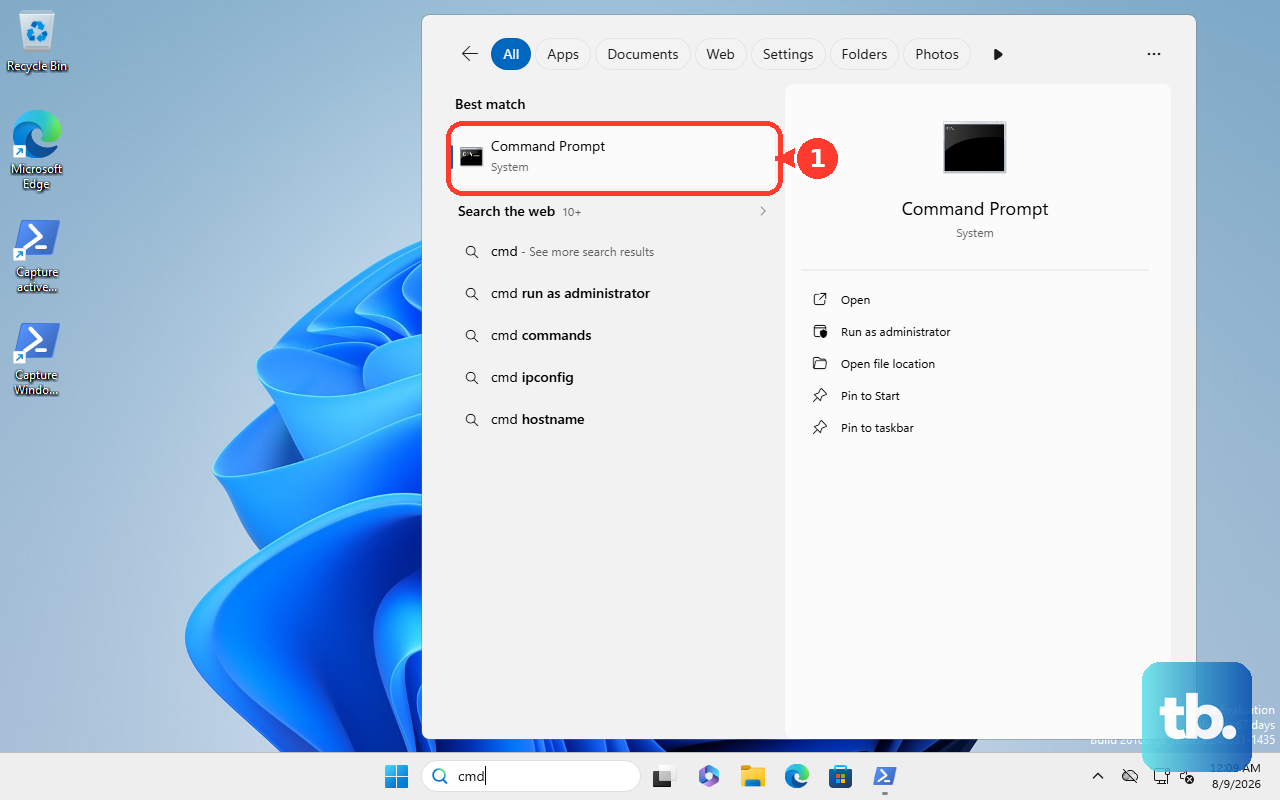
Then run ipconfig /release, press Enter, run ipconfig /renew, and press Enter.
On Windows, open Settings > Network & Internet > Proxy and turn off manual proxy settings you do not intentionally use.
On Mac, restart the Mac first. Then check VPN or other security software, restart the Wi-Fi router, use Wi-Fi Recommendations when shown, or hold Option while clicking Wi-Fi and choose Open Wireless Diagnostics.
On iPhone, use Settings > General > Transfer or Reset iPhone > Reset > Reset Network Settings only after simpler fixes, because it removes saved Wi-Fi networks and related network settings.
If the network reset fails, test Facebook in another supported browser on another network so you can separate the device from the local connection.
Recover Access When Login Still Fails
Use this when facebook.com opens normally but your account will not sign in, password reset fails, or the account looks compromised.
Go to https://www.facebook.com/login/identify and follow Facebook’s account recovery prompts.
On the Find your account screen, enter the requested account information and choose Continue.
If you suspect the account was hacked, go to https://www.facebook.com/hacked from a device you used before to log in.
If Facebook shows You’re Temporarily Blocked, stop the repeated action and wait for the temporary block to expire. Rapid repeated activity can trigger those limits.
On a work, school, or managed device, contact the administrator when cookie, site, or tracking settings are unavailable or marked as managed.
Frequently Asked Questions
Why is Facebook not loading but other websites work?
A Facebook-specific cookie, cache, extension, or tracking-protection setting is the cause to check first. Clear Facebook site data, then test the site in another supported browser.
Why does Facebook work in Incognito or InPrivate but not my normal browser window?
Your normal browser profile has saved site data or an extension conflict. Clear Facebook cookies and cache, then disable content blockers, privacy blockers, VPN or proxy extensions, and antivirus extensions one at a time.
Should I install Flash Player to fix Facebook videos or games?
No. Flash Player is deprecated and should not be installed as a Facebook fix. Use a current supported browser instead.
What should I do if Facebook says I am temporarily blocked?
Stop the repeated action and wait for the temporary block to expire. This is an account limit, not a browser outage.











