Comcast.net email login problems usually come from the wrong sign-in page, a password or verification block, a browser that keeps old data, or mail app settings that no longer match Xfinity's requirements. Start with the current email entry point, then move through recovery, browser cleanup, and app settings in the order below. By the end, you will know whether to use Xfinity Email, Yahoo Mail, account recovery, or Xfinity support.
1. Start with the current Xfinity Email sign in
Go to connect.xfinity.com/appsuite/ and sign in with your Xfinity ID by entering your Xfinity ID and clicking Let's go, then entering your password and clicking Sign In.
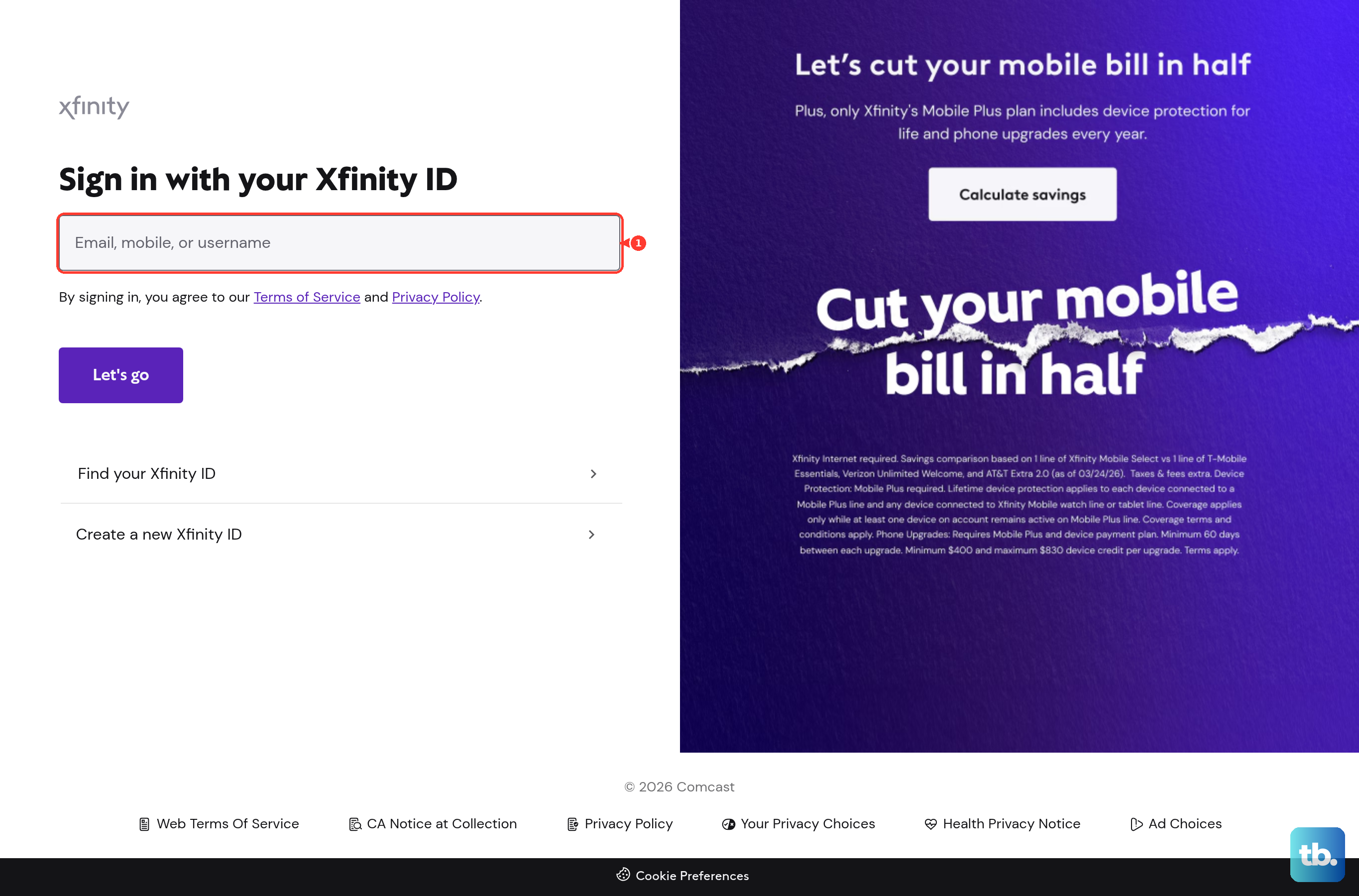
Approve the sign-in attempt with the method Xfinity offers: push notification, facial recognition, fingerprint ID, or a verification code.
You can also open xfinity.com/email and choose Sign in for the same Comcast.net/Xfinity Email login path.
2. Open email from the Xfinity app
- 1.Open the Xfinity app on a supported iPhone or Android phone.
- 2.Sign in with your Xfinity ID.
- 3.Approve the sign-in attempt with the verification method shown on screen.
- 4.Select Check email.
3. Move to Yahoo Mail after migration
If connect.xfinity.com sends your Comcast.net mailbox into the Yahoo upgrade flow, complete connect.xfinity.com > Yahoo terms of service > accept.
After that, use mail.yahoo.com or the Yahoo Mail mobile app with the same comcast.net address.
For multiple Comcast.net mailboxes, sign in to each mailbox separately and accept Yahoo's terms for each one.
4. Reset the password and confirm the ID
This fixes wrong-password errors, forgotten usernames, and recovery prompts tied to the wrong account. Use this route while your mailbox is still on Xfinity Email.
If you have already accepted Yahoo's terms of service, Xfinity says you have to follow Yahoo Mail's password reset process instead, which means Yahoo's Sign-in Helper rather than xfinity.com/password. The steps below still apply to your Xfinity account password and Xfinity ID either way.
Go to xfinity.com/password.
Enter your Xfinity ID, a verified eligible mobile number, or a personal non-Xfinity email address.
Click Continue.
Choose Text message or Email.
Enter the reset code, then click Continue.
Create and confirm the new password, then click Continue.
When the username is the problem, go to xfinity.com/username and look up the Xfinity ID. It can be an email address, mobile number, username, or comcast.net email address.
5. Add recovery details before trying again
When Xfinity asks for recovery details, choose Add an email address.
Enter a personal non-Xfinity email address.
Enter the verification code within 15 minutes.
For phone recovery, choose Add a Mobile Number.
Enter your mobile number.
Enter the text-message verification code within 15 minutes.
Use a personal non-Xfinity email address here, because Xfinity says a comcast.net address cannot be used for password recovery.
6. Clear browser data when sign in loops
In Chrome, close all but one tab, open the three-dot menu, choose Delete browsing data..., open Advanced, set Time range to All time, select Cookies and other site data and Cached images and files, click Delete data, then relaunch Chrome.
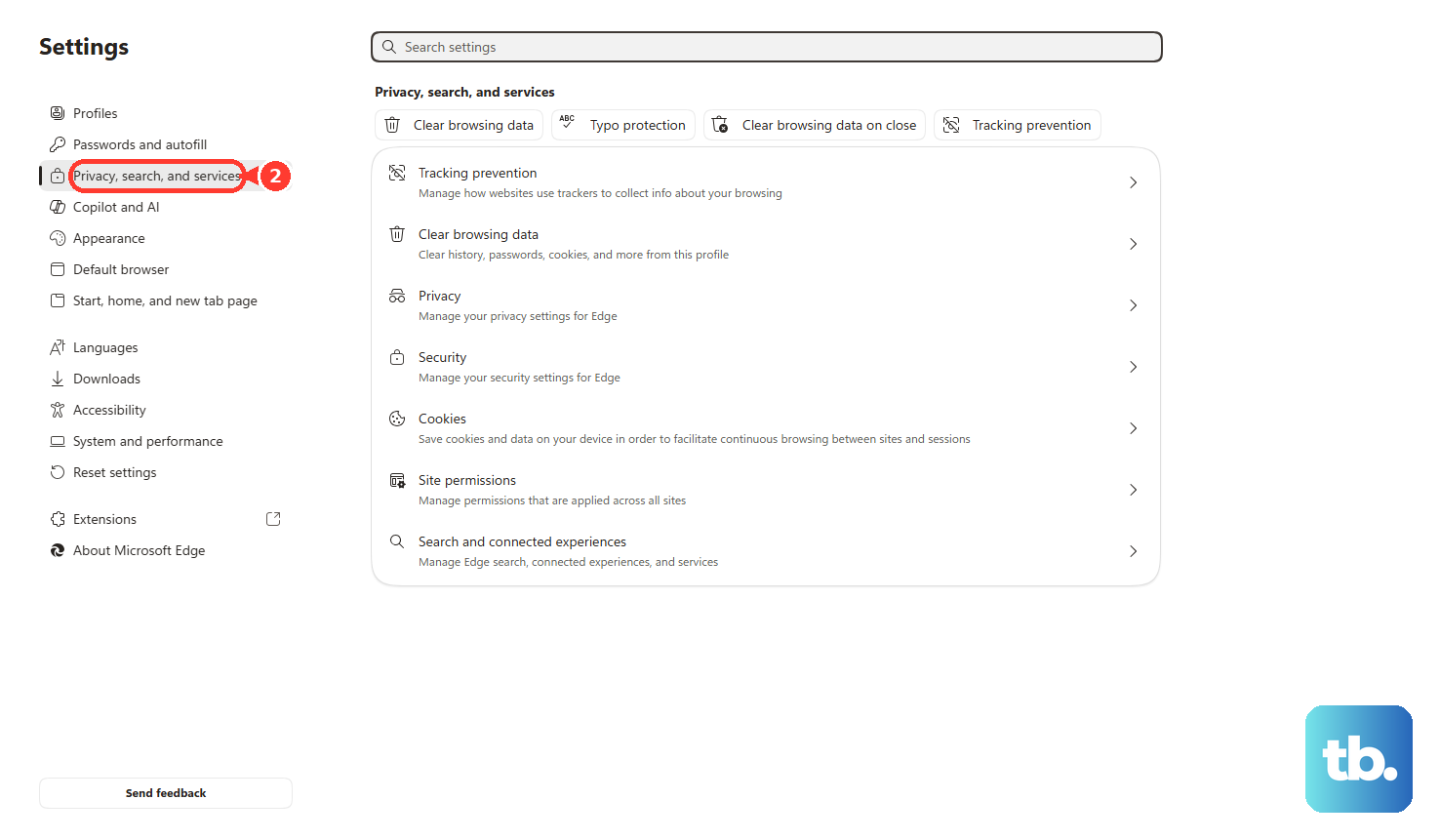
In Microsoft Edge, open Menu, choose Settings, open Privacy, search, and services, click Choose what to clear under Clear browsing data, set Time range to All Time, select Cookies and other site data and Cached images and files, then click Clear now.
In Firefox, open the menu button, choose Settings, open Privacy & Security, click Clear Data in Cookies and Site Data, set When to Everything, select Cookies and site data and Temporary cached files and pages, then click Clear.
When Chrome still fails, open Chrome's menu, choose Settings, select Reset settings, choose Restore settings to their original defaults, then click Reset settings.
7. Fix Outlook Apple Mail and other mail apps
These Comcast server settings are for a mailbox that is still on Xfinity Email. If yours has already moved to Yahoo Mail, use the Yahoo settings further down instead.
Sign in to Xfinity Email in a browser.
Click the top-right Gear icon.
Choose Settings.
Open Security.
Under Third Party Access Security, check the box to allow third-party access.
In your mail app, set the incoming IMAP server to imap.comcast.net.
Set the incoming port to 993 with SSL ON.
Set the outgoing SMTP server to smtp.comcast.net.
Use port 587 or 465 with TLS, or SSL when TLS is not shown.
Use your Comcast.net email address for authentication.
For older POP accounts, replace POP port 110 with secure port 995 and SSL or SSL/TLS.
After the Yahoo Mail move, the Comcast servers stop applying and Xfinity says you have to reconfigure the third-party client for the new Yahoo Mail account. Yahoo lists incoming IMAP imap.mail.yahoo.com on port 993 with SSL/TLS and outgoing SMTP smtp.mail.yahoo.com on port 587 with SSL/TLS, signing in with the full comcast.net address.
If that password is rejected by the mail app, generate an app password under Account Security > External connections > App passwords and use it there.
8. Check whether the mailbox is inactive
Go to customer.xfinity.com/settings/xid/uidemail.
Sign in when prompted.
Click Comcast email under Your Information.
If Xfinity shows an inactivity warning, sign in to the mailbox at connect.xfinity.com to change the status back to active.
For inactive accounts in a closure notification window, sign in before the 90-day window expires.
When you need to preserve inactive email data before closure, go to export.xfinity.com and follow the export flow.
9. Skip outdated Comcast.net email fixes
Do not try to create a new comcast.net email account as a replacement. Xfinity says customers have not been able to create new Xfinity Email accounts since June 2024.
Do not rely on the old Xfinity Connect email app. Use connect.xfinity.com, xfinity.com/email, the supported Xfinity app entry point, Yahoo Mail after migration, or a current third-party mail app setup.
Do not keep POP port 110 or unencrypted outgoing SMTP settings in a mail program. Use secure POP port 995, or use IMAP with secure Comcast.net server settings.
When password reset, ID lookup, browser cleanup, account status checks, and mail app settings do not solve it, use Xfinity Assistant at xfinity.com/xfinityassistant or the support chat surface in the Xfinity app.
Frequently Asked Questions
Can the Primary user reset a secondary Comcast.net user's password?
Yes. The Primary user can sign in to xfinity.com, open Account and Identity, choose the user on the account, select Change Password under Xfinity ID, verify identity, enter the new password twice, and save it.
How do I change my Xfinity password when I can still sign in?
On xfinity.com, open the Account icon, choose Account and Identity, select Xfinity ID and security, then use Change password under Security. In the Xfinity app, go to Account, Account Settings, Xfinity ID and security, then Change Password.
Can two-step verification block Comcast.net email sign in?
Yes. Xfinity sign-ins can require push approval, biometrics, text or email codes, or an app code generator. To manage it in the Xfinity app, open Account settings, choose Xfinity ID and security, then Two-step verification.
Can a former Xfinity customer still access Comcast.net email?
Yes, when the mailbox was used through the Xfinity Email website within 90 days before disconnecting service. Former customers must keep accessing the email website at least once every nine months.