Your Xbox controller left bumper stops working for a few common reasons: one game is ignoring the input, the button is dirty, the controller needs a reset, a profile remapped LB, or the bumper switch has failed. Start with the quick checks that separate a software problem from a real hardware fault. Then move through the official Xbox, Microsoft, and Apple fixes that match where you play.
Test LB outside the current game
When LB fails in one game or app, the most common cause is that game or app's own controller input setup.
Close the game or app completely, then open it again and test the left bumper. A fresh session clears the temporary input issue.
Open another game or app and press LB there. If the bumper works somewhere else, leave the controller alone and reset or change that original game or app's controller bindings.
Power cycle the controller
A controller that stops responding after sleep, an update, or a connection change needs a clean restart from the hardware button.
Press and hold the Xbox button for 5 to 10 seconds until the controller turns off. Wait a few seconds, then press and hold the Xbox button again to turn it back on.
If LB still does not respond, replace or recharge the batteries and try a different USB cable or port when you are playing wired.
Check power and cable basics
Run this quick pass when LB is not the only input acting unreliable or the controller has been disconnecting.
- 1.Replace the AA batteries with fresh ones, or fully recharge the battery pack or built-in battery.
- 2.Connect with a USB data cable to rule out wireless power or connection trouble.
- 3.Try a different USB cable and another port if the controller is already wired.
- 4.Retest LB in more than one game or app before moving on.
Clean around the left bumper
Dirt or debris around LB is the main physical cause when the bumper feels sticky, mushy, blocked, or intermittent.
Turn off the controller and inspect the left bumper area closely. Look for anything lodged around the button or along the gap where the bumper moves.
Wipe the controller with a soft cloth. For an Xbox Wireless Controller, Microsoft also supports listed disinfectant wipes or a soft cloth dampened with 70 percent IPA. Do not pour or spray liquid onto the controller.
After cleaning, let the controller sit briefly and test LB again. Cleaning fixes a blocked or sticky bumper, but it does not repair a broken internal switch.
Restore the default button mapping
Use this when LB clicks normally but performs the wrong action, does nothing in one controller profile, or was changed in Xbox Accessories. A stored profile makes the bumper look broken when it has only been remapped.
On Xbox, press the Xbox button and go to My games & apps, See all, Apps, then Xbox Accessories. Select your controller, open Configure, choose the profile, select Edit, and use Restore to default.
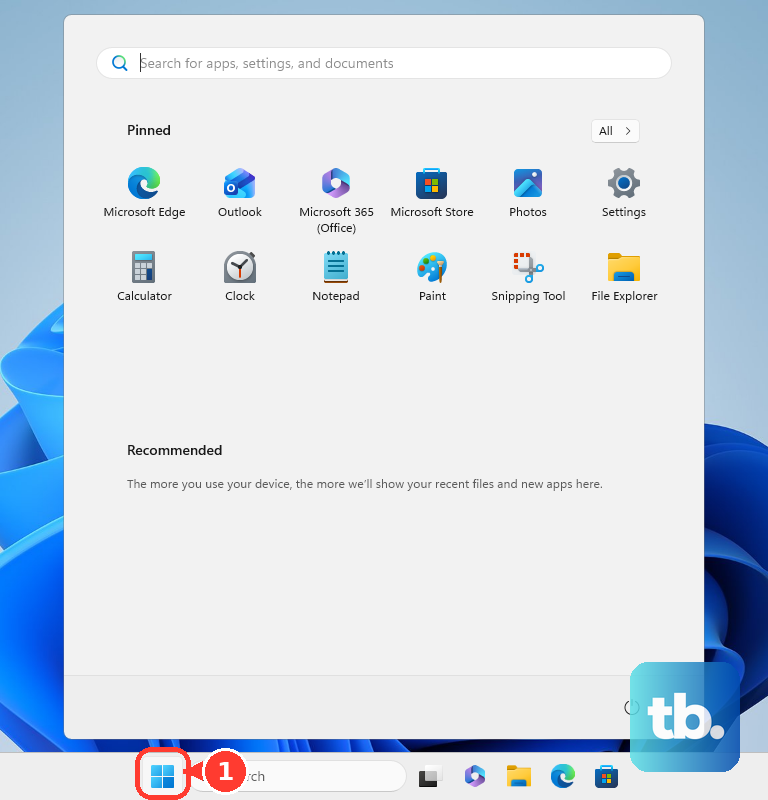
On Windows, open Start, type Xbox Accessories, open the app, and sign in. Select the controller, choose Configure, open the profile, select Edit, then choose Restore to default.
For an Xbox Elite Wireless Controller Series 2, press the Profile button until no profile bars are lit. No lit bars means the controller is using default button mapping.
Update the controller firmware
Update firmware after the basic checks, especially when the issue started after connection changes or other inputs are also unreliable.
- 1.On Xbox, press the Xbox button and open Profile & system, Settings, Devices & connections, then Controllers & headsets.
- 2.Select the controller you want to update and follow the firmware prompts.
- 3.When wireless update fails or the controller requires USB, connect it with a compatible USB-C or micro-USB data cable and try again.
- 4.On Windows, open Xbox Accessories, connect the controller using USB or the Xbox Wireless Adapter, select the controller, open More options, then Firmware version.
- 5.If the update keeps failing, power cycle the controller, power cycle the console, try another cable or port, leave the controller connected for up to 5 minutes, then try the Windows app.
Fix Windows Bluetooth and cloud gaming issues
When LB works on an Xbox console but not on a Windows PC, the fault is on the PC side: the Bluetooth pairing, the Bluetooth or device drivers, the browser session, or an app that does not handle Bluetooth controllers. Test LB in a second app and over a USB cable to pin down which one. Remove the controller from Windows Bluetooth settings, pair it again, and test the bumper.
For Windows 11, open Start, Settings, then Bluetooth & devices, remove the controller, and add it again after pressing the controller's Pair button. For Windows 10, use Start, Settings, Devices, then Bluetooth & other devices.
Use USB or the Xbox Wireless Adapter for Xbox Accessories features or firmware updates. Microsoft does not support controller firmware updates over Bluetooth, and most Xbox Accessories features are not supported over Bluetooth.
For Xbox Cloud Gaming in a browser, close extra browser tabs, restart the browser, use one tab for cloud gaming, reconnect the supported controller, and retest LB. If this method fails, update relevant Windows Bluetooth or hardware drivers through Windows Update optional driver updates or Device Manager.
Use a temporary remap or assist setup
A broken or unreliable LB switch is the main reason to use a remap while you arrange repair or replacement.
Open Xbox Accessories, select your controller, choose Configure, then create a new profile or edit an existing one. Map another usable button, paddle, or input to perform Left bumper or LB, then press B when done so the change takes effect.
On Xbox consoles, use Xbox Controller Assist, formerly Xbox Copilot, to link a second controller so both act as one controller. Press the Xbox button and go to Profile & system, Settings, Accessibility, then Controller. Open Xbox Controller Assist settings and select Turn on Xbox Controller Assist.
Get LB working on iPhone, iPad, Apple TV, and Mac
Apple devices pair only with Bluetooth-capable Xbox controllers. Apple lists the Xbox Wireless Controller with Bluetooth (Model 1708), Xbox Wireless Controller Series S, Xbox Wireless Controller Series X, Xbox Elite Wireless Controller Series 2, and Xbox Adaptive Controller. A controller outside that list will not report LB on an Apple device no matter how you pair it.
Press the Xbox button to turn the controller on, then hold the Connect button for a few seconds to put it into pairing mode. Open Bluetooth settings on your iPhone, iPad, Apple TV, Mac, or Apple Vision Pro and select the controller from the nearby devices list.
If LB stays dead after pairing, remove the controller with Forget This Device and pair it again. If Apple tells you the controller needs a firmware update, run the update from an Xbox console or the Windows Xbox Accessories app first, then pair again.
Repair or replace the controller
When LB still fails after other apps, cleaning, power, mappings, firmware, and connection checks, treat it as a hardware problem.
Use the Xbox controller replacement page and enter the controller serial number at the bottom of the page. Follow the warranty or replacement flow shown for your device and region.
For out-of-warranty self-service, Microsoft sells official Xbox repair and replacement parts for supported controller categories, including Xbox Wireless Controller and Xbox Elite Wireless Controller Series 2 parts. Microsoft states that controller replacement components are only available in the United States, so outside the US use the warranty or replacement flow instead. Use Microsoft's model-specific self-repair instructions before opening the controller.
Older guides recommend holding the Pair or Sync button for 20 seconds as a controller factory reset, or using the Windows joy.cpl panel as a fix. The supported reset-like action here is the Xbox button power cycle, and joy.cpl is only a legacy diagnostic view for observing input, not a bumper repair.
Frequently Asked Questions
Why does my Xbox controller LB work in menus but not in one game?
That points to a game or app input issue. Restart that game or app, test LB somewhere else, then reset or change that game's controller bindings if LB works outside it.
Can Xbox Accessories fix a physically broken left bumper?
No. Xbox Accessories restores mappings, updates firmware, and remaps LB to another input. It does not repair a broken bumper switch.
Can I update an Xbox controller over Bluetooth on Windows?
No. Controller firmware updates on Windows use USB or the Xbox Wireless Adapter, not Bluetooth.
What should I do if my work PC blocks the driver steps?
Managed PCs can block driver changes or Windows Update access. Test the controller on another device, or ask your organization's IT support to handle the blocked driver or update step.