Your Xbox controller shows as connected, but the console, PC, phone, or game ignores the buttons. Start with power, pairing, USB, firmware, and input settings in that order. These are the current vendor-supported fixes for Xbox Wireless Controller and Xbox Elite Wireless Controller connection issues.
1. Restart the controller and check its power
Start with the controller itself. A low battery or stuck wireless session can leave the controller lit up while input goes nowhere.
Replace the batteries or fully recharge the controller.
Press and hold the Xbox button for 5 to 10 seconds until the controller turns off.
Press and hold the Xbox button again to turn it back on.
On a Windows PC that just woke from sleep, press the Xbox button once. Then unplug the controller and plug it back in.
Test the controller on the Xbox dashboard, Windows game controller screen, or the game menu before changing deeper settings.
2. Test it with a USB cable
Plug a compatible USB-C or Micro-USB cable into the controller and connect it directly to the Xbox console or Windows PC.
Works over USB: the controller is sending input, so fix wireless pairing, Bluetooth, or the Xbox Wireless Adapter next.
Does not work over USB: try a different data-capable USB cable, another USB port, and a second device. If the controller still is not detected after you verify a known-good cable and port, repair or replace it. Use the firmware update and button-mapping steps below only once the controller is detected.
For Windows firmware updates, use USB or the Xbox Wireless Adapter with Xbox Accessories. Bluetooth is not a supported path for firmware updates, so use USB or the Xbox Wireless Adapter.
3. Pair it again on Xbox
Re-pair the controller when it lights up but the console still ignores it.
- 1.Turn on the Xbox console.
- 2.Press and release the console Pair button.
- 3.Within 20 seconds, press and hold the controller Pair button.
- 4.Wait for the Xbox button to flash, then stay lit.
Once the light stays solid, test the dashboard before opening a game.
4. Update the firmware through Xbox Accessories
On Xbox: press the Xbox button and open Profile & system > Settings > Devices & connections > Controllers & headsets.
Select ... under the controller, then install the update when one appears.
On Windows: install Xbox Accessories from the official Microsoft Store listing.
Connect the controller with USB or the Xbox Wireless Adapter, open Xbox Accessories, and install the update when it shows Update Required.
If the controller stopped working right after an update, use Microsoft’s support topic My Xbox controller has connection issues after the last update. Follow the prompts and select Revert firmware only when Microsoft offers that option for your controller.
5. Refresh Bluetooth on Windows 11
When Windows 11 says the controller is connected but no input lands, rebuild the Bluetooth connection from Windows settings.
Select Start > Settings > Bluetooth & devices. Turn Bluetooth off, wait a few seconds, then turn it back on.
Select the Network, Sound, or Battery icons on the taskbar and turn Airplane mode off.
Open Start > Settings > Bluetooth & devices > Devices.
Select More options for the controller, then choose Remove device > Yes.
Pair the controller again.
When the controller does not appear during pairing, open Bluetooth & devices > Devices and set Bluetooth devices discovery to Advanced.
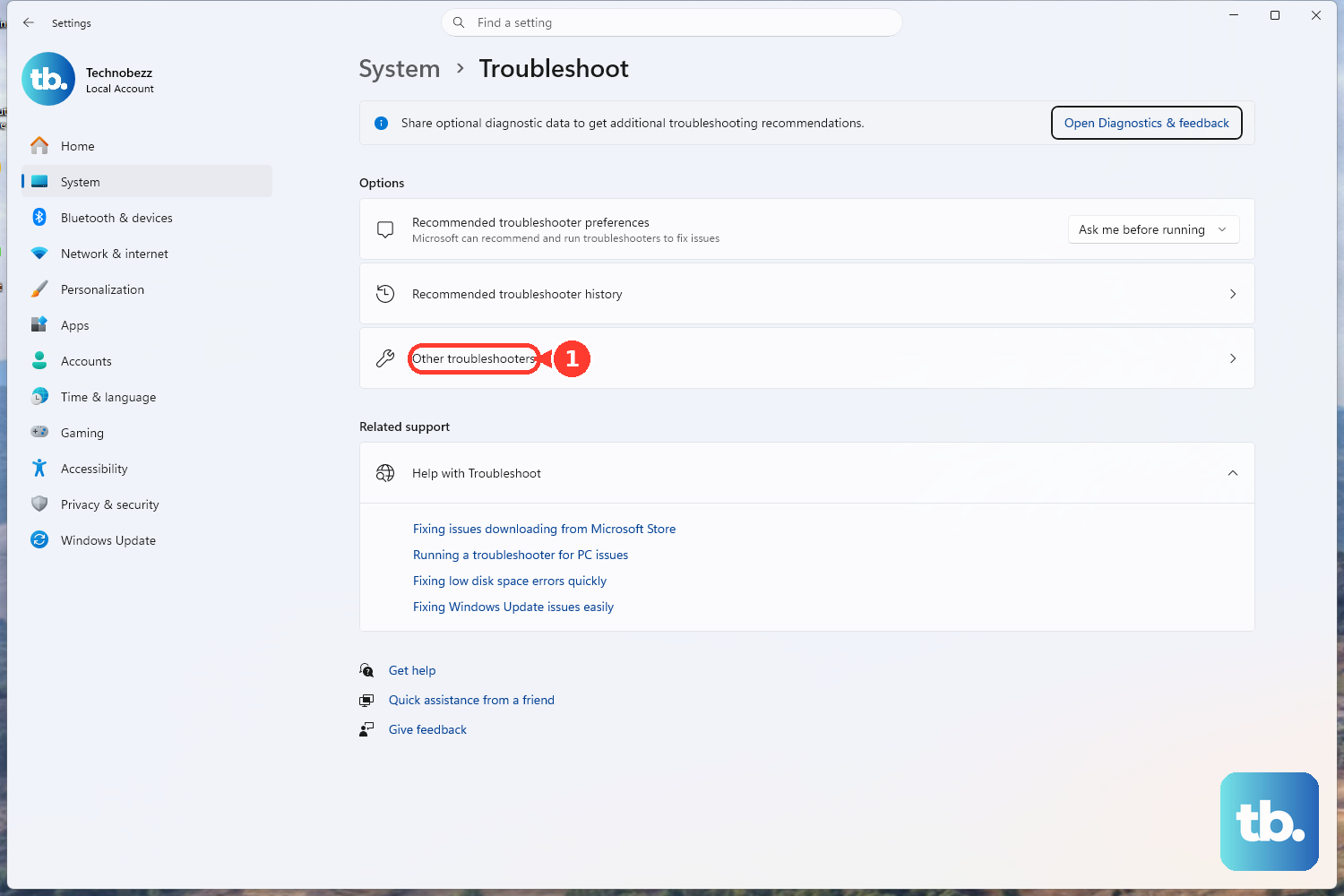
Open Start > Settings > System > Troubleshoot > Other troubleshooters, then select Run next to Bluetooth.
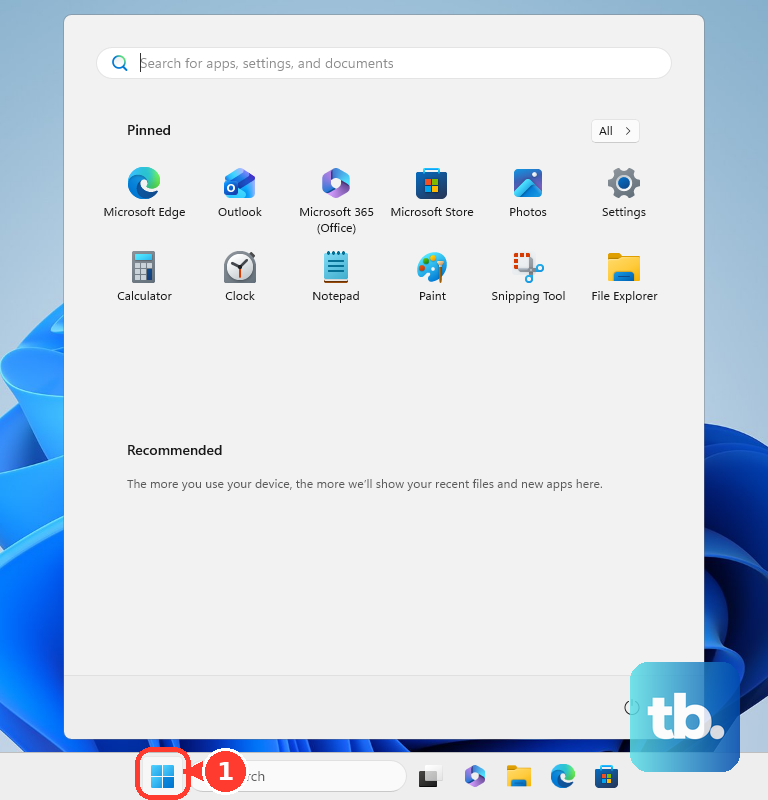
For driver repair, select Search on the taskbar, type Device Manager, open Device Manager, expand Bluetooth, right-click the Bluetooth adapter, select Update driver, then choose Search automatically for updated driver software. Restart when Windows prompts you.
If Bluetooth still fails, open Device Manager, expand Bluetooth, right-click the Bluetooth adapter, select Uninstall device > Uninstall, then select Start > Power > Shut down.
Turn the PC back on. If Windows does not reinstall the adapter, open Device Manager > Action > Scan for hardware changes.
6. Reset the Xbox Wireless Adapter
Use this path only when the controller connects through the Xbox Wireless Adapter for Windows instead of Bluetooth or USB.
Unplug the Xbox Wireless Adapter for Windows.
Reboot the PC.
Plug the adapter into another USB port.
Pair the controller again.
For adapter driver repair, open Device Manager, find Xbox Wireless Adapter for Windows under Network adapters, then use Microsoft’s driver update or reinstall path for the adapter.
7. Restore mappings and game input settings
A controller can be connected and working while the app sends the wrong inputs, combines controllers, or blocks the input layer.
Xbox Accessories: select the controller or profile, then restore default settings and original button mapping.
Xbox Controller Assist: open Xbox Accessories, review Xbox Controller Assist, and turn it off when two controllers are being combined.
Recalibration: open Profile & system > My games & apps > See all > Apps > Xbox Accessories, then use the recalibration tool for supported sticks and triggers with inconsistent input.
Steam: right-click the game, open Properties > Controller, then test Enable Steam Input and Disable Steam Input.
Steam Link: open Settings > Streaming > Advanced Options, then enable input streaming.
Steam Deck: update the Xbox controller firmware through Xbox Accessories on Xbox or Windows, then reconnect the controller to Steam Deck.
8. Reconnect it on Apple Android and cloud gaming
Apple devices: open Bluetooth settings, select the controller or the More Info button next to its name, then select Forget This Device.
Put the controller back in pairing mode and pair it again.
Install the latest Apple device software, then update the Xbox controller firmware through Xbox Accessories on Xbox or Windows.
Reduce the number of connected Bluetooth devices on Apple TV when several controllers or a Bluetooth audio accessory are connected.
To reset custom controls on iPhone or iPad, open Settings > General > Game Controller > controller name > Default Controls.
On Apple TV, open Settings > General > Remotes and Devices > Bluetooth > controller > Customization.
On Mac, open Apple menu > System Settings > Game Controllers > controller name.
On iPhone and iPad, grant app Bluetooth access from Settings > Privacy & Security > Bluetooth, then turn on Bluetooth access for the app that uses the controller.
Android: turn Bluetooth off and on, restart the phone or tablet, then reconnect from Settings > Connected devices.
To remove the stale pairing, open Settings > Connected devices > Saved devices, tap the controller Settings, choose Forget > Forget device, then open Connected devices > Pair new device and select the controller.
Xbox Cloud Gaming: use Microsoft’s tested-controller list and compatible-device list. Connect a supported Xbox Wireless Controller by Bluetooth or USB. For supported games, use Xbox touch controls when a controller is not usable.
9. Avoid old Windows 10 and Xbox 360 fixes
Skip older Windows 10 Bluetooth menus as the current Windows path. Microsoft ended Windows 10 support on October 14, 2025, so use the Windows 11 Bluetooth & devices steps above for current troubleshooting.
Xbox 360 wireless-controller sync instructions do not apply to Xbox Series X|S or Xbox One controllers. Current Xbox controllers use the Pair button flow, USB testing, Xbox Accessories firmware updates, and Microsoft’s supported firmware reversion option.
Frequently Asked Questions
Why does my Xbox controller work in Windows but not in one Steam game?
The game is using the wrong input layer. In Steam, right-click the game, open Properties > Controller, then test Enable Steam Input and Disable Steam Input.
Can Xbox Accessories fix wrong buttons or drift-like trigger behavior?
Yes, for supported controllers. Restore the default button mapping first, then use the Xbox Accessories recalibration tool for inconsistent stick or trigger input.
What does it mean when the controller works by USB but not wirelessly?
The controller is sending input, so the problem is the wireless path. Re-pair it, reset Bluetooth or the Xbox Wireless Adapter, and update firmware through USB.
Should I download Xbox Accessories from a third-party site?
No. Install Xbox Accessories from the official Microsoft Store listing only.