

Your USB drive is plugged in, but Windows is not showing it in File Explorer. The problem is usually a loose connection, missing drive letter, offline disk, driver fault, damaged file system, encryption lock, or workplace policy. Start with the fast checks, then use the Windows tools that show whether the drive is detected underneath File Explorer.
1. Reseat the drive and bypass the hub
Start with the hardware path before changing Windows settings. A USB drive that disappears after using a hub, dock, weak cable, or low-power port needs a clean connection first.
Unplug the USB drive.
Plug it directly into the PC.
Skip the USB hub, dock, or adapter.
Try a different USB port on the computer.
Use another cable if the drive has a removable cable.
Connect the drive power adapter if it has one.
Test the USB drive on another PC.
For USB-C storage, turn on Windows connection alerts. Select Search, type usb, open USB settings, turn Connection notifications on, reconnect the drive, and follow any message about power, recognition, or using a different USB port.
2. Find the USB drive in Disk Management
File Explorer only shows usable volumes.
Disk Management shows disks and volumes that Windows detects even when they do not appear as a normal drive.
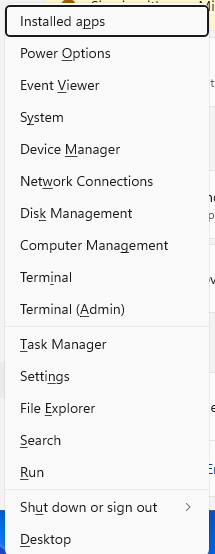
Right-click Start, select Disk Management, then find the USB drive by size and layout.
You can also open Search, type Disk Management, and select Create and format hard disk partitions.
Another direct option is Windows + R, type diskmgmt.msc, then select OK.
If the window does not refresh, unplug the external disk, plug it back in, then select Action and Rescan Disks.
3. Make the detected drive visible
When Disk Management sees the drive, fix the state that is keeping it out of File Explorer.
If the disk is marked Offline, right-click the disk and select Online.
If the USB volume has no letter, right-click the volume, select Change Drive Letter and Paths, choose Add (use Change only for a volume that already has a letter), select Assign the following drive letter, pick an unused letter, and select OK.
If a new external HDD or SSD is shown as not initialized, right-click the disk, select Initialize Disk, confirm the correct disk is selected, then select OK.
If the space is listed as Unallocated and the drive is empty, right-click the unallocated space, select New Simple Volume, then follow the wizard.
Do not create a new volume when you need files from that USB drive, because creating and formatting a volume destroys access to old data.
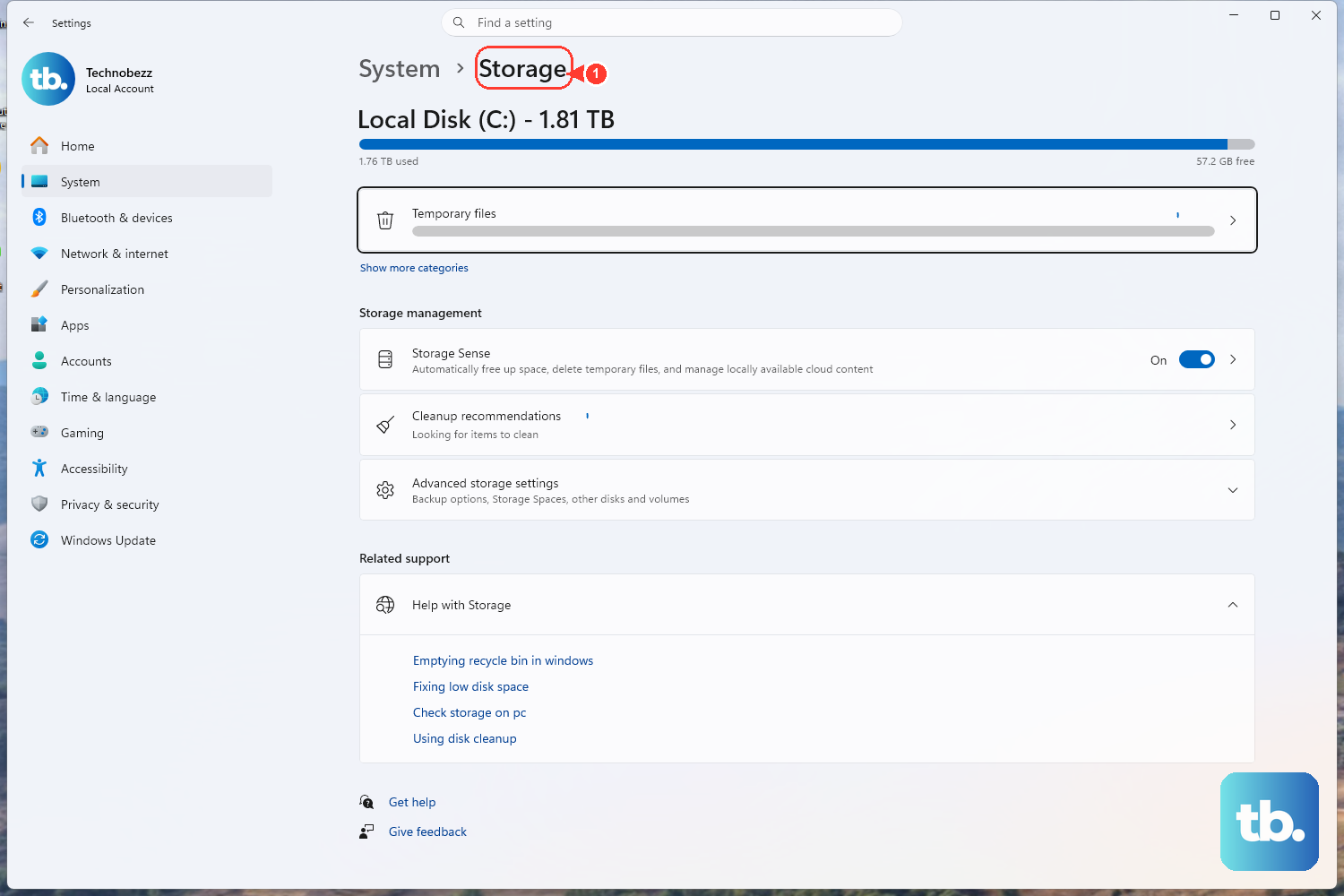
On Windows 11, you can also inspect connected drives from Start, Settings, System, Storage, Advanced storage settings, Disks & volumes.
Select Properties for the problem disk or volume to view its details and available volume actions.
4. Refresh the USB device in Device Manager
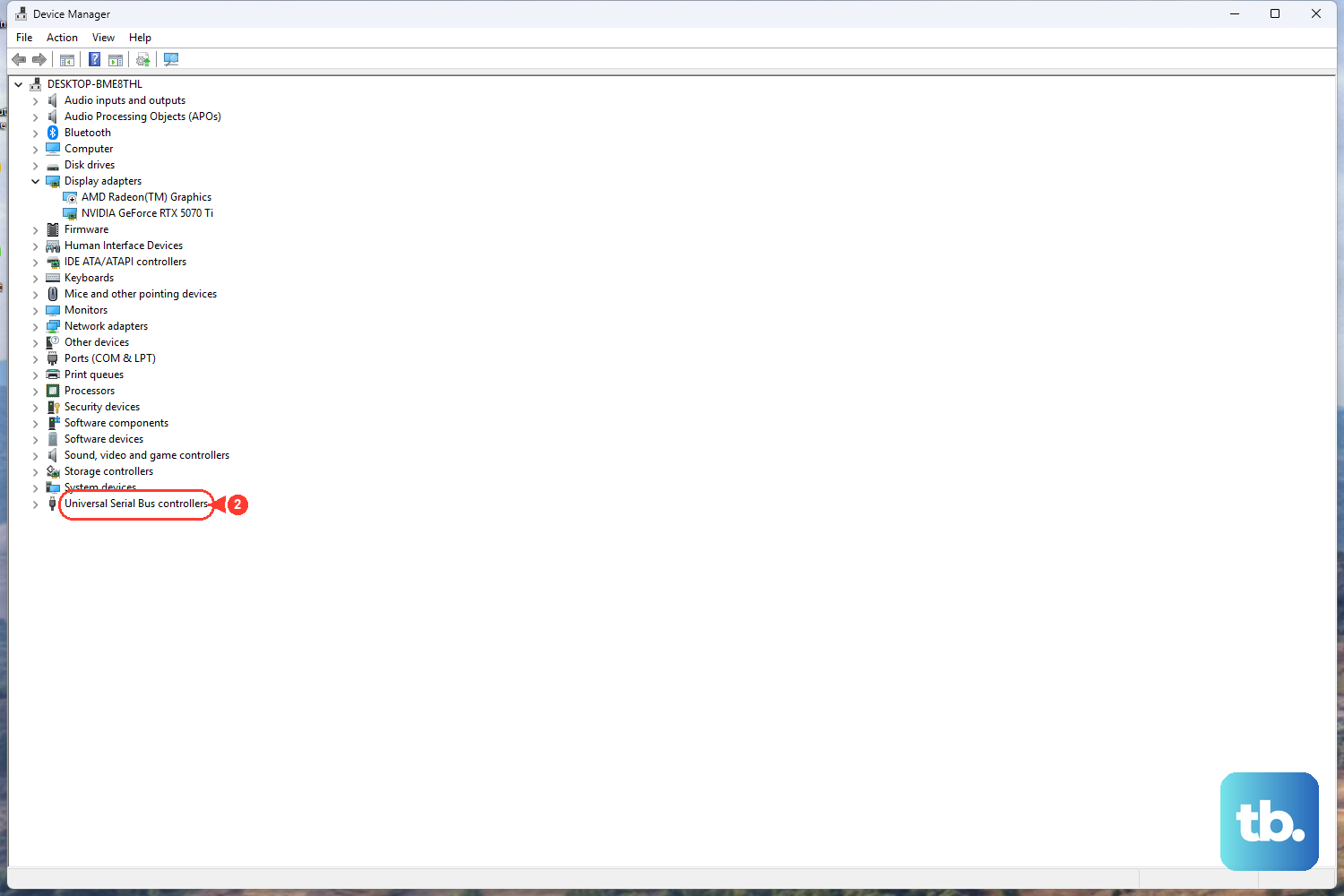
Right-click Start and select Device Manager.
Check Disk drives, Universal Serial Bus controllers, and entries such as Unknown USB Device.
Open any device with an exclamation point and read its status.
Right-click the problem device and select Uninstall device.
Select Uninstall.
Restart by right-clicking Start and selecting Shut down or sign out, Restart.
Use Device Manager when Windows detects a USB or disk device entry but the drive still fails to load correctly.
To update the driver instead, right-click the device in Device Manager, select Update driver, choose Search automatically for updated driver software, then select Search for updated drivers on Windows update if Windows offers it.
If the USB problem started after a driver update, open the device Properties, select the Driver tab, choose Roll Back Driver, pick a reason, select Yes, and restart if prompted.
5. Install the right Windows or PC maker driver
Driver updates matter most for USB controllers, chipset, storage controllers, firmware, BIOS, and vendor-specific external-drive support. Use Windows Update and the PC maker's official support page.
On Windows 11, go to Start, Settings, Windows Update, Advanced options, Optional updates.
Under Additional options, select the listed driver updates, then select Download and install.
For Dell, HP, and Lenovo PCs, use the official driver page for your model.
Dell PCs can also use SupportAssist or the Drivers & Downloads automatic scan on Dell's support site; supported business systems can use Dell Command | Update.
Lenovo PCs can use Lenovo Vantage, open the System Update tab, select Check for Updates, and install the relevant updates.
6. Repair the volume before formatting
- 1.Type command prompt in the taskbar search box.
- 2.Select Run as administrator.
- 3.Select Yes.
- 4.Run chkdsk /f X:, replacing X with the USB drive letter.
If the USB drive has a drive letter but opens with errors, repair the file system before erasing anything.
PowerShell gives you another supported repair path.
Open Windows Terminal or PowerShell as administrator, run Repair-Volume -DriveLetter X -Scan to scan, or run Repair-Volume -DriveLetter X -OfflineScanAndFix to take the volume offline and fix errors.
Replace X with the USB drive letter.
7. Recover files before you erase the drive
When the files matter and the USB drive has a source drive letter, use Windows File Recovery before formatting.
Install Windows File Recovery from Microsoft Store, press the Windows key, enter Windows File Recovery, open it, approve the prompt, then run winfr source-drive: destination-drive: [/mode] [/switches].
Save recovered files to a different drive, not the failing USB drive.
Format only after the files are backed up or disposable.
Open File Explorer, right-click the USB drive, choose Format, choose FAT32, exFAT, or NTFS, then select Start.
For a Surface recovery USB drive, Microsoft uses File Explorer, Format, and FAT32.
8. Unlock encrypted drives and policy blocks
A BitLocker-protected removable drive needs to be unlocked before normal access works.
Search Start for BitLocker, open Manage BitLocker, then use the available removable-drive action such as Unlock drive, Back up your recovery key, or Turn off BitLocker.
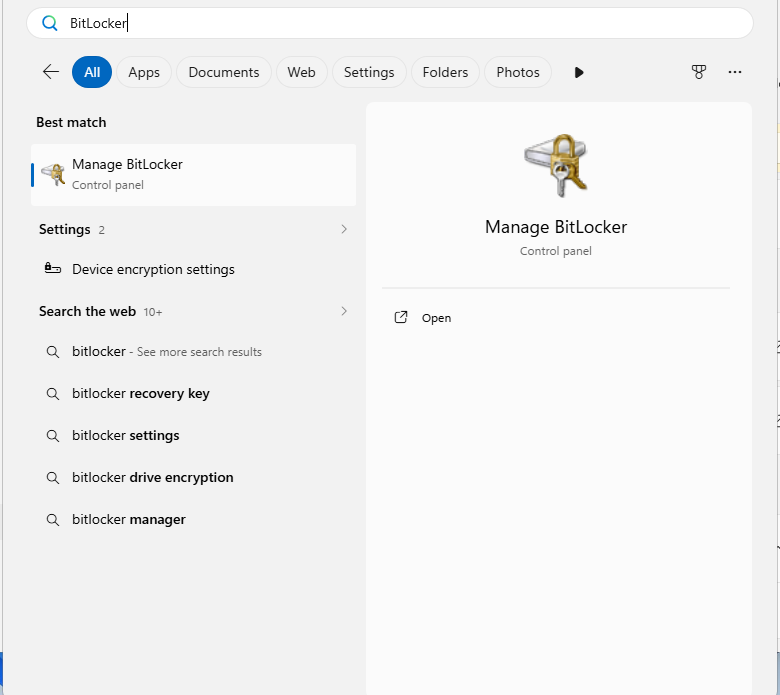
BitLocker management is available on Windows Pro, Enterprise, and Education editions.
On a work or school PC, USB storage can be blocked, read-only, or prevented from installing by policy.
Ask IT to review Removable Storage Access, BitLocker, Device Control, Device Installation Restrictions, Intune, or MDM policy settings.
9. Skip outdated USB fixes
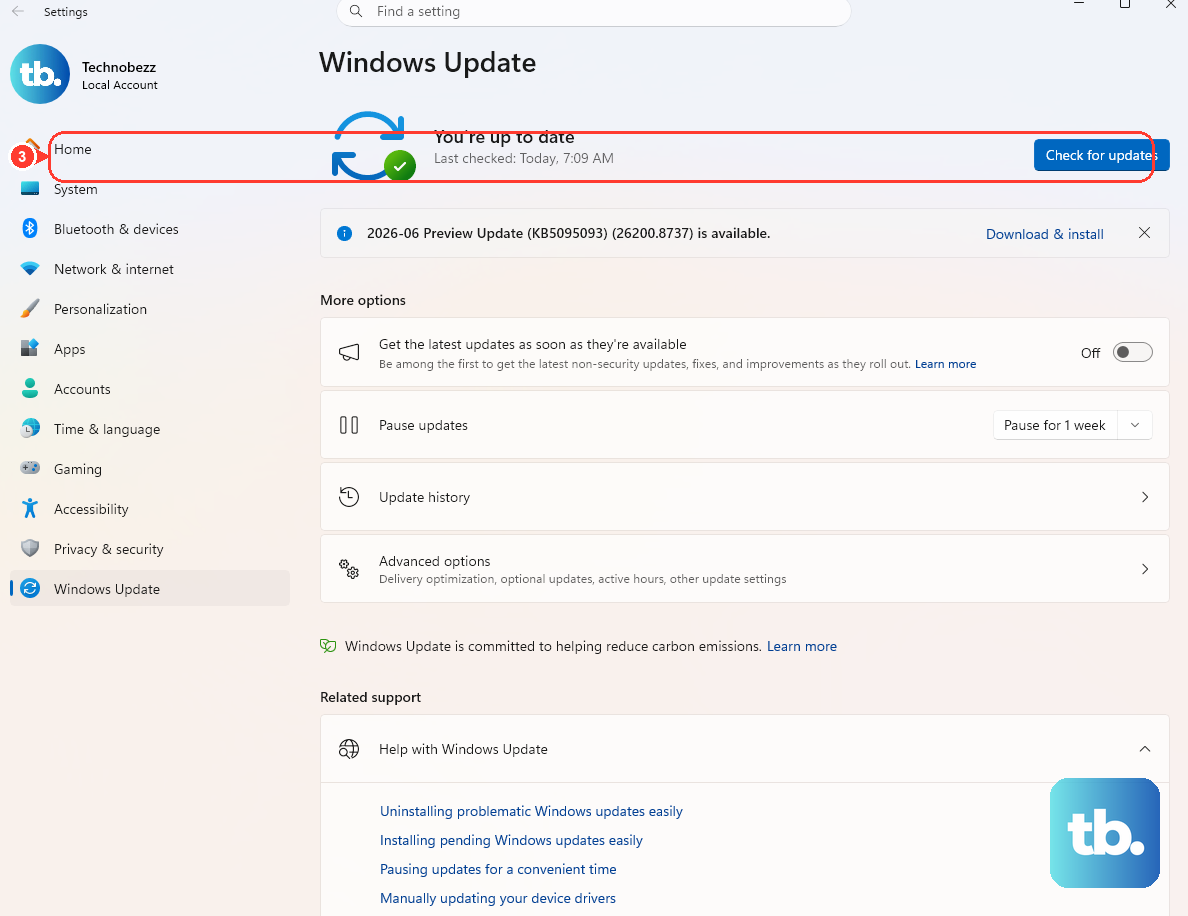
Do not use old tutorials that tell you to run msdt.exe -id DeviceDiagnostic or the old Hardware and Devices troubleshooter as the main fix.
Microsoft lists MSDT troubleshooters as deprecated, and current Windows 11 releases use Start, Settings, System, Troubleshoot, Other Troubleshooters for supported troubleshooters.
Do not use the old USBSTOR registry method as a consumer repair step.
Use Disk Management, Device Manager, Windows Update, official manufacturer drivers, and policy review instead.
Frequently Asked Questions
Why does my USB drive show in Disk Management but not File Explorer?
The USB volume needs a usable state before File Explorer shows it. In Disk Management, bring an Offline disk Online, assign a missing drive letter, or create a new simple volume only when the drive is empty and the data is not needed.
Can CHKDSK fix a USB drive that Windows does not detect at all?
No. CHKDSK works after the USB drive has a drive letter. If Windows does not detect the drive, start with the port, cable, power, Disk Management rescan, and Device Manager checks.
What should I do before formatting a damaged USB drive?
Use Windows File Recovery first when the USB drive has a source drive letter and the files matter. Recover files to a different drive, then format only after the data is backed up or disposable.
Why is my USB drive read-only on a work computer?
A managed PC can apply BitLocker, removable storage, Device Control, Device Installation Restrictions, Intune, or MDM policies that block USB storage or make it read-only. Ask IT to review those policies.