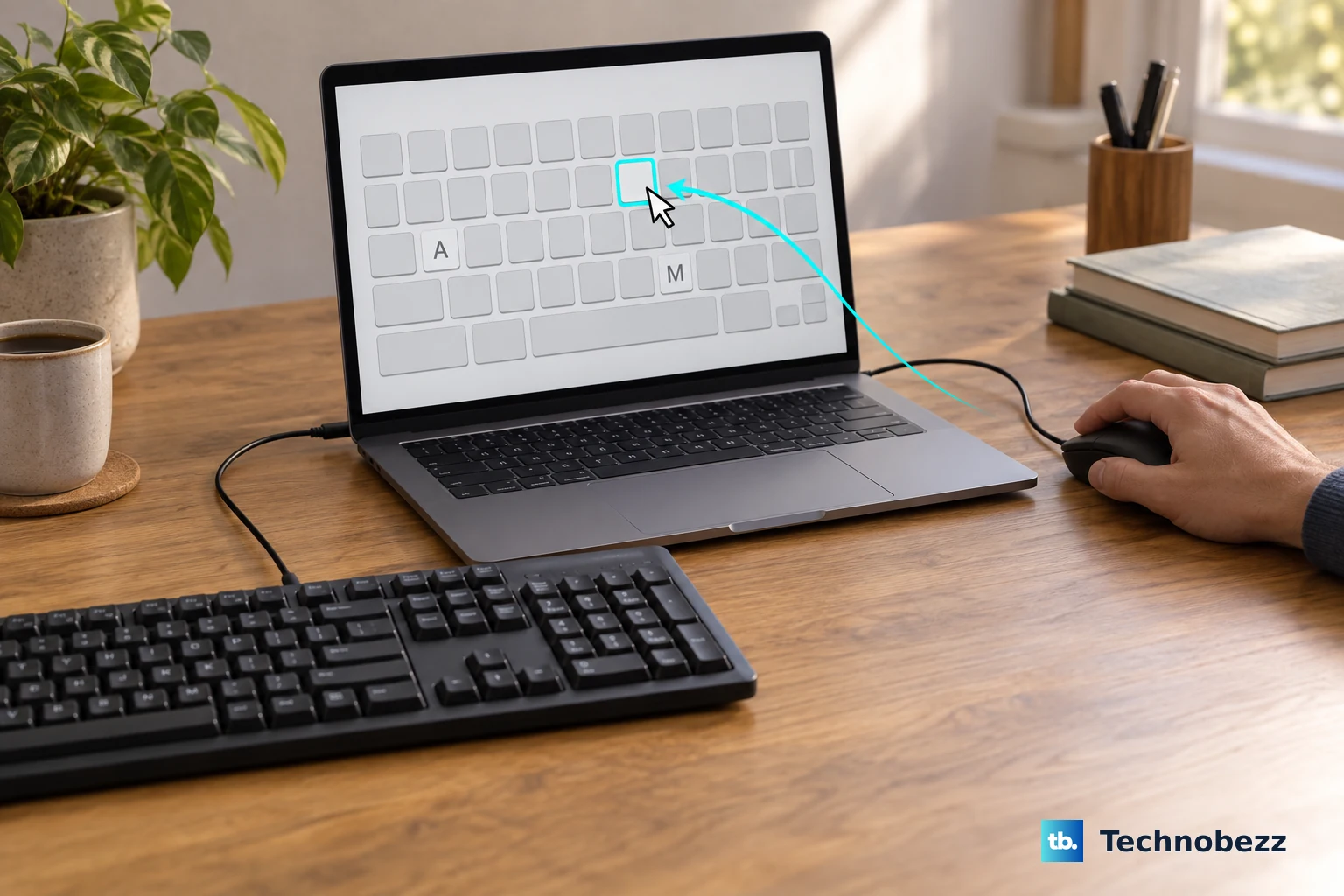
Start by cleaning your keyboard with compressed air. Hold your MacBook Air at a 75-degree angle and spray short bursts across the keys in a left-to-right motion. Rotate the laptop and repeat on the other side to dislodge any debris that might be interfering with key presses.
A browser based keyboard tester shows every keypress in real time, which makes it easy to tell a failed switch from a settings problem before you start troubleshooting.
Key Points
- Disable Accessibility Features That Interfere: Go to System Settings > Accessibility > Keyboard and turn off Slow Keys.
- Update Your macOS Software: Outdated software can cause keyboard compatibility problems.
- Run Apple Diagnostics: Shut down your MacBook Air completely, then turn it on while holding the D key.
- Check for App Conflicts in Safe Mode: Restart your MacBook Air and immediately press and hold the Shift key until you see the login window.
- Reset NVRAM on Apple Silicon Macs: For your M4 MacBook Air, the System Management Controller functions are handled differently than on Intel models.
- Examine Physical Connections: While the M4 MacBook Air isn't designed for user repairs, gentle external pressure can sometimes help.
I've seen this simple fix resolve typing issues more often than you'd expect.
Check your keyboard layout settings next. Open System Settings > Keyboard > Input Sources and click Edit. Make sure the correct keyboard layout for your region is selected.
If you see an unfamiliar flag in your menu bar, that's a clear sign your layout is set to a different country's configuration.
Disable Accessibility Features That Interfere
Go to System Settings > Accessibility > Keyboard and turn off Slow Keys. When this feature is enabled, you need to hold keys longer than usual before they register. Your keyboard might actually be working perfectly but lagging behind your keystrokes by several seconds.
Also check System Settings > Accessibility > Pointer Control and disable Mouse Keys. If this is turned on, pressing keys in the numeric keypad moves the pointer instead of entering numbers. Pressing the Option key five times in succession can accidentally enable or disable this feature.
Update Your macOS Software
Outdated software can cause keyboard compatibility problems. Head to System Settings > General > Software Update and install any available updates.
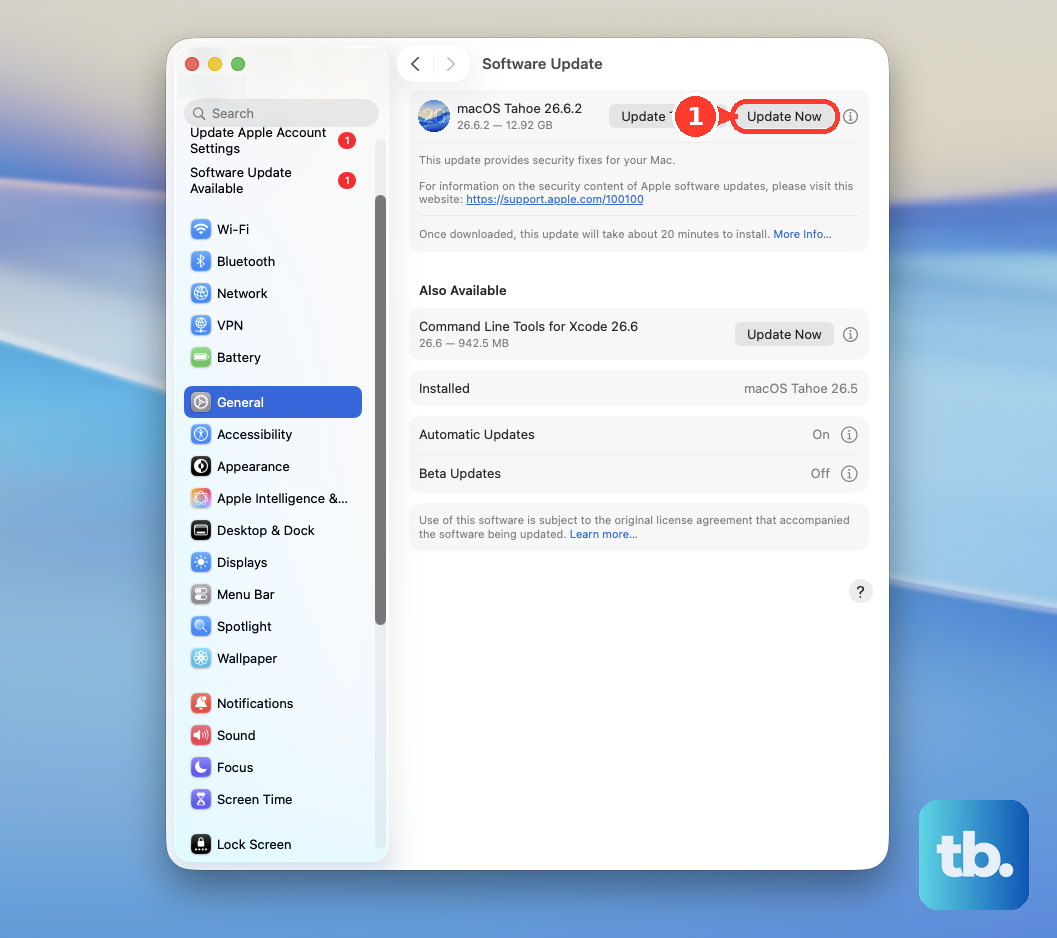
If your keyboard started acting up after a recent app installation, this might resolve conflicts with the operating system.
Sometimes third-party apps interfere with keyboard function. If you installed new software recently, try uninstalling it temporarily. You can check chronological installations in the System Information app under the Software section to identify recent changes.
Run Apple Diagnostics
Shut down your MacBook Air completely, then turn it on while holding the D key. This launches Apple Diagnostics to check for hardware issues. The test takes a few minutes and will report any problems it finds with your keyboard or related components.
If diagnostics show an error, note the code it provides. Some users have reported seeing messages about Bluetooth keyboards even when none are connected, which can indicate a hardware communication issue between the keyboard and logic board.
Check for App Conflicts in Safe Mode
Restart your MacBook Air and immediately press and hold the Shift key until you see the login window. This starts Safe Mode, which loads only essential system components. If your keyboard works properly here, a third-party app is likely causing the problem.
Test typing in TextEdit or another basic app while in Safe Mode. The minimal startup processes help isolate software conflicts. Uninstall any apps that were installed or updated around the time the keyboard issues began.
Reset NVRAM on Apple Silicon Macs
For your M4 MacBook Air, the System Management Controller functions are handled differently than on Intel models. Restarting your Mac automatically resets what needs to be reset on Apple Silicon chips. Simply shut down completely, wait 30 seconds, then turn it back on.
If you're coming from an older Intel Mac, you might be used to SMC resets. On Apple Silicon models like the M4, those functions are integrated into the startup process. A clean restart often resolves temporary glitches affecting keyboard responsiveness.
Examine Physical Connections
While the M4 MacBook Air isn't designed for user repairs, gentle external pressure can sometimes help. If you're comfortable, you can try gently pressing along the bottom case near the trackpad area. Some users have reported this temporarily restoring keyboard function by reseating internal connections.
Be extremely careful with any physical manipulation. The keyboard connects to a small board under the trackpad, which then connects to the logic board. Even slight reseating of these internal flex cables can restore communication between components.
Use the On-Screen Keyboard Temporarily
If you need immediate access while troubleshooting, enable the on-screen keyboard. Go to System Settings > Accessibility > Keyboard and turn on Accessibility Keyboard. This gives you a virtual keyboard you can click with your trackpad or mouse.
You can also show the Keyboard Viewer by enabling "Show Input menu in menu bar" in your keyboard settings. Click the input menu icon and select Show Keyboard Viewer to see which keys are being recognized when you press physical keys.