
Factory resetting your Vivo X200 Pro is the most definitive way to wipe it clean, returning it to the state it was in when you first took it out of the box. It's a powerful step for troubleshooting deep-seated software glitches, preparing the phone for a new owner, or simply giving yourself a completely fresh start with Funtouch OS 15.
Back Up Everything Before You Begin
This step is non-negotiable. A factory reset will permanently delete all your personal data, including photos, messages, app data, and settings. First, ensure your Google account backup is current. Go to Settings > System > Backup and verify the backup is on for your account. Tap Back up now to force an immediate sync to Google Drive.
For your photos and videos, open Google Photos and check that sync is complete. I'd also recommend manually copying any important files to a computer via the USB-C cable, as the 90W charger that came in the box can be used for data transfer too. Once you confirm everything is safely stored elsewhere, you can proceed.
Remove Your Google and Vivo Accounts
To avoid getting locked out by Factory Reset Protection (FRP) after the wipe, you need to sign out of your accounts. Head to Settings > Accounts & sync. Select your Google account and tap Remove account. Do the same for your Vivo account if you have one set up. This ensures the phone won't ask for the previous owner's credentials when you or someone else tries to set it up again.
Perform the Reset from Within Settings
This is the standard method when your phone is functioning. On your Vivo X200 Pro, navigate to Settings > System management > Backup and reset > Erase all data (factory reset). You'll see a detailed list of everything that will be deleted. Scroll down and tap Erase all data.
The phone will ask you to enter your screen lock PIN, pattern, or password for security. After confirmation, the reset process begins. Your phone will reboot, and you'll see the erasing animation. It usually takes a few minutes. When it's done, you'll be greeted by the initial setup screen in your chosen language.
Use Recovery Mode If the Phone Is Unresponsive
If your X200 Pro is frozen, stuck in a boot loop, or won't turn on normally, you can force a reset using the physical buttons. First, try to power the phone off completely. If it's unresponsive, force a restart by holding the Power button for about 12 seconds until it shuts down and restarts.
If the problem persists, you'll need Recovery Mode. With the phone off, press and hold the Power and Volume Up buttons together. Release them when you see the Vivo or Funtouch OS logo. Use the Volume Down button to highlight Recovery Mode and press the Power button to select it.
When you see the Android recovery screen, use the Volume buttons to navigate to Wipe data/factory reset and select it with the Power button. Confirm on the next screen. Once finished, select Reboot system now. The phone will restart as if it were brand new.
Try a Less Drastic Reset First
For issues like Wi-Fi dropping, Bluetooth pairing problems, or general app misbehavior, a full factory reset might be overkill. Go to Settings > System management > Reset options. Here, you have several targeted resets. Reset network settings will clear all Wi-Fi passwords and Bluetooth pairings.
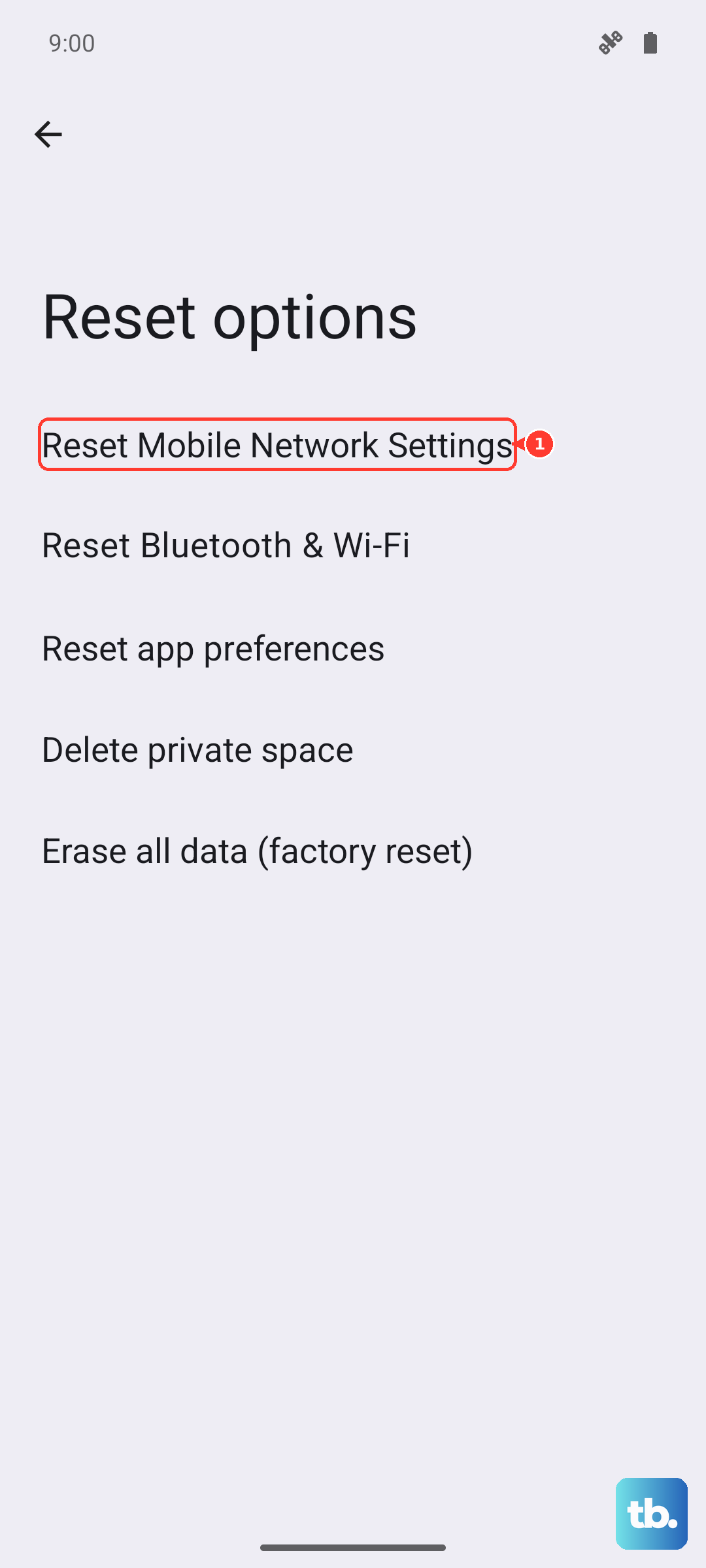
Reset app preferences will revert all your app permissions and default app assignments without deleting any app data. This can often resolve crashes or lag caused by a misbehaving application, and it's a great first step before the more comprehensive wipe.
Setting Up Your Phone After the Reset
Once the reset is complete, you'll go through the standard Android setup. Connect to a Wi-Fi network, sign back into your Google account, and when prompted, choose to restore your data from the Google Drive backup you made earlier. This will reinstall your apps and bring back many of your settings.
Take your time reconfiguring Funtouch OS to your liking. Given the X200 Pro's excellent 6000mAh battery, you can afford to tweak settings without worrying too much about immediate drain. The process gives you a clean slate, which can often resolve mysterious battery drain or performance hiccups that built up over time.