
Factory resetting your Samsung Galaxy S25 FE is the most thorough way to wipe it clean, returning it to the state it was in when you first took it out of the box. It's a powerful tool for tackling stubborn software glitches, preparing the phone for a new owner, or simply giving yourself a fresh start with One UI 8. The process is straightforward, but you need to take a few key steps first to protect your data.
Back Up Everything Before You Begin
This is the most important step. A factory reset permanently deletes all your apps, photos, messages, and settings from the phone's internal storage. To save it all, head to Settings > Accounts and backup. From here, you can back up to your Samsung account or to Google Drive.
I'd recommend using Samsung's own Smart Switch app for a complete, local backup to your computer. It's the most reliable way to capture your home screen layout, call logs, and everything else. Double-check that your photos are safely synced to Google Photos or Samsung Cloud before proceeding.
Remove Your Accounts to Avoid a Lock
Modern Android phones, including the S25 FE, have a security feature called Factory Reset Protection (FRP). If you reset the phone without first removing your Google and Samsung accounts, it will ask for those login credentials during the next setup, effectively locking out anyone who isn't you.
To prevent this, go to Settings > Accounts and backup > Manage accounts. Tap on your Google account, then your Samsung account, and select Remove account for each one. This ensures a smooth setup process after the reset.
Perform the Reset from Your Settings Menu
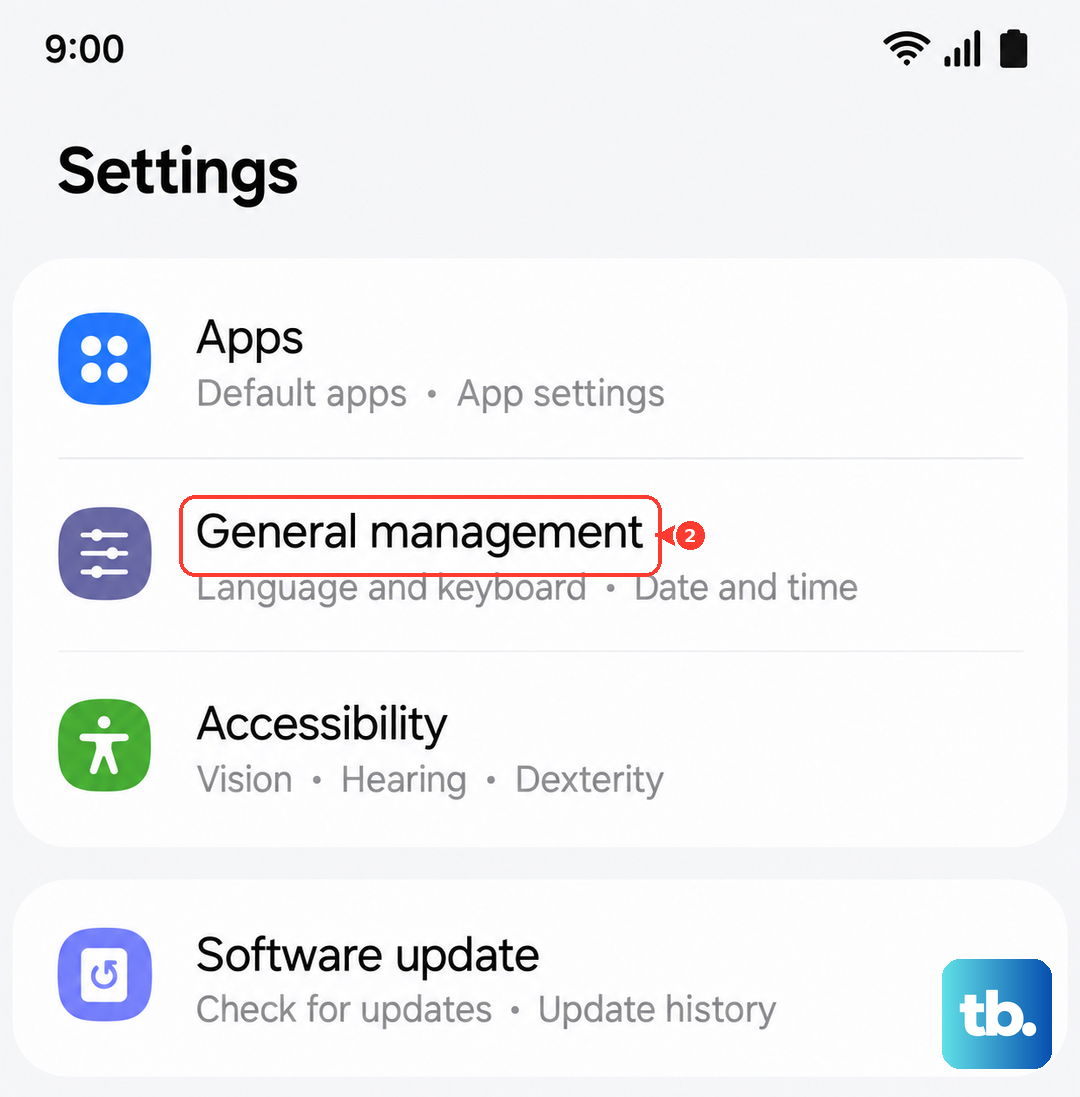
If your phone is working well enough to navigate, this is the easiest method. Open Settings and go to General management > Reset > Factory data reset. You'll see a detailed list of everything that will be erased.
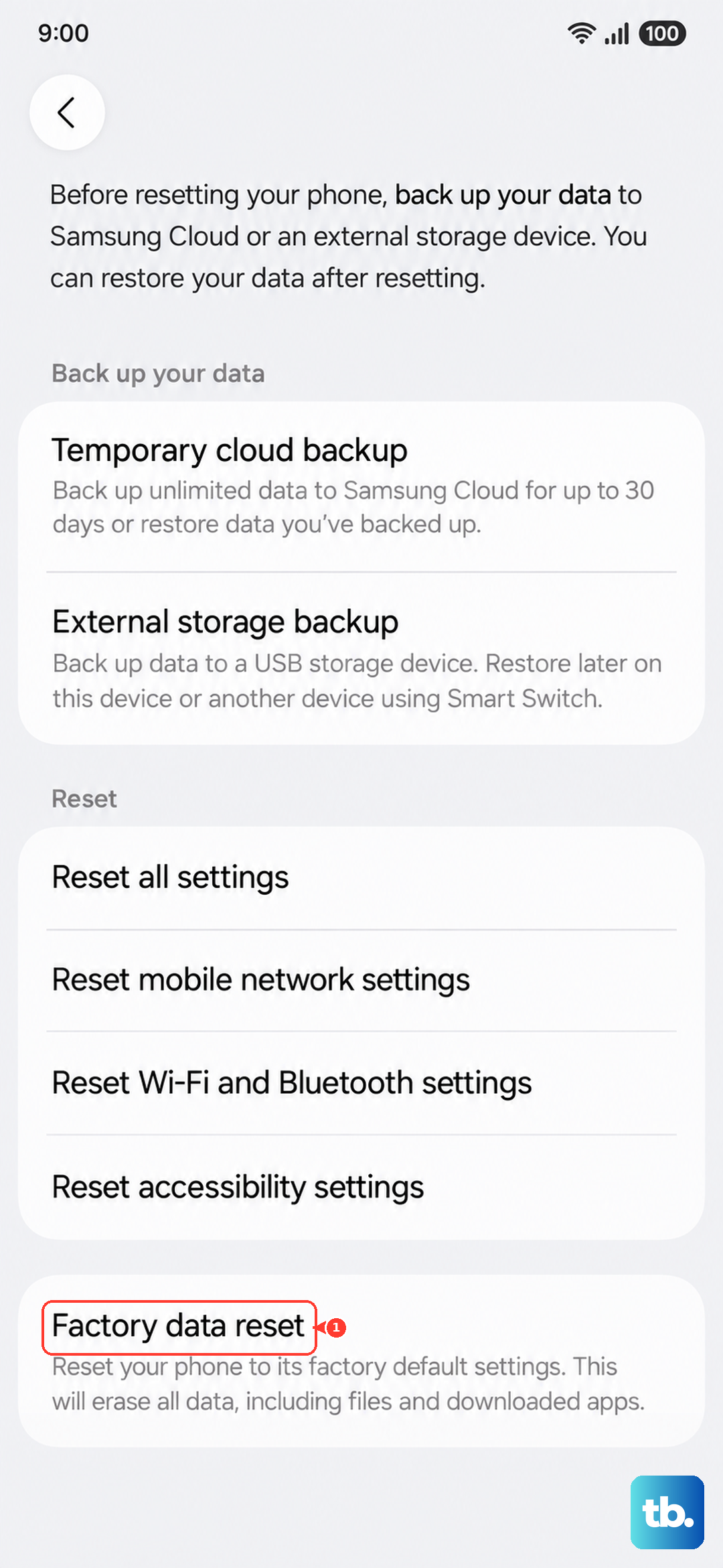
Scroll to the bottom and tap Reset. You'll be asked to enter your PIN, pattern, or password for security. Finally, tap Delete all. The phone will restart and begin the wiping process, which can take several minutes. When it's done, you'll be greeted by the initial "Hello" setup screen.
Use Recovery Mode for a Frozen Phone
If your S25 FE is stuck, won't boot past the Samsung logo, or is completely unresponsive, you can force it into recovery mode. First, make sure the phone is turned off. Press and hold the Volume Up button and the Side (power) button simultaneously.
Release both buttons when you see the Samsung logo, and you'll enter the Android Recovery menu. Use the Volume Down button to highlight Wipe data/factory reset, then press the Side button to select it. Confirm by selecting Factory data reset on the next screen. Once it finishes, choose Reboot system now.
Try a Less Drastic Reset First
A full factory reset isn't always necessary. The S25 FE offers several targeted resets that can solve specific problems. Go to Settings > General management > Reset. Here, you'll find options to reset just your network settings (fixes Wi-Fi and Bluetooth issues), accessibility settings, or all app preferences.
These options clear out corrupted configuration data without touching your personal files. If you're experiencing minor bugs or slowdowns, especially after a major Android update, resetting app preferences or network settings is a great first step.
Setting Up Your Phone Again
After the reset completes, you'll walk through the standard Android setup. Connect to Wi-Fi and sign back into your Google and Samsung accounts. When you get to the restoration step, you can choose to restore your data from the Samsung Cloud or Google Drive backup you made earlier.
If you used Smart Switch on a computer, you can run the app again and restore your backup at this point. This will reinstall your apps and bring back your call history, messages, and device settings.
When a Factory Reset Makes Sense
For the S25 FE, a factory reset is a solid fix for persistent issues that survive a normal restart. This includes severe battery drain you can't pin on an app, system-wide lag or freezing, or the occasional display flicker that sometimes pops up after a software update and won't go away.
It's also the only way to truly wipe your personal information before selling or recycling the phone. For less severe problems, consider booting into recovery mode and selecting Wipe cache partition first. This clears temporary system files and can resolve many performance hiccups without a full data wipe.