
Factory resetting your Samsung Galaxy S24 is the most complete way to wipe it clean, returning it to the exact state it was in when you first took it out of the box. It erases all your apps, photos, messages, and settings. I'd only recommend this if you're preparing to sell the phone, dealing with severe software glitches that nothing else fixes, or just want a completely fresh start with One UI.
Back Up Everything Before You Start
This is the most critical step. Once you confirm the reset, there's no going back. Your S24 has a few built-in backup options. Head to Settings > Accounts and backup. From here, you can back up to your Samsung account or to Google Drive.
For a more comprehensive local backup, use Samsung Smart Switch on a PC or Mac, or back up to compatible USB storage with Smart Switch. The Galaxy S24 series does not support expandable microSD storage, so do not plan around an in-phone microSD card. Double-check that your photos and videos are backed up in Google Photos or another photo backup service you can access after the reset, and that any important files are saved elsewhere.
Remove Your Accounts to Avoid FRP Lock
Factory Reset Protection is Google's device protection for Android. If you are keeping the phone and resetting it from Settings, Android will ask for the screen lock before the reset. If the phone is reset with the hardware buttons or erased remotely, setup can require the PIN, pattern, password, or a Google Account previously synced to the phone.
If you are selling, trading in, or giving away the S24, remove your Google account first at Settings > Accounts and backup > Manage accounts, then tap the Google account and choose Remove account. Also sign out of your Samsung account before the reset; Samsung says a network connection and your Samsung account password may be required when a Samsung account is still on the phone.
Perform the Reset from Within Settings
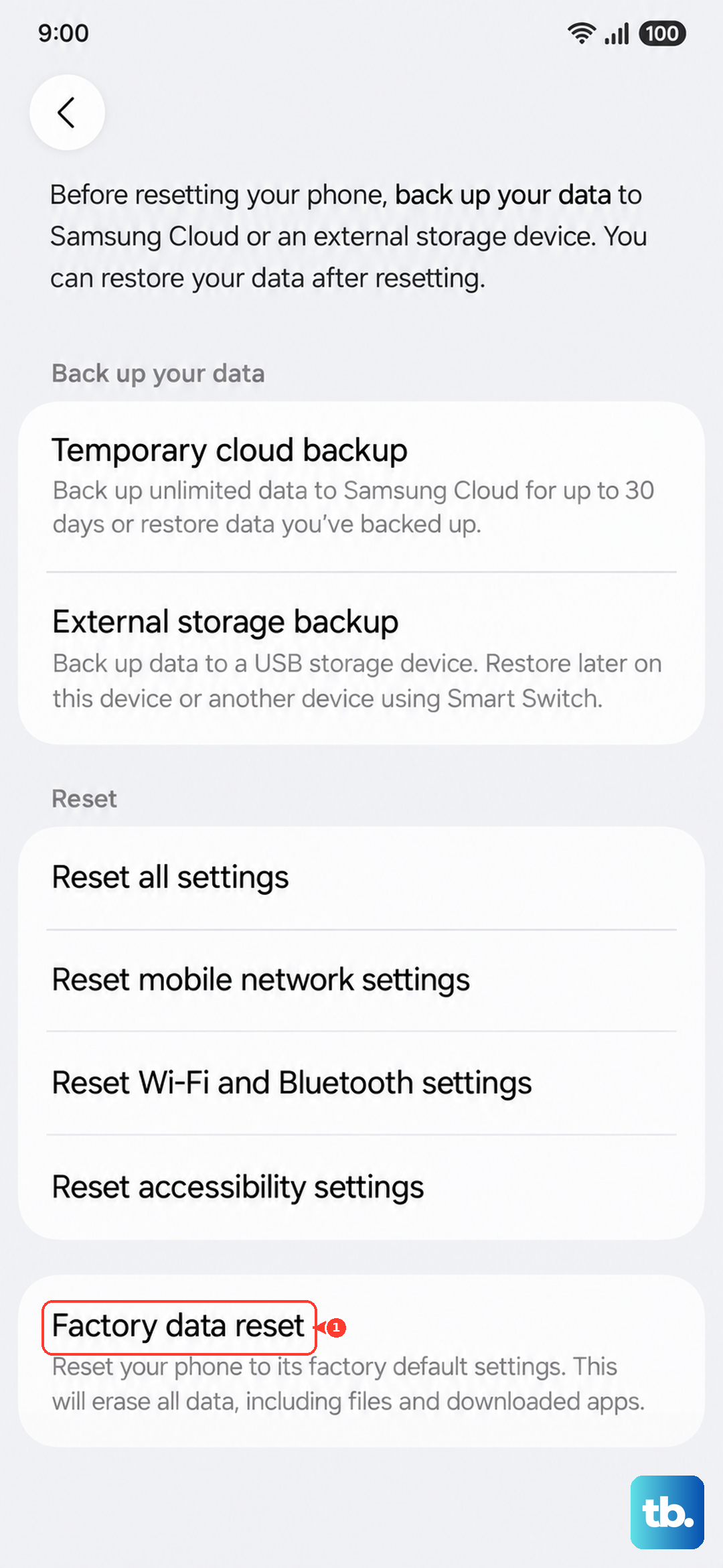
This is the standard method when your phone is functioning normally. Open Settings and go to General management > Reset > Factory data reset. You'll see a final screen listing everything that will be deleted, including apps, accounts, and personal files.
Scroll down and tap Reset, then tap Delete all. If a screen lock is set, enter the PIN, pattern, or password when prompted. If a Samsung account is still on the phone, Samsung says you will also need that account password before the reset can finish. Your Galaxy S24 will restart and erase the data. When it's done, you'll see the initial setup screen.
Use Recovery Mode If You Can't Open Settings
If your S24 is locked, stuck in a boot loop, or cannot reach the Settings app, you can try a factory reset from Android Recovery. Charge the phone first, power it off, and connect it to a computer with a USB cable before opening the recovery menu.
Press and hold the Volume Up and Side buttons together until the phone vibrates and the Samsung logo appears, then release the buttons. In Android Recovery, use the Volume buttons to highlight Wipe data/factory reset, then press the Side button to select it.
Confirm by selecting Factory data reset. When the wipe finishes, choose Reboot system now. A button reset can trigger Google device protection during setup, so make sure you know the screen lock or a Google account previously synced to the phone.
Consider a Network or Settings Reset First
A full factory reset isn't always necessary. Your S24 offers several targeted reset options under Settings > General management > Reset. Use Reset Wi-Fi and Bluetooth settings when you want to clear saved Wi-Fi networks and Bluetooth pairings, or use Reset mobile network settings for cellular calling, messaging, or mobile-data issues.
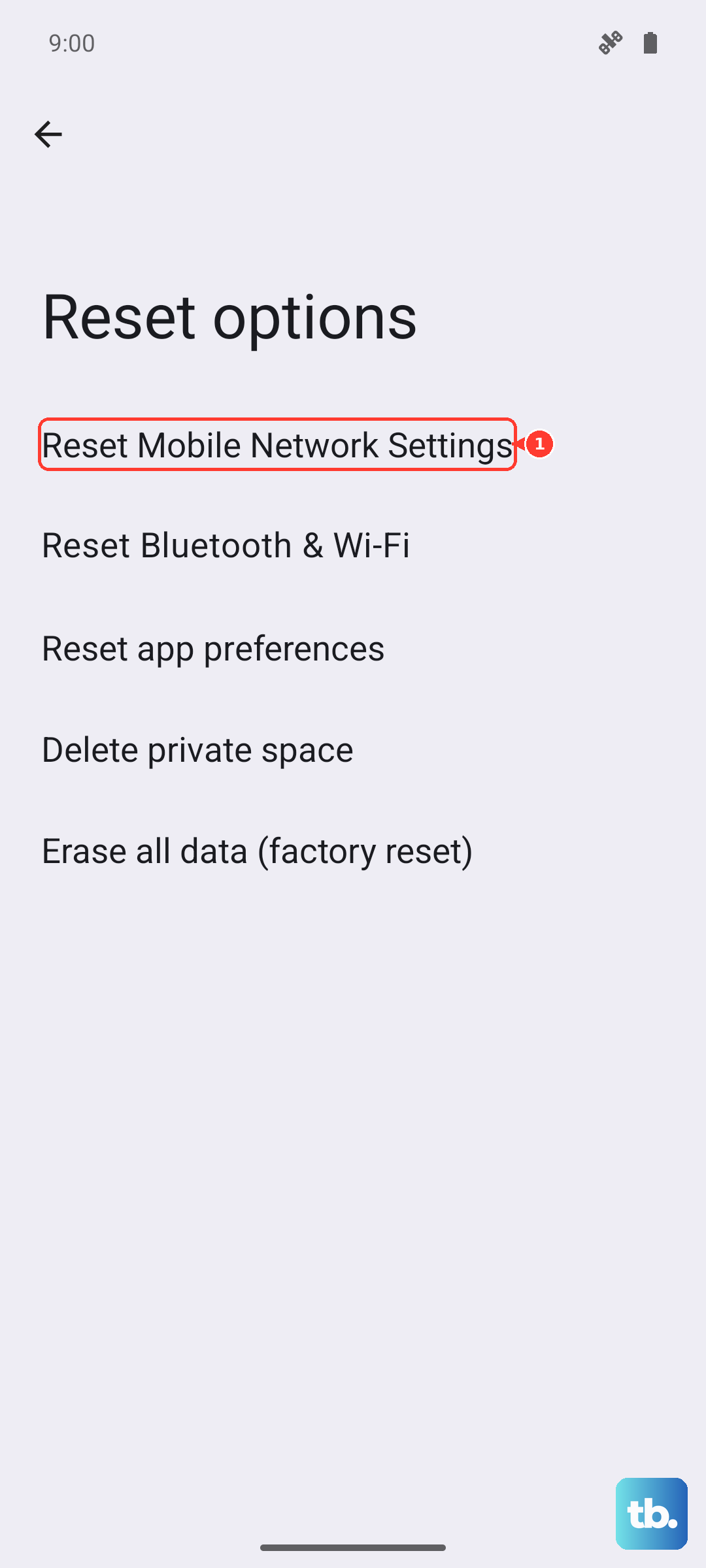
You can also choose Reset all settings or Reset accessibility settings. Samsung lists these reset options as ways to troubleshoot settings without erasing your apps or personal data, so they are worth trying before a full factory reset.
Setting Up Your S24 After the Reset
After the phone reboots, you'll walk through the standard Android setup. Choose your language, connect to Wi-Fi, and sign back into your Google and Samsung accounts. When you get to the step about restoring data, you can choose the backup you created earlier.
Restore only the data that was included in the backup you choose. Samsung Cloud can restore supported categories such as call logs, messages, settings, Home screen, and app data; Google backup is restored during the setup flow after you sign in. Photos and videos come back only if they were backed up separately through a photo backup service you can access after the reset. The process can take a while depending on your internet speed and how much data you're restoring.
When a Factory Reset Is the Right Call
I've found a factory reset is most useful for persistent, unexplained problems like severe battery drain that persists after updates, constant app crashes, or general system lag that a simple restart doesn't fix. It's also the only way to ensure all your personal data is removed before you sell or trade in your Galaxy S24.
For less serious software hiccups, try clearing the system cache first. You can do this from the same recovery mode menu by selecting Wipe cache partition. It's a non-destructive step that clears temporary files and often resolves minor performance issues without a full reset.