
Factory resetting your Samsung Galaxy A56 erases every single file, setting, and app, taking it back to the way it was when you first took it out of the box. It's the most powerful fix you can perform, and it's often the final step for solving deep software glitches or preparing the phone for a new owner. Here's exactly how to do it the right way on your A56.
Back Up Everything on Your Galaxy A56
Before you touch the reset option, securing your data is non-negotiable. On your A56, head to Settings > Accounts and backup. From here, you can back up to your Samsung account or to Google One.
For a local backup you control, use Samsung's Smart Switch app. You can back up to a Windows PC or Mac, or to a USB flash drive via the USB-C port. Note the A56 has no microSD slot, so a local card backup isn't an option on this model. I'd recommend this method if you want a complete snapshot of your phone's current state.
Double-check that your photos and videos are safely synced to Google Photos, Samsung Gallery Cloud, or another service. Once you confirm the reset, there's no getting any of it back from the phone itself.
Remove Your Samsung and Google Accounts
This step is critical to avoid Factory Reset Protection (FRP) lock. FRP is a security feature that requires the last Google account on the phone to be verified after a reset. To prevent this hassle, remove the accounts yourself first.
Go to Settings > Accounts and backup > Manage accounts. Tap on your Samsung account, then tap Remove account. Do the same for your Google account and any other accounts listed. Enter your password or PIN when prompted to confirm removal.
Perform a Factory Reset from Settings
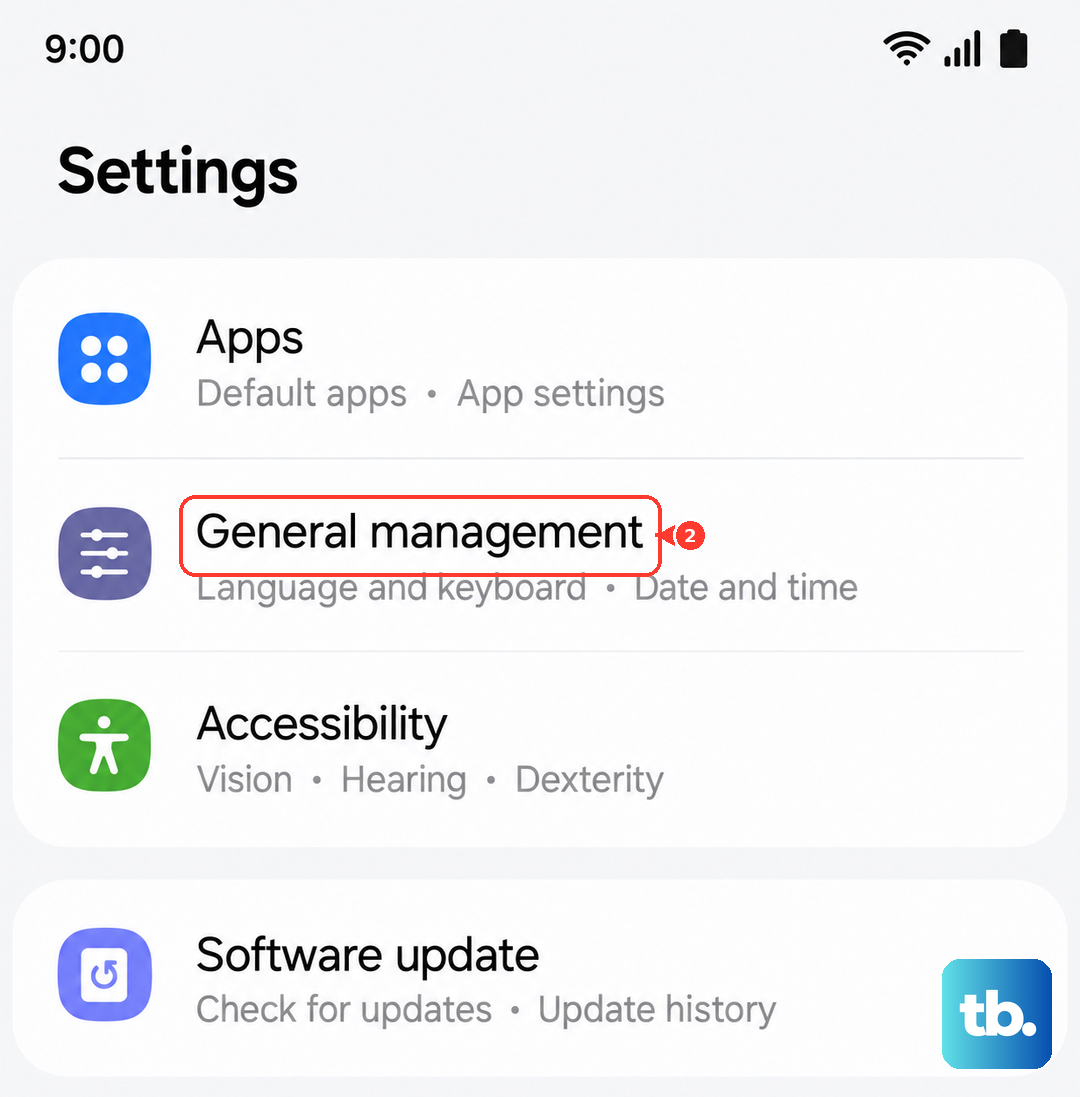
This is the standard method when your phone is working and you can access the menus. On your Galaxy A56, open Settings and go to General management > Reset > Factory data reset.
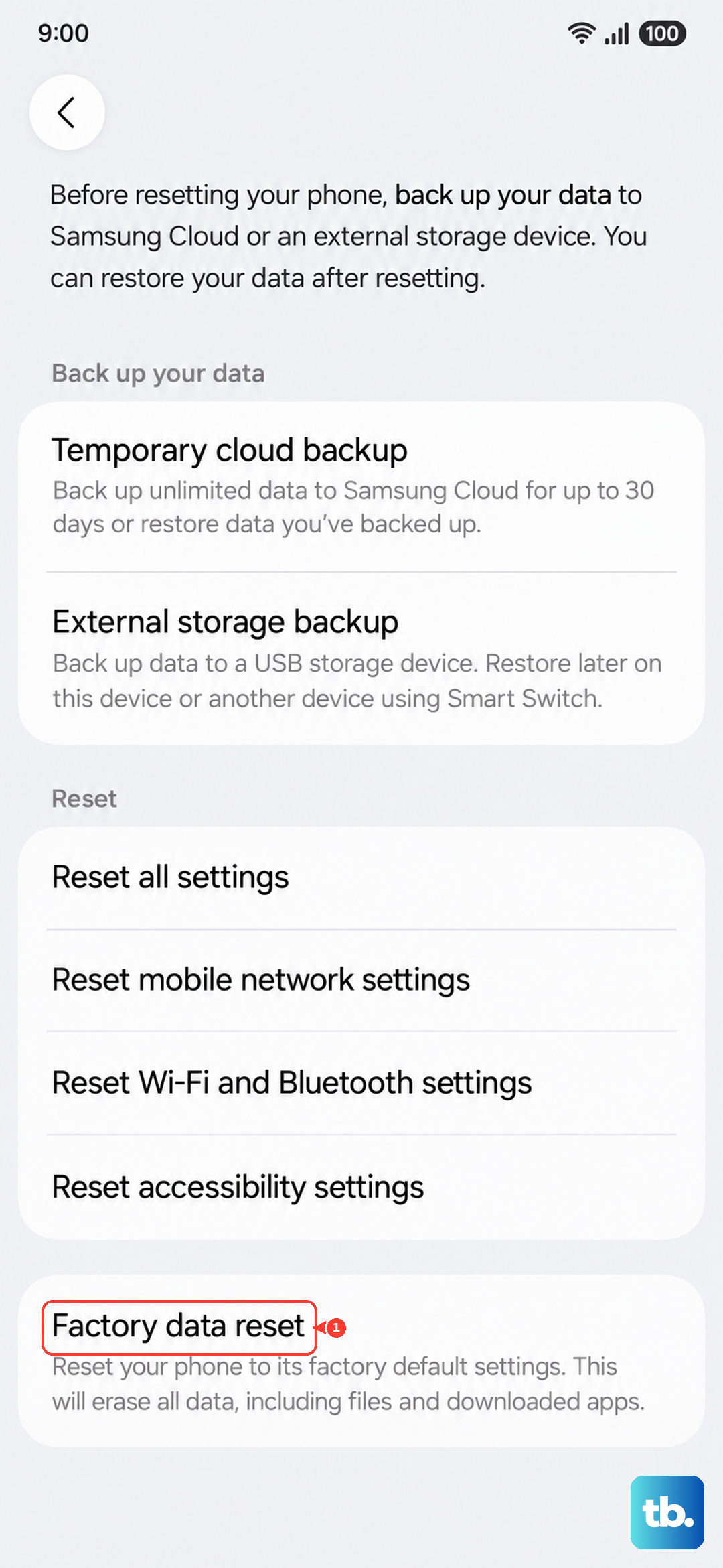
You'll see a detailed screen listing everything that will be deleted, including apps, accounts, and all personal files. Scroll to the bottom and tap Reset. On the final warning screen, tap Delete all.
The phone will ask for your PIN, pattern, or password one last time for security. After you enter it, the device will restart and begin the wiping process, which takes a few minutes. When it's done, you'll be greeted by the initial setup screen in One UI.
Reset Using Recovery Mode (When the Phone Won't Boot)
If your A56 is frozen, stuck in a boot loop, or won't start normally, you'll need to use the hardware key method. First, ensure the phone is completely powered off.
Press and hold the Volume Up button and the Side (power) button simultaneously. Hold them until you see the Samsung logo, then release. You'll now be in the Android Recovery Mode menu.
Use the Volume Down button to highlight Wipe data/factory reset. Press the Side button to select it. On the next screen, use Volume Down to highlight Factory data reset and press the Side button again to confirm. When the reset is complete, the menu will return; select Reboot system now with the Side button.
Try a Less Drastic Reset First
A full factory reset isn't always necessary. Your Galaxy A56 has options for resetting specific parts of the system. Go to Settings > General management > Reset.
Here you'll find Reset network settings, which clears all Wi-Fi passwords and Bluetooth pairings. Reset accessibility settings reverts those options to default. Reset app preferences resets permissions and default apps without deleting any app data. These can solve many common issues without the nuclear fallout.
Setting Up Your A56 After the Reset
After the reset, your phone will start the initial setup process. Choose your language, connect to a Wi-Fi network, and then you'll be prompted to sign in with a Google account. This is where you can restore from a backup.
If you backed up with Google One or Samsung Cloud, you'll see the option to restore your apps, call history, and device settings. If you used Smart Switch, you can run the app again after setup to transfer your data back over. Take your time here to configure your preferences fresh.
When a Factory Reset is the Right Call
Consider a factory reset for persistent, unexplained problems like severe battery drain that persists after updates, constant app crashes across multiple apps, or general system lag that won't go away. It's also the only way to truly wipe your data before selling or recycling the phone.
For performance hiccups or after a major OS update, try clearing the system cache first. You can do this from the same Recovery Mode menu by selecting Wipe cache partition. It's a harmless operation that fixes a lot of minor software issues without touching your personal data.