
Factory resetting your Samsung Galaxy A26 5G clears everything and returns it to its out-of-box state. It's the best move if you're selling the phone, dealing with stubborn software glitches, or just want a completely clean start. Here's how to do it safely and correctly.
Back Up What Matters First
Before you wipe anything, make sure your photos, contacts, and app data are saved somewhere safe. Head to Settings > Accounts and backup > Back up data to use Samsung Cloud, or tap Google Drive under the same menu for your Google backup. You can also plug the A26 into a computer and use Smart Switch for a full local backup.
Double-check that your photo gallery is syncing to Google Photos or Samsung Cloud. Once you hit reset, everything on the phone is gone for good.
Sign Out of Accounts to Avoid Lockouts
Factory Reset Protection can lock you out if you don't remove your accounts first. Go to Settings > Accounts and backup > Manage accounts. Tap your Samsung account, then Remove account. Do the same for your Google account. This step is quick and prevents that "enter previous credentials" screen after the reset.
Factory Reset from Settings
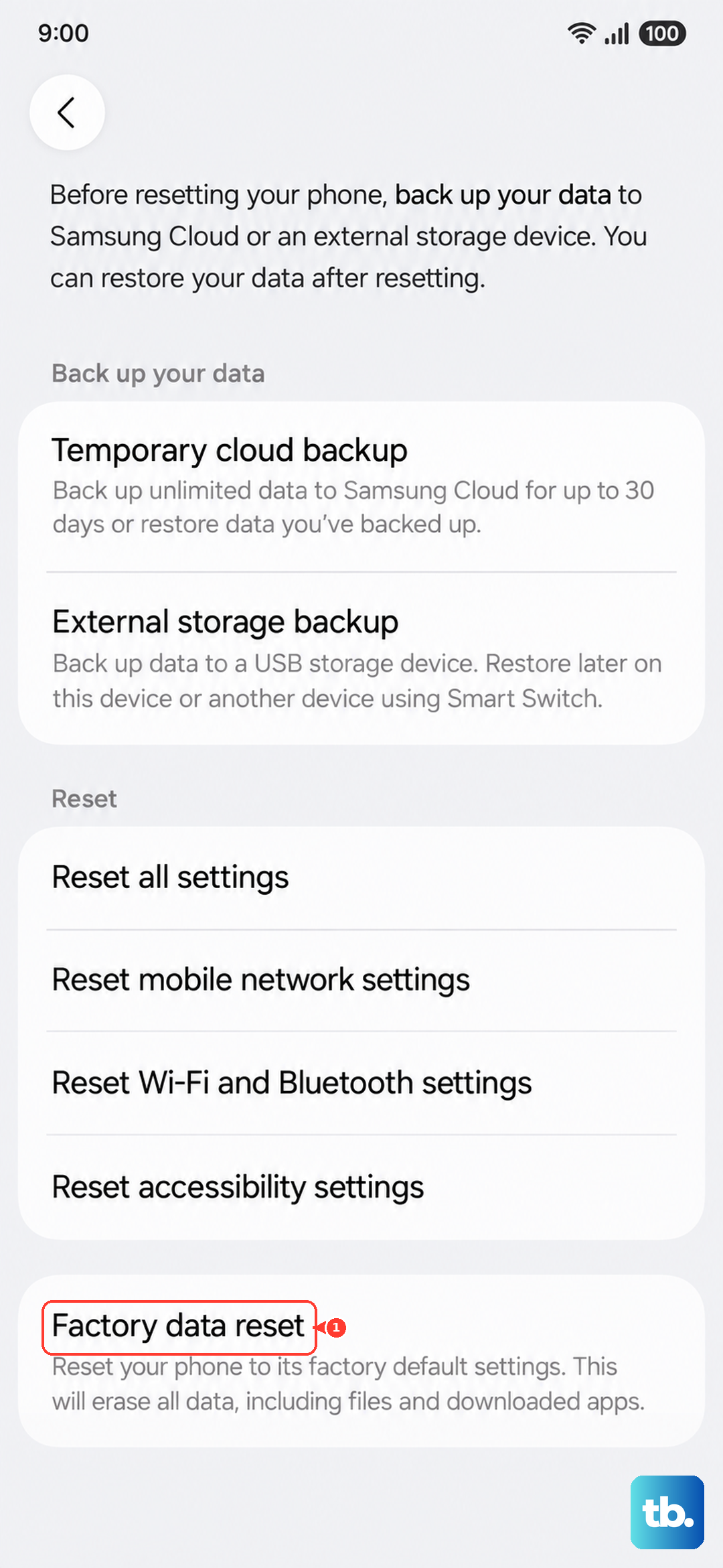
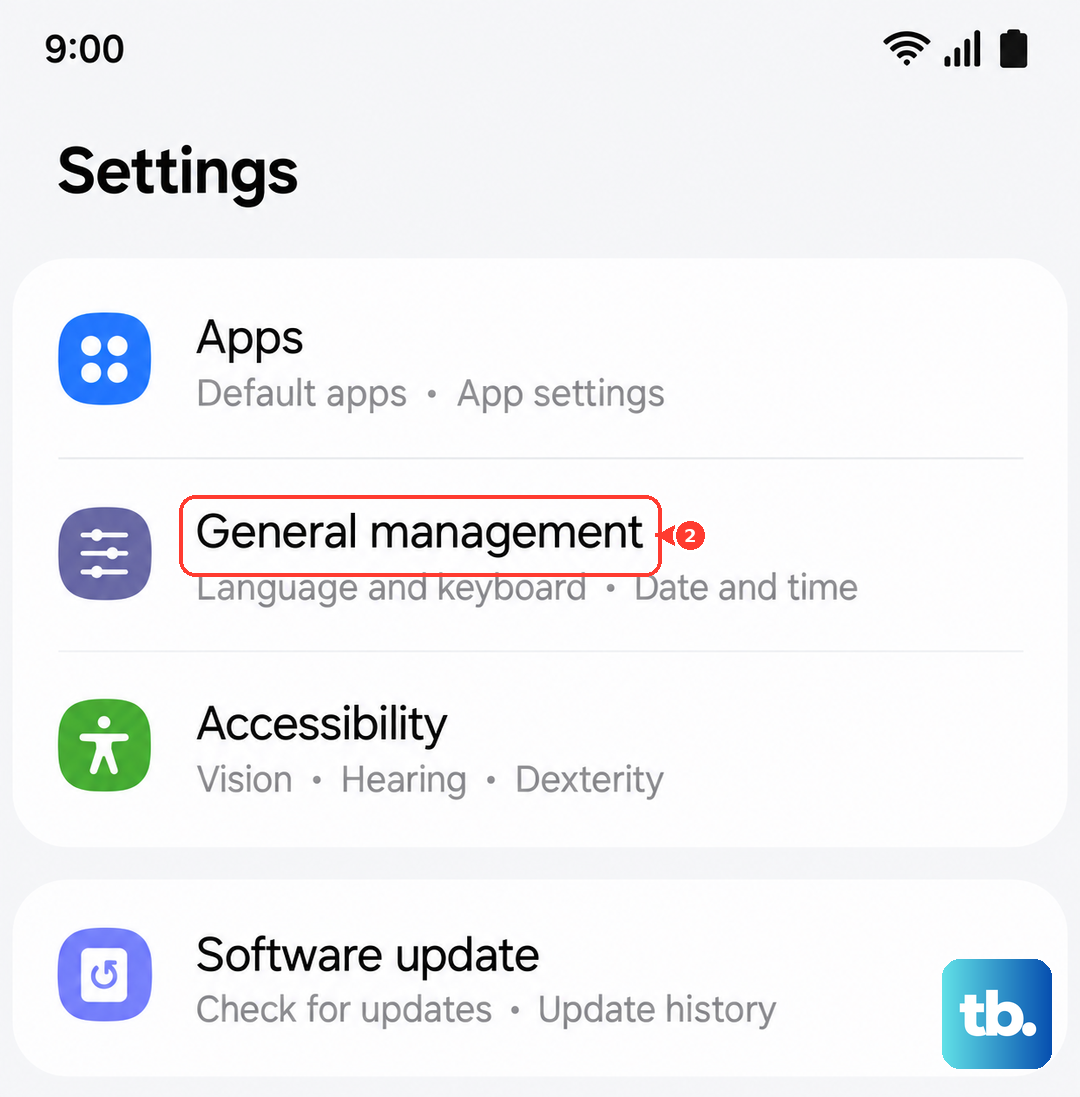
The easiest way is through the system menu. Open Settings > General management > Reset > Factory data reset. Scroll through the list of everything that will be erased, then tap Reset and confirm with Delete all. Enter your PIN, pattern, or password when asked. The A26 will restart and show a black screen for a minute while it wipes the data. When it's done, you'll see the standard welcome screen.
Factory Reset Using Buttons (Recovery Mode)
If your A26 is frozen, stuck on a boot loop, or won't turn on normally, you can reset it from recovery mode. First, power the phone off completely. Then connect the A26 to a computer with a USB cable and, at the same time, press and hold Volume Up + Power until the Samsung logo appears, then release. You'll land in the recovery menu. (On the A26 the button combo alone usually just reboots the phone, so the USB connection is what triggers recovery.) Use the Volume keys to highlight Wipe data/factory reset, then press Power to select it. Confirm by choosing Factory data reset on the next screen. Once it finishes, highlight Reboot system now and press Power. Your phone boots up clean.
Try a Gentle Reset First (Without Full Wipe)
Not every problem needs a full wipe. Open Settings > General management > Reset and you'll see options to reset only network settings, accessibility settings, or app preferences. These targeted resets leave your personal data untouched and can fix Wi-Fi issues, Bluetooth problems, or weird app behavior. It's worth a shot before going nuclear.
If you're dealing with charging problems specifically, try clearing the cache partition first. Boot into recovery mode (same button combo) and choose Wipe cache partition instead of factory reset. This clears temporary system files without deleting your data and has fixed charging hiccups on many A26 units.
Set Up Your A26 After the Reset
Once the factory reset finishes, the phone shows the familiar setup wizard. Choose your language, connect to Wi-Fi, and sign into your Google account and Samsung account. When you reach the restore screen, select your most recent backup to bring back apps, contacts, and settings. If you don't restore, you start with a bare phone and download everything fresh.
When a Full Reset Makes Sense
Persistent lag, random crashes, battery drain that refuses to improve, or malware you can't remove are all good reasons to factory reset. It's also essential before selling or trading in your A26. If you've tried the cache partition wipe, checked for debris in the USB-C port, and updated to the latest software, but charging still stops or the battery percentage jumps erratically, a factory reset might clear whatever software glitch is causing it. For most other issues, start with the less destructive fixes first.