
Factory resetting your Motorola Moto G Stylus 5G (2025) is the most thorough way to wipe it clean, returning it to the state it was in when you first took it out of the box. It's a powerful step for troubleshooting stubborn software glitches, preparing the phone for a new owner, or simply giving yourself a completely fresh start with Android 15.
Back Up Everything to Google First
Before you do anything else, make sure all your personal data is safely backed up. Head to Settings > System > Backup on your Moto G Stylus. Ensure backup is turned on for your Google account and tap Back up now for a final sync.
This saves your app data, call history, contacts, device settings, and text messages to Google Drive. Don't forget about your photos and videos. Open the Google Photos app and confirm they're all synced to the cloud. Once the reset begins, everything stored locally on the phone is permanently deleted.
Remove Your Google Account
This is a crucial step to avoid Factory Reset Protection (FRP) locks, which can prevent you from setting up the phone after the wipe. Go to Settings > Passwords & accounts, select your primary Google account, and choose Remove account.
Confirm the removal when prompted. Doing this before the reset ensures you won't be asked for the previous owner's credentials, which would now be yours, when you try to set the phone up again.
Perform the Reset from Android Settings
This is the standard method when your phone is functioning. On your Moto G Stylus, navigate to Settings > System > Reset options. Here, you'll see several choices. Tap on Erase all data (factory reset).
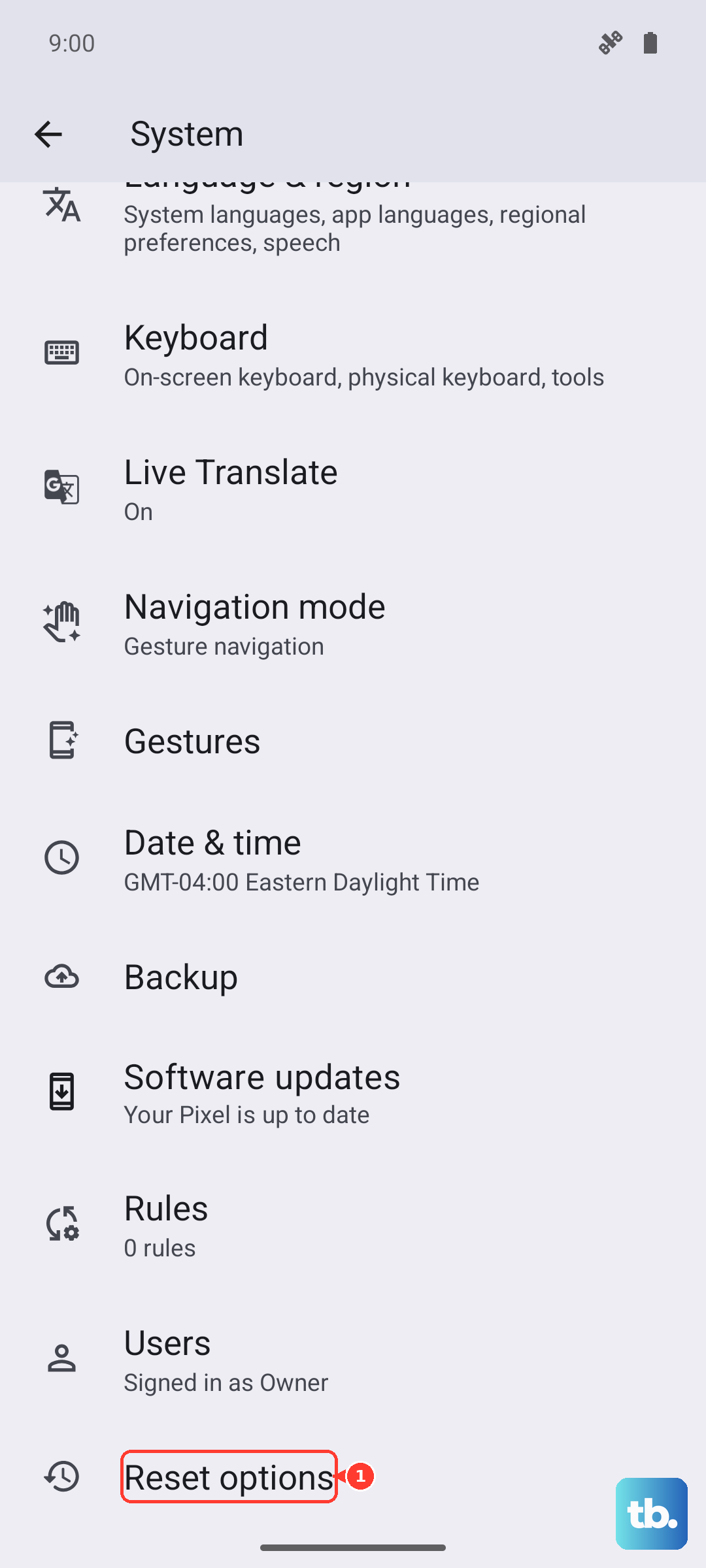
The phone will show you a final screen detailing exactly what will be deleted. If you're sure, tap Erase all data. You'll need to enter your PIN, pattern, or password for security. The phone will then restart, show the Motorola logo, and begin the erasure process, which takes a few minutes.
Use Recovery Mode for a Frozen Phone
If your Moto G Stylus is unresponsive, stuck in a boot loop, or won't start normally, you can reset it using the physical buttons. First, power the phone off completely. Once it's off, press and hold the Power button and the Volume Down button together.
Hold them until you see the Bootloader Mode screen. Use the Volume Down button to highlight Recovery mode, then press the Volume Up button to select it. You'll see the Android robot with an exclamation mark. Now, hold the Power button and briefly press the Volume Up button once to enter the recovery menu.
Use the volume buttons to navigate to Wipe data/factory reset and select it with the power button. Confirm your choice on the next screen. Once it's complete, make sure to select Reboot system now to restart the phone.
Try a Less Drastic Reset First
A full factory reset isn't always necessary. Back in Settings > System > Reset options, you have other useful tools. Reset Wi-Fi, mobile & Bluetooth clears all your network connections, which can fix connectivity problems.
Reset app preferences reverts all your app permissions, default apps, and background restrictions back to their original settings without deleting any app data. This can resolve issues where apps are crashing or not behaving correctly.
Setting Up After the Reset
When your Moto G Stylus 5G reboots, you'll be greeted by the initial Android setup. Follow the prompts to select your language and connect to Wi-Fi. When you sign back into your Google account, you'll be given the option to restore your data from the backup you made earlier.
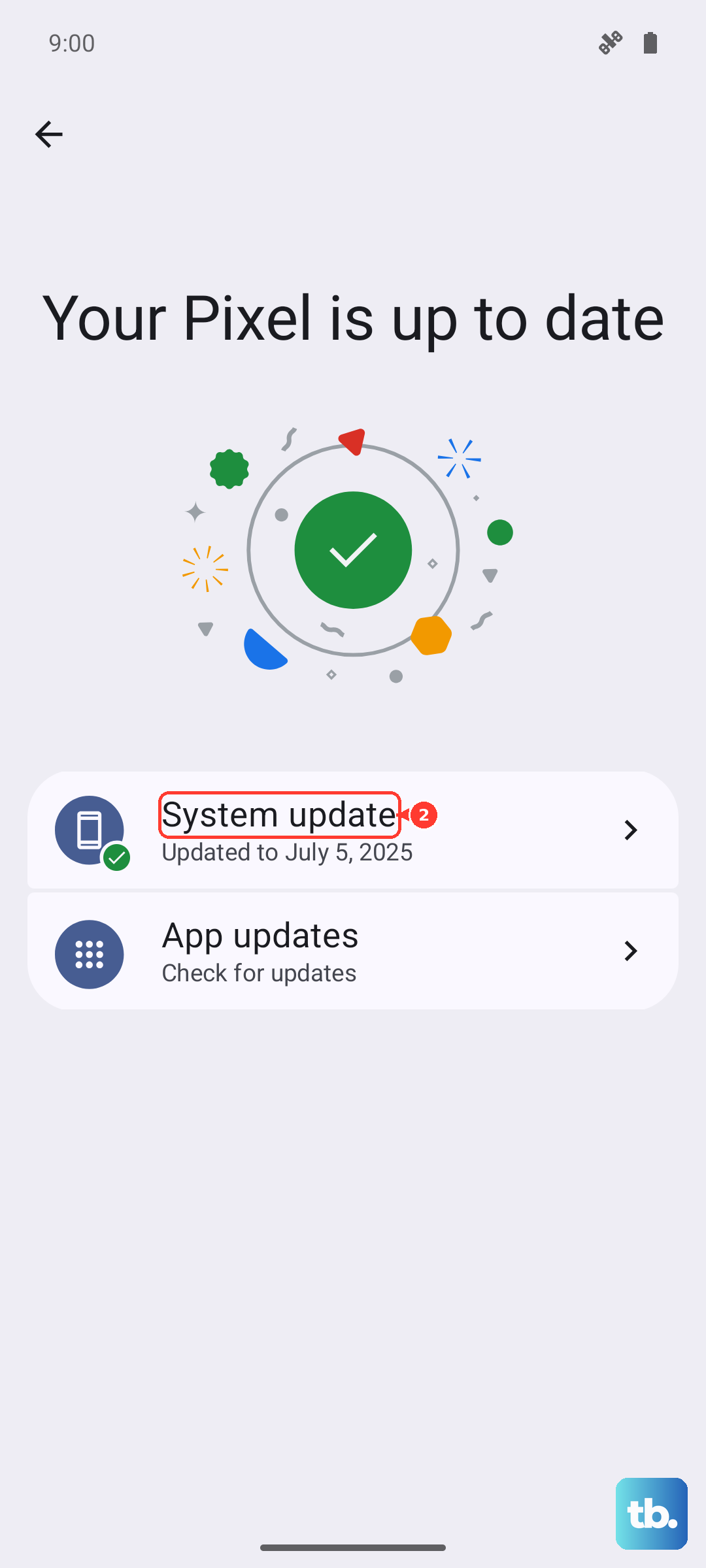
This will reinstall your apps and bring back your settings. Take this opportunity to re-evaluate which apps you really need. I'd also recommend checking for system updates immediately after setup, as a fresh install is a great time to get the latest software.
When a Reset Makes Sense
Consider a factory reset if you're experiencing persistent, unexplained lag, constant app crashes, severe battery drain that diagnostics can't pinpoint, or if you suspect malware. It's also an absolute must before selling or giving away your phone to protect your personal information.
For more minor issues, like a single misbehaving app or Bluetooth pairing troubles, try the targeted resets in the Reset Options menu or clearing the cache for specific apps first. The stylus for the 2025 model charges in its silo, so after a reset, just pop it back in to ensure it has power for your next note-taking session.