
Factory resetting your iPad Pro (M4) wipes everything clean, returning it to the state it was in when you first took it out of the box. It's a powerful step, but it's often the best way to solve deep software glitches, prepare the device for a new owner, or simply get a completely fresh start. Doing it correctly ensures you don't lose your data and that the iPad is ready to use again.
Back Up Your iPad Pro First
Before you even think about the reset button, securing your data is the most important step. Open the Settings app and tap your name at the top, then go to iCloud > iCloud Backup. Make sure iCloud Backup is toggled on and tap Back Up Now. Stay connected to Wi-Fi until the backup finishes.
For a more complete local backup, connect your iPad Pro to a Mac using its USB-C cable. Open Finder, select your iPad from the sidebar, and click Back Up Now. This method saves app data that might not be included in an iCloud backup. I'd double-check that your important photos and documents are syncing to iCloud Drive or another service before proceeding.
Sign Out of Your Apple ID
This step is non-negotiable if you're giving the iPad away. If you skip it, Activation Lock will remain active, rendering the tablet useless for the next person. Go to Settings > [Your Name] and scroll all the way down. Tap Sign Out.
You'll be asked to enter your Apple ID password to turn off Find My iPad. Confirm you want to keep a copy of your keychain and any relevant data on the device, then tap Sign Out again. This disassociates your account from the hardware.
Factory Reset Directly from iPadOS
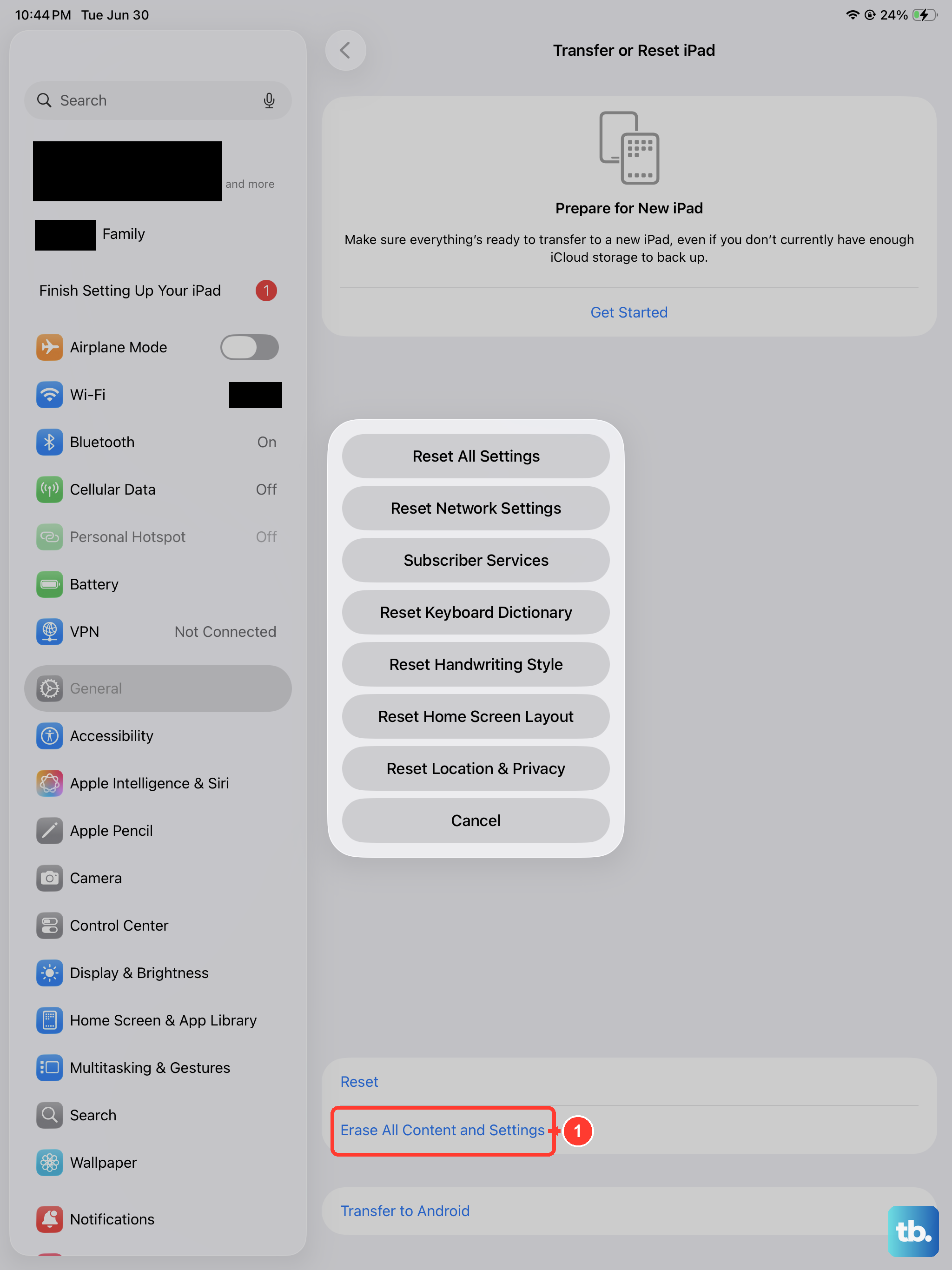
This is the standard method when you can access the Settings app. On your iPad Pro, navigate to Settings > General > Transfer or Reset iPad. At the bottom, tap Erase All Content and Settings.
The system will ask for your iPad passcode and then your Apple ID password to confirm. After you enter them, a final warning screen details what will be deleted. Tap through to confirm, and your iPad Pro will begin the erasure process. This usually takes just a few minutes before it restarts to the initial "Hello" screen.
Factory Reset Using a Computer
If your iPad Pro is unresponsive, stuck on a logo, or you've forgotten the passcode, you'll need to use a computer. Grab a USB-C cable and connect your iPad to a Mac or PC. On a Mac with macOS Catalina or later, open Finder. On a Windows PC or older Mac, open iTunes.
Select your iPad Pro when it appears. Look for the Restore iPad button, this will download the latest version of iPadOS 26 and perform a complete factory reset. Note that this is different from "Update," which tries to reinstall the OS without erasing data.
If the computer doesn't recognize your iPad, you'll need to put it into recovery mode first. Press and quickly release the Volume Up button, then quickly press and release the Volume Down button. Immediately press and hold the Power button until you see the recovery mode screen (a cable pointing to a computer icon).
Use Targeted Reset Options First
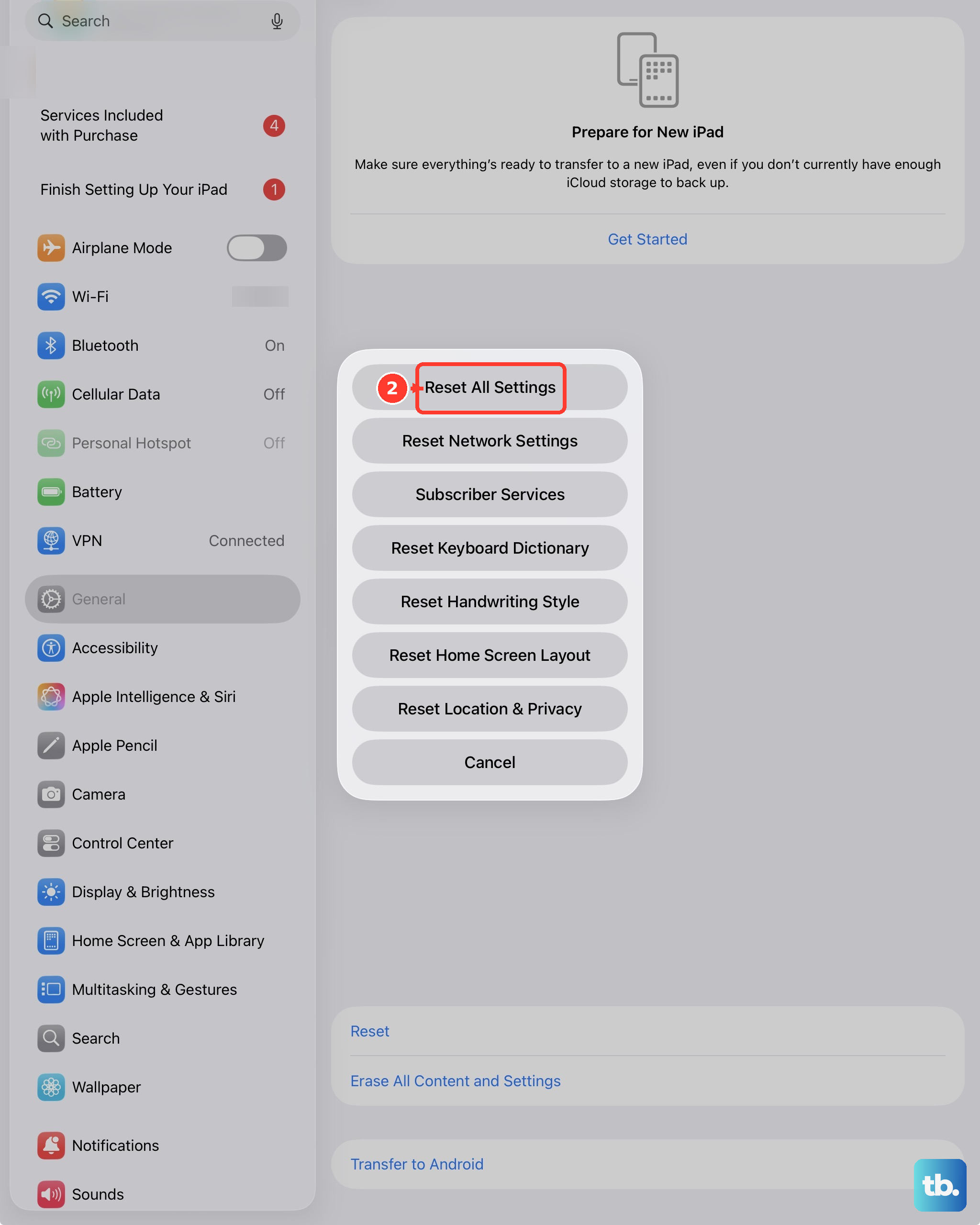
A full factory reset isn't always necessary. For specific, recurring issues, try a targeted reset first. Go to Settings > General > Transfer or Reset iPad > Reset. You'll see several options here.
Choosing Reset All Settings returns all system preferences to default without deleting your apps or personal files. This can fix weird connectivity or display issues. Other options let you reset just your network settings, keyboard dictionary, or home screen layout, which is much less disruptive.
Restoring Your iPad After the Reset
Once the reset is complete, you'll be greeted by the "Hello" screen. Swipe up to begin and follow the prompts to choose your language and connect to a Wi-Fi network. When you reach the Apps & Data screen, select Restore from iCloud Backup.
Sign in with your Apple ID and choose the most recent backup from the list. The restore process will begin, downloading your apps, settings, and data over your internet connection. Keep your iPad Pro plugged in and on Wi-Fi until everything is fully reinstalled.
When a Factory Reset Makes Sense
I recommend a factory reset if your iPad Pro (M4) has persistent, unexplainable problems like constant app crashes, severe battery drain that diagnostics can't pinpoint, or general sluggishness that survives normal restarts. It's also the only responsible way to prepare the device for sale or gift.
For most minor software hiccups, a standard restart, or the force restart sequence using the Volume Up, Volume Down, and Power buttons, is a better first step. The targeted resets in the Settings menu are also a great middle ground before opting for the complete wipe.