

Your microphone can be blocked by the device, the browser, or the app you are trying to use. Start with the main system switch, then choose the right input device, then allow the specific app or website that needs your voice. Here are the current microphone settings for Windows, Mac, iPhone, Android, Chrome, Safari, Edge, Firefox, Teams, Zoom, Discord, Chromebook, and GNOME Linux.
1. Turn On Microphone Access In Windows 11
On Windows 11, the main permission lives in privacy settings. If this switch is off, apps that Windows manages cannot use the microphone. Some desktop apps reach the hardware directly and may still work even then, so also check each app's own microphone controls.
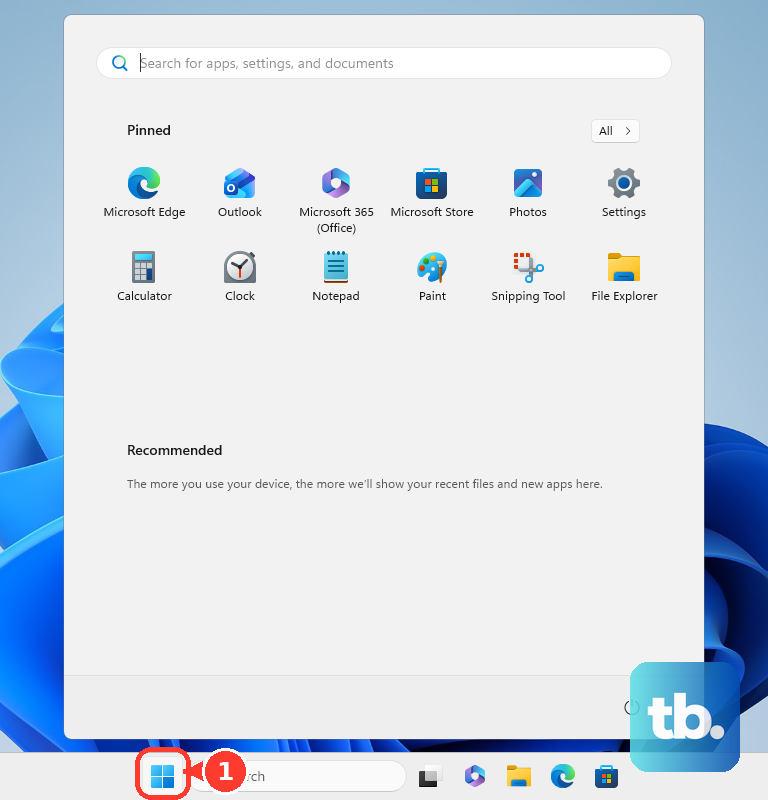
Open Start and select Settings. Go to Privacy & security, select Microphone, then turn on Microphone access. Turn on Let apps access your microphone, and under Choose which apps can access your microphone, turn on the app that needs the mic.
For desktop apps, turn on Let desktop apps access your microphone. Windows does not provide separate toggles for each desktop app in that list. If an older tutorial sends you to Privacy instead of Privacy & security, use the Windows 11 path above.
2. Select The Correct Windows Input Device
Open Start, select Settings, then go to System. Select Sound, and under Input, use Choose a device for speaking or recording. Select the microphone you want to use, then select the arrow next to that device. Open Microphone test and select Start test.
If Windows has permission but the wrong mic is selected, your app will still hear silence. Check the input device next, then check the hardware mute. Some Surface keyboards and type covers have a dedicated microphone key.
On supported Dell Latitude and Precision laptops, press Fn + F4 to mute or unmute the microphone; if Fn lock is on, press F4. The F4 light shows the mute state.
When older sound settings are the only place a disabled mic appears, use Start > Settings > System > Sound > Advanced > More sound settings > Recording. Select the microphone, open Properties, then set Device usage to Use this device (enable).
3. Allow The Microphone On Mac
macOS separates app permission from the selected sound input, so check both. For app access, open the Apple menu, select System Settings, go to Privacy & Security, select Microphone, then turn on the app that needs the built-in mic, external USB mic, or audio-interface input.
Next, open the Apple menu and select System Settings. Go to Sound, select Input, then choose the microphone you want to use. Adjust Input volume.
During supported calls, Mic Mode changes voice processing, not permission. In an app such as FaceTime, use Video in the menu bar, choose Mic Mode, then select Standard, Voice Isolation, or Wide Spectrum.
4. Enable The Microphone On iPhone And iPad
Open Settings, select Privacy & Security, then tap Microphone. Turn on the app that needs microphone access. On iPhone and iPad, microphone access is controlled per app. The current Apple path uses Privacy & Security.
For Safari, open the website that requests microphone access and tap Allow when prompted. To set up Apple's accessibility voice listener, open Settings > Accessibility > Voice Control > Set Up Voice Control.
For Siri voice recognition, open Settings > Apple Intelligence & Siri or Siri > Talk & Type to Siri. Turn Listen for “Siri” or “Hey Siri” off and back on, select Continue, say each command, then tap Done.
5. Switch On Microphone Access On Android
Android has a global microphone switch, app permissions, and a Quick Settings tile. Menu names vary by manufacturer, so use the closest matching labels on your phone.
Open Settings, go to Security & privacy, then select Privacy. Open Privacy controls and turn on Microphone access.
Then allow the app itself by opening Settings and going to Security & privacy. Select Privacy, open Permission manager, then tap Microphone. Select the app. Choose Allow only while using the app or Ask every time.
For the quick switch, swipe down twice from the top of the screen and tap the microphone tile. If it is missing, tap Edit or Add, then drag the tile into Quick Settings. If an app keeps losing microphone access after sitting unused, open Settings > Apps, select the app, open Unused app settings, and turn off Pause app activity if unused.
6. Fix Microphone Permission In Your Browser
Chrome desktop: open More > Settings > Privacy and security > Site settings > Permissions > Microphone. Choose the default behavior, review allowed and not allowed sites, and select the default microphone from the down arrow.
Chrome Android: open More > Settings > Site settings > Microphone. Turn Microphone on. If the site is under Blocked, tap the site and choose Allow.
Chrome iPhone and iPad: visit the site and tap Allow when prompted. For voice features, open iPhone or iPad Settings > Chrome and turn on Speech Recognition. To change a saved site setting, tap the Camera or Microphone icon beside the address bar and change Permissions.
Safari on Mac: open Safari > Settings > Websites > Microphone. Select the website and choose Ask, Deny, or Allow.
Microsoft Edge: open Settings and more > Settings > Cookies and site permissions > Microphone. Turn on Ask before accessing, then allow the specific site.
Firefox: when the site asks to share your microphone, choose the microphone and allow sharing. To change saved access, open Settings > Privacy & Security > Permissions > Microphone > Settings.
A website can be blocked even after the device microphone is enabled, so open the browser permission page and allow the site you are using. If Chrome instructions mention the old Ask before accessing label, use the current Site settings microphone page with default behavior, allowed sites, not allowed sites, and microphone selection.
7. Unmute The Mic Inside Teams, Zoom, Or Discord
Calling apps have their own mute and input controls. Microsoft Teams: in a meeting window, select the dropdown arrow next to Mic, open More audio settings, and select the correct microphone. Select Mic to unmute, and Ctrl + Shift + M toggles mute on Windows. Press-and-hold shortcuts use Ctrl + Spacebar on Windows or Option + Spacebar on Mac when enabled.
Zoom: in a meeting, click the muted Audio icon to unmute. To switch microphones, click the arrow next to Mute or Unmute and choose another microphone.
Discord: open User Settings > Voice & Video > Voice, then use Input Device to select your microphone. Run Mic Test or Let's Check. Once the operating system and browser permissions are set, check the app you are actually using.
8. Check Chromebook And Linux Microphone Settings
Select the time at the bottom right. Next to the volume slider, select Audio settings. Under Input, choose the microphone. Drag the microphone slider, then select Microphone to mute or unmute it.
Chromebooks have sound input controls and separate privacy controls. You can also use Settings > Device > Audio > Input. For Chromebook privacy controls, go to Settings > Privacy and security > Privacy controls > Microphone access.
On GNOME Linux desktops, open the Activities overview, type Sound, then open Sound. Use Input to select the microphone, adjust volume, or switch the microphone on.
9. Identify A Managed Work Or School Block
If your device or browser says microphone settings are managed by an organization, local settings are not the final control. Windows, Chrome Browser, ChromeOS, and Microsoft Edge support administrator microphone policies.
Send your administrator the app or website that needs access. For managed Windows devices, admins control microphone permission through Policy CSP Privacy settings such as LetAppsAccessMicrophone. For Chrome Browser and ChromeOS, admins use AudioCaptureAllowed or AudioCaptureAllowedUrls. For Microsoft Edge, admins use AudioCaptureAllowed and AudioCaptureAllowedUrls.
Frequently Asked Questions
Why is my microphone enabled but still silent?
The wrong input device is selected, the app is muted, or the website is blocked. Check the system input device first, then the browser or app microphone setting.
Can I allow one Windows desktop app and block another?
Windows 11 has individual toggles for listed apps, but desktop apps use Let desktop apps access your microphone. Microsoft says desktop apps cannot be individually toggled from that list.
Where is microphone access on current iPhone settings?
Use Settings > Privacy & Security > Microphone. Older guides that say Settings > Privacy > Microphone are using the older label.
Does Mic Mode enable my microphone?
No. Mac Mic Mode and Samsung Galaxy Mic mode change call microphone processing. They do not replace app permission or system microphone access.
Why did Android remove my microphone permission?
Android can pause unused app activity. Open Settings > Apps, choose the app, open Unused app settings, and turn off Pause app activity if unused.