Here’s how to edit Images in Google Photos on Your PC.
Getting Started with Google Photos Editing
To begin editing your photos on a PC:
Open your web browser and go to photos.google.com
Sign in to your Google account if you're not already logged in
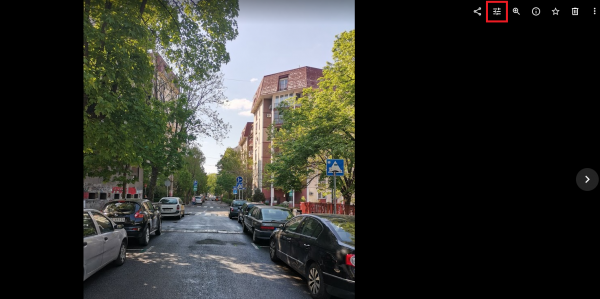
Click on the image you want to edit
Click the Edit icon in the top-right corner of the screen
Available Editing Tools
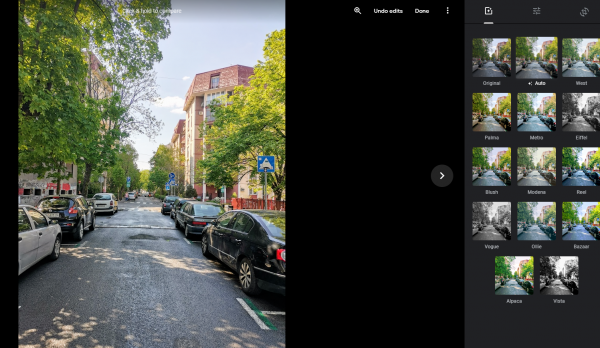
Color Filters and Effects
Google Photos offers a variety of color filters to quickly transform the look of your images. Click on "Color filters" to browse through different presets and apply them with a single click.
Basic Adjustments
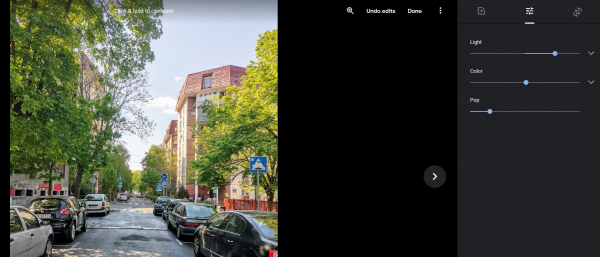
For more precise control, use the basic adjustments panel where you can fine-tune:
Brightness and contrast
Color saturation and warmth
Highlights and shadows
Exposure levels
These tools help you fix lighting issues and enhance your photos without advanced editing knowledge.
Crop and Rotate
Easily change your image's composition with the crop tool.
Select different aspect ratios
Rotate images to correct orientation
Straighten crooked photos
Remove unwanted elements from the edges
AI-Powered Editing Features
Google Photos now includes AI-powered editing capabilities that make complex edits simple.
The redesigned photo editor provides one-tap enhancement suggestions.
AI-powered filters that combine multiple effects
Smart adjustments that analyze your photo and suggest improvements
Saving Your Edits
When you're finished editing, you have two options:
Click "Save copy" to keep both the original and edited versions
Click "Done" to replace the original image with your edits
If you make a mistake while editing, use the "Undo edits" button to revert changes step by step.
Tips for Better Editing
Hold down the mouse button on the photo to compare your edits with the original
Start with the "Enhance" button for quick automatic improvements
Use the crop tool to improve composition before applying filters
Experiment with different filter combinations for unique looks
Google Photos provides all the essential editing tools you need for everyday photo improvements, making it a convenient alternative to downloading separate editing software.