
Your Android phone stores tiny data files called cookies every time you browse the web. These digital breadcrumbs help websites remember your preferences and login details, but they can also track your activity and accumulate over time.
Why You Should Clear Cookies
Privacy Protection
Cookies monitor your online behavior and power targeted advertising. When you visit websites, they create first-party cookies for basic functionality and third-party cookies that track you across different sites. Clearing them regularly helps protect your digital privacy and stops those persistent ads from following you around the web.
Free Up Storage Space
Over time, cookies and cached data can consume significant storage space on your device. If you're running low on storage or experiencing performance issues, clearing your cookies should be one of your first troubleshooting steps. This simple maintenance task can reclaim valuable space without affecting your personal files.
Read more - How to Increase Storage Without a Factory Reset
Performance Boost
Deleting cookies can significantly speed up your browsing experience. As cookies accumulate, they consume memory and storage resources, which can slow down website loading times. Regular clearing reduces the amount of data your browser needs to process, resulting in faster performance.
Fix Website Issues
Old or corrupted cookies often cause websites to behave strangely. You might encounter incorrect page loading, outdated content display, or broken website features. Clearing cookies resolves these issues by removing the problematic data and allowing websites to create fresh cookies.
How to Delete Cookies on Android
Using Google Chrome
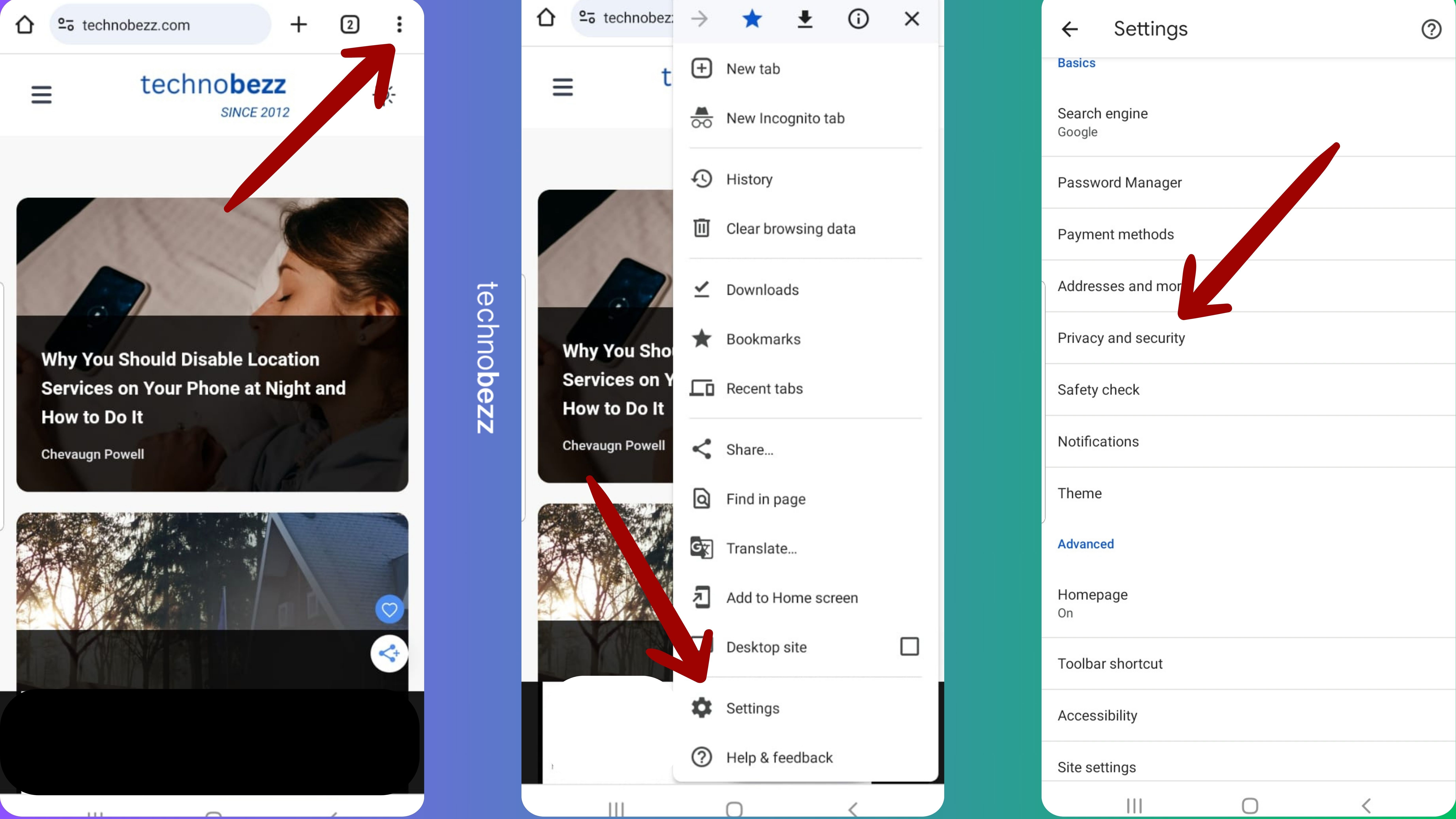
Open the Chrome browser on your Android device. Tap the three dots in the top-right corner, then select "Settings" from the menu. Tap "Privacy and security" and choose "Clear browsing data."
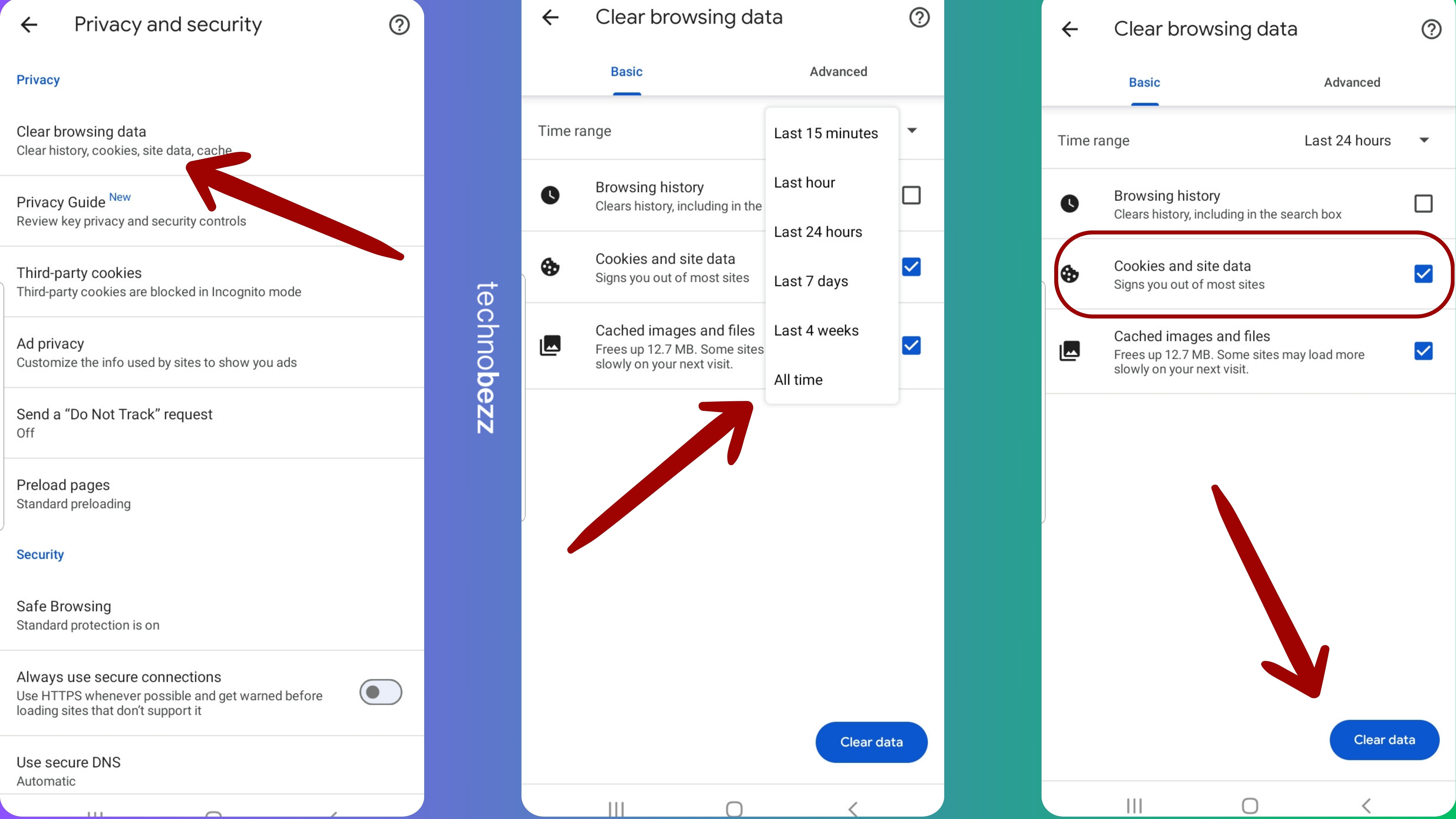
Next, select the time range (choose "All time" to delete all cookies). Make sure "Cookies and site data" is checked, then tap "Clear data" to complete the process.
Using Mozilla Firefox
Launch the Firefox browser on your Android device. Then tap the three lines in the bottom-right or top-right corner, select "Settings" from the menu, and tap "Delete browsing data."
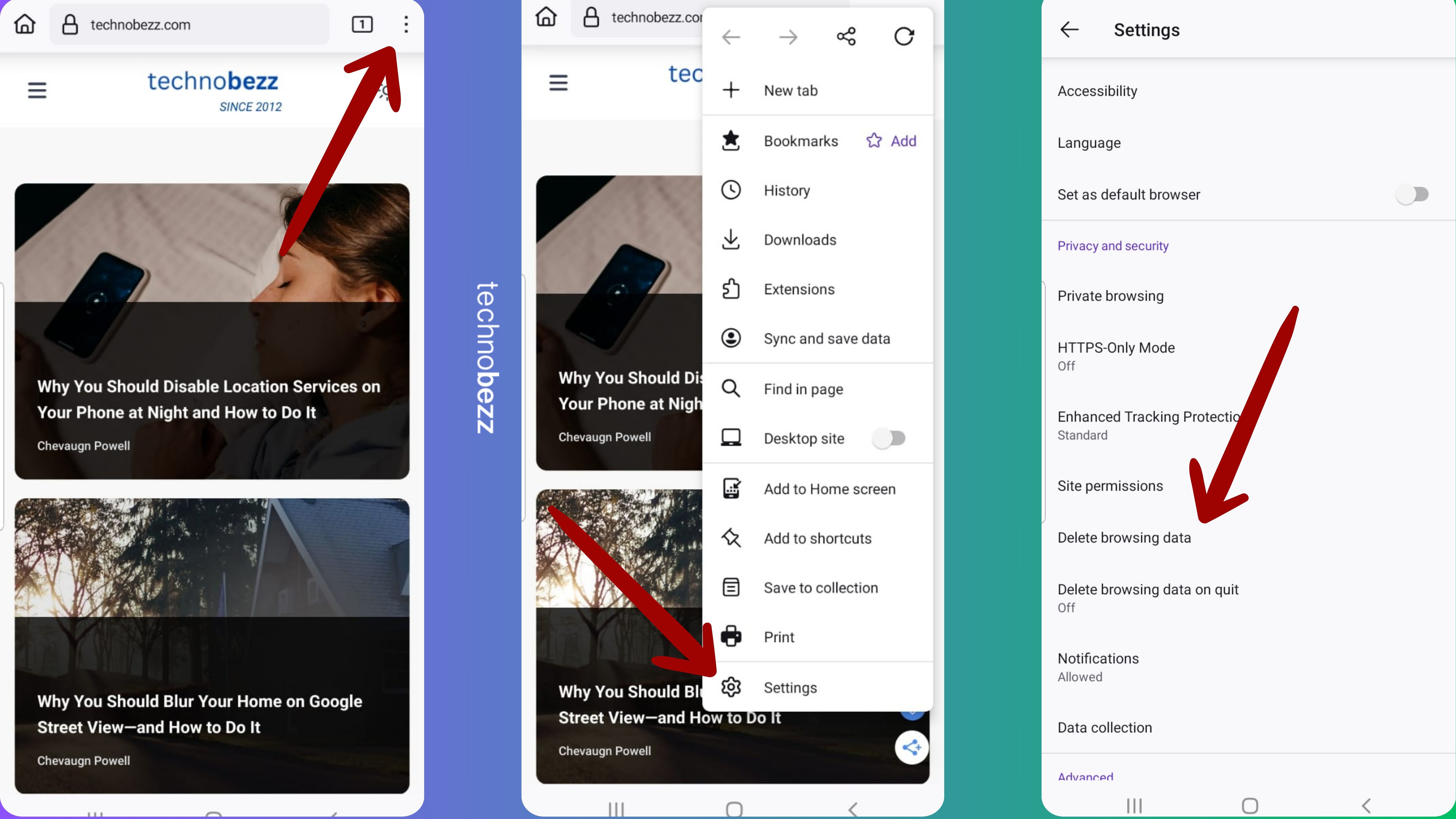
After that, select "Cookies and site data." Tap "Delete browsing data" to remove the cookies.
Using Samsung Internet Browser
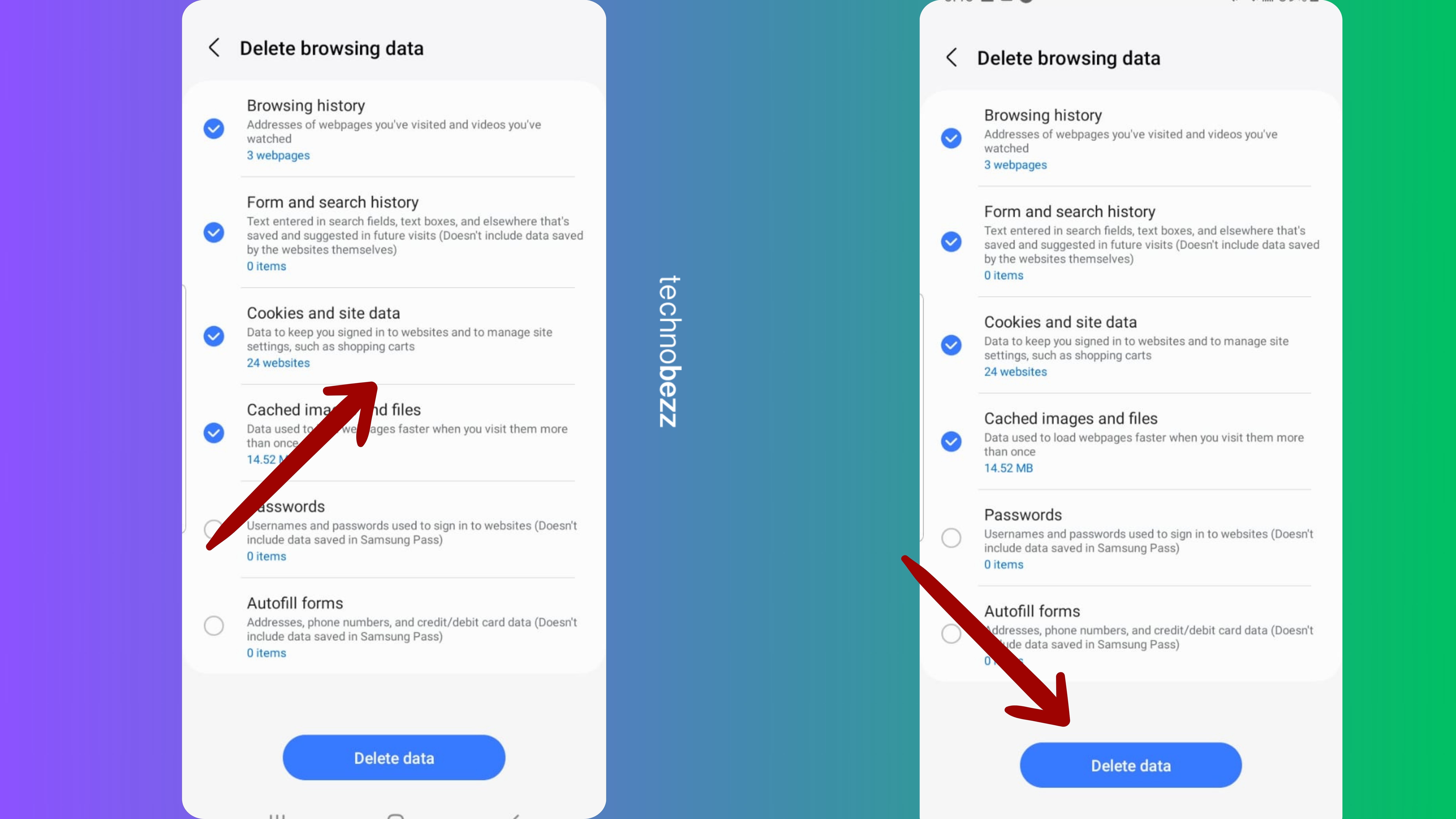
Open the Samsung Internet browser. Tap the three lines in the bottom-right corner, go to "Settings," and tap "Personal browsing data."
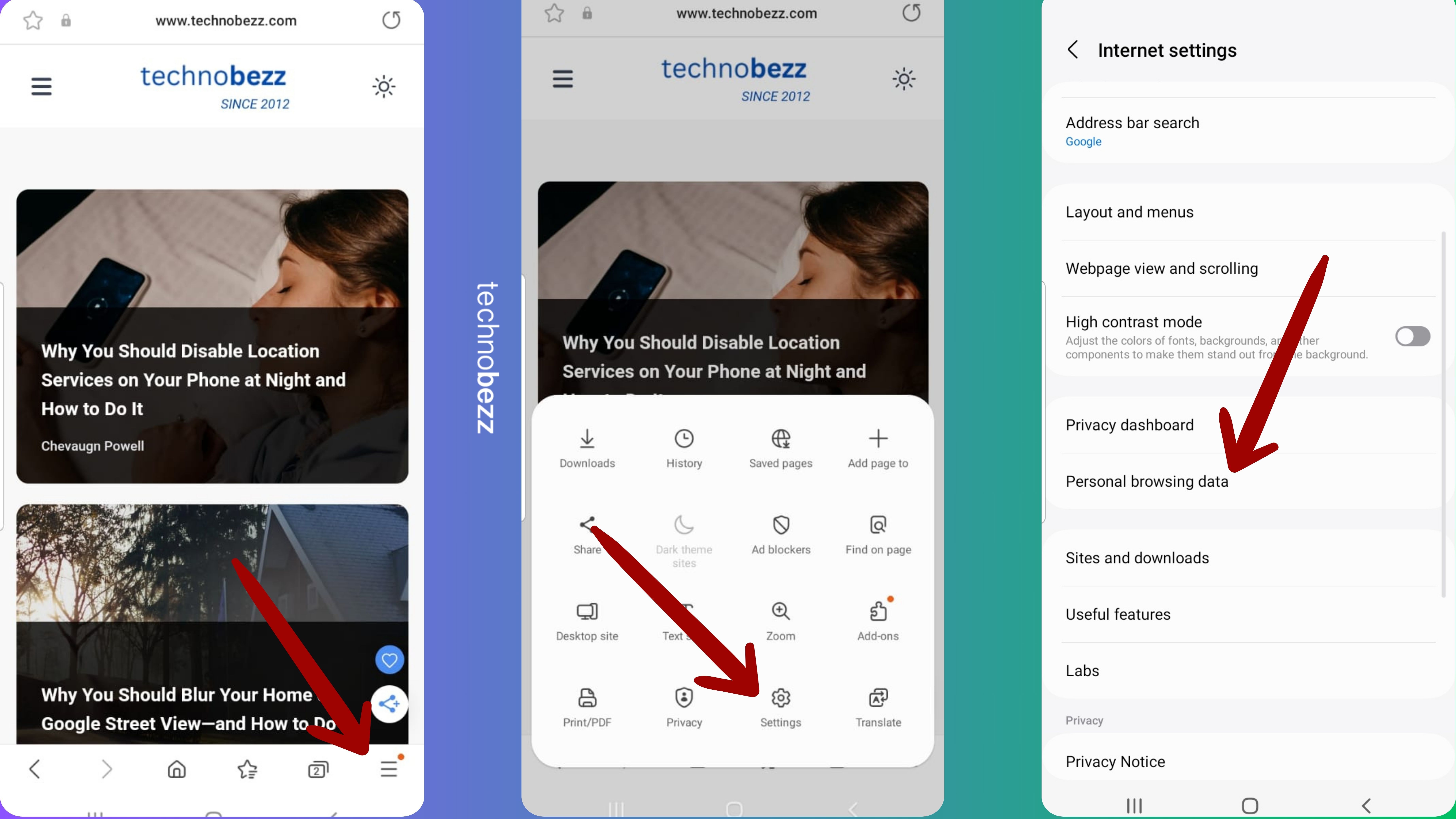
From there, select "Delete browsing data." Ensure "Cookies and site data" is checked, then tap "Delete data" to remove the cookies.
Delete Cookies for Specific Websites
Sometimes you only need to clear cookies for problematic websites rather than wiping everything. Open Chrome and navigate to the problematic website, then tap the three-dot menu and select the information (i) icon.
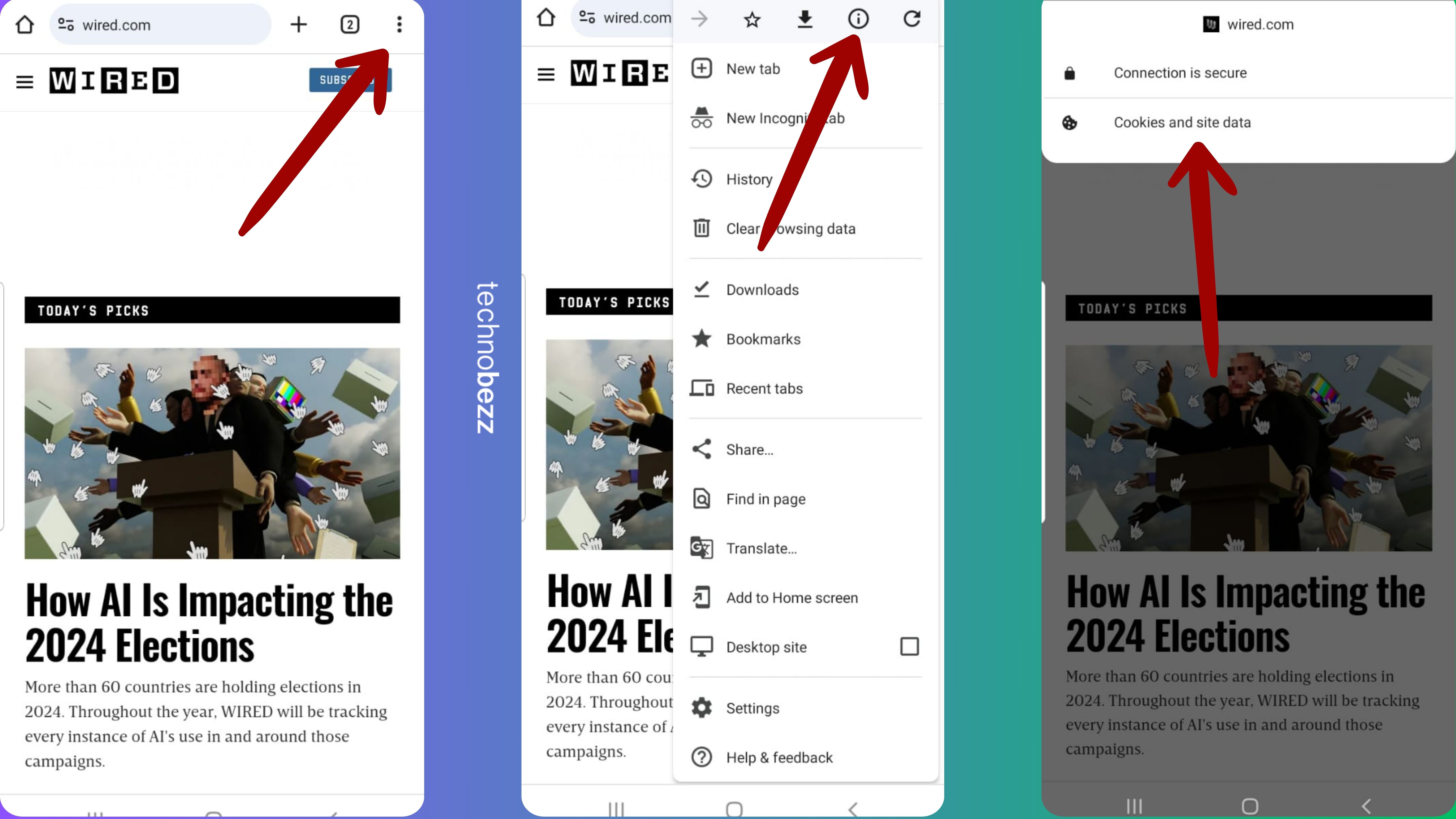
Choose "Cookies and site data." Tap the trash button to delete cookies for this specific website.
Prevent Websites from Storing Cookies
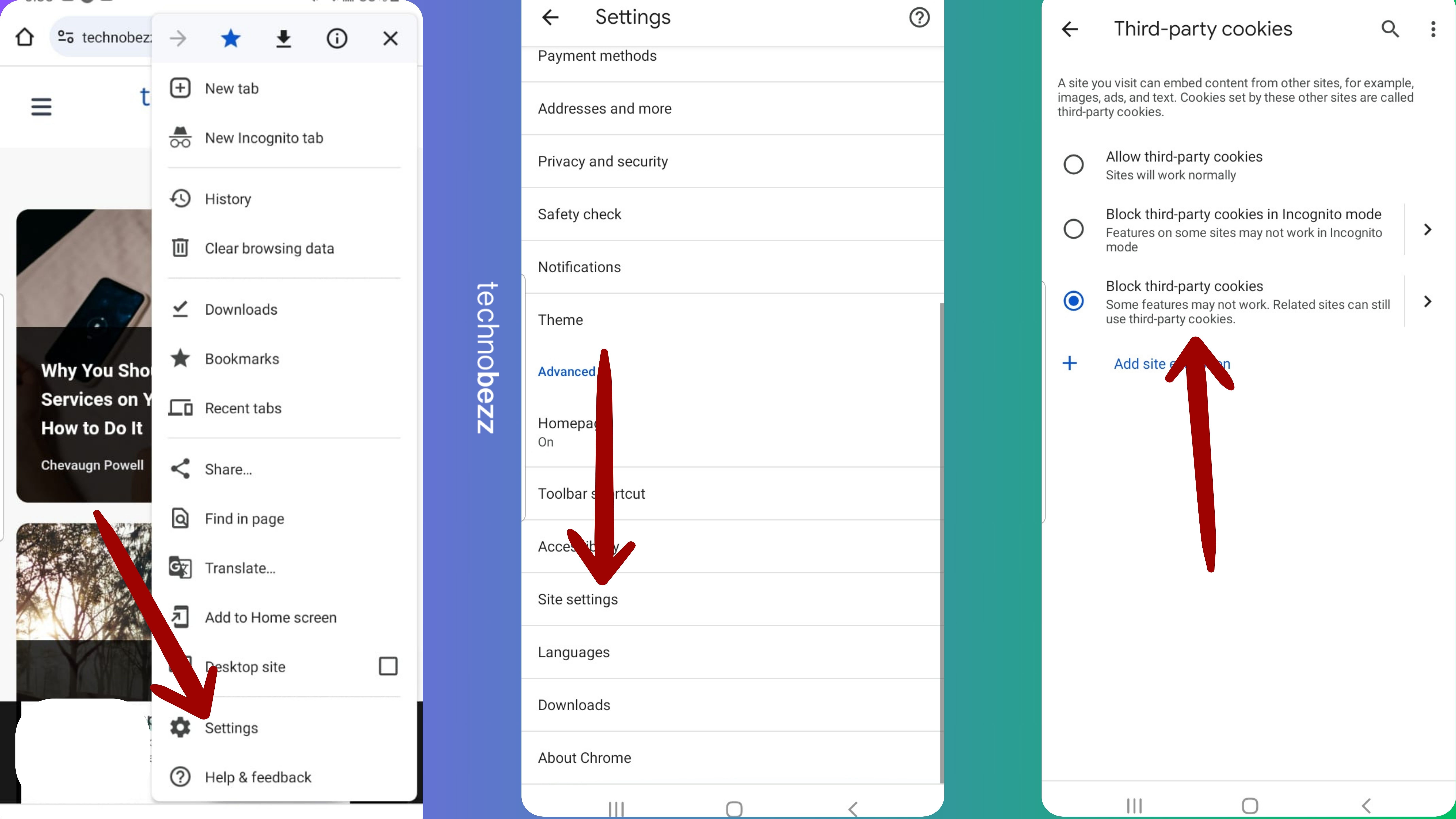
If you want to stop websites from storing cookies automatically, you can block third-party cookies:
- 1.Open Chrome and tap the three-dot menu
- 2.Select "Settings"
- 3.Choose "Site settings"
- 4.Open "Third-party cookies"
- 5.Select "Block third-party cookies"
Keep in mind that blocking all cookies might affect how some websites function, as they rely on cookies for basic features like keeping you logged in or remembering shopping cart items.
Regularly clearing your cookies is a simple maintenance task that improves privacy, frees up storage space, and keeps your browsing experience smooth and efficient.