An email signature saves your name, title, phone number, sign-off, or logo so you do not have to type it into every message. The catch is that each mail app stores signatures in a different place, and mobile apps often have their own setting. Use the steps below for the app you actually send from, then set the default so it appears where you expect it.
1. Start With the Email App You Use Most
Pick the place where you write and send mail most often. A signature saved in one app does not automatically control every other app on your phone, tablet, or computer.
- Gmail on the web controls messages sent from Gmail in a supported desktop browser.
- Outlook has different signature screens for new Outlook, classic Outlook for Windows, Outlook on the web, Outlook for Mac, and Outlook mobile.
- Apple Mail uses Mail settings on Mac, while iPhone and iPad signatures live in the device Settings app.
- Yahoo Mail, Proton Mail, and Thunderbird keep signatures inside their own writing, identity, or account settings.
Keep the signature short. Gmail allows signatures up to 10,000 characters, but a name, role or sign-off, and one or two contact details is easier to read.
2. Create a Signature in Gmail
- 1.Open Gmail in a supported desktop browser.
- 2.Click Settings.
- 3.Choose See all settings.
- 4.Open General.
- 5.Go to Signature.
- 6.Add your signature text in the signature box.
- 7.Use the formatting controls, or add an image if you want one.
- 8.Click Save Changes.
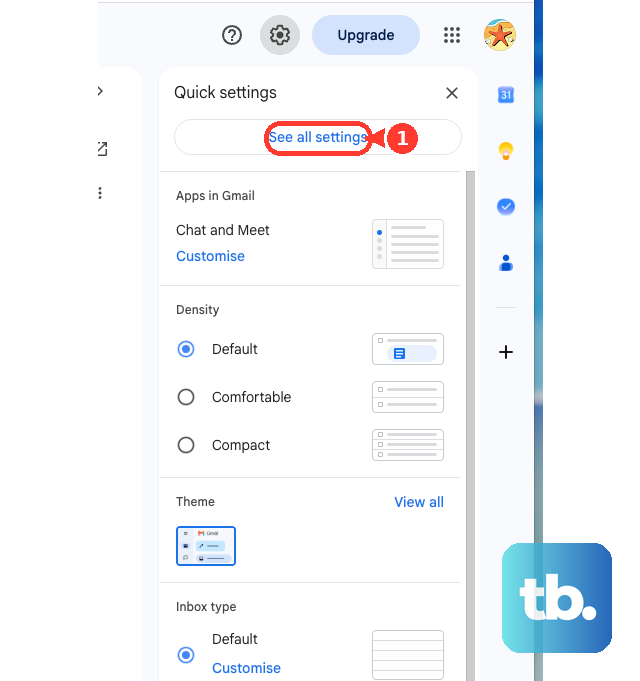
To edit it later, go back to Settings > See all settings > General > Signature, select the signature, make your changes, then click Save Changes. To remove it, select the signature, click Delete, confirm with Delete, then click Save Changes.
If you use more than one Send mail as address, choose the correct address from the drop-down menu above the signature text box. When writing a message, click Insert signature at the bottom of the compose window to insert or switch saved signatures.
3. Set Up a Signature in Outlook
In new Outlook for Windows, Outlook on the web, and Outlook.com, open Settings > Accounts > Signatures. Select the account, click Add signature, name it, type and format the signature, then use the checkboxes to apply it to New messages and Replies/forwards. Leave those boxes blank when you only want to insert the signature manually, then click Save.
To insert one manually in new Outlook, click New mail, open the Message tab, choose Signature, then select the saved signature. To edit it, return to Settings > Accounts > Signatures, choose Edit signature, make the change, then click Save.
Classic Outlook for Windows starts from a message window. Click New Email, then go to Message > Signature > Signatures. Under Select signature to edit, choose New, type a name, click OK, compose the signature under Edit signature, then use Choose default signature to set the E-mail account, New messages, and Replies/forwards options.
On Outlook for Mac, open Outlook > Settings > Signatures. Rename Standard or click Add, type the signature name, use Signature editor to add and format the signature, then click Save. For automatic signatures, open Choose default signature, pick the account, then set New messages and Replies/forwards.
4. Add a Signature in Apple Mail and iCloud Mail
- 1.Open the Mac Mail app.
- 2.Choose Mail > Settings.
- 3.Select Signatures.
- 4.Choose an account in the left column, or choose All Signatures.
- 5.Click the Add button below the middle column.
- 6.Type a signature name.
- 7.Enter the signature text in the right column.
If you created the signature under All Signatures, drag it to an account before using it. Use the Edit and Format menus for formatting or links, drag an image into the signature column when you want a picture, and use the Signature pop-up menu while writing to pick the signature.
For iCloud Mail in a browser, sign in at iCloud.com/mail, click the Settings button at the top of the Mailboxes list, open Settings, then choose Composing. Select Add a signature, type the signature text, and leave it enabled. To stop using it, return to Composing and deselect Add a signature.
5. Change Signatures on Phones and Tablets
On iPhone or iPad Mail, open Settings > Apps > Mail > Signature. Tap the text field, edit the signature, and use Per Account when you want different signatures for different mail accounts. Apple says Mail signatures on iPhone and iPad use text only.
In the Gmail app for Android, open Menu > Settings, choose the Google Account, tap Mobile signature, enter the signature text, then tap OK. Google says this signature appears only on mail sent from the Gmail app; without a mobile signature, new messages use the computer or web signature.
In the Gmail app for iPhone and iPad, open Menu > Settings, then under Compose and Reply, tap Signature settings. Turn on Mobile Signature, add or edit the signature, then tap Back to save.
In Outlook for iOS or Android, open Settings, then under Mail, tap Signature. Enter one signature, or turn on Per Account Signature and fill in separate signatures for each account.
In Proton Mail for Android or iOS, open Menu > Settings > Signature > Mobile signature, edit the message, then use the signature toggle to enable or disable it. On a Free account you cannot edit or disable the default mobile signature; that requires a paid Proton Mail plan, though you can still create a regular customized signature that appears in addition.
6. Use Yahoo Proton Mail Thunderbird or Samsung Email
In New Yahoo Mail, click the More options icon, then open Settings > Writing email. Use the toggle for the email address, then enter or edit the signature in the text box.
For Proton Mail on the web, sign in to account.proton.me and open Settings > All settings > Identity and addresses > Display name and signature. Add the signature, use the toolbar under the signature field to format it, then click Update. For multiple addresses, click Email address and choose the address first. Proton notes that recipients must have remote content loading enabled to see images in signatures.
Thunderbird stores signatures per account. Open the Menu button, or use Tools or Edit from the menu bar, then choose Account Settings. Select the account and type your signature in Signature text. For HTML, check Use HTML and enter the markup. For a file-based signature, check Attach the signature from a file instead, click Choose..., and select a text or HTML signature file.
In Samsung Email on Galaxy phones, open Email > Menu > Settings, choose the email account, then open Signature to edit or disable it.
7. Check Managed Work Account Signatures
Work and school accounts can add a footer, disclaimer, or signature after your message leaves your app. In Microsoft 365 and Exchange Online, admins can append organization-wide text to outgoing messages through mail flow rules.
Use your email app’s normal signature screen for your personal details. For required company wording, ask the Microsoft 365 or Exchange admin who manages the account; that footer does not come from your personal signature setting.
Frequently Asked Questions
Can I have different signatures for different email accounts?
Yes. The supplied instructions include account or address-based signature options for Gmail, Outlook, Apple Mail, iPhone and iPad Mail, Proton Mail, Yahoo Mail, Thunderbird, and Outlook mobile.
Why does my phone send a different signature than my computer?
Some apps keep separate mobile signatures. Gmail mobile signatures apply only to mail sent from the Gmail app, and iPhone or iPad Mail uses the signature saved in the device Settings app.
Can I add a logo or image to my email signature?
Yes in supported desktop and web apps. Gmail on the web, classic Outlook for Windows, Outlook for Mac, Apple Mail on Mac, and Proton Mail support images or formatted signature content. Apple says iPhone and iPad Mail signatures use text only.
How do I remove an email signature?
Open the same signature setting you used to create it, then delete it, disable its toggle, or deselect the signature option. Gmail, Yahoo Mail, iCloud Mail, Proton Mail mobile, and AOL Desktop Gold all document removal or disabling paths.