You unboxed a fresh pair of AirPods, popped them next to your laptop, and now you want them piping audio straight from your Windows 11 desktop. Windows treats AirPods as a standard Bluetooth audio device, so the same pairing process that works for any wireless headset works here too. The catch is that a few settings have to line up first, and when sound refuses to come through, the fix is usually buried one or two menus deep. This guide walks you through pairing, picking your AirPods as the output, and clearing up the most common hangups using the Bluetooth and audio steps Microsoft documents for Windows 10 and Windows 11.
A browser based left and right audio test makes this easy to confirm. If both sides play test tones correctly there, the headphones are fine and the problem is in the device or app.
Turn Bluetooth On Before You Reach for the Case
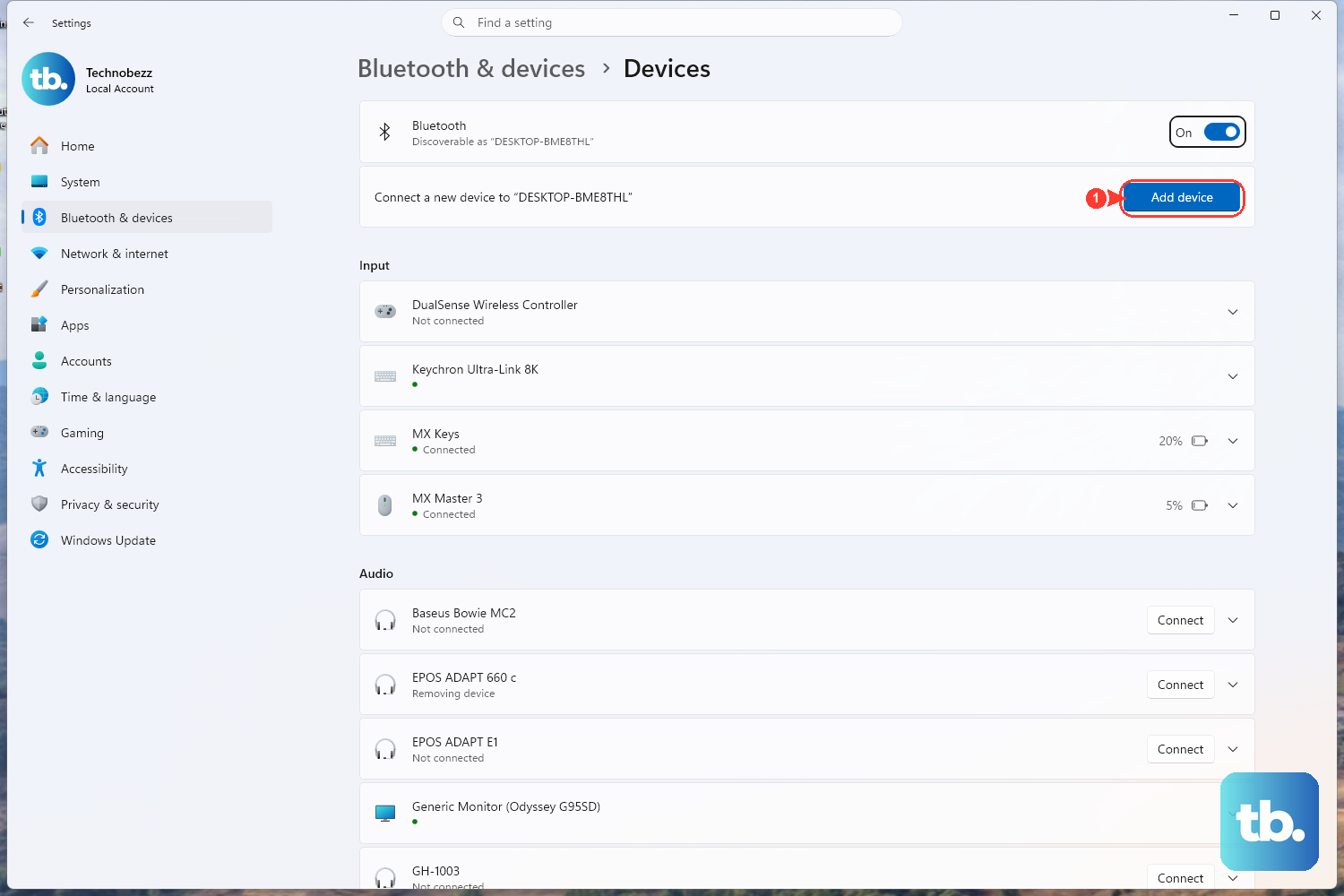
Pairing fails most often because Bluetooth is simply switched off, so confirm it is enabled before anything else. On Windows 11, open Start > Settings > Bluetooth & devices and make sure Bluetooth is turned On. You can also select the Network, Sound, or Battery icons on the taskbar and toggle the Bluetooth quick setting.
If you are on Windows 10, the path is slightly different. Go to Start > Settings > Devices > Bluetooth & other devices and switch Bluetooth On, or use the Bluetooth tile in the action center. Once that toggle is on, your PC is ready to discover nearby devices.
Put Your AirPods in Pairing Mode and Add Them
Your AirPods will not show up until they are discoverable, which Windows refers to as pairing mode. With the buds in their case and the lid open, hold the setup button on the back of the case until the status light starts blinking, which makes the device discoverable so Windows can find it.
On Windows 11, select the Network, Sound, or Battery icon on the taskbar, then select the Manage Bluetooth devices chevron on the Bluetooth quick setting. Under New devices, select your AirPods and then select Done. The connection completes in a few seconds.
- 1.On Windows 10, open Start > Settings > Devices > Bluetooth & other devices.
- 2.Select Add Bluetooth or other device, then choose Bluetooth.
- 3.Select your AirPods from the list when they appear.
- 4.Select Done to finish the pairing.
The Swift Pair Shortcut for Supported Hardware
Some Bluetooth devices support Swift Pair, which skips the manual menu hunting entirely. If your hardware supports it, put the device in pairing mode and watch for a notification that appears when a supported device is nearby. This works on both Windows 11 and Windows 10.
When that nearby-device notification pops up, select Connect and confirm if you are prompted. It is the fastest path to a working connection when the feature is available, so keep an eye on the corner of your screen the moment you open the case.
Set Your AirPods as the Audio Output
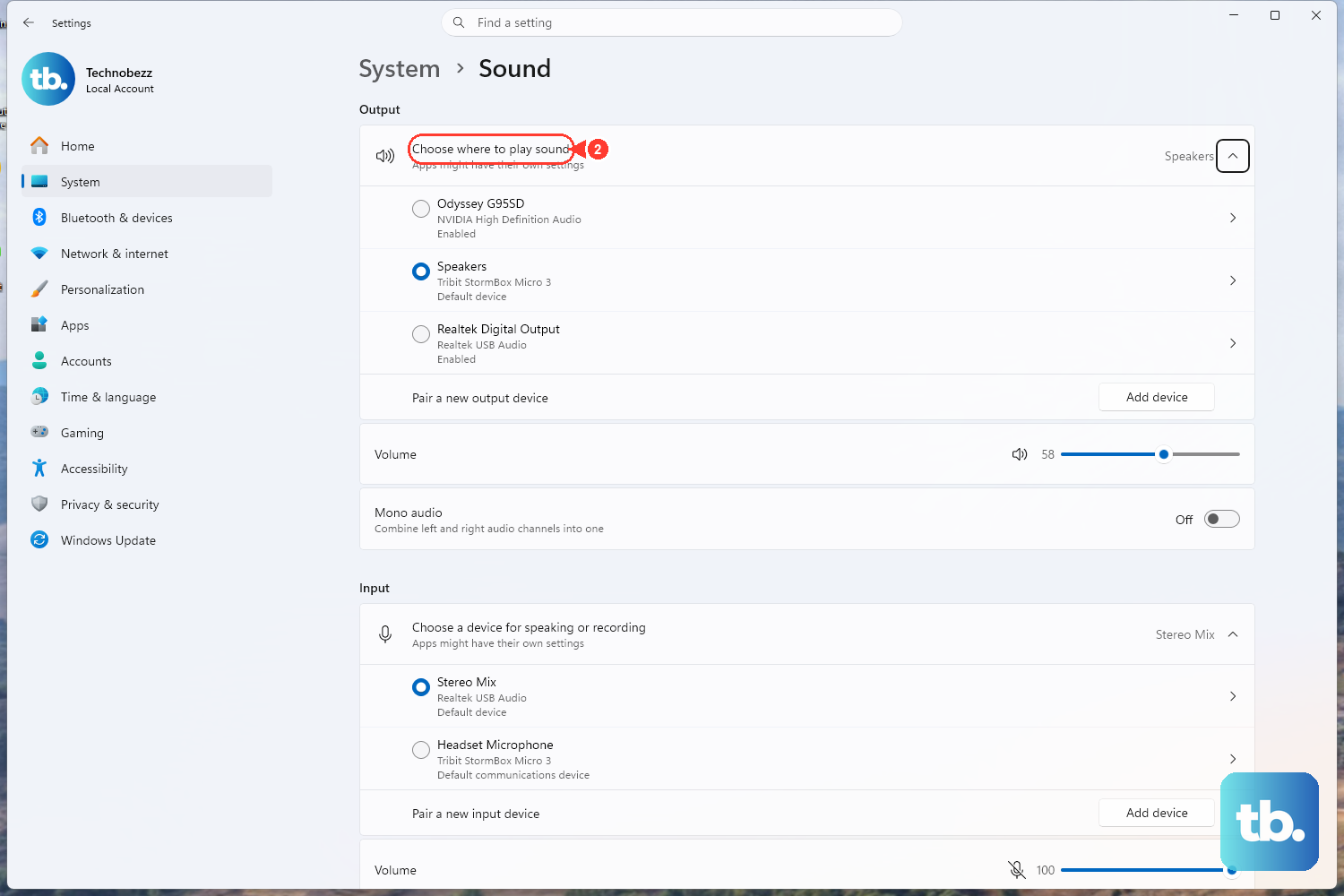
A successful pairing does not guarantee that sound will route to your AirPods, because Windows may still be playing through your speakers. You have to point the output at the right device manually. On Windows 11, open Start > Settings > System > Sound, and in the Output section select the audio device you are using.
On Windows 10, the same setting lives under Start > Settings > System > Sound; below Choose your output device, select your Bluetooth device. For a quicker switch on either version, select the speaker or Sound icon on the taskbar and pick the correct device from the list. This single step resolves a surprising number of "they connected but I hear nothing" complaints.
When the Connection Drops or Refuses to Stick
If your AirPods pair but keep dropping, or will not connect at all, Windows includes a built-in Bluetooth troubleshooter that scans for problems automatically. On Windows 11, the Bluetooth troubleshooter runs inside the Get Help app; open it from the "Run the troubleshooter in Get Help" link on the Fix Bluetooth problems support page. It walks through the diagnostics and applies fixes where it can.
On Windows 10, the troubleshooter lives in Settings instead. Go to Start > Settings > Update & Security > Troubleshoot, then select Bluetooth and select Run the troubleshooter. No download is needed, because the tool ships with Windows.
No Sound Coming Through? Run the Audio Troubleshooter
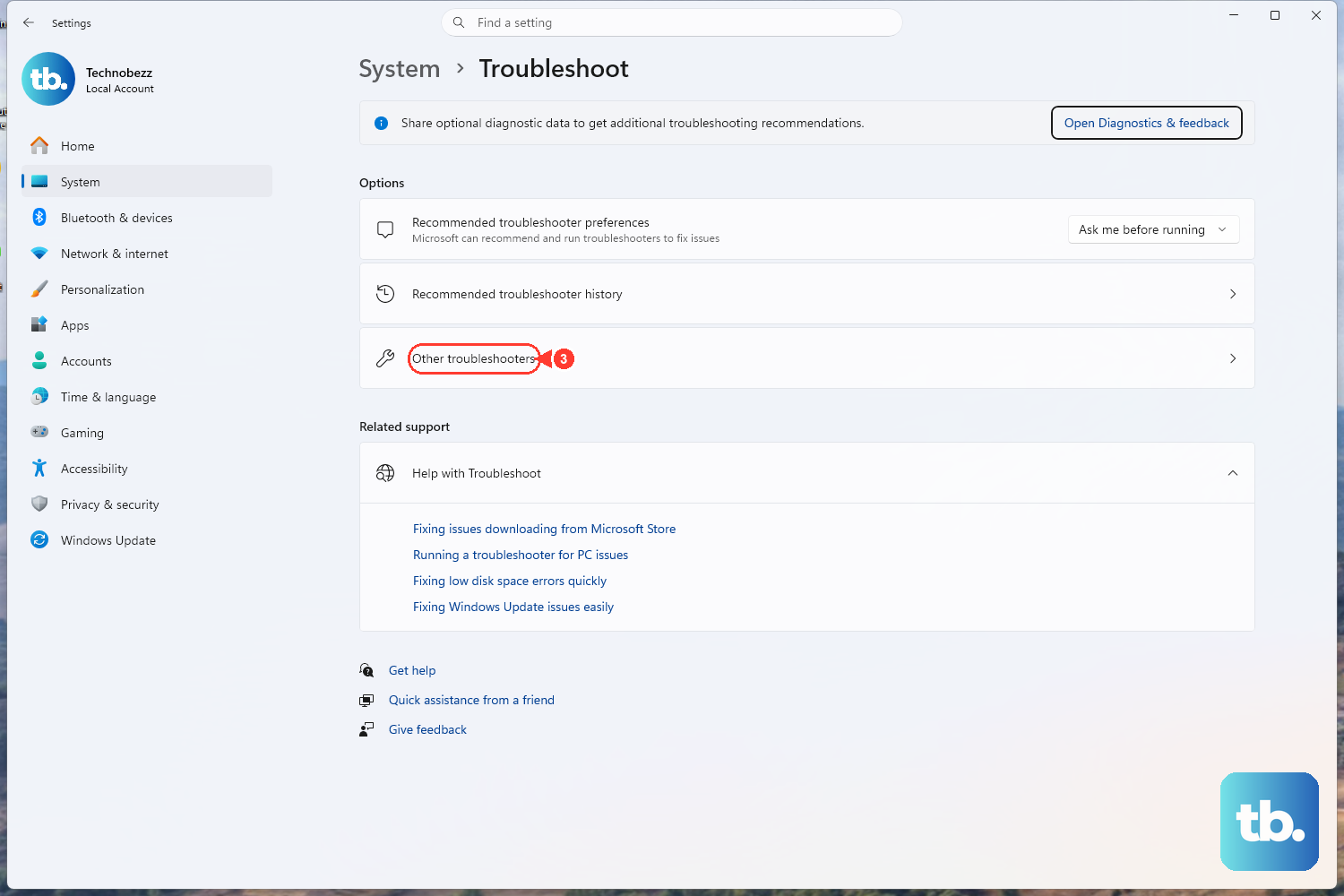
When the AirPods are clearly connected but stay silent, the audio side may be at fault rather than Bluetooth. Windows has a separate troubleshooter for exactly this. On Windows 11, navigate to Start > Settings > System > Troubleshoot > Other troubleshooters, find the Audio entry, and select Run.
On Windows 10, go to Start > Settings > Update & Security > Troubleshoot, select Playing audio, then select Run the troubleshooter. Like the Bluetooth tool, this is built into Windows and requires nothing extra.
Forget the Device and Pair It Fresh
A stale pairing record can cause persistent connection trouble, and removing the device clears that slate. On Windows 11, open Start > Settings > Bluetooth & devices > Devices, select More options (the three dots) for your AirPods, then select Remove device and confirm with Yes. Once removed, select Add device and pair them again from scratch.
On Windows 10, head to Start > Settings > Devices > Bluetooth & other devices, select the device, choose Remove device, and confirm Yes. Then re-add it with Add Bluetooth or other device. A clean re-pair often resolves issues that the troubleshooters cannot.
Restart the Windows Audio Services
If audio is still misbehaving, the underlying Windows audio services may need a restart. In the search box on the taskbar, type services and open the Services app, or press Windows key + R, type services.msc, then click OK. This opens the Services console where the relevant background services are listed.
Inside the console, select each of the following in turn, right-click it, and select Restart: Windows Audio, Windows Audio Endpoint Builder, and Remote Procedure Call (RPC). This applies to both Windows 10 and Windows 11. Restarting all three together gives the audio stack a clean start.
Give the Bluetooth Support Service a Reset
Bluetooth disconnect problems frequently trace back to a single background service that has stalled. Press Windows key + R, type services.msc and click OK to open the Services console. Scroll down to Bluetooth Support Service, right-click it, and select Restart.
This step applies to both Windows 10 and Windows 11. If your AirPods were dropping the connection at random, restarting this service is one of the most direct fixes Microsoft documents.
Update or Reinstall the Audio Driver in Device Manager

When sound problems survive every troubleshooter and service restart, an outdated audio driver may be the culprit. In the taskbar search box, type device manager and open it. Expand Sound, video and game controllers, right-click your audio device, and select Update driver, then Search automatically for drivers.
If updating does not help, you can reinstall the driver. Right-click the device, select Uninstall device, then restart the PC so Windows reinstalls it automatically. This works on both Windows 10 and Windows 11. Save any open work before you restart so nothing is lost during the reboot.
Update, Roll Back, or Reinstall the Bluetooth Driver
The Bluetooth adapter has its own driver, and refreshing it can clear connection faults the audio driver cannot. Open Device Manager and expand Bluetooth. To update, right-click your Bluetooth adapter, select Update driver, then Search automatically for drivers.
If a recent driver change caused the problem, you can reverse it. Right-click the adapter, select Properties, open the Driver tab, and select Roll Back Driver if the option is available. To reinstall entirely, right-click the adapter, select Uninstall device, then restart the PC. All of these apply to Windows 10 and Windows 11, and a reboot lets Windows reload the adapter cleanly. Save any open work before restarting so nothing is lost.
Frequently Asked Questions
Why do my AirPods connect but play no sound?
This usually means Windows is still routing audio to another device. Open Settings > System > Sound and select your Bluetooth device under the Output section, or pick it from the speaker icon on the taskbar. If that does not fix it, run the built-in audio troubleshooter from the Troubleshoot menu.
What should I do if my AirPods keep disconnecting?
Start by restarting the Bluetooth Support Service from the Services console (press Windows key + R, type services.msc, then restart that service). If the dropping continues, remove the device and pair it fresh, and consider updating or reinstalling the Bluetooth driver in Device Manager.
How do I open the Bluetooth troubleshooter on Windows 11?
On Windows 11 the Bluetooth troubleshooter runs inside the Get Help app. Open it from the "Run the troubleshooter in Get Help" link on the Fix Bluetooth problems support page. On Windows 10 it is found under Start > Settings > Update & Security > Troubleshoot > Bluetooth.
Do I need to download anything to fix Bluetooth or audio issues?
No. Both the Bluetooth troubleshooter and the audio troubleshooter are built into Windows on Windows 10 and Windows 11, so there is nothing extra to install. The same is true for the Services console and Device Manager, which are part of the operating system.
How do I reinstall a driver without losing my AirPods connection settings?
In Device Manager, right-click the device and select Uninstall device, then restart the PC so Windows reinstalls the driver automatically. After the restart you will need to confirm your AirPods are selected as the audio output again, and in some cases re-pair them from the Bluetooth settings.











