
Your Samsung Galaxy Tab S11 Ultra stores temporary files and cached data from every app you use. Over time, that buildup can slow things down or eat into your storage. Clearing the cache is one of the quickest ways to get things running smoothly again. Here's how to do it on your tablet.
Clear App Cache One at a Time
Head to Settings > Apps. Tap any app you want to clean up, then tap Storage and select Clear cache. This wipes temporary files without touching your login info or personal data inside the app.
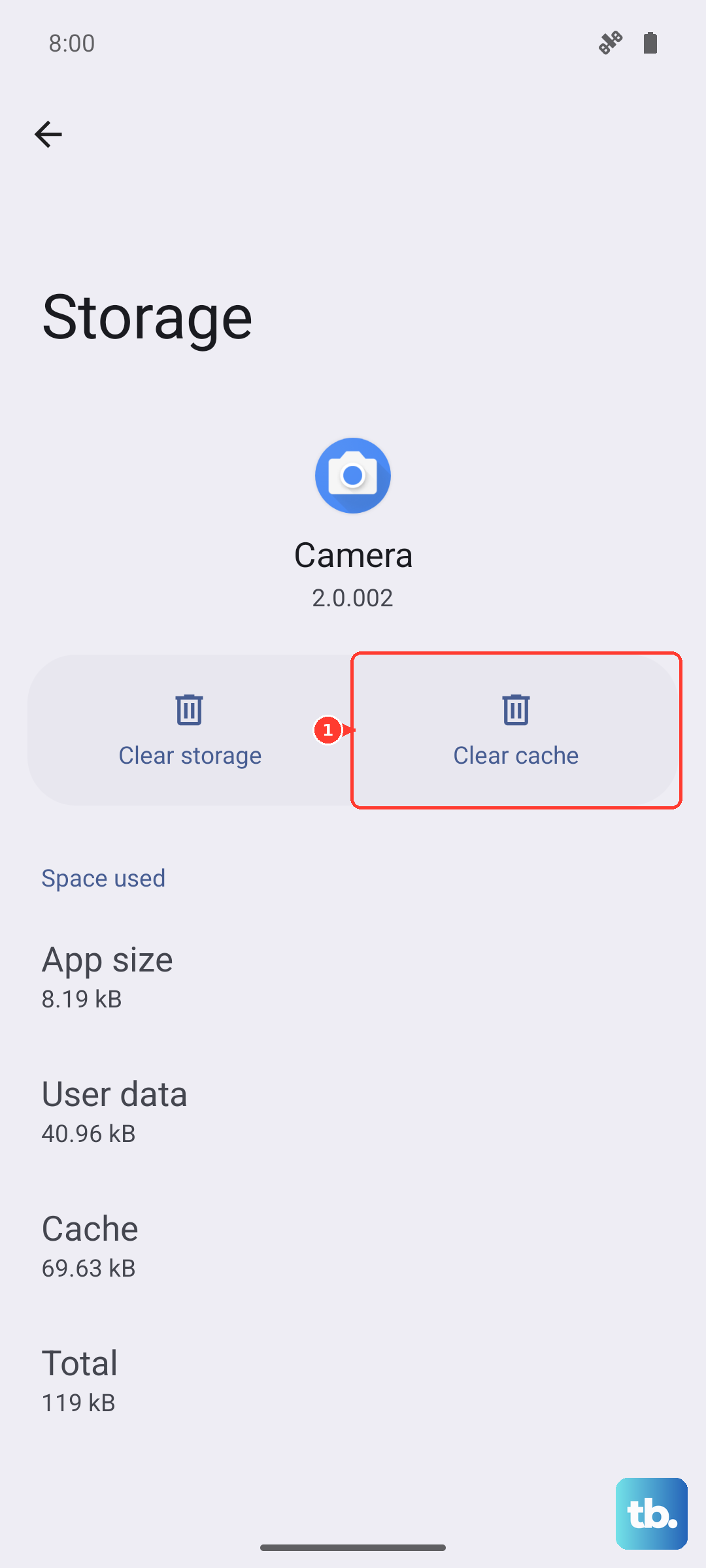
Focus on the apps that tend to hoard the most data: browsers, streaming services, social media, and games. You'll see the biggest space gains there.
Clean All App Cache at Once
Samsung's Device Care tool handles this for you. Go to Settings > Battery and device care > Storage. Tap Clean now and it'll automatically clear cached data across all apps. This is the fastest way to reclaim space without going through each app individually.
You can also tap Apps in that same screen to see which ones are using the most storage and manage them from there.
Wipe the System Cache
Sometimes the system-level cache gets corrupted after a software update or heavy use, causing lag or weird glitches. Clearing it won't touch your personal files or settings.
Turn off the tablet. Press and hold the Power button and Volume Down button simultaneously for 10 to 15 seconds until the device restarts. Wait for it to boot back up fully. In some cases, this alone can clear temporary system caches without needing to enter recovery mode.
Clear Browser Cache
If you use Samsung Internet, tap the menu (three lines), then go to Settings > Personal browsing data > Delete browsing data. Check Cached images and files and tap Delete data.
For Chrome, open the app, tap the three dots, go to Settings > Privacy and security > Clear browsing data, and select Cached images and files before hitting Clear data.
Tidy Up Messages and Downloads
Text conversations with photos, videos, and voice notes can hog a surprising amount of space. Open the Messages app, tap the menu, and go to Settings > More settings > Delete old messages to automatically clear out aged threads.
Your Downloads folder is another hidden space-eater. Open the My Files app, go to Downloads, and purge anything you no longer need.
Run an Optimization Weekly
Make it a habit. Go to Settings > Battery and device care and tap Optimize now. This closes background apps, clears cached files, and checks for any performance issues in one go. A quick weekly run keeps the tablet feeling fresh.
Free Up Storage Automatically
In Settings > Battery and device care > Storage, look for the Auto delete option if it's available. You can also use Samsung Cloud to back up photos and videos, then remove the local copies while keeping thumbnail previews on your tablet.
When to Use a Force Restart
If your Tab S11 Ultra feels sluggish even after clearing app caches, try a force restart. Press and hold both the Power button and Volume Down button together for 10 to 15 seconds until the screen goes black and the Samsung logo reappears. This clears the system's temporary state without wiping any data.
Simply restarting your tablet with a normal power menu from time to time also helps. A quick reboot once a week is all it takes to keep things from bogging down.











