
Your Samsung Galaxy Tab S10+ stores temporary files and cached data that builds up over time. When storage gets low or apps start to feel sluggish, clearing the cache can free up space and fix performance issues. Here's how to do it across different parts of your tablet.
Clear App Cache Individually
Go to Settings > Apps. You'll see a list of all your installed applications. Tap on any app to open its info page, then select Storage. On this screen, tap Clear cache to remove its temporary files.
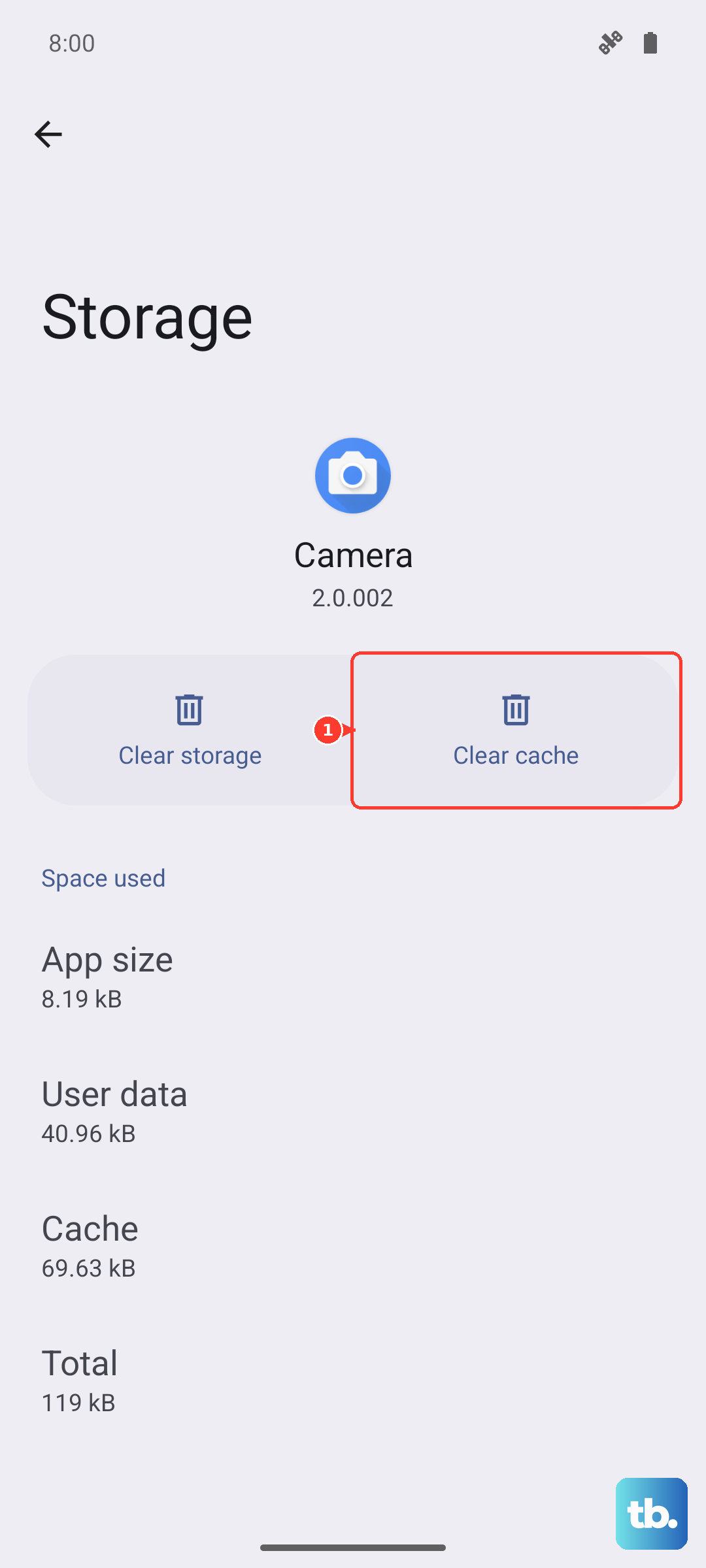
This process doesn't delete your login info or personal data within the app. I'd focus on apps that tend to use the most storage, like social media, browsers, streaming services, and large games.
Clear All App Cache with Device Care
Samsung's built-in optimization tool is the quickest method. Swipe down from the top of your screen and tap the Device Care icon (it looks like a speedometer), or go to Settings > Battery and device care. Tap Storage, then tap Clean now.
This automatically clears cached data and temporary files across all your apps in one go. You can also tap Apps from the Storage menu to see which ones are using the most space and manage them individually.
Clear Browser Cache
If you use Samsung Internet, open the browser and tap the menu (three horizontal lines). Go to Settings > Personal browsing data > Delete browsing data. Select Cached images and files and tap Delete data.
For Google Chrome users, open Chrome, tap the three dots in the top right, go to Settings > Privacy and security > Clear browsing data. Choose your time range and make sure "Cached images and files" is checked before clearing.
Wipe the System Cache Partition
This clears system-level cache that can cause lag or glitches, especially after a software update. First, turn off your Galaxy Tab S10+. Press and hold the Volume Up button and the Power button simultaneously.
When you see the Samsung logo, release both buttons. You'll boot into the Android Recovery screen. Use the Volume Down button to navigate to Wipe cache partition and press the Power button to select it. Confirm the action, then select Reboot system now.
Manage Messages and Media Storage
Conversations filled with photos and videos can consume gigabytes. Open your Messages app, tap the three dots for the menu, and go to Settings. Look for options like "Delete old messages" to automate cleanup.
You can also go through conversations manually and delete media-heavy threads. For a broader clean-up, use the Gallery app's "Manage storage" feature to find and remove duplicate or blurry photos.
Use Device Care for Regular Maintenance
Make it a habit to open Settings > Battery and device care and tap Optimize now once a week. This runs a full cleanup, closes background apps, clears cached files, and scans for security issues.
Keeping this routine helps maintain smooth performance, especially for the powerful Dimensity 9300+ chipset which handles heavy workloads.
Free Up Storage Automatically
Within Device Care, go to Storage and look for the Advanced section. Here, you can enable features like "Remove duplicate photos" or "Delete unused apps." Samsung Cloud can also be set up to automatically back up and offload photos to free up local space.
Since the Tab S10+ doesn't include a charger in the box, managing storage well means you won't need to constantly offload files to make room for new ones.
Restart Your Tablet
A simple restart clears temporary system caches and frees up RAM. Hold the Power button until the menu appears, then tap Restart. Doing this weekly is a good practice for any device.
If the tablet is unresponsive, perform a force restart by pressing and holding the Volume Down and Power button together for over 10 seconds until the screen goes black and it reboots.