
Your Samsung Galaxy S25 Edge builds up cached data over time in apps, browsers, and the system itself. When things feel sluggish or you're short on storage, clearing that cache can help. Here's how to wipe cached data from every corner of your phone.
Wipe the System Cache Partition
This clears the system-level cache without deleting your photos, messages, or any personal data. Start by turning off your phone completely. Press and hold Volume Up + Side (power) button until the Samsung logo appears, then release both buttons to enter recovery mode. Use the volume buttons to highlight Wipe cache partition and press Side to confirm. Reboot when it finishes.
This is especially useful after a software update. I've seen it fix lag, random freezes, and weird glitchy behavior that nothing else seems to touch.
Clear Individual App Caches
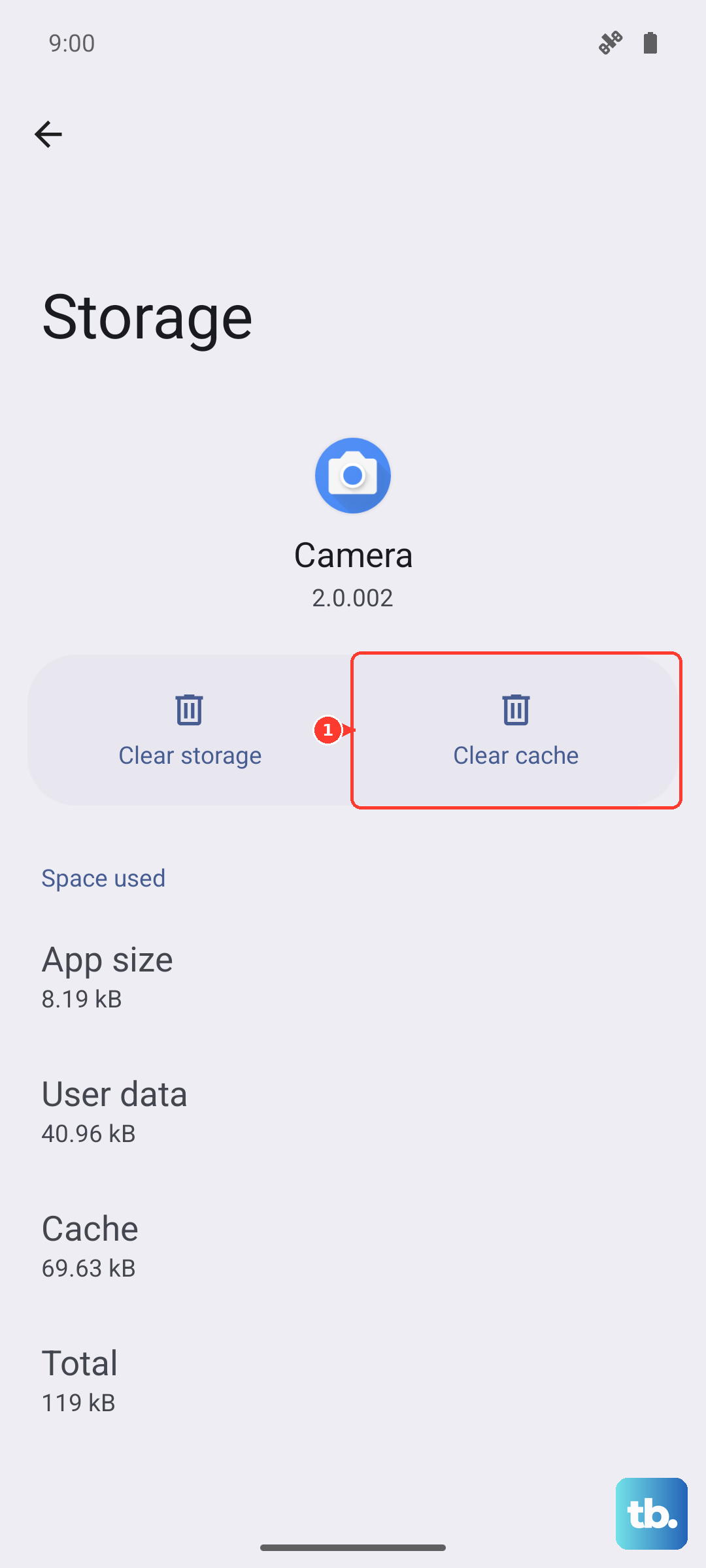
Go to Settings > Apps and tap on any app that's acting up or using a lot of storage. Tap Storage, then Clear cache. This zaps temporary files without logging you out or wiping your in-app data. Focus on heavy-hitters like social media apps, streaming services, and games, those tend to stash the biggest caches.
Use Device Care for a Quick Cleanup
Samsung's built-in Device Care tool handles multiple apps at once. Open Settings > Battery and device care > Storage and tap Clean now. This automatically clears cached data and temporary files across your phone in one go. You can also tap Apps to see which ones are hogging the most space and manage them individually.
Clear Samsung Internet and Chrome Caches
If your browser feels slow or loads stale pages, clear its cache. In Samsung Internet, tap the menu icon (three lines), go to Settings > Personal browsing data > Delete browsing data, check Cached images and files, and tap Delete data. In Chrome, open Menu > Settings > Privacy and security > Clear browsing data and pick Cached images and files.
Restart Your Phone to Clear Temporary Caches
A restart clears the system cache stored in RAM and resets background processes. If your phone is unresponsive, force restart it by pressing and holding Volume Down + Side simultaneously for about 10 seconds until the Samsung logo appears. Make this a weekly habit to keep your S25 Edge feeling snappy.
Free Up Storage Automatically
Go to Settings > Battery and device care > Storage and look for auto-delete options to remove old cached data regularly. You can also use Samsung Cloud to back up photos and videos while keeping thumbnails on your phone. That way you get the storage back without losing your memories.











