
Your Motorola Edge 40 stores cached data to help apps load faster, but over time this temporary buildup can slow things down or eat into your storage. Clearing it out is a quick way to refresh your phone's performance without losing any personal information.
Clear App Cache for Specific Apps
Head to your Settings and select Apps. You'll see a list of all your installed applications. Tap on any app, like Chrome or Instagram, and then select Storage & cache. From there, just tap Clear cache.
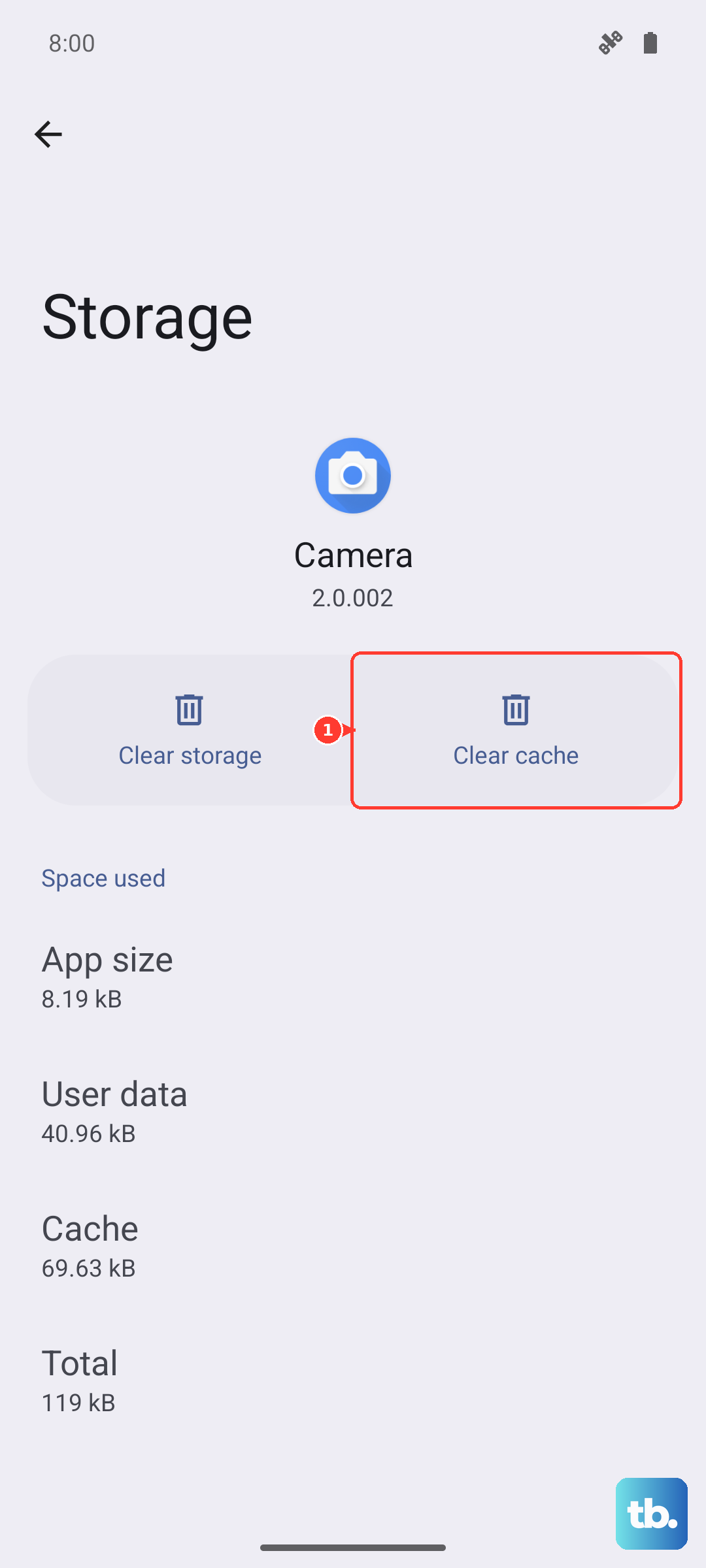
This only removes temporary files the app created. Your login info, saved preferences, and downloaded content within the app will stay right where you left them. I'd focus on social media, streaming services, and your web browser first, as those tend to build up the largest caches.
Use the Built-in Storage Cleaner
Motorola includes a helpful tool right in the settings. Open Settings and go to Storage. Look for an option labeled Free up space or Clean. Tapping this will scan your phone for junk files, including cached data from all apps, and let you delete them in one go.
It's the fastest method to clear a broad swath of cached data without going app-by-app. This feature can vary slightly depending on your specific software version, but it's usually front and center in the storage menu.
Clear Your Chrome Browser Cache
If you use Chrome, its separate cache can get quite large. Open the Chrome app, tap the three dots in the top-right corner for the menu, and go to Settings > Privacy and security > Clear browsing data.
Under the Basic tab, make sure Cached images and files is selected. You can choose a time range, but "All time" clears the most. Tap Clear data to finish. Remember, this won't log you out of websites unless you also clear cookies and site data.
Wipe the System Cache Partition
For deeper system-level cached data, you can wipe the cache partition. This is a great step if your phone feels laggy after a software update. First, power your Motorola Edge 40 off completely.
Press and hold the Volume Down button and the Power button together for a few seconds, then release. Use the volume buttons to navigate to Recovery mode and press the power button to select it. When you see the Android robot with an exclamation mark, hold the power button and tap volume up once to enter the menu.
Use the volume keys to highlight Wipe cache partition and press the power button to select it. Confirm the action. Once it's done, select Reboot system now. This process doesn't touch your photos, messages, or apps.
Manage Files with Google's Tool
The Files by Google app is excellent for managing storage on any Android phone, including your Edge 40. If it's not pre-installed, you can get it from the Play Store. Open the app and tap the Clean button on the bottom left.
It will analyze your phone and show categories like junk files, large files, and duplicate files. You can review its suggestions and safely delete what you don't need. It's a very straightforward way to handle cache and other clutter.
Review Messages and Downloads
Cached data isn't the only thing filling storage. Old text message threads, especially ones full of photos and videos, take up a surprising amount of space. Open your Messages app and delete old conversations you no longer need.
Also, check your Downloads folder. You can find it in the Files app. It's easy to forget about PDFs, APK files, or images you downloaded once and no longer require. Clearing these out can recover significant space.
Perform a Regular Restart
One of the simplest maintenance tricks is to restart your phone. Hold down the power button until the menu appears, then tap Restart. This clears out the phone's active memory (RAM) and flushes temporary system caches that aren't needed.
Making a habit of restarting your Motorola Edge 40 once a week can help prevent sluggishness from building up in the first place. It only takes a minute and often resolves minor glitches immediately.
Analyze Your Storage Breakdown
For a complete picture, go to Settings > Storage. This screen shows a detailed breakdown of what's using your space, categorized into Apps, Images, Videos, Audio, and more. Tap into each category to see the largest files.
This is the best way to identify if your issue is truly cached data or if a specific app or a collection of old videos is the real storage hog. From here, you can make targeted decisions about what to clean up or uninstall.