
Your iPad Air (2026) stores temporary files and cached data to make apps and websites load faster. Over time, this cache can build up and take up valuable storage space, or even cause apps to run slowly or crash. Clearing it out is a great way to free up space and give your iPad a fresh start.
Clear Safari Cache on Your iPad
Safari's cache is often the biggest storage offender. To wipe it completely, open the Settings app and go to Safari. Scroll down and tap Clear History and Website Data, then confirm. This will delete your browsing history, cookies, and all cached site data.
You'll be signed out of most websites after doing this, so it's a good idea to have your passwords handy. If you want to keep your browsing history but still clear the cached files, there's another path.
Go to Settings > Safari > Advanced > Website Data. Here, you can tap Remove All Website Data to clear the cache without touching your history.
Clear App Cache by Offloading Apps
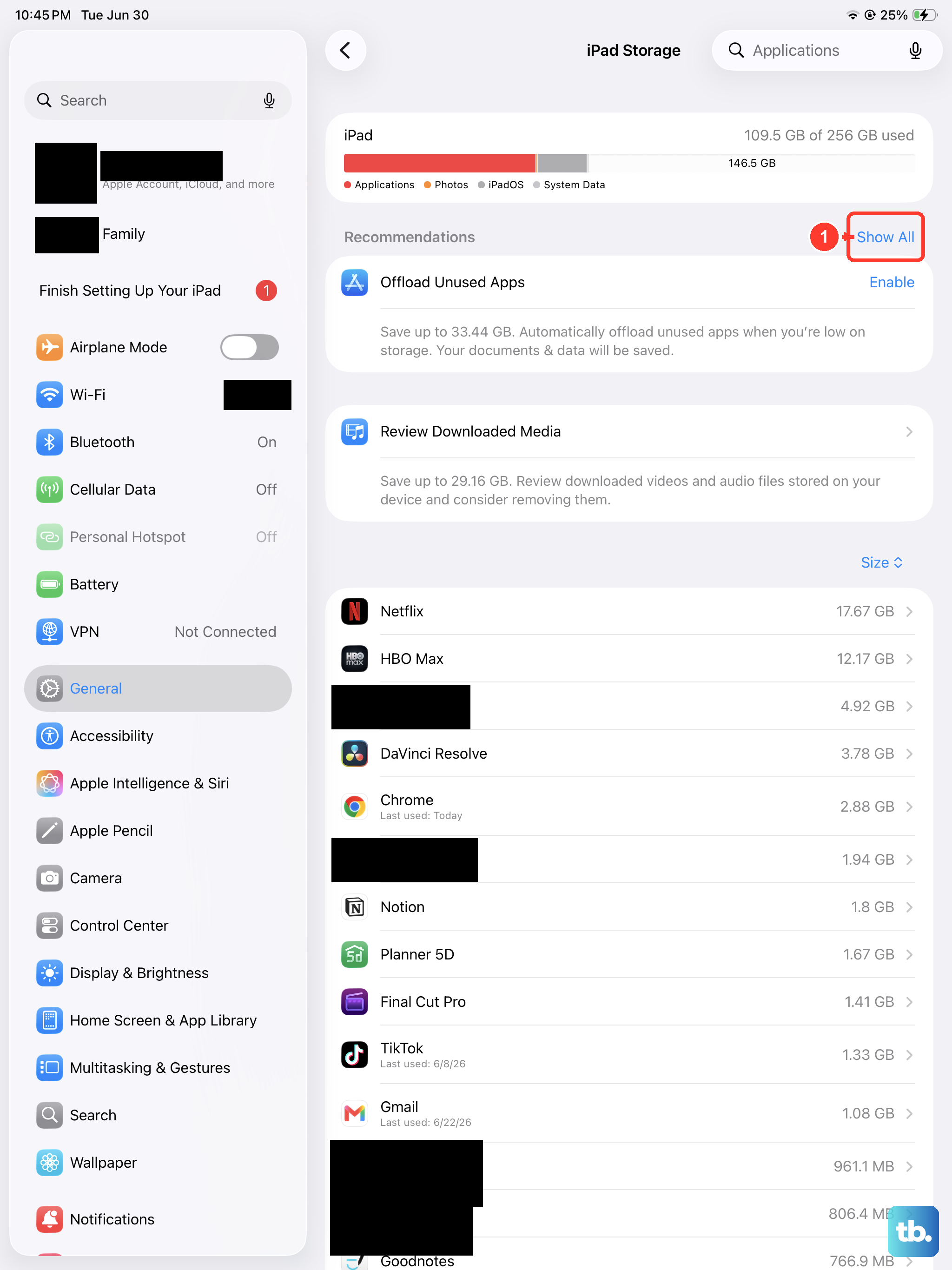
iPadOS doesn't have a simple "clear cache" button for every app, but offloading is an effective workaround. Head to Settings > General > iPad Storage. You'll see a list of all your apps sorted by how much space they use.
Tap on any app, like a social media or streaming app, and you'll see an option for Offload App. Tapping this removes the app itself but keeps all your documents and data. You can then reinstall it from the App Store, which clears out the cached files it had accumulated.
This is a safe way to reclaim hundreds of megabytes without losing your login information or settings within the app.
Delete and Reinstall Apps for a Deep Clean
For a more thorough reset, you can delete an app entirely. Press and hold its icon on your Home Screen until the menu appears, then tap Remove App. Choose Delete App to remove it and all its associated data, including the cache.
After that, just head to the App Store to download it again. You'll need to sign back in and set up any preferences, but you'll start with a completely clean slate. I'd use this for apps that are particularly sluggish or prone to crashing.
Manage Messages Storage
The Messages app can silently hoard gigabytes of photos, videos, and GIFs. To see what's taking up space, go to Settings > General > iPad Storage and tap on Messages.
Inside, you'll find a detailed breakdown. You can review large attachments and delete old conversations or media you no longer need. This is often where a lot of hidden storage gets used up.
You can also set messages to auto-delete. Go to Settings > Messages > Keep Messages and change it from Forever to 30 Days or 1 Year.
Clear System Caches with a Restart
A simple restart clears out various system caches and temporary files. To restart your iPad Air (2026), press and quickly release the Volume Up button, then quickly press and release the Volume Down button. Finally, press and hold the Top button until you see the Apple logo appear.
Doing this every couple of weeks can help maintain smooth performance. It's also a quick fix if you notice websites are loading slowly, as it flushes the DNS cache.
Use iPadOS Storage Recommendations
Your iPad has built-in tools to help manage space automatically. Go to Settings > General > iPad Storage and look at the recommendations at the top of the screen.
iPadOS might suggest enabling Offload Unused Apps, which automatically removes apps you haven't used in a while but keeps their data. It can also prompt you to review large attachments or empty the Recently Deleted album in Photos.
Letting your iPad handle some of this cleanup can save you a lot of manual effort over time.
Check for iPadOS Updates
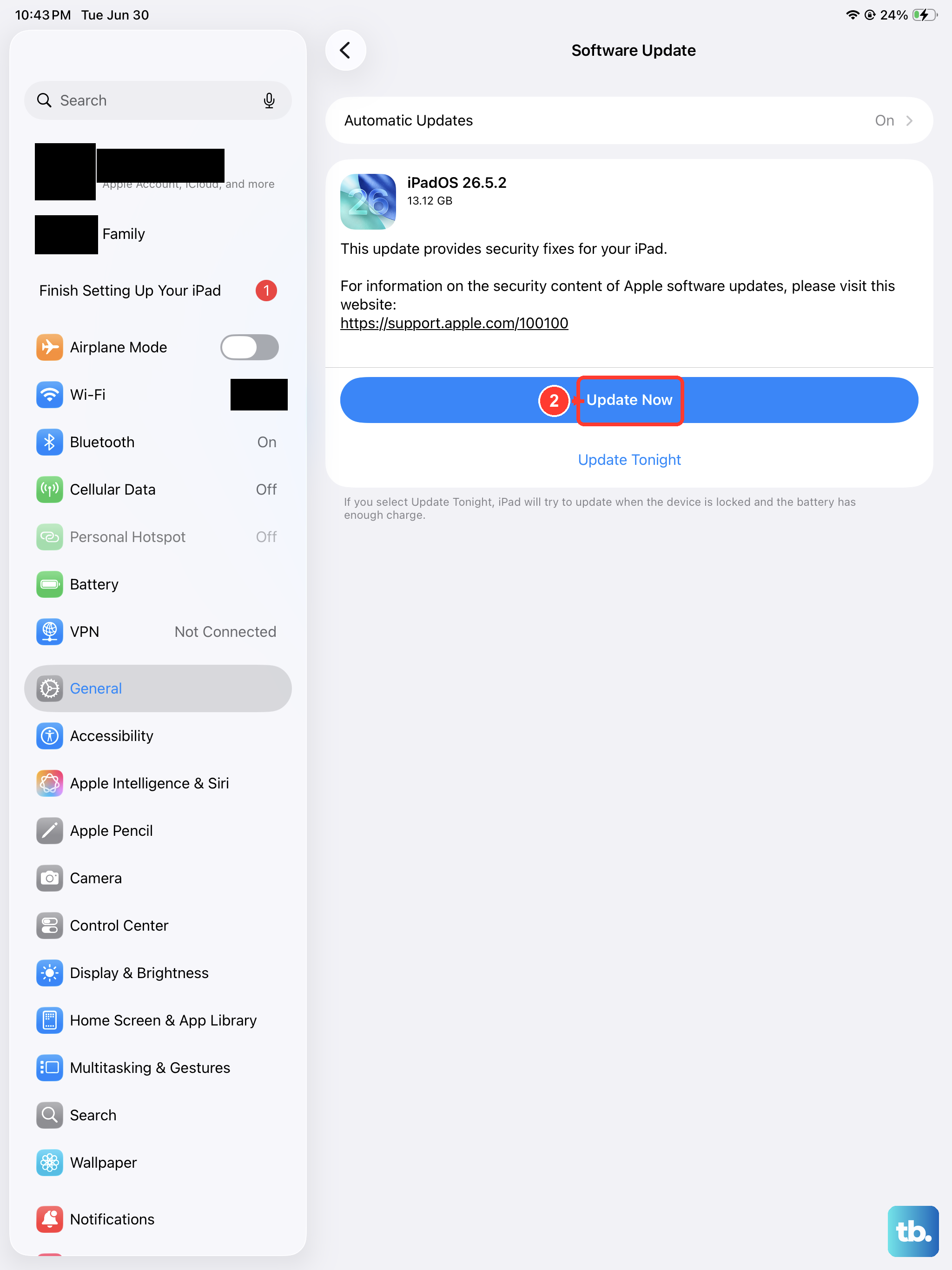
Sometimes, performance and storage management improvements come directly from Apple. It's a good habit to check for software updates regularly. Go to Settings > General > Software Update.
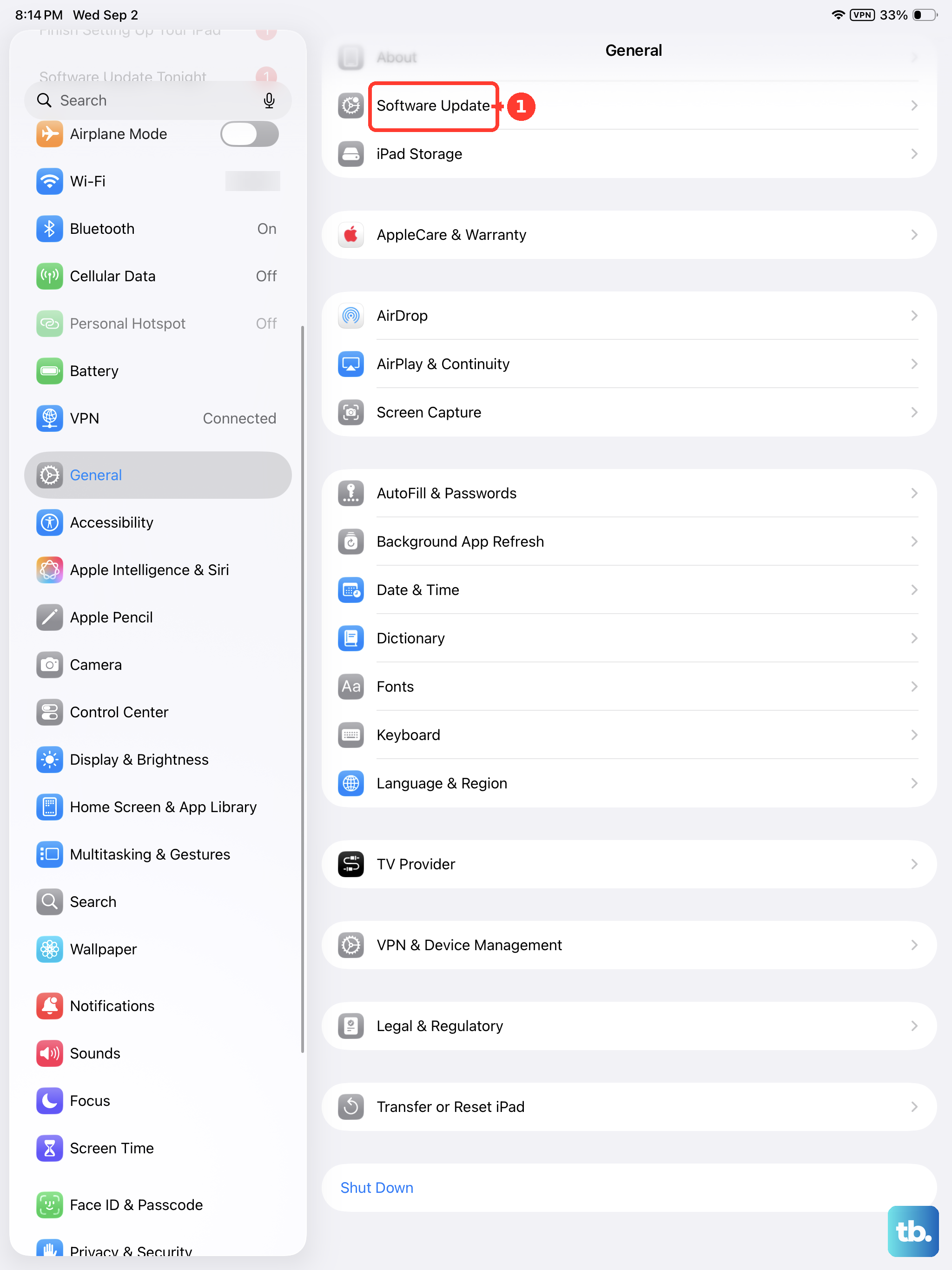
If an update is available, installing it can include optimizations that help your iPad run more efficiently and manage cache better. Make sure your iPad is connected to power and Wi-Fi before starting an update.